
A supply is an incoming invoice that records products received from a supplier. Once you save a supply, Poster updates inventory levels and recalculates product costs.
What you need to do before adding a supply
Before adding a supply, make sure that all the necessary products and ingredients have already been created in your account. You won't be able to add an item to a supply if it doesn't exist in Poster yet. First, create it in the management console.
You can add ingredients, products, manufactured preparations, and manufactured dishes to a supply.
☝️ If manufacturing hasn't been set up for a preparation or dish, you won't be able to add it to a supply.
How to add a supply to inventory
- Open Inventory → Supplies in the management console.
- Click Add.
- Specify the supply date and time.
💡 You can only select a date and time within the current open inventory period for the selected inventory location. - Select a supplier or add a new one when creating the supply if they aren't on the list yet.
- Select the storage location where the products will be stored.
- Select a product in the Name field and, if necessary, specify its ordering unit.
- Enter the product quantity and price for piece. Poster automatically calculates the amount for each item, while the total supply amount appears at the bottom in the Total field.
- To add more products, click + Add more.
- If necessary, click + Add payment in the Payment section and select the account you'll use to pay for the supply. If you don't plan to pay for the supply yet, skip this step.
- Add a Comment if necessary.
- Click Save.

Once saved, the new document will appear in the supplies list, and Poster will start recalculating product costs.
How to add a supply faster
Poster offers several ways to fill out a supply without entering each item manually.
- File import. On the supply creation page, click the Import supply field or drag a CSV, XLS, or XLSX file into it. Product names in the spreadsheet must match the names in Poster. If some items don't exist yet, first add them under Menu → Products or Menu → Ingredients.
- Postie AI. This is the fastest and easiest way to add a supply to inventory. Under Inventory → Supplies, click Import with AI or Recognize, then upload a photo of an invoice, a receipt, or an XLS, XLSX, CSV, or PDF file. Postie AI recognizes product names, quantities, and prices and automatically fills in the supply.
- Barcode scanner. Add items to a supply using a barcode scanner. Place the cursor in the product selection field and scan the barcode. Poster will add the corresponding product to the supply.
How to pay for a supply when adding it
When creating a supply, you can record the payment right away to keep track of how much you've already paid the supplier and how much is still outstanding.
In the Payment section, click + Add payment, select the account to debit, and enter the payment amount. If you're paying for the supply from multiple accounts, add a separate payment for each account.
You can choose one of the following payment options:
- Full payment. Enter the full supply amount to settle the debt with the supplier immediately.
- Partial payment. Enter the amount you're paying now. The remaining balance will be recorded as a debt to the supplier.
- Unpaid. Don't add a payment if you're receiving the products now but plan to pay the supplier later. The entire supply amount will remain outstanding.
If you leave part or all of the supply unpaid, record the next payment once you've settled with the supplier. To do this, add a payment to the supply and settle the outstanding balance.
How to check a product's price from the previous supply
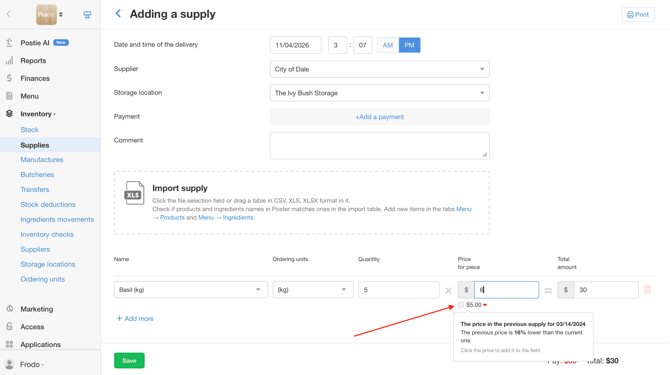
Below the Price for piece field, Poster displays the product's price from the previous supply.
The arrow next to the price indicates whether it has changed. Hover over the displayed value to see the date of the previous supply and the price difference as a percentage.
To use the previous price, click it. Poster will automatically enter the value in the Price for piece field.
How to add a supply from your phone
It's more convenient to create supplies in the Poster management console from a computer because the table and all its fields are fully visible on a larger screen.
If you open the management console on your phone in the web version, the supply table may not display correctly: columns may shift, and some fields may not be fully visible.
In this case, open your browser settings, enable Desktop site mode, and refresh the page.
Frequently asked questions about adding supplies
Why can’t I enter a fractional ingredient quantity in a supply?
This applies to ingredients whose unit of measurement is set to pieces. If the deduction type for such an ingredient is set to Round, you won’t be able to enter a fractional quantity when adding it to a supply. For example, Poster won’t save 0.5 pieces in a supply because the quantity is rounded to a whole number.
To add fractional quantities of piece-based ingredients to a supply, change the ingredient’s deduction type:
- Open Menu → Ingredients in the management console.
- Click Edit next to the required ingredient.
- Set the Deduct from inventory field to Without rounding.
- Save your changes.
After that, you’ll be able to enter fractional quantities of this ingredient when creating a supply.
What does the error “Supply date exceeds the current date” mean?
This error appears when you enter a future date or time in a supply. For example, you create a supply today but accidentally select tomorrow’s date or enter a time later than the current time.
Poster doesn’t allow you to save a supply with a future date or time. To fix the error, check the Date and time of the delivery field, enter the actual date and time when the products were received, and save the supply again.
What should I do if the supplier delivered products but hasn’t provided prices for some of them yet?
Create a supply in Poster as soon as you receive the products. For items the supplier hasn’t priced yet, enter 0 in the Price field. This way, you can record all received products in your inventory even if the final cost of some items is still unknown.
Once the supplier sends the invoice or confirms the final prices, open the saved supply, click Edit, and enter the correct prices for the required items. Then save your changes.
How do I add products that the supplier delivers in boxes?
If your supplier delivers products in boxes, packs, or packages rather than by the piece, set up an ordering unit for them. For example, create an ordering unit called “Box of 12”. When adding a supply, select this ordering unit and enter the number of boxes. Poster will automatically convert the quantity into individual pieces, so you won’t have to count each item separately.
What does the error “Fill in payment information” mean?
This error appears if you’ve added a payment in the Payment section but left the amount empty or entered 0. Poster won’t let you save a supply with a zero-value payment.
If you plan to pay the supplier later, delete the payment by clicking the trash icon next to it, then save the supply. The entire supply amount will remain outstanding.
Can I backdate a supply?
Yes, you can create a supply with a past date if the selected date falls within the currently open inventory period for the corresponding storage.
An inventory period is the time between the previous inventory check of a storage and the date and time of the current one. During this period, Poster tracks all product and ingredient movements, including supplies, sales, transfers between storages, manufacture, and deductions.
So if the supply date falls within this period, you can backdate the supply.
To do this, enter the required date and time in the Date and time of the delivery field.
Restrictions when adding a supply
- The product or ingredient doesn’t exist in your account. You can only add items that have already been created in Poster. If the required product or ingredient isn’t in your account yet, create it in the management console first.
- Preparations and dishes. You can add preparations and dishes to a supply only if they’re linked to manufacture. If manufacturing hasn’t been set up for them, you won’t be able to add them to a supply.
- Fractional quantities of piece-based ingredients. If an ingredient is measured in pieces and its deduction type is set to Round, you won’t be able to add a fractional quantity of it to a supply. Change the ingredient’s deduction type to Without rounding, and fractional quantities will be saved when you create a supply.
- Future supply date or time. You can’t save a supply with a date or time in the future. If you try, Poster will display the error “Supply date exceeds the current date”. Check the Date and time of the delivery field and enter the actual date and time when the products were received.
- Backdated supplies. You can add a supply with a past date if it falls within the currently open inventory period for the selected storage. If the period is already closed, reopen it for editing first, then create the supply with the required date.
- Payment without an amount. If you’ve added a payment but haven’t entered an amount, Poster will display the error “Fill in payment information” and won’t save the supply. If you plan to pay the supplier later, delete the empty payment, and the entire supply amount will remain outstanding.
💡 Enter the actual date and time when the products were received. The order of supplies affects cost calculations and the accuracy of inventory reports, so avoid changing the date and time unless necessary.