
To add a product:
- Open the tab Menu → Products in the management console.
- Click Add product.
- Type in a name, and choose an existing category and station.
- Enter the barcode and total price. The Cost and Markup will be calculated automatically after you add a Supply.
- Upload a picture or choose the color for the icon to display the product on the Point of Sale.
- Click Save.

The product will appear in the product list in the management console.
Please restart the POS app to sync the changes. At the Poster POS, tap the green indicator in the upper-right corner. If a message confirms that all data is synchronized, close the app and reopen it.
How to edit a product in Poster
To change a product’s name, price, category, production station, tax, or photo, edit it in the management console.
- Open Menu → Products in the Poster management console.
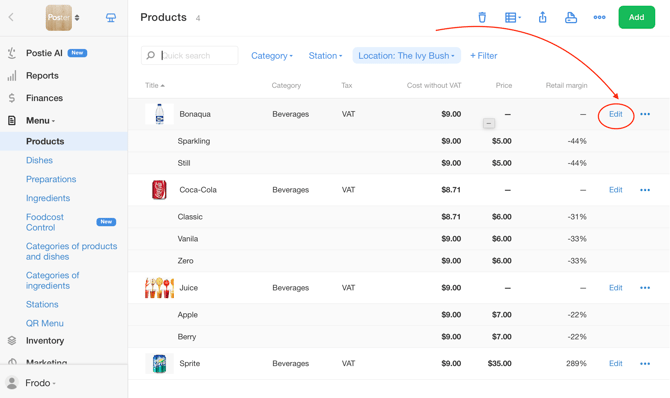
- Click Edit next to the product you want to update.
- Make the necessary changes, such as updating the name, price, category, station, tax, photo, or icon color.
- Click Save.
-
Restart the POS app to sync the changes. At the Poster POS, tap the green indicator in the upper-right corner. If a message confirms that all data is synchronized, close the app and reopen it.
How to set up a product sold by weight in Poster
Set up a product as a weighted product so that Poster automatically calculates its price based on its weight when you sell it at the POS.
- Open Menu → Products in the management console.
- Click Add to create a new product or Edit next to an existing product.
- In the Options section, select the Weight product (goods) checkbox.
- In the Price and barcode section, enter the price per 100 grams.
- Click Save.

When selling the product, the employee only needs to enter its weight in grams. Poster will calculate the price automatically.
How to exclude a product from discounts and bonuses
To exclude a specific product from discount and bonus loyalty programs:
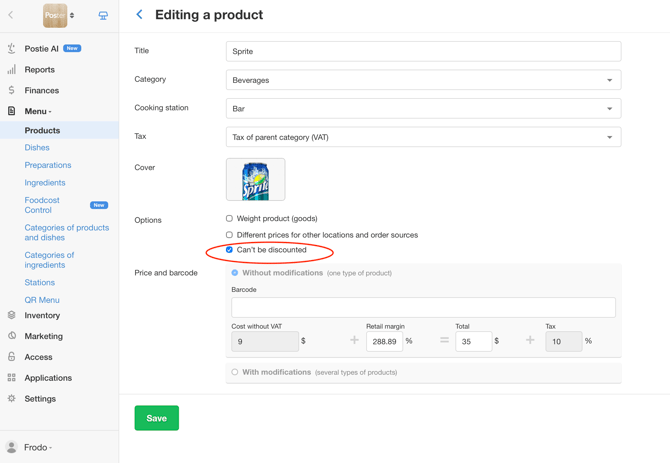
- Open Menu → Products in the management console and click Edit next to the product.
- In the Options section, select the Can’t be discounted checkbox.
- Click Save.
Why a product doesn't appear at the Poster POS
Check the following three conditions to make sure the product appears in the POS app menu:
- The product is enabled for the correct location. If your account has multiple locations, make sure the product is enabled for the location where you want to sell it.
- The product category is enabled for the location. If the category containing the product is hidden at that location, the product won't appear at the POS. Learn more about product categories.
- The POS data hasn't been updated. After making changes in the management console, restart the POS app to sync the changes. At the Poster POS, tap the green indicator in the upper-right corner. If a message confirms that all data is synchronized, close the app and reopen it.
How to hide a product at the Poster POS
Hide a product in the management console if you no longer sell it at the POS.
To hide a product at all locations in your account, for example, a seasonal item:
- Open Menu → Products in the management console.
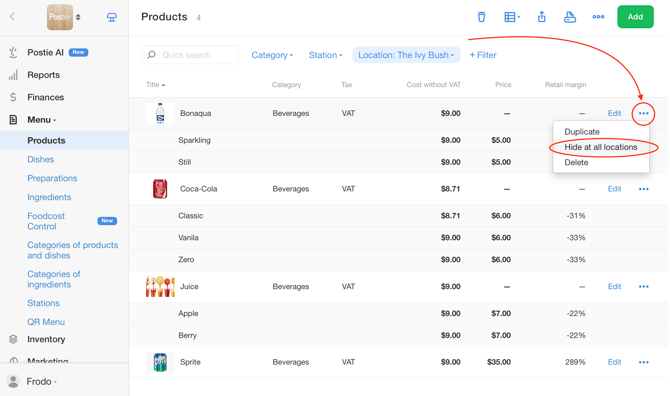
- Click • • • next to the product.
- Select Hide at all locations.
- Restart the POS app to sync the changes. At the Poster POS, tap the green indicator in the upper-right corner. If a message confirms that all data is synchronized, close the app and reopen it.
To hide a product at only one location when your account has multiple locations:
- Open Menu → Products in the management console.
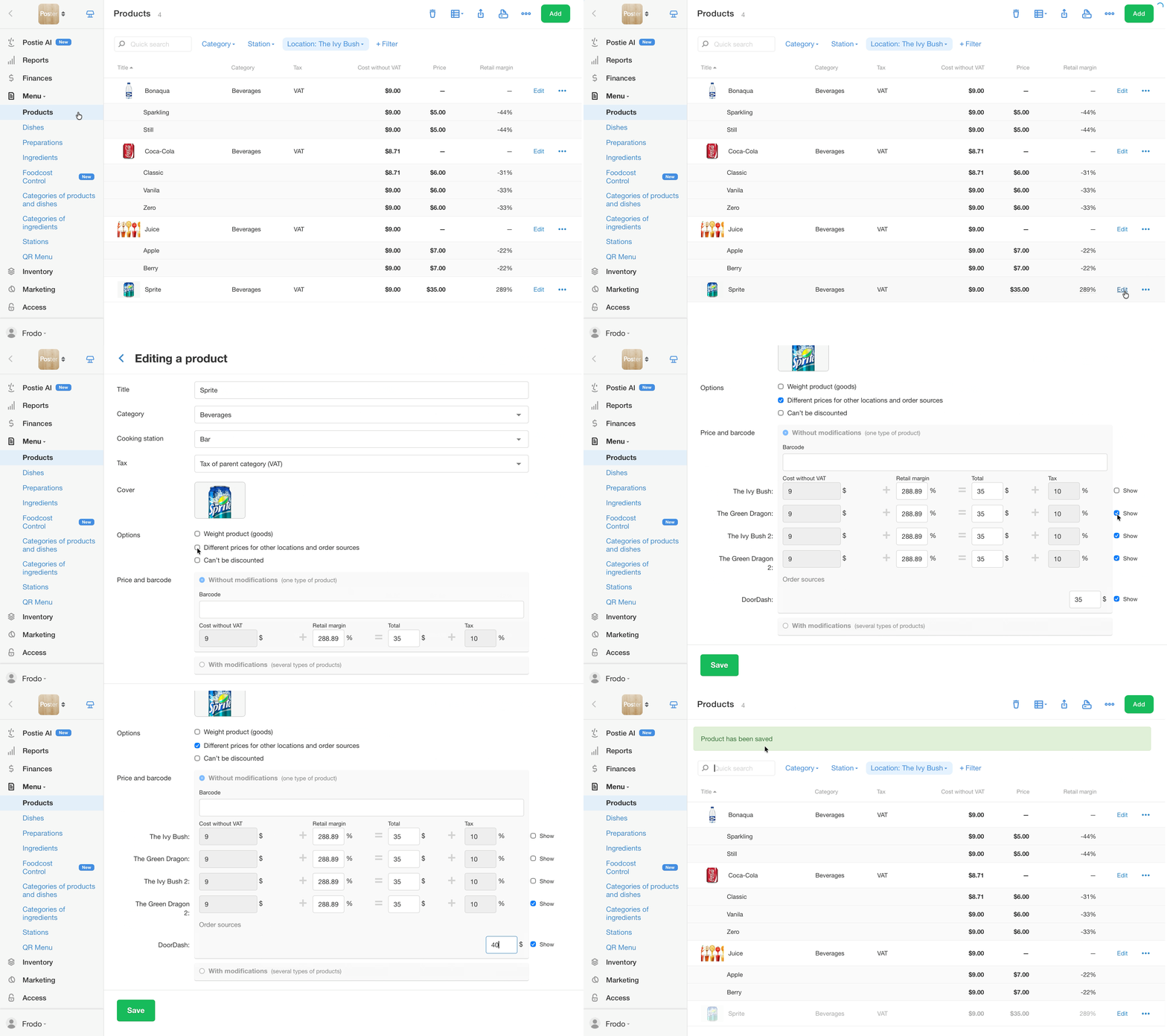
- Click Edit next to the product.
- Select the Different prices at locations and order sources checkbox.
- Clear the Show checkbox next to the location where you want to hide the product.
- Click Save.
- Restart the POS app to sync the changes. At the Poster POS, tap the green indicator in the upper-right corner. If a message confirms that all data is synchronized, close the app and reopen it.
How to delete a product
If you no longer sell a product and don't need it in the menu, delete it in the management console.
- Open Menu → Products.
- Click • • • next to the product.
- Select Delete.
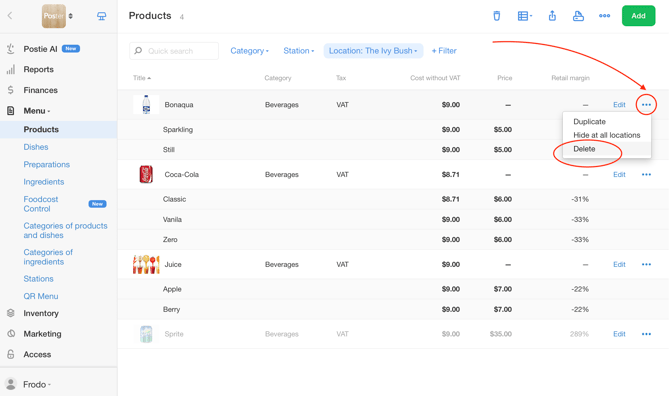
The deleted product is moved to the Trash along with its inventory stock levels. You can restore the product within 30 days of deletion. After that, restoration is no longer available.
How to restore a deleted product
If you accidentally deleted a product, restore it from the Trash in the management console within 30 days of deletion.
- Open Menu → Products.
- Click the Trash icon 🗑️ in the upper-right corner of the page.
- Find the product and click Recover.
💡 The product's inventory stock levels will be restored along with it.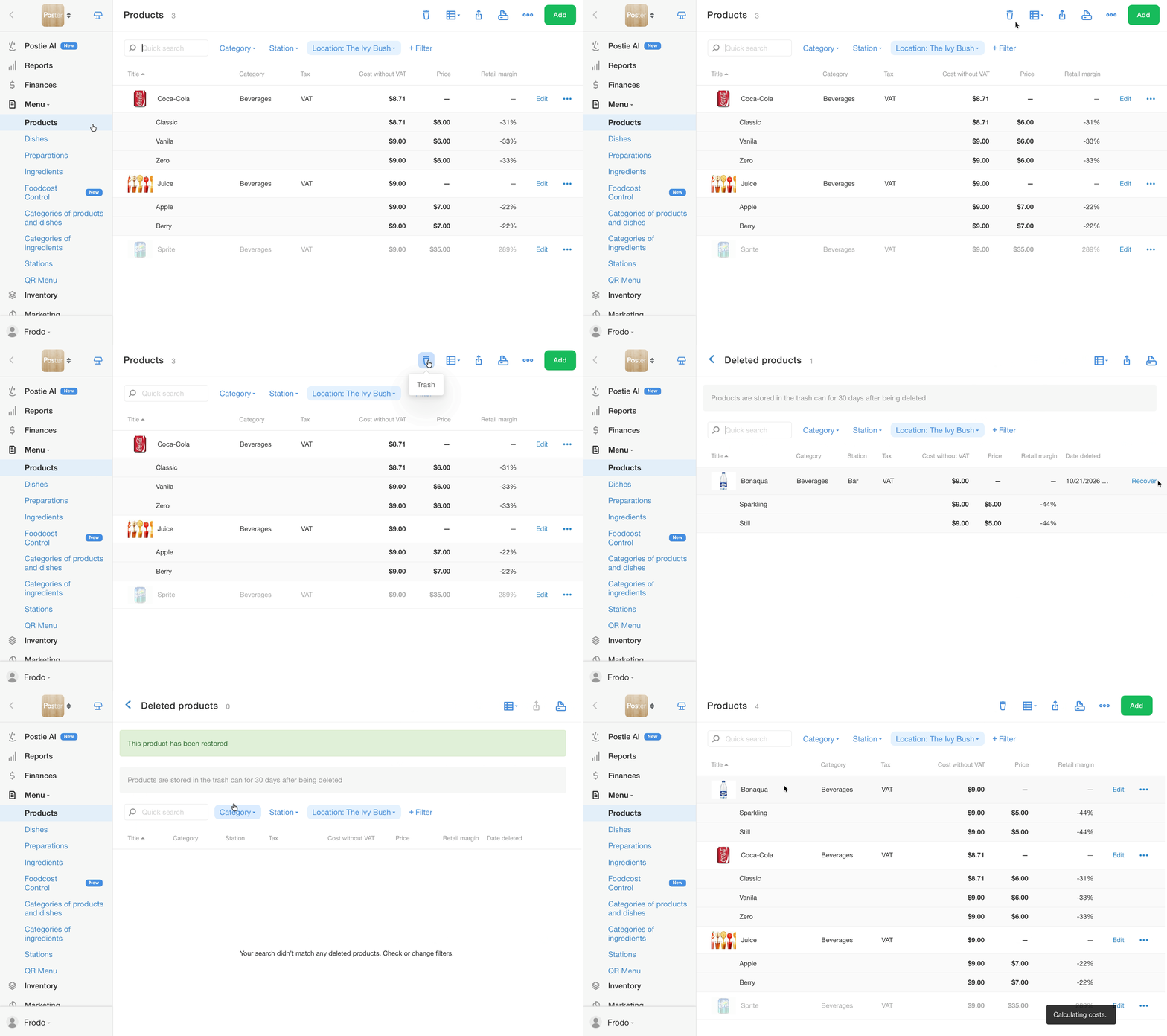
Why the product price at the POS differs from the price in the management console
If a product's price at the Poster POS differs from the price in the management console, check that the correct prices are set for the location and order source. If the prices match, refresh the data at the POS.
How to check prices for locations and order sources
- Open Menu → Products in the management console and click Edit next to the product.
- Check the price set for each location and order source.
- Update the prices if necessary, then click Save.
- Restart the POS app to sync the changes. At the Poster POS, tap the green indicator in the upper-right corner. If a message confirms that all data is synchronized, close the app and reopen it.
☝️ The new price applies to new sales only. Prices on previously completed receipts won't change.
How to add modifications to a product
If you sell the same product in different variations, such as drinks in different sizes or flavors, add modifications. This lets you track supplies, stock deductions, and stock levels separately for each variation.
☝️ You can add modifiers only when creating a product. Once you save a product without modifiers, you can't add them later. If you created a product without modifiers but need them, delete it and create a new one with all the required modifications.
Restrictions
- You can restore a deleted product only within 30 days of deletion.
- Product changes, including price updates, don't affect receipts that have already been completed.
- The product's cost and markup are calculated automatically only after you add a supply to inventory.
- The Weighted product(goods) checkbox is intended only for products sold by weight, not for quickly entering a quantity.
- You can add modifiers only when creating a product. You can't add them after saving the product.