
You can combine dishes and products into categories to find them on the register faster. For example, «Main dishes», «Pastry», «Soft drinks».
To add a products and dishes category:
- Go to Menu → Categories of products and dishes in the management console.
- Click Add.
- Write the name of the category. For example, ‘Main dishes’, ‘Pastry’, ‘Soft drinks’.
- Choose the location of dishes and products on the register from the drop-down list in the Category field: on the top screen or inside of the other category.
- Upload a photo or select a color of the icon.
- Click Save.

How to delete a category of products and dishes:
- Open Menu → Categories of products and dishes in the management console.
- Click • • • next to the category you need.
- Select Delete.
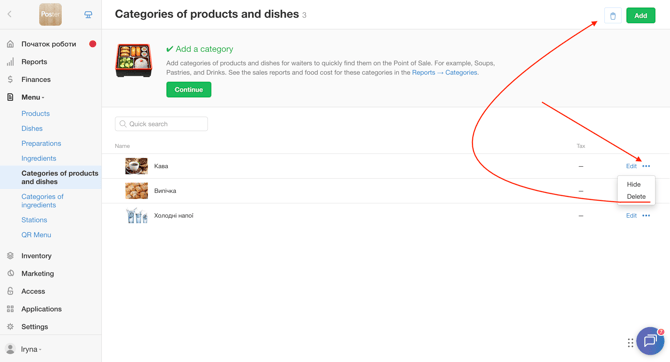
☝️ When you delete a category, all products and dishes in it are also deleted. The category is moved to the trash, where you can restore it within 30 days after deletion.
To restore a category:
- Open Menu → Categories of products and dishes in the management console.
- Click 🗑️ in the upper-right corner of the screen.
- Click Recover next to the category you need.
After the category is restored, its products and dishes will also be restored automatically.
💡 Offer guests a seasonal menu and hide it when the season ends. Create a «Summer Menu» category with dishes made from fresh vegetables and fruits, then hide it from the POS in autumn.
To hide a menu category from the POS:
- Open Menu → Categories of products and dishes in the management console.
- Click • • • next to the category you need.
- Select Hide.
The category will not be displayed on the POS but will remain in the management console, so you can show it again next season.
Next, create dishes and products to fill in the menu of your location.