
Use ordering units to speed up adding supplies of pre-packaged products to your inventory. For example, when receiving water in packs of 12 bottles, specify the number of packs, and Poster will calculate the number of bottles.
Before creating an ordering unit, add the ingredients and products that will be stored in your inventory.
How to create an ordering unit
- Open Inventory → Ordering units in the management console.
- Click Add.
- Enter the name of the pre-packaged product. For example, «Lemonade box».
- Select the unit of measurement and quantity of products in the ordering unit.
- Click Save.
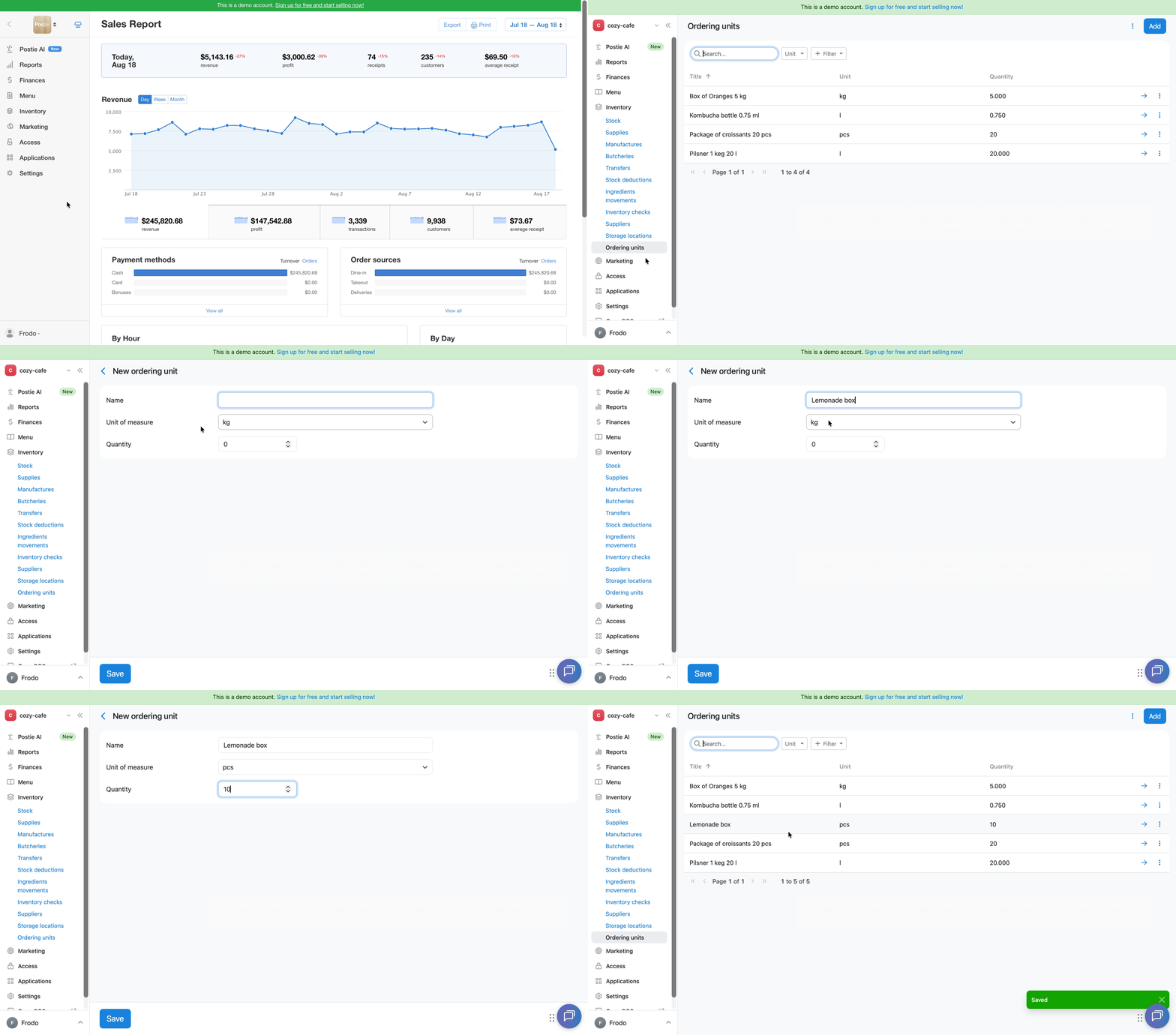
After creating an ordering unit, add a supply to your inventory.
How to add a supply of a pre-packaged product
When creating a supply, specify the number of ordering units and their cost. For example, if a supplier delivers 5 boxes of lemonade:
- in the Quantity field, enter 5;
- in the Unit price field, enter the cost of one box.
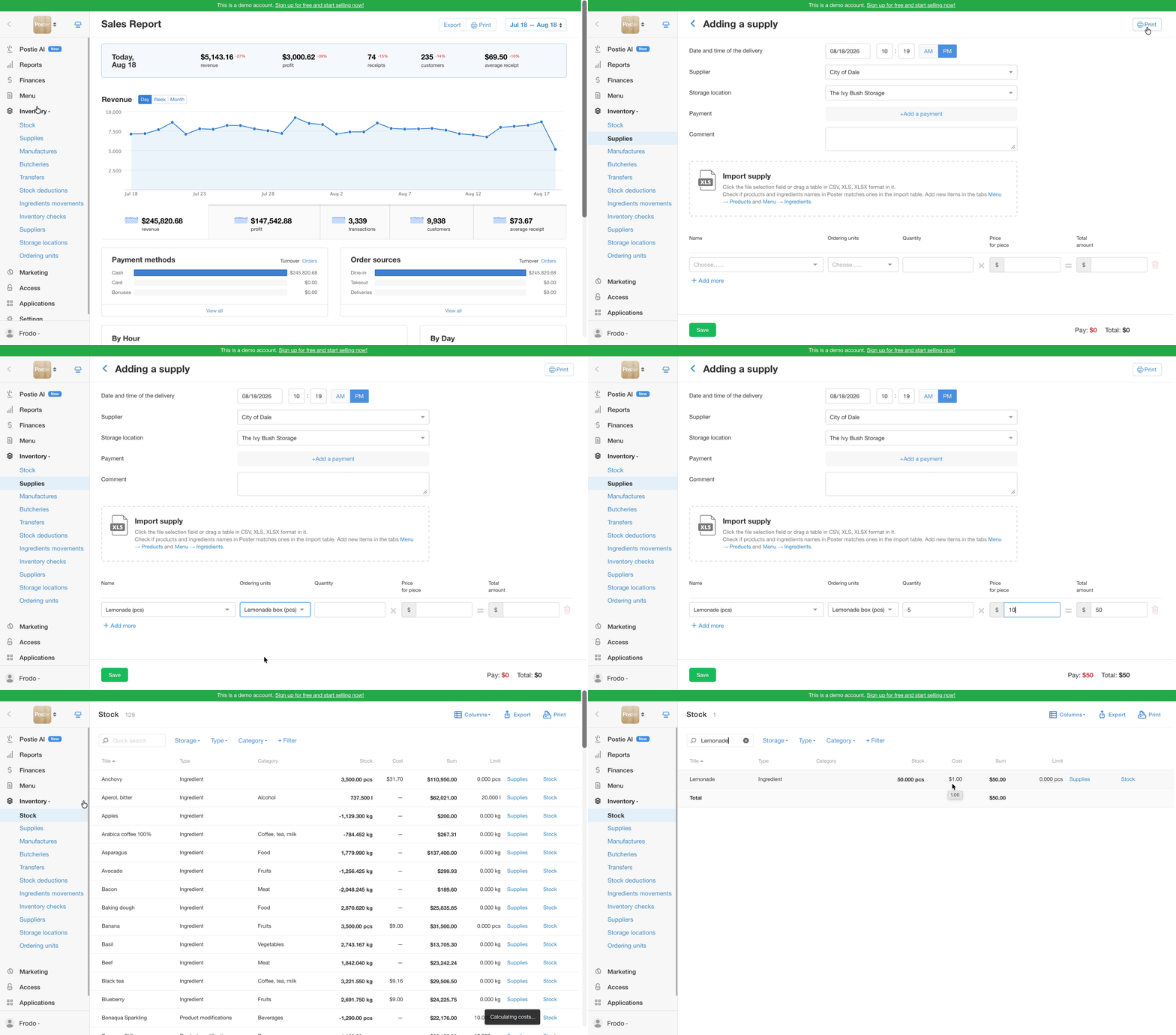
After you save the supply, Poster will automatically recalculate the product quantity and cost according to the created ordering unit.
☝️ Ordering units are not displayed on the POS. If a product is supplied in boxes, packs, or other types of packaging, add the supply in the management console.
How to edit an ordering unit
- Open Inventory → Ordering units.
- Click → next to the ordering unit you need to open its card.
- Change the name, unit of measurement, or quantity.
- Click Save.
How to delete an ordering unit
- Open Inventory → Ordering units in the management console.
- Click ︙ next to the ordering unit you need.
- Select Delete.
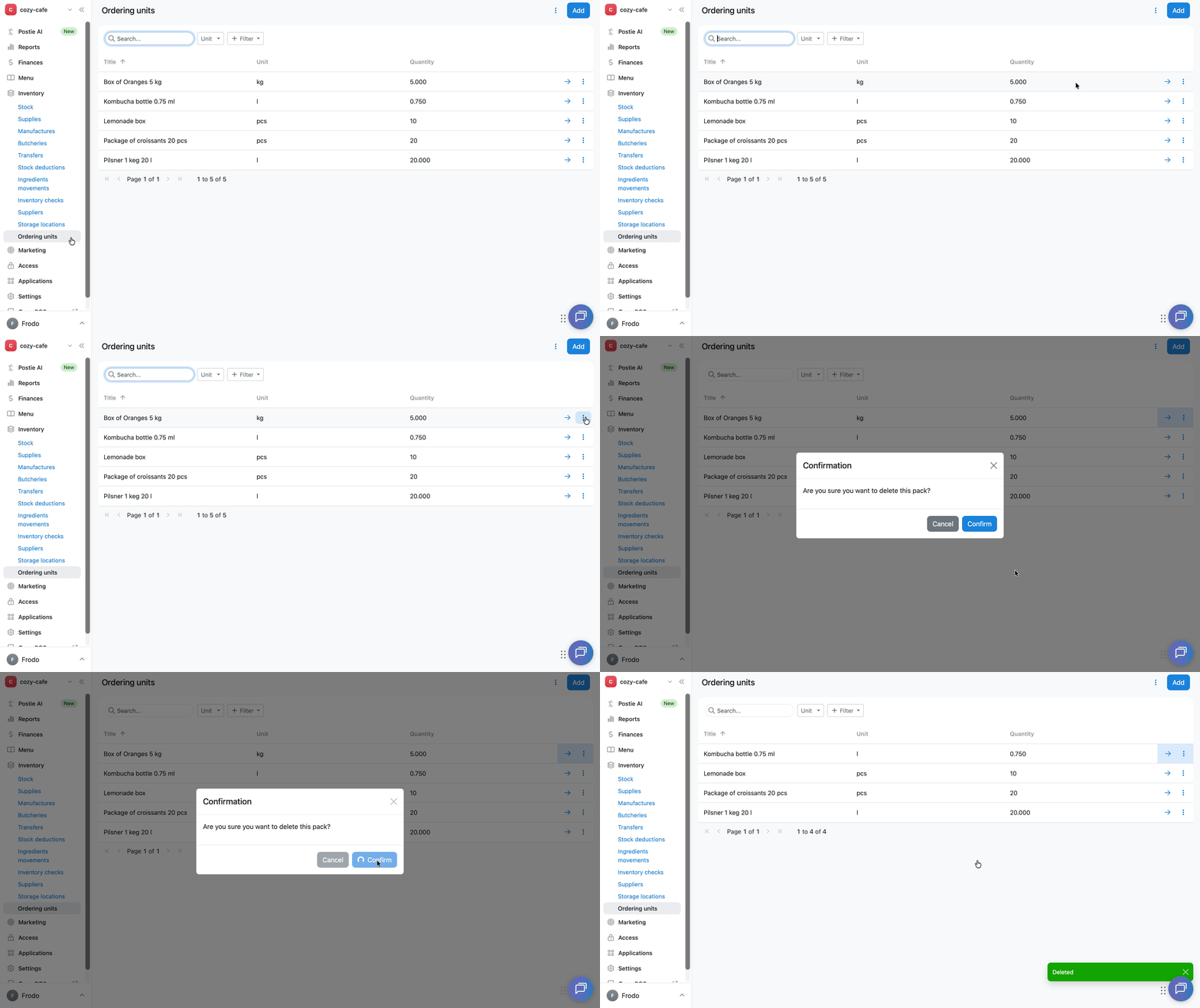
💡 You can't restore a deleted ordering unit. If you deleted one by mistake, create it again.
How to export the list of ordering units
- Open Inventory → Ordering units.
- Click ︙ in the upper-right corner of the screen.
- Select Export.
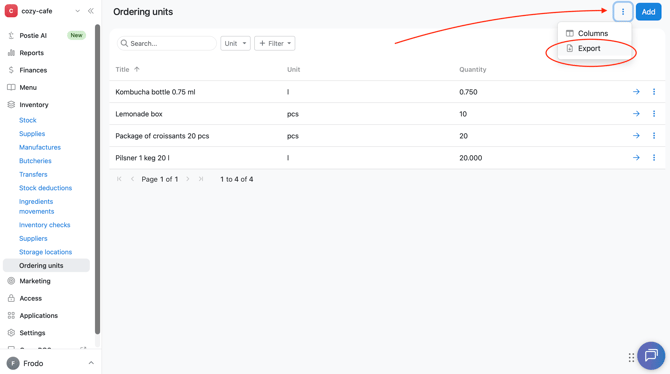
A .xlsx file with ordering unit data will be downloaded. The file will contain only the information from the columns displayed in the table at the time of export.
How to configure columns in the list of ordering units
To show or hide columns in the ordering units table:
- Open Inventory → Ordering units.
- Click ︙ in the upper-right corner of the screen.
- Select Columns.
- In the window that opens, select the checkboxes next to the columns you want to display.
- Click Apply.
The following columns are available:
- # — the row number in the table;
- Name — the name of the ordering unit;
- Unit — the unit of measurement of the product included in the ordering unit;
- Quantity — the quantity of the product in the ordering unit.
To restore the default set of columns, click Reset to default.
Limitations
- You can't select an ordering unit for products stored in inventory on the POS: create supplies in boxes, packs, or other packaging only in the management console.
- The exported file contains only the ordering unit columns enabled for display in the table at the time of export.