
Use the supplier list to receive goods into your inventory, track the quantity and total value of deliveries, and monitor outstanding balances owed to suppliers.
How to add a supplier
- Open Inventory → Suppliers in the admin panel.
- Click Add.
- In the Name field, enter the company name or supplier's name. For example, «METRO».
-
In the EIN field, enter the supplier's 12-digit taxpayer number.
-
Enter the phone number and address. If needed, add a comment to save additional information about the supplier.
-
Click Save.
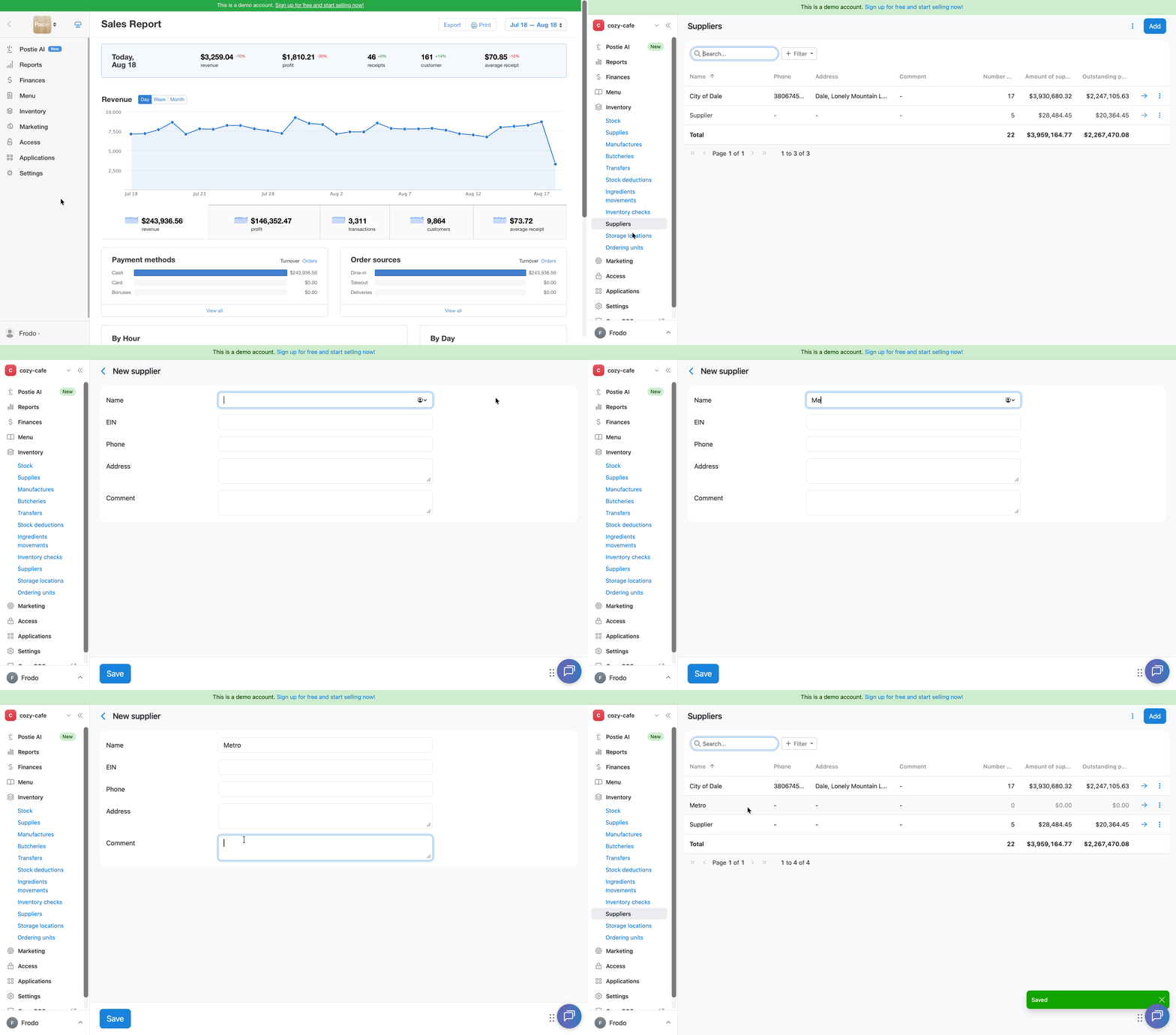
💡 If you don't have all the supplier's details, fill in only the Name field. Complete the other fields as needed — they are used for internal records.
Quickly add a supplier when receiving supplies
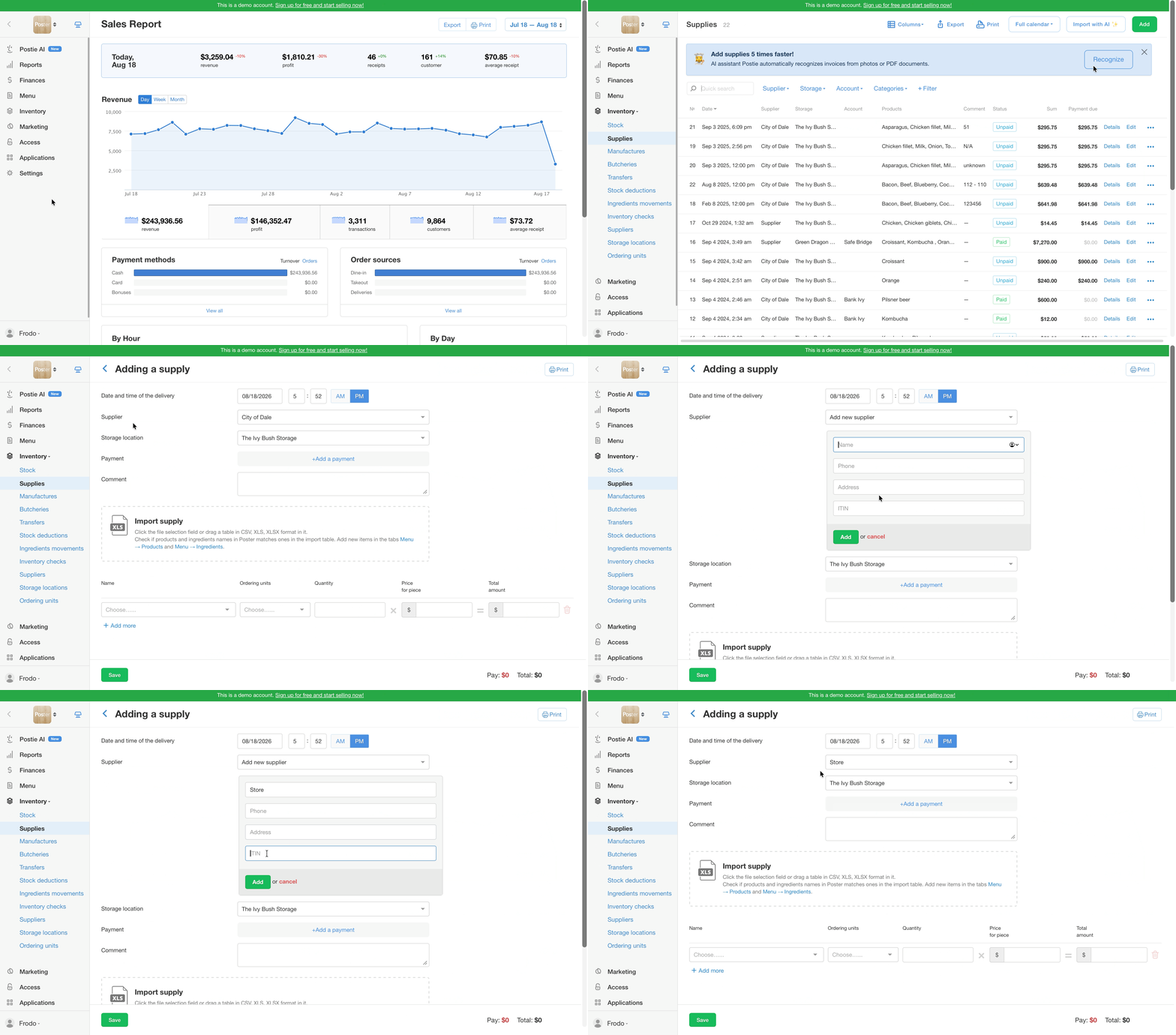
To quickly add a supplier while receiving a supplies into your inventory, go to Inventory → Supplies, click Add, and in the Supplier field, select Add new supplier at the end of the list.
How to edit a supplier
To change a supplier's details:
- Open Inventory → Suppliers.
- Click → next to the required supplier to open their card.
- Edit the required details: name, EIN, phone number, address, or comment.
- Click Save.
How to delete a supplier
- Open Inventory → Suppliers in the admin panel.
- Click ︙ next to the required supplier.
- Select Delete.
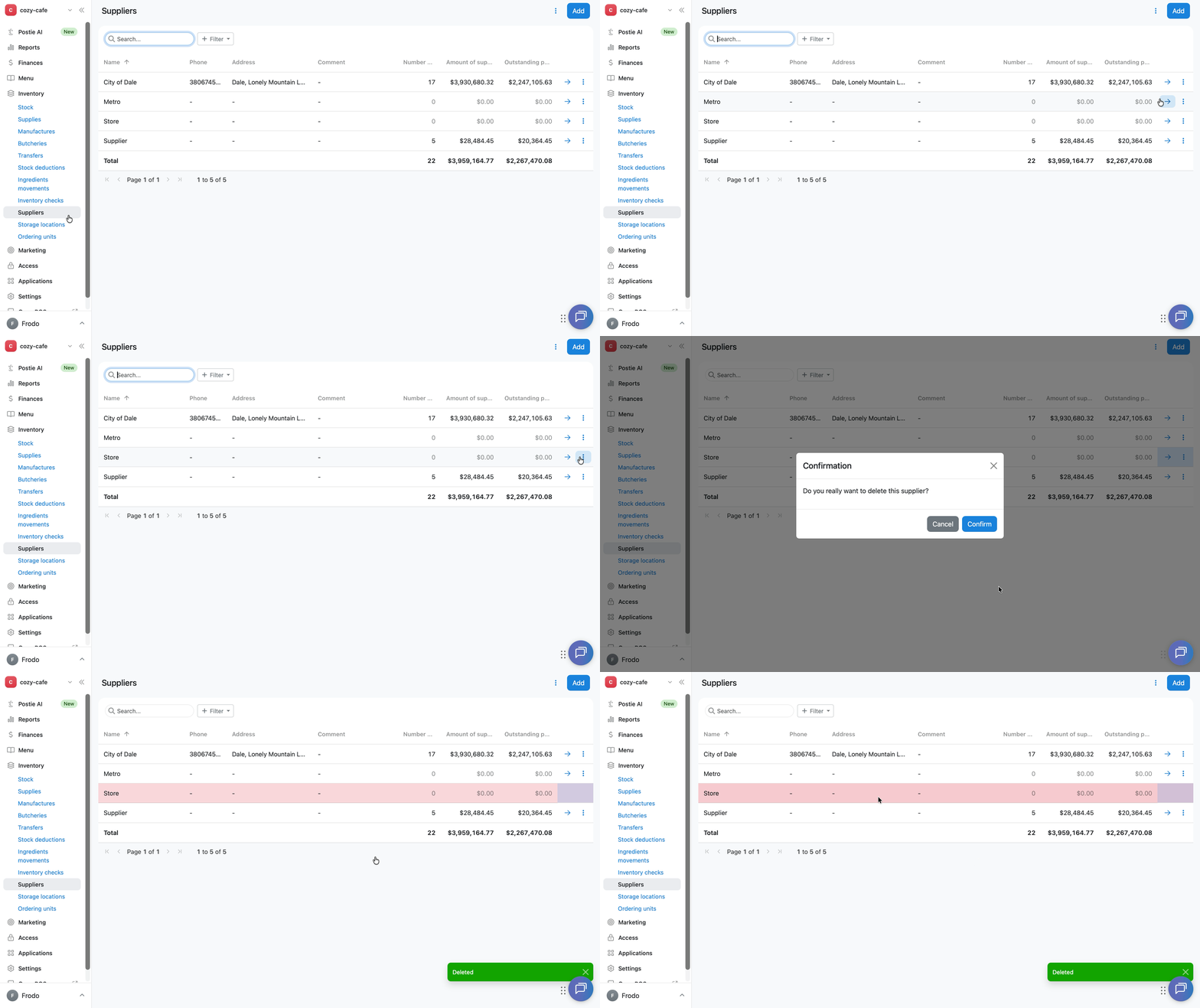
☝️ A deleted supplier cannot be restored. After deletion, the supplier remains in the general list and is marked in red to preserve historical data.
How to export the supplier list
To download the supplier list as a file:
- Open Inventory → Suppliers.
- Click ︙ in the upper-right corner of the screen.
- Select Export.
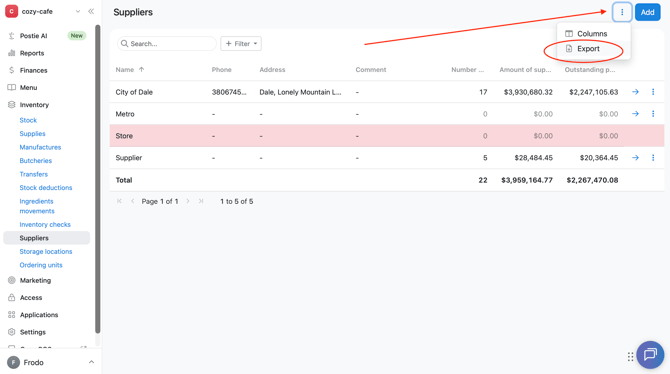
An .xlsx file with supplier data will be downloaded. The file will contain only the information displayed in the supplier list at the time of export.
How to сustomize сolumns in the supplier list
To show or hide columns in the supplier table:
- Open Inventory → Suppliers.
- Click ︙ in the upper-right corner of the screen.
- Select Columns.
- In the window that opens, select the checkboxes next to the columns you want to display in the table.
- Click Apply to save your selection.
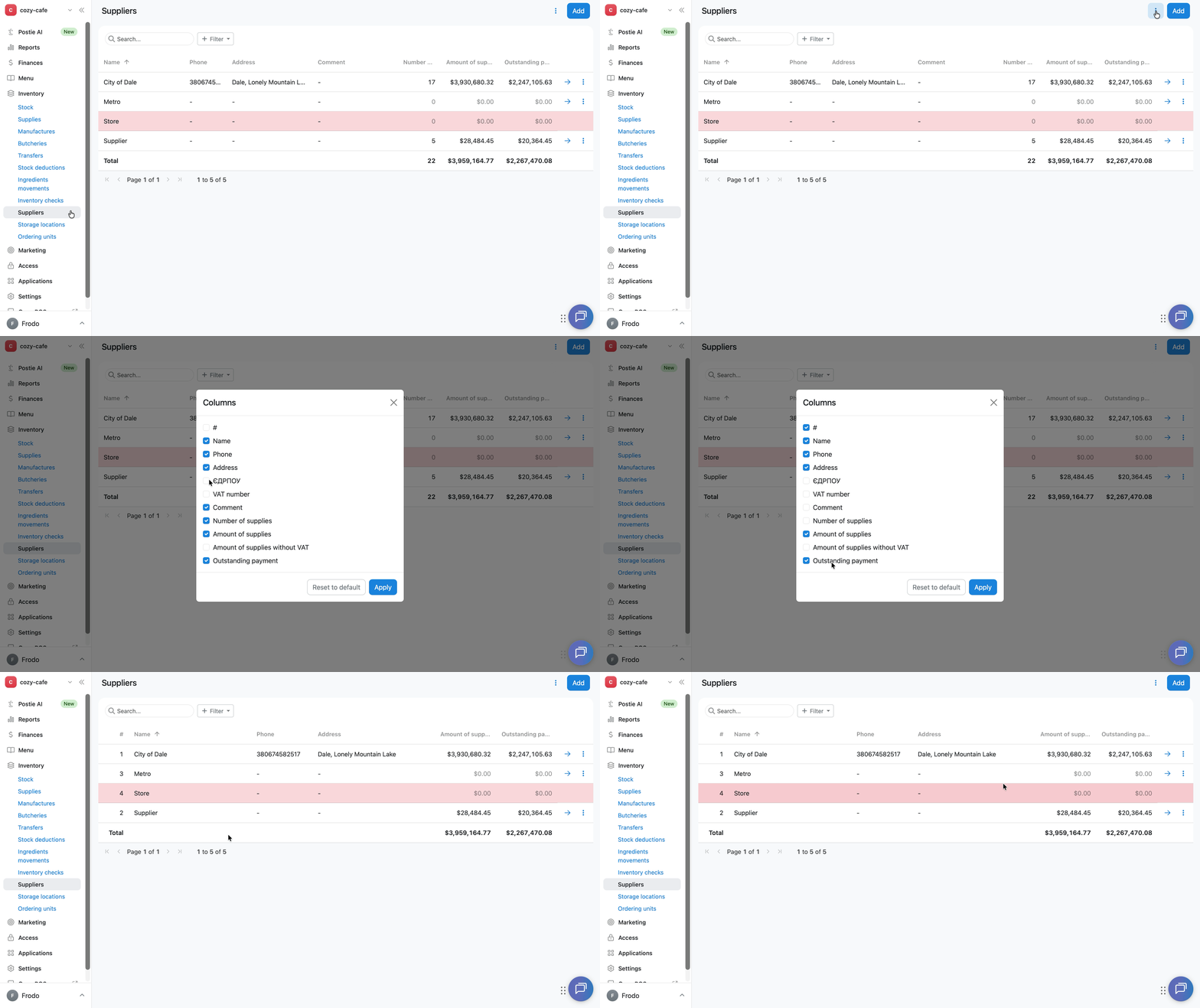
Available columns:
-
# — row number in the table;
-
Name — supplier's name;
-
Phone — supplier's contact phone number;
-
Address — supplier's address;
-
VAT number — supplier's taxpayer number;
-
Comment — any note about the supplier;
-
Number of supplies — number of supplies received from the supplier;
-
Supplies total — total value of all supplies from a specific supplier. Shows the total value of goods you have received from them over the entire period;
-
Amount of supplies without VAT — total value of supplies excluding VAT;
-
Outstanding payment — total amount of unpaid supplies. Shows how much you still owe a specific supplier for the goods received.
To restore the default set of columns, click Reset to default.
Limitations
-
Deleting a supplier is irreversible: a deleted supplier cannot be restored.
-
In Stock → Suppliers, you can view the total supply amount and outstanding debt for each supplier for the entire period of operation. These amounts cannot be exported for a specific date or selected period from this section.