
What is a POS register
The POS register is a front-of-house workspace: the Poster app on a tablet, laptop, or smartphone where staff can add products to orders, apply discounts to guests, and accept payments. To log in to the POS register, install the Poster app on iOS, Android, macOS, or Windows, then enter the register login and password then the employee's 4-digit PIN.
Possible reasons the POS register logs an employee out
1. Logging in to the same register account from another device
Each Poster POS register can be used on only one device at a time. If someone logs in to the same register account on a different tablet, laptop, or smartphone, the previous device is automatically logged out— the employee is kicked back to the login screen. The register itself will show a message such as "Register is busy."
Solution: This is expected behavior, not a bug: one POS register = one active device. If several employees need to take orders at the same time, connect an additional POS register via Access → Tablets. Each additional register is billed separately. If you don't need several registers and employees work in shifts, keep one register but only use it from one device at a time.
2. An employee was forcibly logged out of the session
An employee with full access to the Access section can log a specific register out: go to Access → Tablets and click Log out next to the register. The employee using that registerr will then see a message such as "Other tablet logged in using your account...".
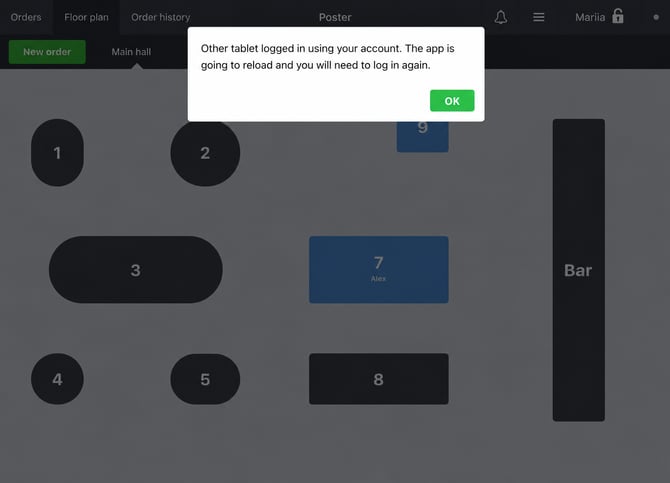
Solution: If the employee was logged out intentionally, simply log in again with the register login, password, and PIN. If the account owner doesn't remember the register login details, they can log in with their email in the Login field and their management console password in the Password field.
3. The employee was deleted from the system
If the owner or a manager with the right access deletes or deactivates an employee under Access → Employees, all of that employee's active sessions — including their POS register session — end immediately. This is the same mechanism used to urgently cut off access for a staff member who no longer works at the location.
Solution: If deleting the employee from the register was a mistake, the owner or manager should add them again via Access → Employees and assign a new PIN. Note: if an employee who only had register access now also needs management console access, their existing profile can't be upgraded — you need to create a new employee profile with the right permissions and delete the old one.
4. Register access is blocked due to an unpaid subscription
If a Poster subscription payment is late, the register stays available for a while after the paid period ends — during the credit week. But if payment still isn't made, the subscription status changes to Payment pending, and register access is blocked. If payment still isn't made after the reminder, the subscription is cancelled with the status Cancelled after reminder, register access stays blocked, and the invoice becomes unavailable after 5 days.
Solution: Check the subscription status under Settings → Billing → Subscriptions. If the status is Payment pending or Cancelled after reminder, make a payment to restore register access. If payment has already been made and the register is still blocked, contact Poster support.
5. The connection to Poster's servers was lost
If the POS register loses connection to Poster's servers — for example, because of an outage on Poster's side, including DDoS attacks on data centers — the indicator in the top-right corner of the register app turns yellow or grey, and online orders and syncing between registers, the management console, and Poster Boss are temporarily paused. In some cases, the register may not open until the connection is restored.
Solution: Don't restart the register app, delete it, or switch to a different device — doing so risks losing that day's sales data. Keep working offline: all orders are saved locally and automatically sync with the management console and Poster Boss once the connection returns and the indicator turns green. If you're having trouble with synchronization, you can ask us in the chat to find out what's causing the problem.
6. Incorrect or changed register login details
If the register login or password, or the employee's PIN, is incorrect or has been changed, the register app won't let the employee proceed past the login screen. From the outside, this also looks like being locked out of the register.
Solution: Check the register login and password under Access → Tablets next to the relevant register, and the employee's PIN under Access → Employees — change them or write down the and make sure you use the correct credentials. The register login itself (not the password) can only be changed by contacting support, since it's tied to the account's URL. An account owner who can't confirm the register's login details can log in using their management console email and password instead.