
All invoices available for payment are located in the management console, under Settings → Billing, in the Overwiew section.
To pay for your Poster subscription online with a bank card:
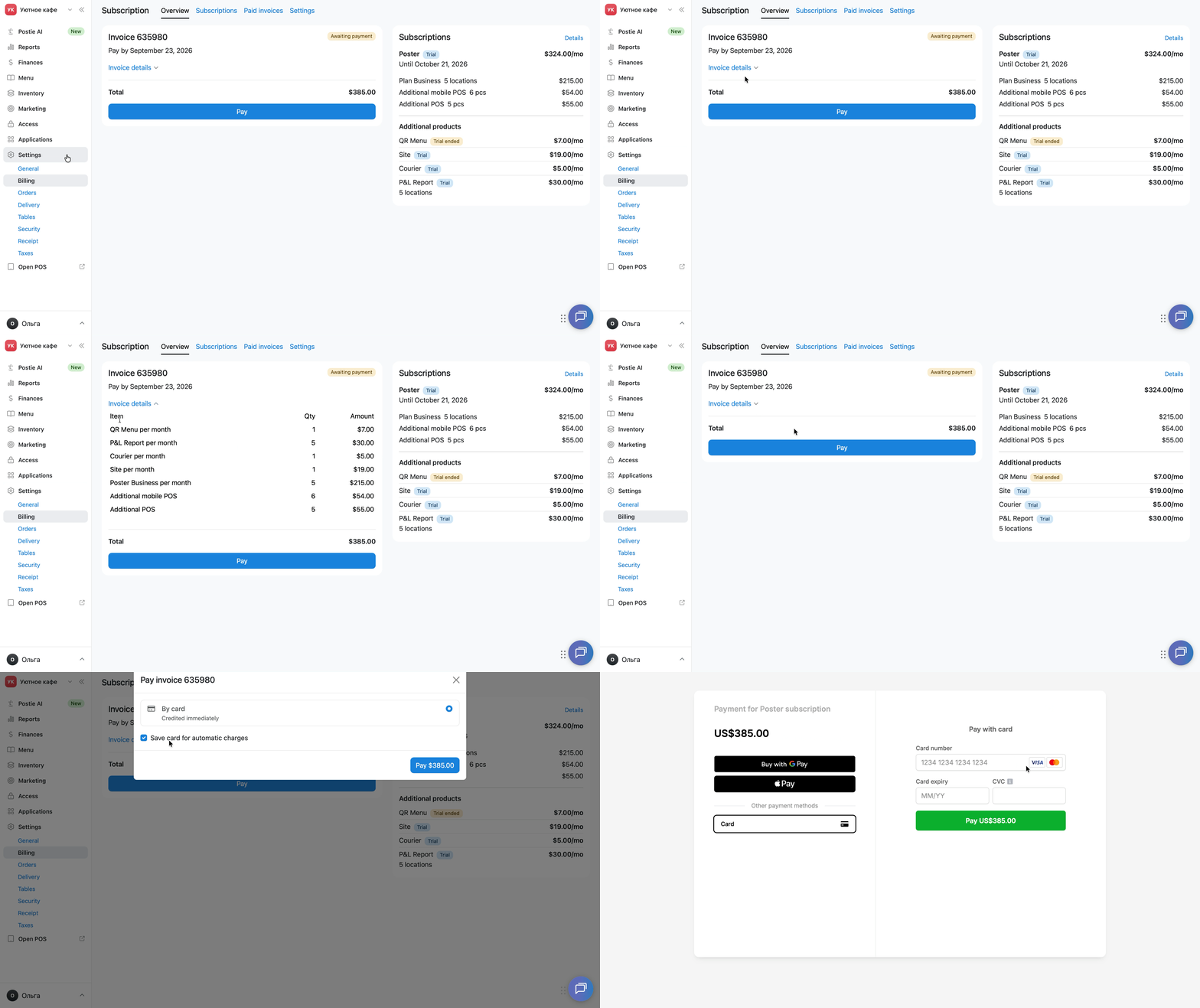
- Open Settings → Billing in your Poster account's management console.
- Go to the Overwiew section. All current invoices appear here.
- Click Invoice details to see which subscriptions are included in the invoice, their quantity, cost, and billing period.
- Click Pay below the unpaid invoice.
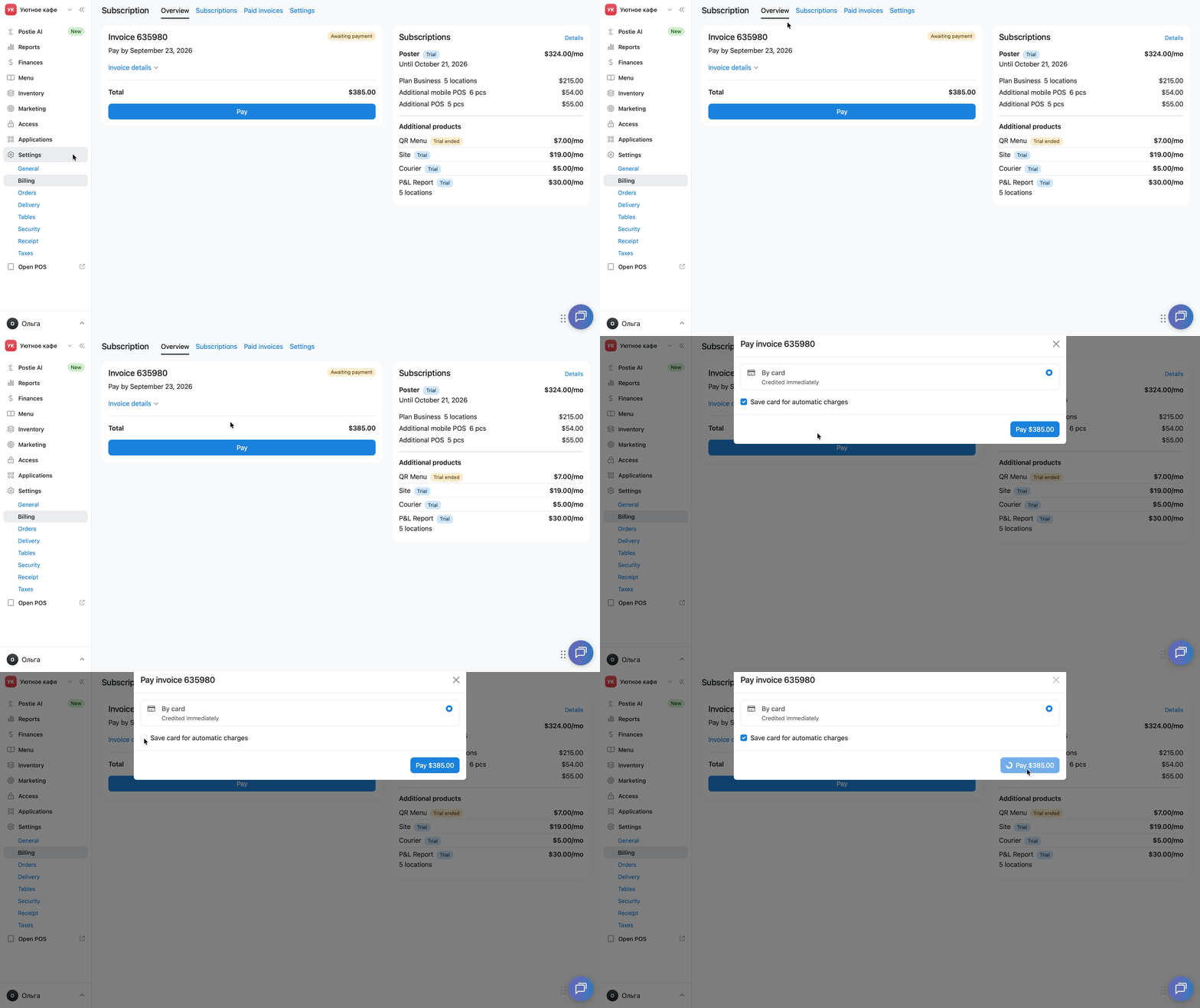
- In the Pay invoice window, check Save card for automatic payments to have future invoices paid automatically.
- Click Pay again, enter your card details on the payment system's page, and confirm the payment.
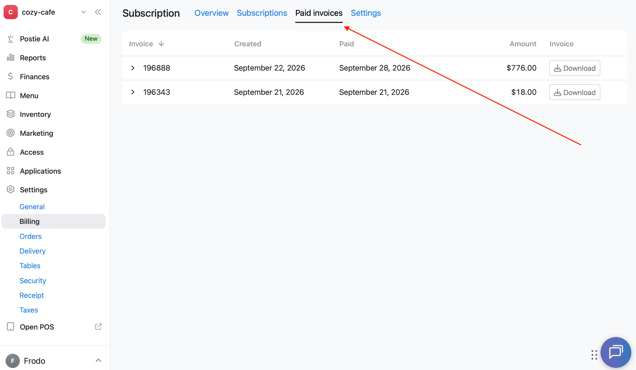
After successful payment, the invoice will appear in the list of paid invoices under Paid invoices.
💡 A new invoice appears in the Overview section 7 days before the next Poster subscription payment date.
Automatic card charging for Poster subscription payments
Poster automatically charges the subscription payment on the renewal date if the account has a linked card.
A card links to the account in one of two ways:
- automatically — after the first successful payment for your Poster subscription by card in the management console, if you checked Save card for automatic payments during checkout;
- manually — if there haven't been any card payments yet, or you need to replace the linked card.
To manually add a card for automatic payment of your Poster subscription:
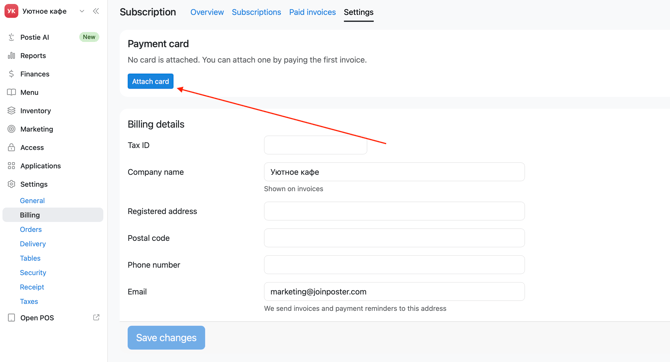
- Open Settings → Subscription payment.
- Go to the Settings section.
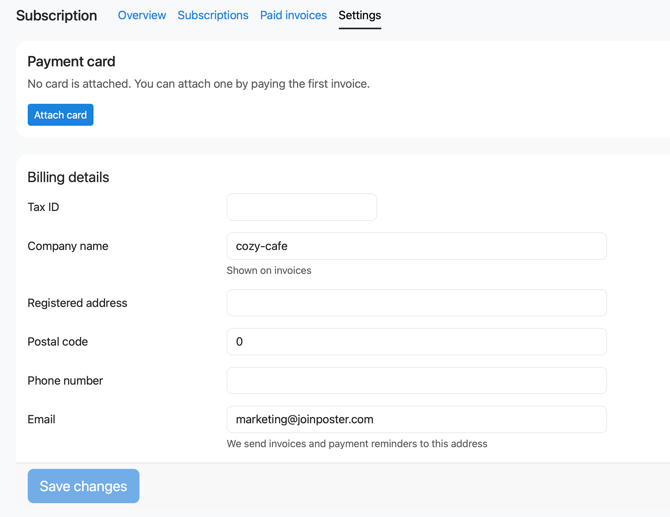
- In the Payment card block, click Link a card if no card is linked yet.
💡 Click Change card to replace the linked card. - Enter your card details on the payment system's page.
☝️ The payment system holds $1 to verify the card. If verification succeeds, it returns the funds to the card and saves the card for automatic payments. If the payment system declines the verification, it won't link the card to the account.
Company billing details for invoices
If you want your company details to appear on your subscription invoices, add them in Settings. Include your Tax ID, company name, registered address, postal code, phone number, and email. Once added, these details will appear on your next invoice.
To add your company billing details:
- Open Settings → Billing in the management console.
- Go to the Settings section.
- Fill in the required fields in the Billing details block.
- Click Save changes.
To fully unlink the card assigned for automatic payments on your account, message us in chat.