
What you'll find in the Subscriptions section
In the Subscriptions section, you can check: your active pricing plan; connected apps and additional services; the subscription's billing period; the date the subscription is valid through; the subscription's status; and any scheduled changes, if there are any.
Each Poster app is a separate product, so a separate subscription is created for it. Cancelling or changing the plan of one subscription doesn't affect other apps.
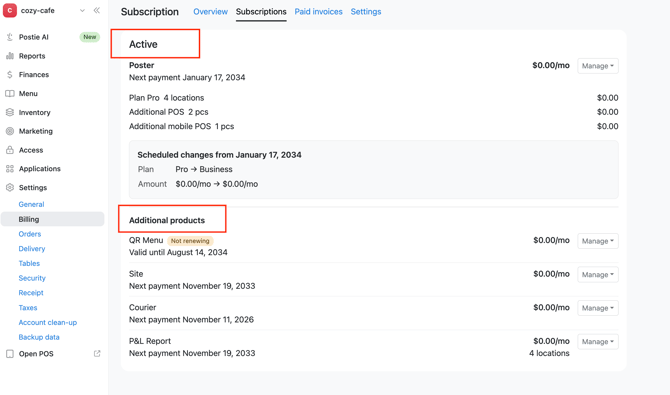
How to change your Poster plan or billing period
Change your subscription plan or billing period in the management console:
- Open Settings → Billing.
- Go to the Subscriptions section.
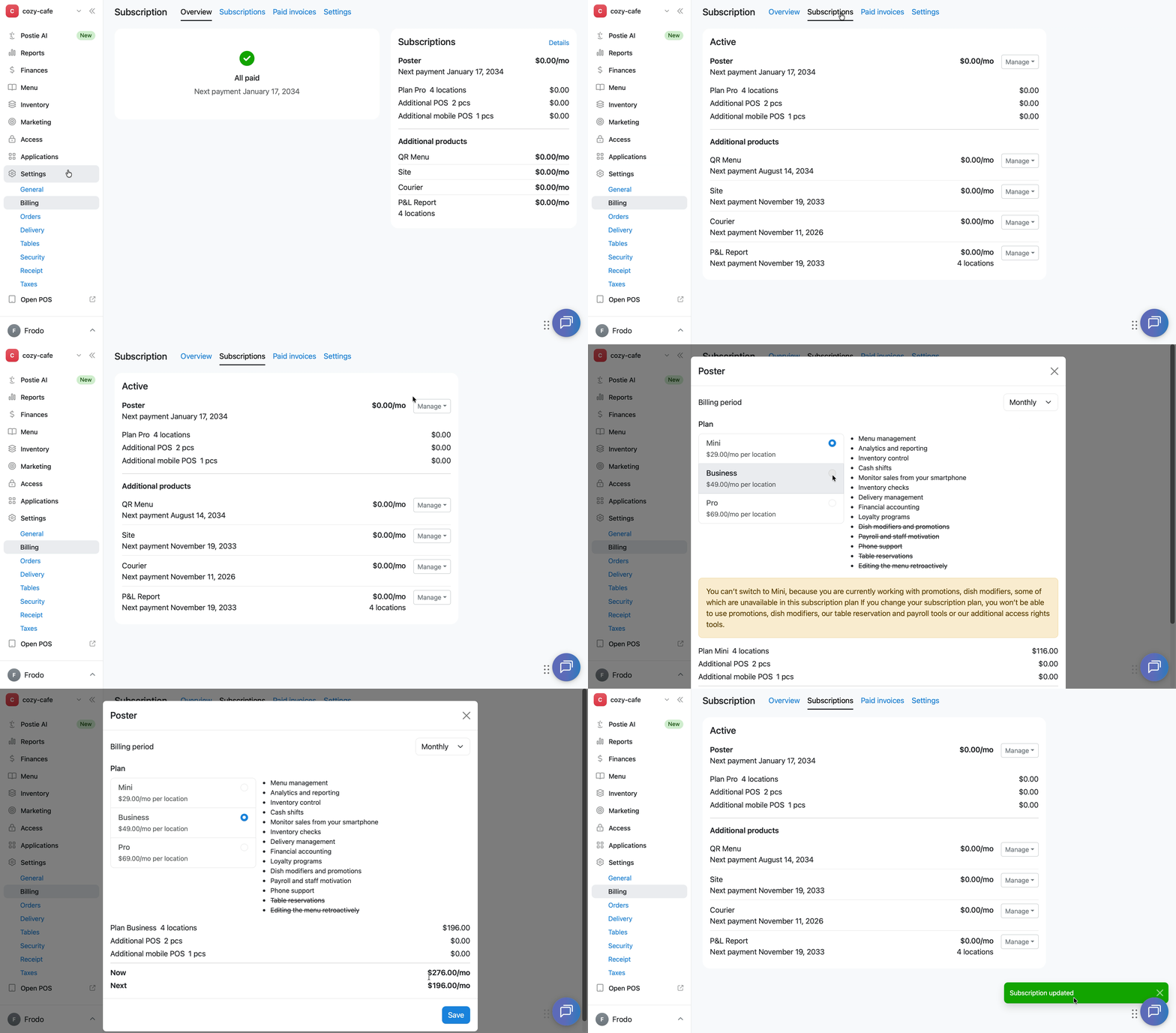
- In the Active block, click Manage next to the «Poster» subscription and select Change plan.
- In the Plan block, select the required plan: Mini, Business, or Pro. The available features for the selected plan will appear on the right. Features that are not included in the selected plan will be crossed out.
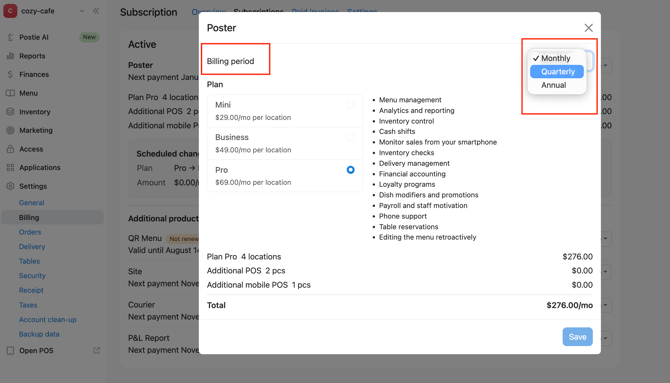
- In the Billing Period block, select the required billing period.
- Check the plan price. The Now row shows the current amount, while the Next row shows the amount after the plan change.
- Click Save. The change takes effect immediately without additional confirmation. After saving, the «Subscription updated» message will appear, and the new plan will be displayed in the Subscriptions tab.
Only three billing periods are available:
- monthly — payment for 1 month;
- quarterly — payment for 3 months;
- annual — payment for 1 year.
☝️ You can’t pay for a subscription for any other period, such as 2, 4, 5, or 6 months.
Once saved, the changes will appear in the Subscriptions section as scheduled changes if the current paid period hasn't ended yet. If the paid period has already ended, the new plan or billing period will apply immediately.
Scheduled changes to a Poster subscription
Scheduled changes appear when you modify a subscription during a paid billing period. For example, when you remove a register or location, or switch to a lower-tier plan.
These changes don't take effect immediately but are applied from the next billing period.
When downgrading your plan — the change takes effect on the next payment date. Until then, your current plan remains active.
When upgrading your plan or adding a location/register — the change takes effect immediately, and an invoice for the additional payment is issued right away or on the next payment date.
How to cancel a scheduled change
If you've changed your mind about modifying your subscription, cancel the scheduled changes to continue using it under the current terms.
- In the management console, open Settings → Billing and go to the Subscriptions section.
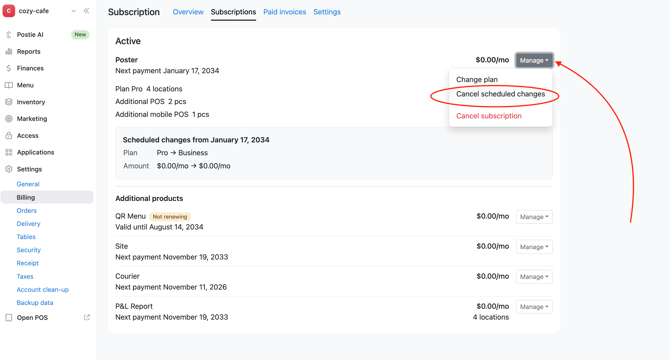
- Click Manage next to the subscription for which you want to cancel the scheduled changes, and select Cancel scheduled changes.
- In the confirmation window, click Cancel changes.
How to cancel a Poster subscription
Any employee with full access to Settings → Billing can cancel a subscription.
To cancel a subscription:
- Open Settings → Billing in the Poster management console.
- Go to the Subscriptions section.
- Click Manage next to the subscription you want to cancel.
- Select Cancel subscription.
- Click the Select a reason field and choose a cancellation reason from the list.
- Click Save.
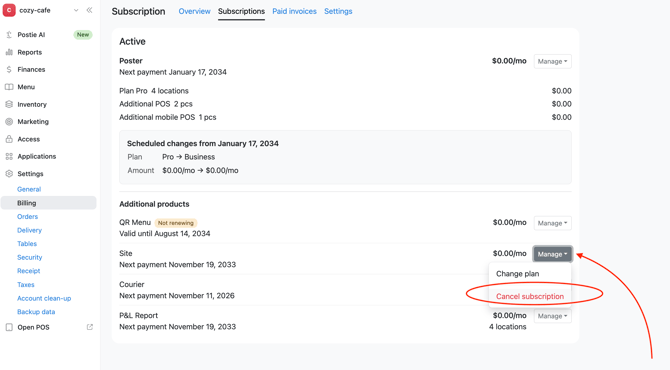
What happens after you cancel a subscription
A canceled subscription is not removed from the list. It remains in the Subscriptions section with the Non renewing status.
The subscription remains available until the date specified in the Valid until field. After that, access to the subscription ends, and you will no longer be charged for it.
If you have any issues canceling your subscription or have additional questions, contact us via chat.
How to restore a Poster subscription after cancelling it
To restore a canceled Poster subscription, open Settings → Billing → Subscriptions. Click Manage next to the subscription you want to restore and select Restore.
The subscription is restored immediately. If you run into any issues, write to us in chat.
To make sure you pay your subscription on time, check out how Poster invoices are generated.