
Retroactive editing lets you change the ingredients in a dish or preparation for a past period. For example, you can replace one ingredient with another, add or remove an ingredient, or change its quantity.
After you save the changes, Poster recalculates ingredient deductions, cost price, and inventory for the selected period.
☝️ Retroactive menu editing is available only on the Pro plan and isn’t included in other plans.
💡 You can’t edit dishes or preparations retroactively if they are used in manufacturing.
When to edit a dish retroactively
Retroactive editing is useful when you need to:
- Replace an ingredient in past sales. For example, during the summer, you used Mikado tomatoes instead of cherry tomatoes in scrambled eggs. Edit the Scrambled eggs dish retroactively: remove Cherry tomatoes and add Mikado tomatoes. Poster will deduct Mikado tomatoes for the scrambled eggs sold during the selected period.
- Correct an ingredient quantity if you entered the wrong gross or net weight of an ingredient in a dish.
- Add a missing ingredient or remove an unnecessary one to correct ingredient deductions and cost price for a past period.
How to edit a dish retroactively
You can edit a dish retroactively on the Pro plan if the employee has full access to the Menu section in their position settings.
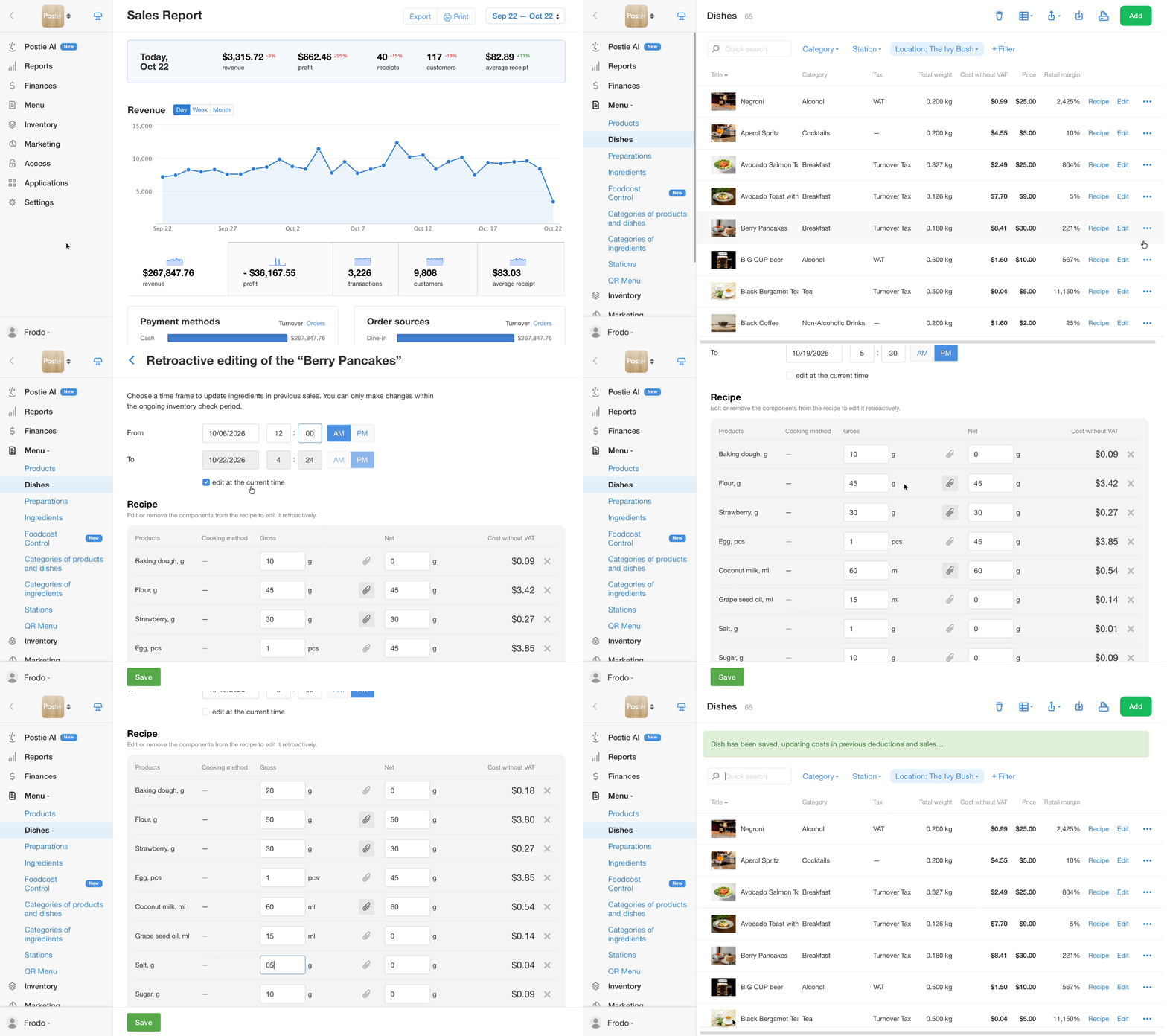
- Open Menu → Dishes in the management console.
- Find the dish and click • • • next to it.
- Select Retroactive editing.
- Specify the date from which Poster should recalculate deductions. The date must fall within an open inventory period.
- Specify the end date for the changes:
- To apply the changes through the current date and time, leave the Edit at the current time checkbox selected.
- To limit the period, clear the checkbox and select the date until which the previous ingredients were used.
- In the Recipe section, click + Add ingredient to add an ingredient or X to remove an ingredient. For each new ingredient, specify its gross and net weight.
- Click Save.
How to edit a preparation retroactively
You can edit a preparation retroactively on the Pro plan if the employee has full access to the Menu section in their position settings.
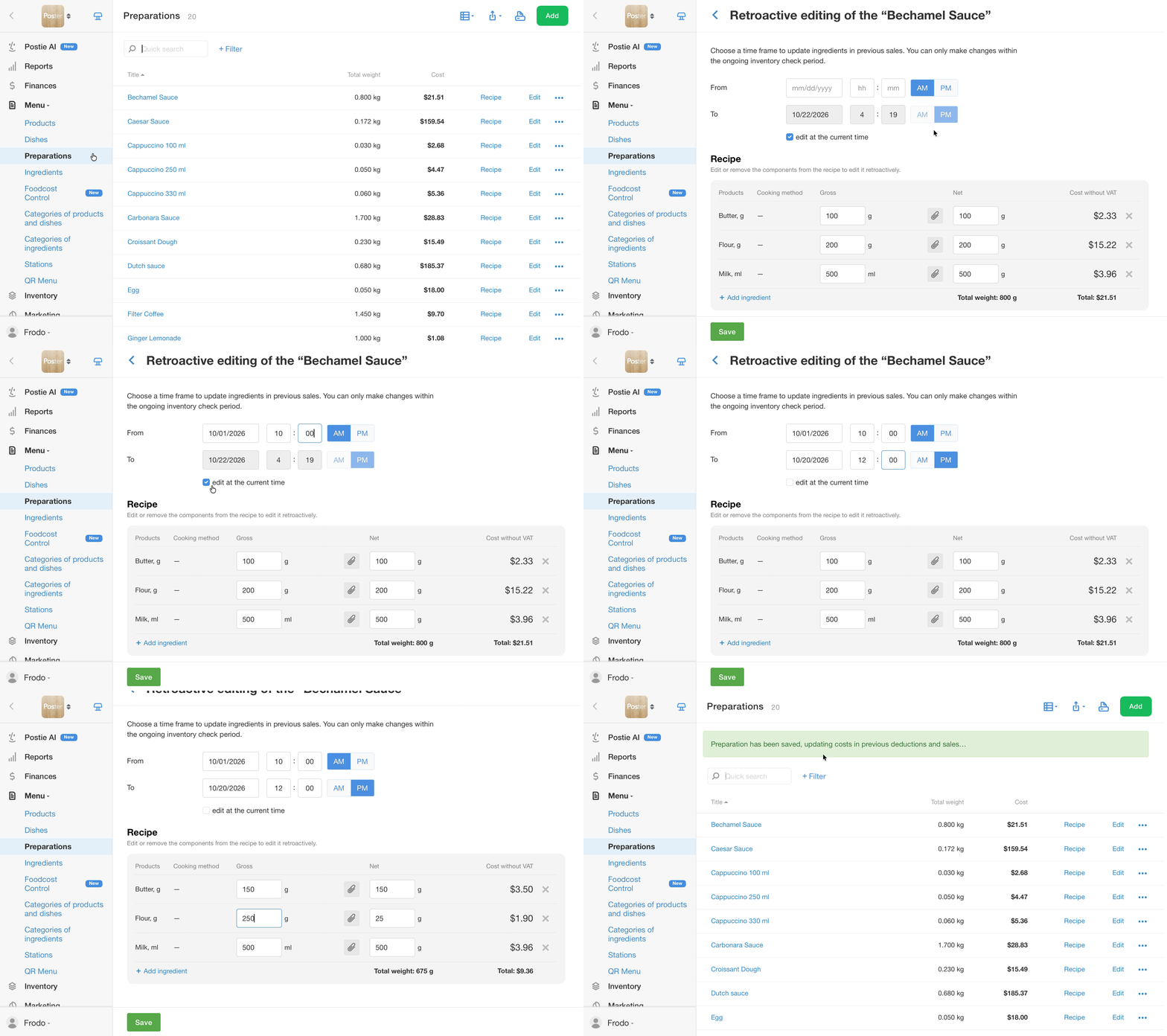
- Open Menu → Preparations in the management console.
- Find the preparation and click • • • next to it.
- Select Retroactive editing.
- Specify the date from which Poster should recalculate deductions. The date must fall within an open inventory period.
- Specify the end date for the changes:
- To apply the changes through the current date and time, leave the Edit at the current time checkbox selected.
- To limit the period, clear the checkbox and select the date until which the previous ingredients were used.
- In the Recipe section, click + Add ingredient to add an ingredient or X to remove an ingredient.
- Specify the gross and net weight or the processing method for each ingredient.
- Save the changes.
💡 Changes to a preparation apply to all dishes that contain it.

How to check the results of retroactive editing
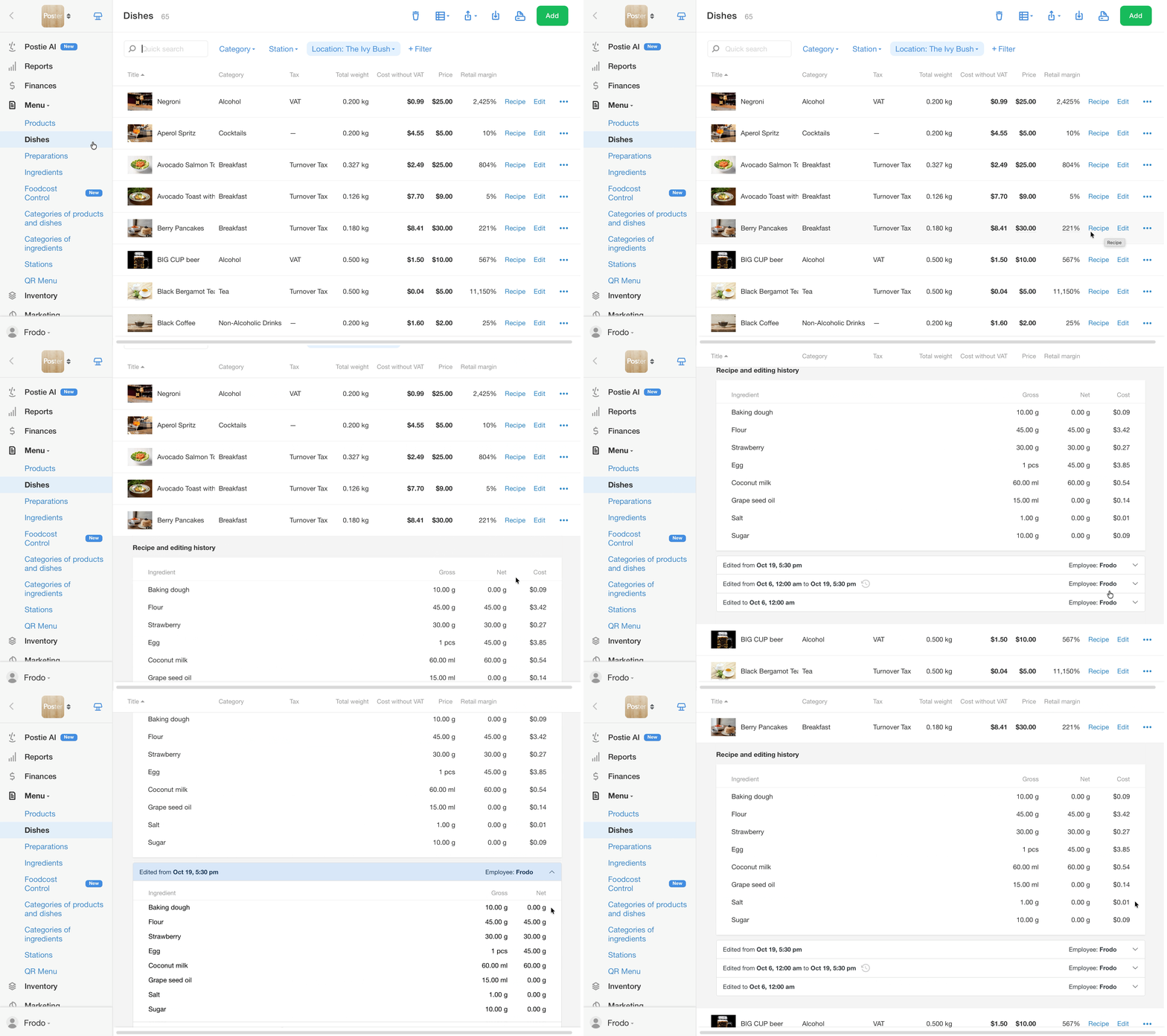
- Ingredient history. In Menu → Dishes or Menu → Preparations, click Recipe to the right of the item name. Here, you can see which ingredients were used during the selected period and who edited them.
- Ingredient deductions. Open Inventory → Ingredients movements for the relevant period and review the product deductions.
Frequently asked questions about retroactive menu editing
Can I edit a dish retroactively if it is used in manufacturing?
No. You can't edit a dish or preparation retroactively while it is used in manufacturing. To edit it:
- Disable manufacturing for the dish or preparation.
- Reduce its stock balance to zero.
- Edit the dish or preparation retroactively.
- Enable manufacturing again if needed.
Can I transfer sales or deductionss from one ingredient to another?
Yes, on the Pro plan. Edit the dish or preparation containing the original ingredient retroactively. Remove the original ingredient, add the new one, and select the relevant period. Poster will deduct the new ingredient for dishes sold during that period.
Why is the Retroactive editing button unavailable in the management console?
The button is unavailable if:
- The account isn't subscribed to the Pro plan.
- The dish or preparation is used in manufacturing.
- The location is a franchise.
- The employee doesn't have full access to the Menu section in their position settings.
Why don't I see ingredient consumption in the inventory after editing retroactively?Check the following:
- Whether a full inventory is open for the storage location.
- Whether you selected the correct start date for retroactive editing.
- Whether the dish was sold during the selected period.
- Whether deductions appear in Inventory → Ingredients movements for the relevant period.
Which storage location does Poster use to recalculate deductions if a production area in the dish is configured to deduct ingredients from several storage locations?
Poster uses the storage location where the item was moved most recently.
How long does it take Poster to recalculate costs and deductions after retroactive editing?
Recalculation usually takes a few minutes. It may take longer when the selected period is extensive.
Does retroactive editing change receipts?
No. Receipt totals and fiscal receipts remain unchanged. Poster recalculates only ingredient deductions and costs within open inventory periods.
Limitations of retroactive menu editing
- Retroactive menu editing is available only on the Pro plan. The feature is unavailable on other plans.
- You can't edit dishes or preparations retroactively if they are used in manufacturing. This also applies to periods when manufacturing was enabled for them.
- You can edit ingredients in dishes and preparations retroactively only within an open inventory period. Closed periods aren't recalculated.
- Only employees with full access to the Menu section in their position settings can edit the menu retroactively. To restrict this permission to the owner or manager, change access rights for other positions.
- You can't edit a weighed dish.
- You can't edit dish modifiers retroactively.
- Retroactive editing is unavailable for accounts connected to a franchise.
- Replacing an ingredient during retroactive editing affects only the dish or preparation you edited. Other dishes containing the same ingredient remain unchanged.