
Modifiers are additional ingredients, products, sizes, or preparation options for a dish. For example, a dish might be “Ribeye Steak,” with modifiers for doneness or sauces.
💡 Dish modifiers are available on the Business and Pro plans.
What is a modifier set and a modifier in a dish?
A modifier set is a set of options that the cashier sees in the Poster POS app after selecting a dish. Examples include “Tea Add-ons,” “Serving Size,” and “Steak Doneness.”
A modifier is an individual option within a set. For example, the “Tea Add-ons” set might include honey, milk, and mint.
For each modifier set, set how many options the cashier can select:
- One only — the cashier selects one option. For example, coffee size, pizza diameter, or steak doneness.
- Several — the cashier selects several options at once. For example, at least 1 sauce for a hot dog or up to 10 ice cream toppings.
How to add a modifier set to a dish
To add a modifier set to a dish:
- Open Menu → Dishes in the management console.
- Select a dish and click Edit.
- In the Modifiers section, click Add modifiers.
- In the Adding a modifiers set window, enter the set name.
- Specify how many modifiers can be selected at once: One only or Several.
- Click Add.
- In the Modifier field, select what Poster should deduct from inventory when the cashier selects this option:
- No extra ingredients — use this for modifiers that describe a dish's properties or preparation method without affecting inventory deductions. For example, steak doneness.
- Preparations, ingredients, products, or other dishes that can be added to the dish. For example, a pizza topping or hookah tobacco.
- In the Name field, enter the modifier name that the cashier will see in the POS app.
- If needed, add a Photo of the modifier to help staff find the right option faster.
- In the Gross field, enter the quantity of the product that Poster should deduct from inventory when the modifier is selected.
- In the Price field, enter the additional amount to charge for the modifier. Leave the field empty or enter 0 to make the modifier free.💡 Poster fills in the Cost field automatically.
- Click Save.

After you save the dish, the modifier set will appear in the Poster POS app. When the cashier adds the dish to an order, a window opens where they can select modifiers.
When you can't add modifiers to a dish
Dish modifiers are available only on the Business and Pro plans. You can't add modifiers on the Starter or Mini plans.
You also can't add modifiers to a dish if it:
- Is included in another dish's modifier set.
- Was used in manufacture where finished dishes, rather than ingredients, were deducted from inventory.
- Is a bonus product that a customer receives as part of a promotion.
- Is a dish sold by weight.
Can you add a dish with modifiers to another dish's modifier set?
No. Dishes with their own modifiers can't be put inside other modifier sets. You can't select a dish that already has modifiers in the Modifier field.
For example, you can't add a «Cappuccino» dish with a «Choose Your Milk» set as a modifier in the «Set Breakfast» dish.
How to change the order of modifiers in a dish
You can change the order of modifiers only within the same set.
While editing a dish in the management console, click a modifier and drag it to the desired position within its set. After you save the dish and restart the Poster POS app, the modifiers will appear in the new order. This helps cashiers find popular options faster.
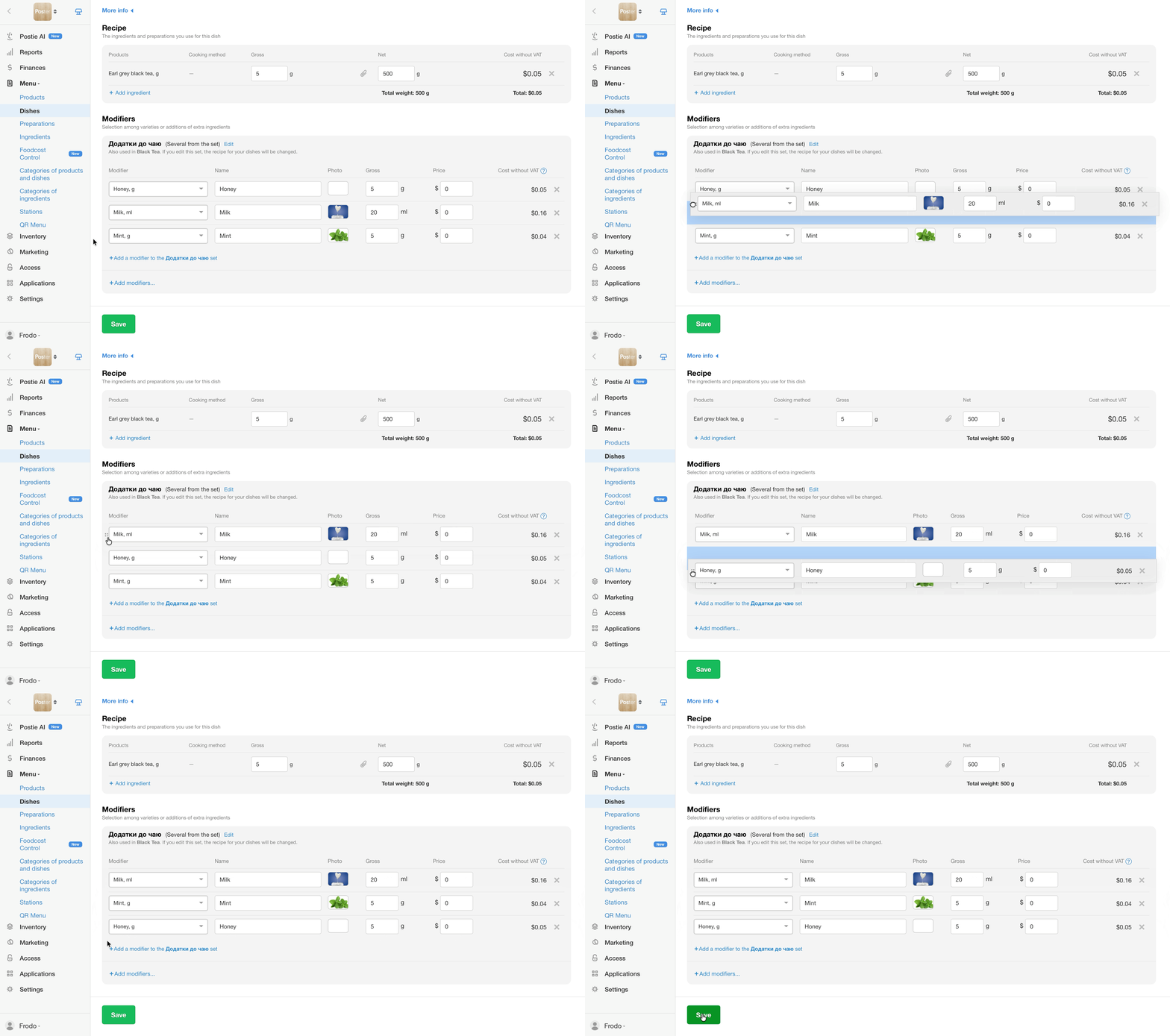
You can't change the order of modifier sets. In the Poster POS app, sets appear in the order in which they were created.
How to find a modifier in a dish
The Poster management console doesn't have a separate section or search for modifiers and modifier sets. Edit or delete modifiers directly in the dish settings.
To find a modifier quickly on the dish editing page:
- On a computer, press Ctrl + F (or Cmd + F on a Mac) and enter the modifier name.
- On a phone, open the browser menu and select the page search option if your browser supports it.
How one modifier set works across multiple dishes
If the same modifier set is added to multiple dishes, the set is shared across all of them. Any changes to a shared set are automatically applied to every dish that uses it. This includes changes to the set name, selection type, modifiers, quantities, and prices.
Below the modifier set name, you'll see the message «Also used in…». It shows which other dishes use the set.
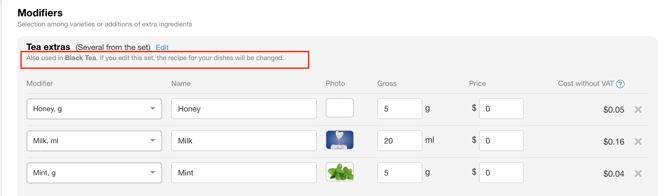
When to use a shared modifier set
Use a shared modifier set when multiple dishes need the same options. For example, you can use the «Choose Your Milk» set for both «Cappuccino» and «Latte». Changes to the set will apply to both dishes.
How to create a separate modifier set for a dish
A separate modifier set is useful when different dishes need different options or modifier prices. For example, if the «Size» set is used for both «Cappuccino» and «Tea», changing the tea sizes will also affect the cappuccino options.
To create a separate modifier set:
- Remove the shared set from the dish where you no longer need it.
- Click Add modifiers and create a new set.
☝️ Don't select an existing set from the list. - Enter a name for the new set, such as «Tea Size», to distinguish it from the shared set.
- Add the required modifiers.
- Click Save.
The new modifier set will be independent. Changes to it won't affect other dishes.
How to remove a shared modifier set from all dishes
You can't remove a modifier set from every dish that uses it at once. Open each dish separately and remove the set in its settings.
How modifier prices work
In the Poster POS app, the price of each selected paid modifier is added to the dish price. Set the price for each modifier separately in the Price field of the dish's Modifiers section. There is no separate field for the price of an entire modifier set.
How to make modifiers free
Set the dish price in the dish's Price field and set the price of each modifier to 0.
For example, a «Black Tea» dish costs $5, while the «Honey», «Milk», and «Mint» modifiers are free. The customer pays $5 regardless of which add-ons they select.
How to make modifiers paid
Set the dish price in the dish's Price field and enter an additional price for each paid modifier.
For example, tea costs $5, and the «Honey» modifier costs an additional $1. Tea with honey costs $6, while tea without honey costs $5.
Can you set different prices for the same modifier in different dishes?
Modifier prices are stored in the modifier set. If the set is added to multiple dishes, the modifier price is the same for all of them. To set a different price for an individual dish, create a separate modifier set for that dish.
How dish modifiers are deducted from inventory
Poster deducts products added through modifiers from inventory only when the cashier selects the corresponding modifier in an order in the POS app. The quantity deducted matches the value in the Gross field.
For example, if the “Honey” modifier is set to 20 g, Poster deducts 20 g of honey from inventory when tea with honey is sold.
When to Use the “No Inventory Deduction” option
Select No extra ingredients when a modifier doesn't require any products to be deducted from inventory. For example, use it for options such as «Steak Doneness», «No Onions», or «Spicy».
How to set up a dish made up entirely of modifiers
If all the ingredients in a dish depend on the selected modifiers, leave the Recipe section of the dish empty and add products only through modifiers. This setup is useful for options such as wine by the glass or bottle, coffee sizes, or the components of a set meal.
☝️ Don't add the same product both to the dish ingredients and as a modifier. Poster will deduct it twice.
The cost of a dish made up entirely of modifiers doesn't appear in the general list of dishes because it depends on the options selected at the POS terminal.
To view the cost of each modifier, open the required dish and check the Modifiers section in its settings.
To check the cost of a sold dish, open Reports → Receipts, select a receipt, click Details, and open the Deducted stock section.
Can you account for product losses in dish modifiers?
There is no separate field for the percentage of product loss during peeling or heat treatment in dish modifiers. Poster deducts the quantity specified in the modifier's Gross field.
To account for product losses, add a preparation to the modifier. Specify the product quantities before and after processing in the preparation settings. Poster automatically accounts for losses when deducting the preparation's ingredients.
For example, peeling 100 g of onions leaves 70 g, resulting in a 30% loss:
- Create a preparation called «Peeled Onions» and add the «Onions» ingredient.
- Set the gross weight to 100 g and the net weight to 70 g.
- In the dish's modifier set, select «Peeled Onions» in the Modifier field.
- Set the gross weight to 70 g.
- Save the dish.
When a dish with this modifier is sold, Poster deducts 70 g of the «Peeled Onions» preparation, which requires 100 g of raw onions. As a result, 100 g of onions will be deducted from inventory.
What happens to modifiers when you delete a dish?
When you delete a dish, it moves to the trash along with its modifiers. You can restore the dish and its modifiers within 30 days of deletion.
Check out popular examples of modifier setups to learn how to offer customers different preparation options, serving sizes, and toppings.