
How a modifier differs from a modifier set in a dish
A modifier set is a group of options that the cashier sees on the Poster POS after selecting a dish. For example, «Tea add-ons», «Serving size», or «Steak doneness».
A modifier is one of the options within a set. For example, the «Tea add-ons» set may include honey, milk, and mint.
You can remove the following from a dish:
- A modifier from a set — the set will remain in the dish, but the removed option will no longer be available.
- A modifier set — none of the options from that set will remain in the dish.
☝️ You can add the same modifier set to multiple dishes. The list of dishes that use the set appears below its name.
Check this list before editing or removing a modifier set, as your changes will affect all the dishes that use it.
How to remove a modifier from a set in a dish
To remove a modifier:
- Open Menu → Dishes in the management console.
- Click Edit next to the required dish.
- Scroll down to the Modifiers section.
- Click X next to the modifier you want to remove.
- Save your changes.
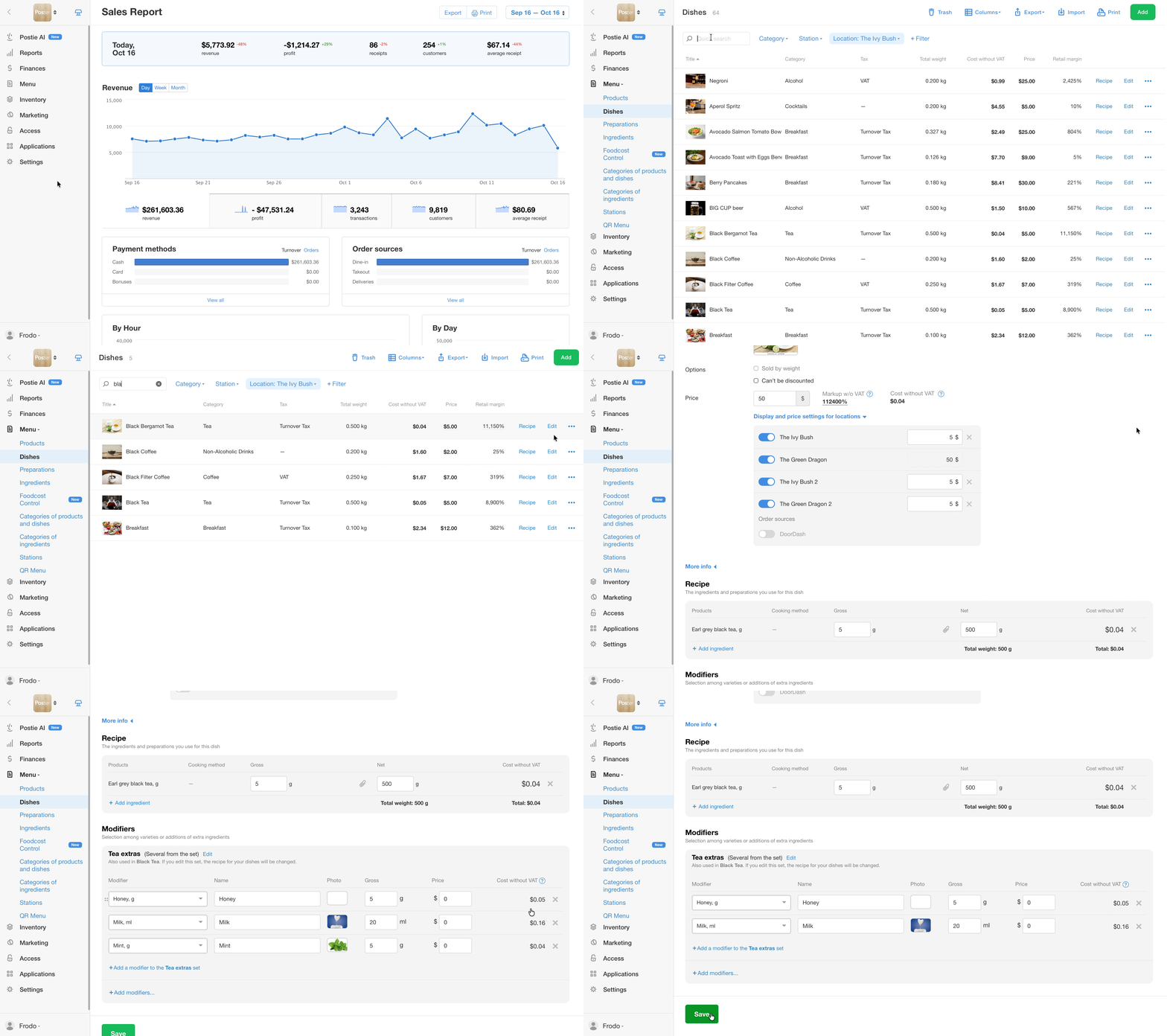
After you save your changes, the modifier will disappear from the set in every dish that uses this modifier set.
How to remove a modifier set from a dish
A modifier set is removed only from the dish you are editing. It will remain unchanged in all other dishes.
- Open Menu → Dishes in the management console.
- Click Edit next to the required dish.
- Scroll down to the Modifiers section.
- Click Edit next to the modifier set name.
- In the window that opens, select Remove set for this dish.
- Click Save.
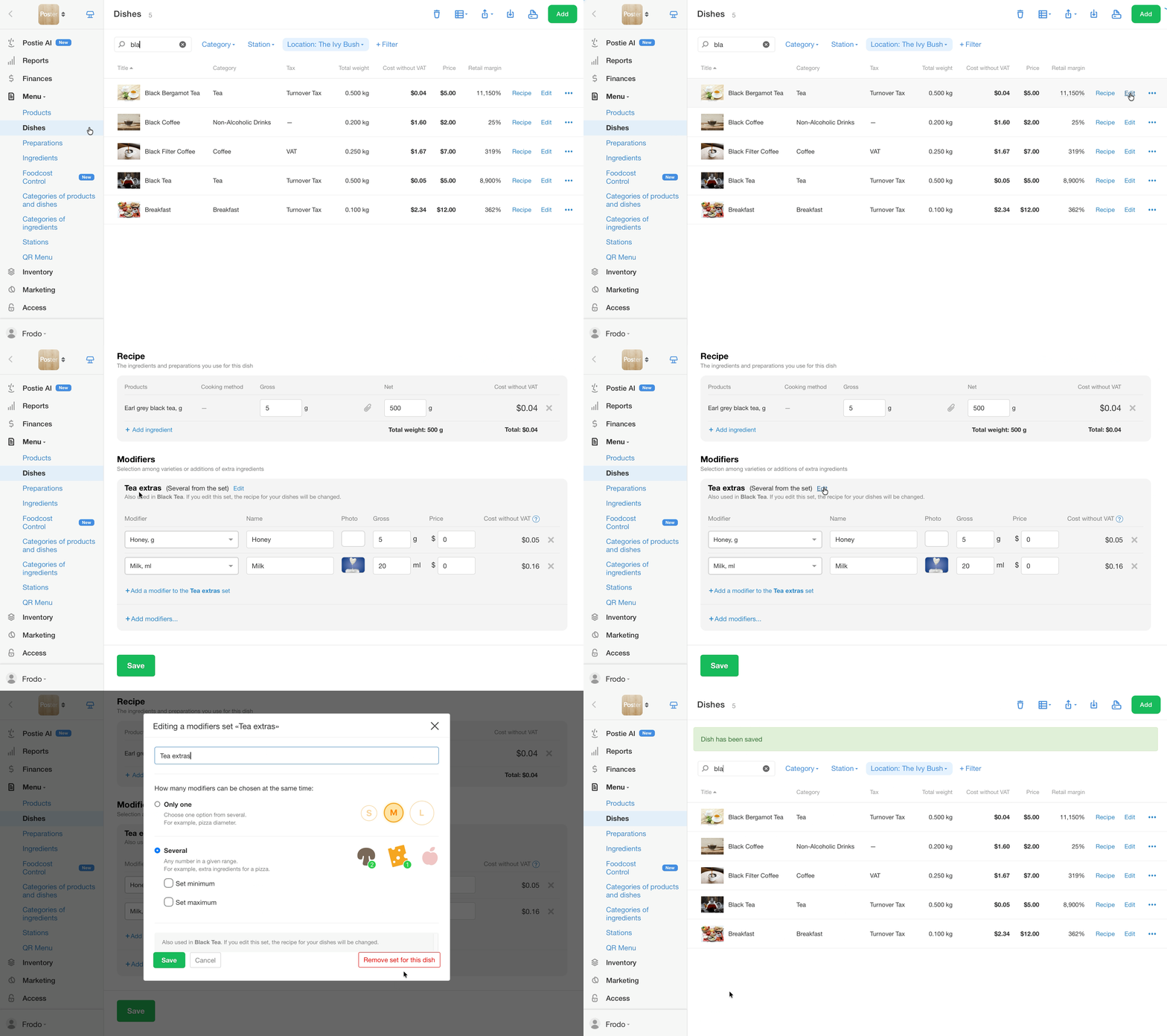
After you save your changes, the modifier set will disappear from the Modifiers section of this dish. The cashier will no longer see it on the Poster POS when selecting this dish.
☝️ To completely remove a modifier set from the management console, remove it from every dish that uses it. The list of these dishes appears below the set name in the Modifiers section.
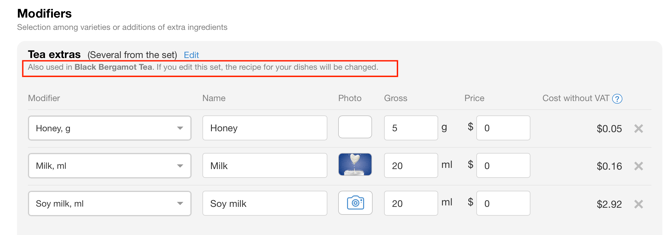
Remove the set separately from each dish. You can't remove it from all dishes at once.
How to remove a modifier from just one dish when the modifier set is shared
If multiple dishes use the same modifier set, you can't change the set for just one dish. Instead, remove the shared set from the required dish and create a separate set with the modifiers you need. For example, you added an existing set to a new dish but later realized that the dish requires different options.
- Open Menu → Dishes in the management console.
- Click Edit next to the dish from which you want to remove the modifier.
- Scroll down to the Modifiers section.
- Click Edit next to the shared set and select Remove set for this dish.
- Click Add modifiers and create a new set.
☝️ Don't select an existing set from the list. Enter a different name to distinguish the new set from the shared one. - Add only the modifiers you need.
- Save your changes.
The new modifier set will apply only to this dish. The shared set will remain unchanged in all other dishes.
Limitations
- Removing a modifier from a set changes that set in every dish that uses it. To remove a modifier from just one dish, create a separate modifier set for that dish.
- You can't change a shared modifier set for just one dish.
- You can't remove a modifier set from all dishes at once. Remove it separately from each dish.
To avoid configuration errors, check out examples of how to use modifiers in dishes.