
Poster comes with 6 default positions for different types of staff:
-
Owner — has full access to the account and app installation;
-
Manager — has full access to the account and app installation;
-
Floor administrator — works with the register and manages the floor: views, edits, and closes orders for all waiters;
-
Waiter — works only with the register, without access to the management console;
-
Storekeeper — works with the Menu and Inventory sections;
-
Marketer — works with the Reports and Marketing sections.
Use these as a starting set, or adjust them to fit your business: change the name and access rights, delete positions you don't need, or create your own in the Access → Positions tab.
How to create an additional position
-
Open the Access → Positions tab in the management console.
-
Click Add.
-
Enter the position name.
-
Configure the access rights to the register, management console, and apps.
-
Click Save.
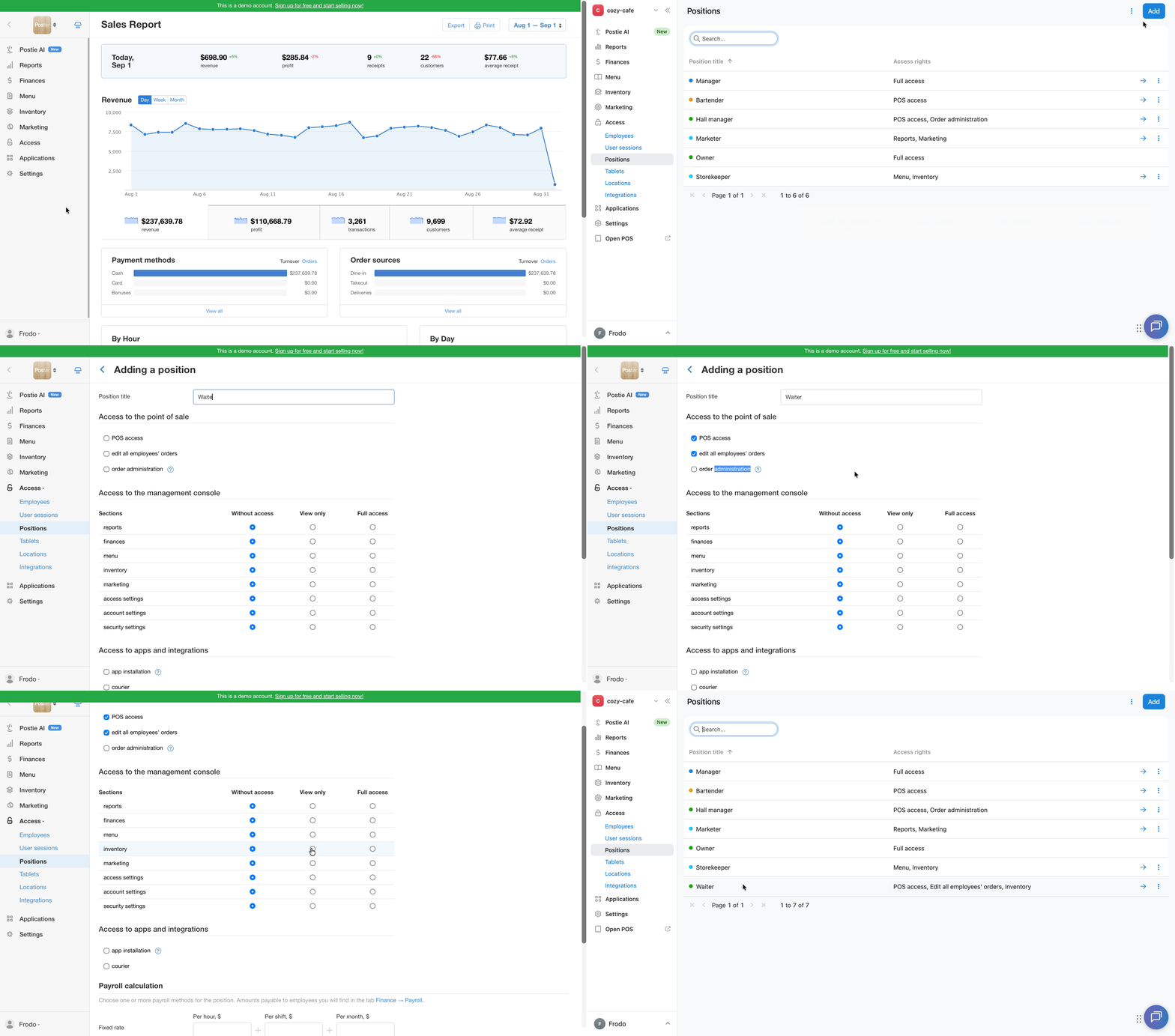
Configure access rights
Register access
Select the checkboxes for the access rights you want to assign to the position:
-
POS access — allows placing orders, processing payments, and performing other actions on the POS;
-
edit all employees' orders — allows the employee to edit orders created by other staff members on the register;
-
order administration — allows viewing, editing, and closing orders for all waiters on the floor.
Management console access
If a position needs access to the management console, check the boxes next to the relevant sections and select an access level for each:
-
No access — the employee has no access to this section of the management console; available on all pricing plans;
-
View only — the employee can view information in the section but cannot edit or change it; available on the Pro plan only;
-
Full access — the employee has full access to the section of the management console, including the ability to view and edit information; available on all pricing plans.
App access
Check the App installation confirmation box to allow an employee to install apps without the owner's confirmation. This option also gives the position full access to all sections of the management console. It does not control access to apps on the POS — you cannot restrict access to individual POS apps for specific positions.
For employees who work with delivery orders, select Courier to let them work with delivery orders in the Poster Courier app.
How to edit position settings
-
Open the Access → Positions tab in the management console.
-
Click → next to the position you want to edit.
-
Change the position's name or access rights.
-
If needed, configure how payroll is calculated.
-
Click Save.
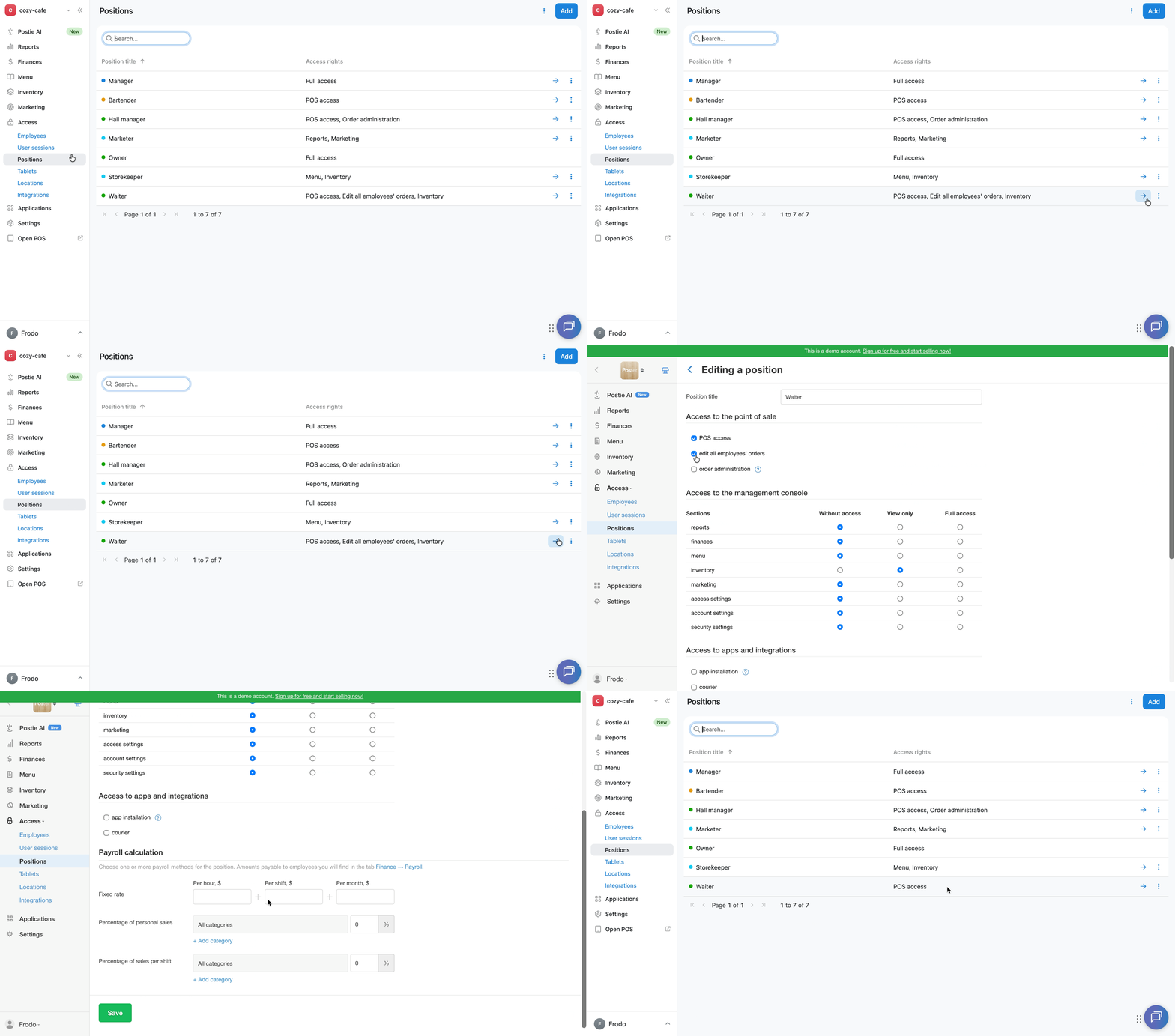
The changes will apply to all employees assigned to this position.
How to delete a position
-
Open the Access → Positions tab in the management console.
-
Click︙ next to the position you need.
-
Select Delete.
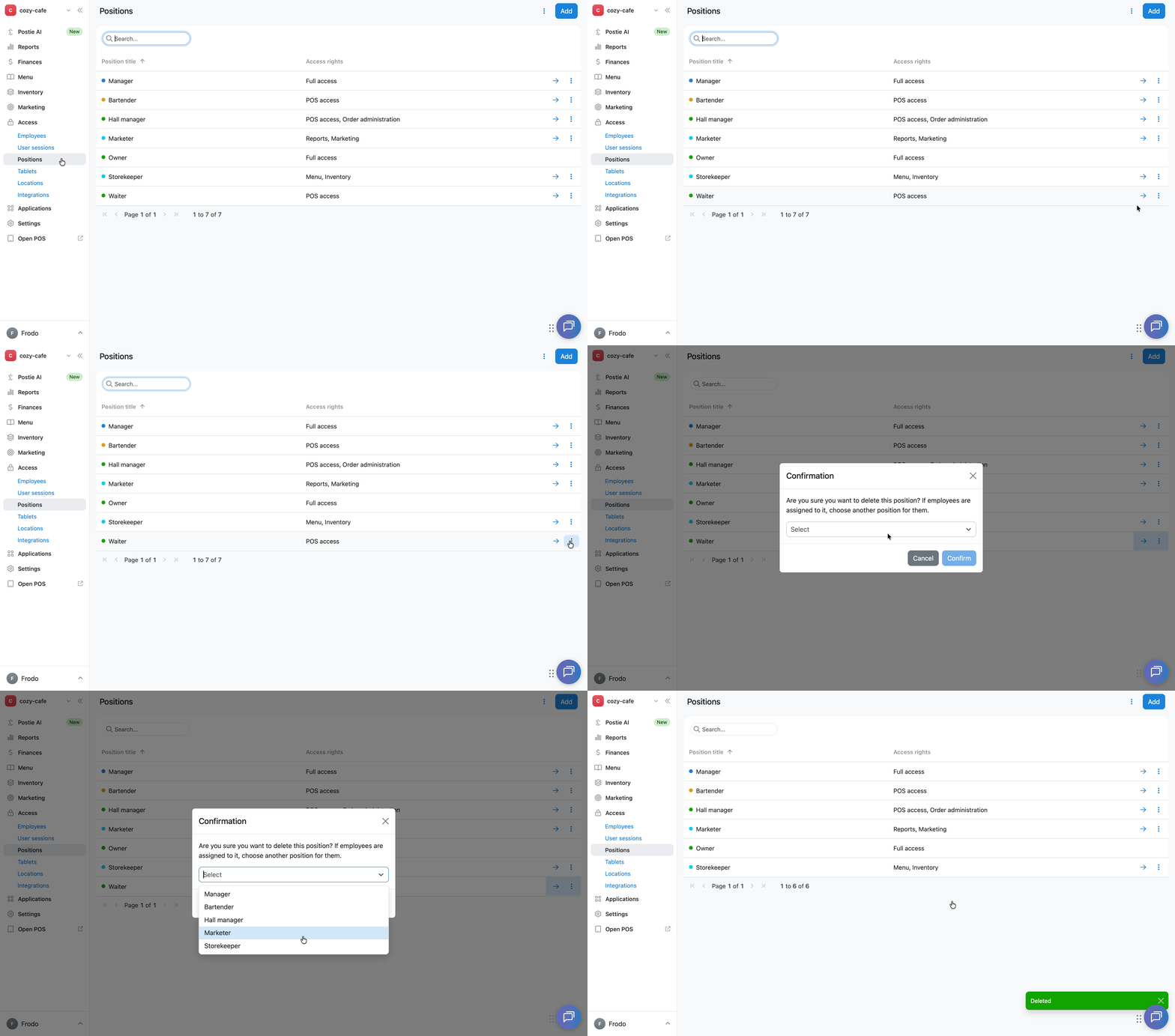
If you're deleting a position already assigned to employees, choose a different position for them from the list.
How to customize the positions list
To show or hide the Access rights column, adjust the column display in the positions list:
-
Click︙in the top-right corner of the Access → Positions tab.
-
Select Columns.
-
Check or uncheck Access rights.
-
Click Apply.
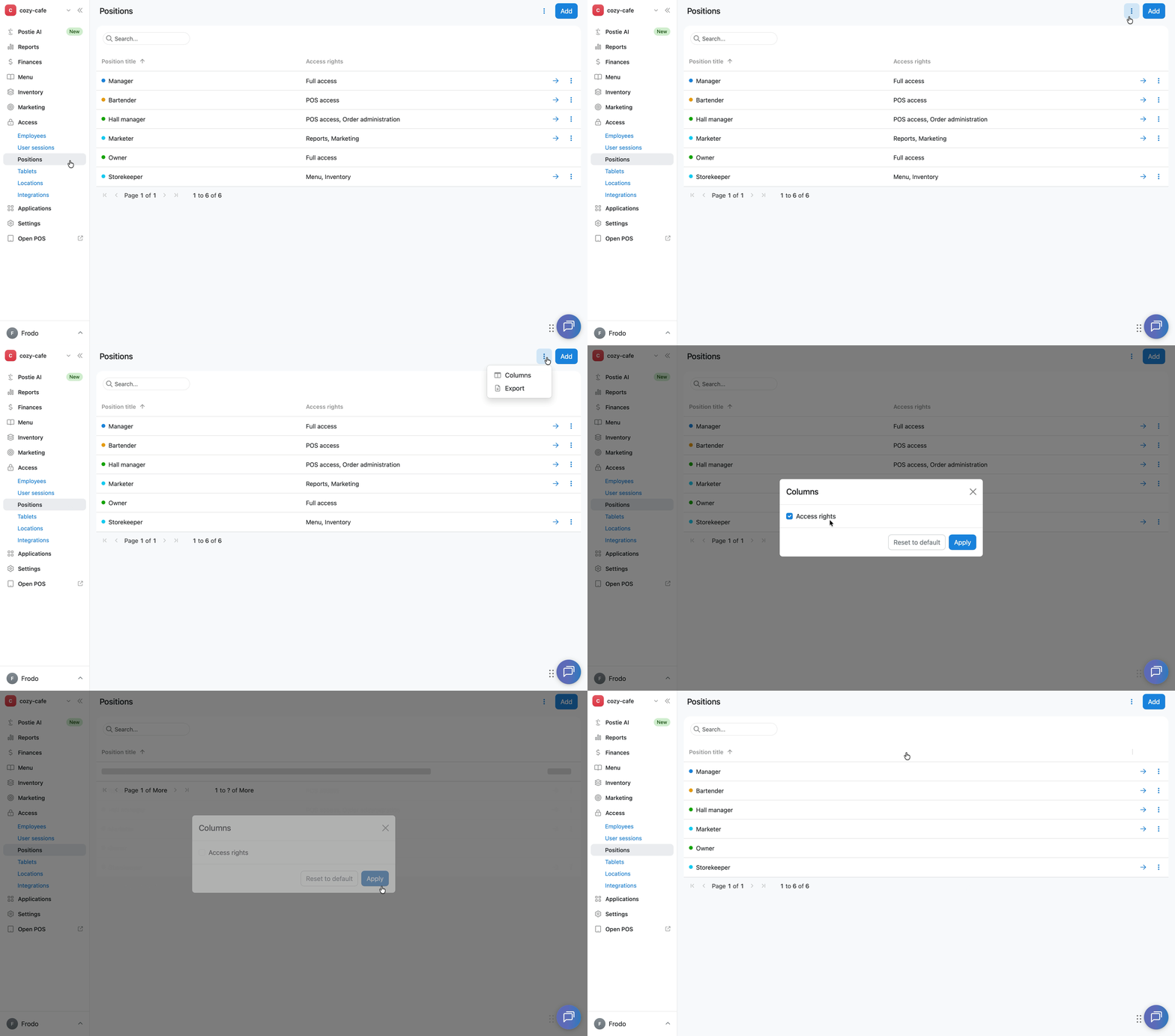
How to export the positions list
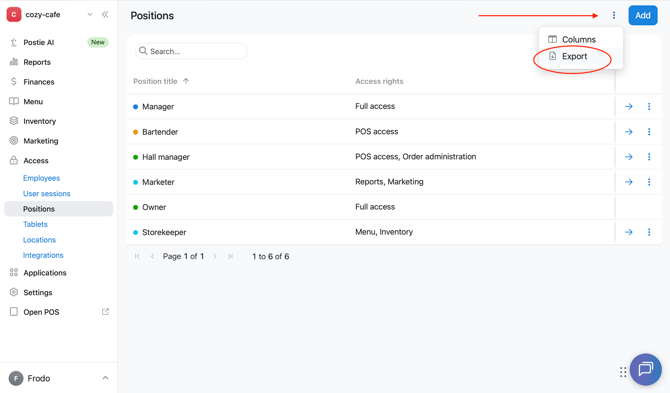
To export the positions list, click︙in the top-right corner of the Access → Positions tab and select Export.
Limitations
- The View only access level is available only on the Pro pricing plan. On other plans, only No access and Full access are available for management console sections.
- Before deleting a position assigned to employees, choose a different position for them first.
- Management console access rights are configured for the entire section. For example, granting access to the Inventory section gives the employee access to all its tabs. It's not possible to grant access to only the Inventory → Storage location tab while hiding the section's other tabs.