
How to set up manufacture before first use
Before you manufacture your first dish, enable this feature in the management console:
- Open the Settings → General tab in the management console.
-
Scroll down to the Management settings block.
- Check the Use manufacturing of dishes and preparations checkbox.
-
Save your changes and refresh the page.
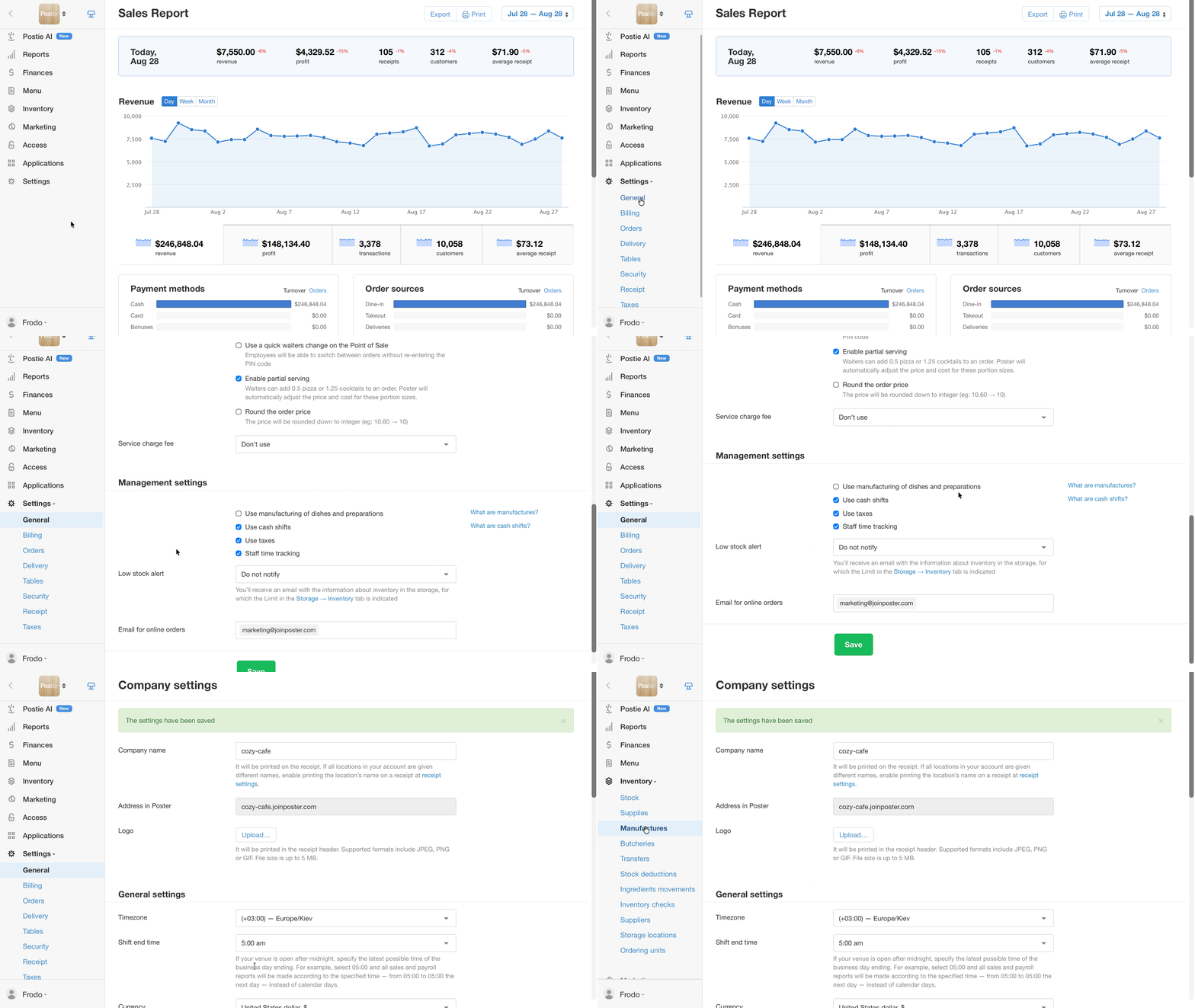
You'll now have an Inventory → Manufactures tab in the management console.
☝️ Always create the first manufacture for a dish with the current date. Ingredients that have already been deducted from a sale won't be recalculated retroactively into manufactured dishes. You can create subsequent manufactures with a past date — for example, to cover a negative balance in storage.
💡 If a dish contains modifiers, you won't be able to link it to a manufacture.
How to manufacture a dish
-
Open the Inventory → Manufactures tab in the management console.
-
Click Add.
-
Specify the date and time of the manufacture.
💡 The calendar language depends on the language set on the device you're using to open the management console. For example, if your laptop is set to English, the calendar will also display in English when you write off items.
-
Select the storage where the finished dishes will appear.
-
In the Name field, select a dish or preparation from the list.
-
Specify the quantity of dishes to manufacture. For example, 25 cinnamon rolls.
-
Click Save.
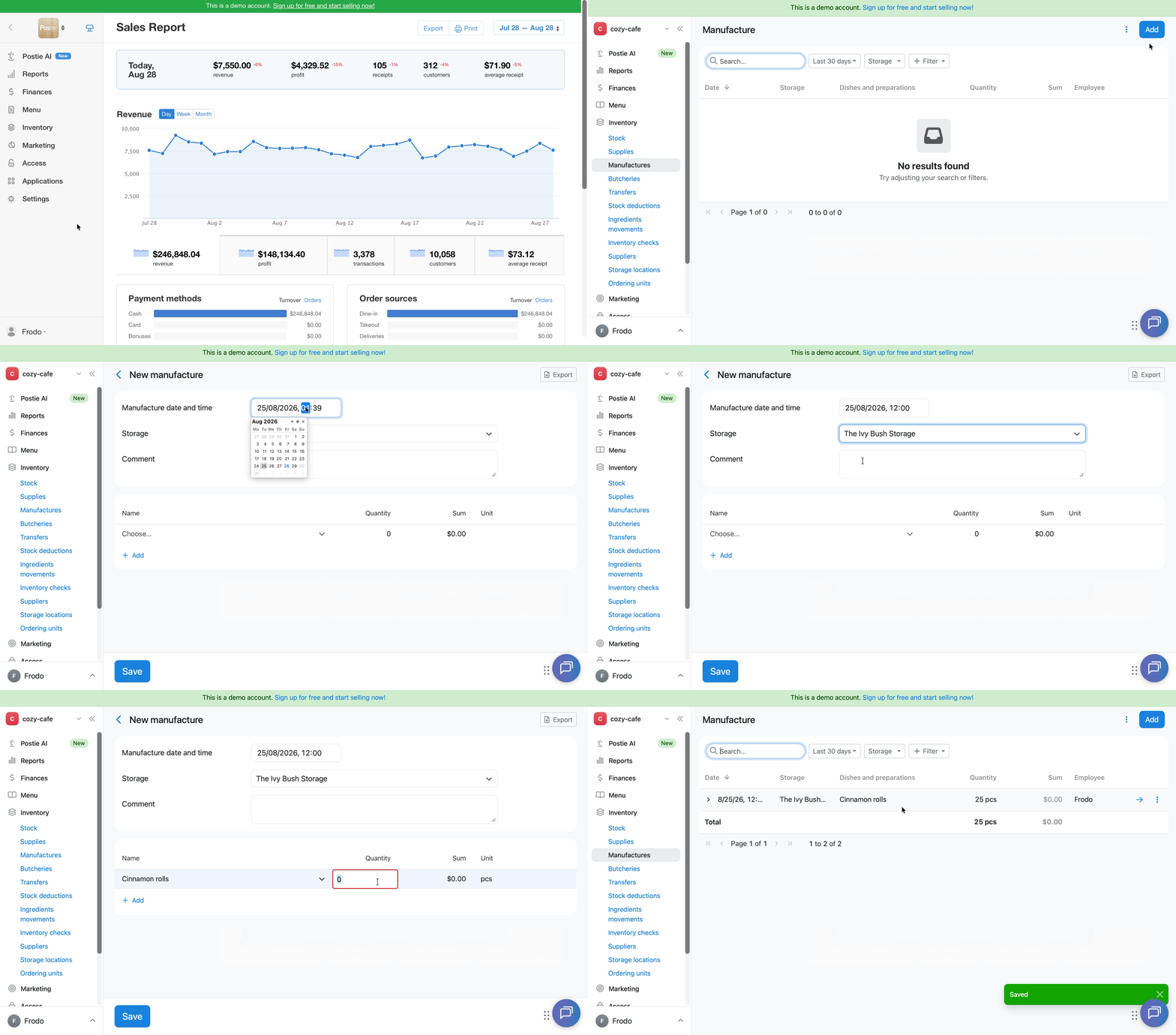
Once the manufacture is saved, the dish's ingredients will be deducted from storage — for example, in our case, for 25 cinnamon snails: chicken eggs, milk, wheat flour, sugar, cinnamon, and vegetable oil. In their place, 25 ready-to-sell cinnamon snails will appear in the selected storage.
💡 After a dish or preparation is manufactured and sold at the register, the finished dishes — not their ingredients — will always be deducted from storage.
View the quantity and amount of manufactured dishes in the management console under Inventory → Ingredients movements.
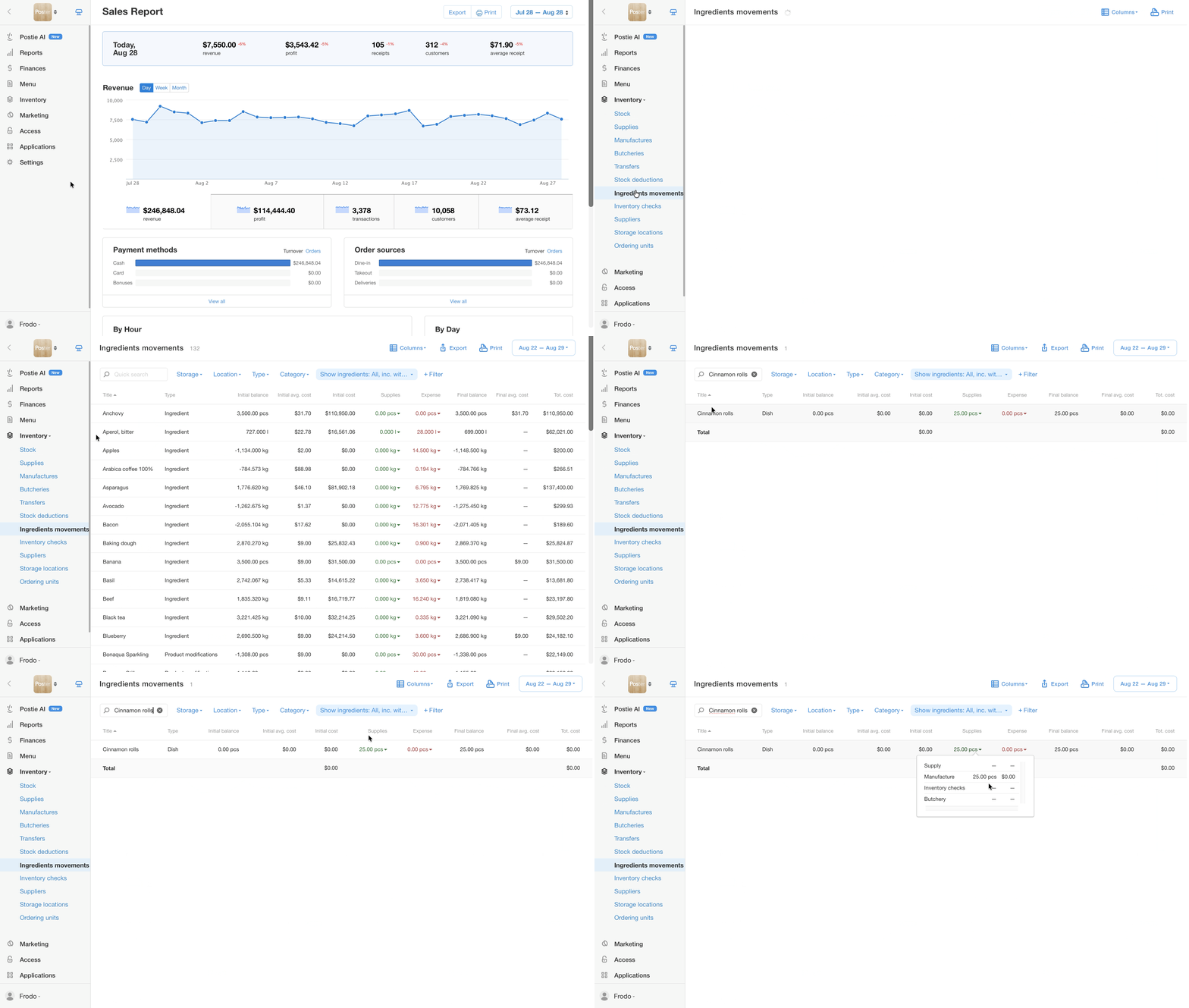
Food cost of manufactured dishes and preparations
The food cost of manufactured dishes and preparations is calculated using the weighted-average cost method, based on the cost of their ingredients in storage at the time of manufacture. If the food cost of ingredients changes after a new batch arrives, the cost of the finished dishes and preparations will be recalculated during the next manufacture.
If storage already has finished dishes or preparations from a previous batch, manufacturing a new batch will also recalculate their food cost.
If the balance of a manufactured dish goes negative
If a manufactured dish shows a negative stock balance in the Inventory → Stock tab, it means that you sold more than you produced.
Create a new manufacture of this dish or preparation to avoid negative stock balances.
How to edit a manufacture
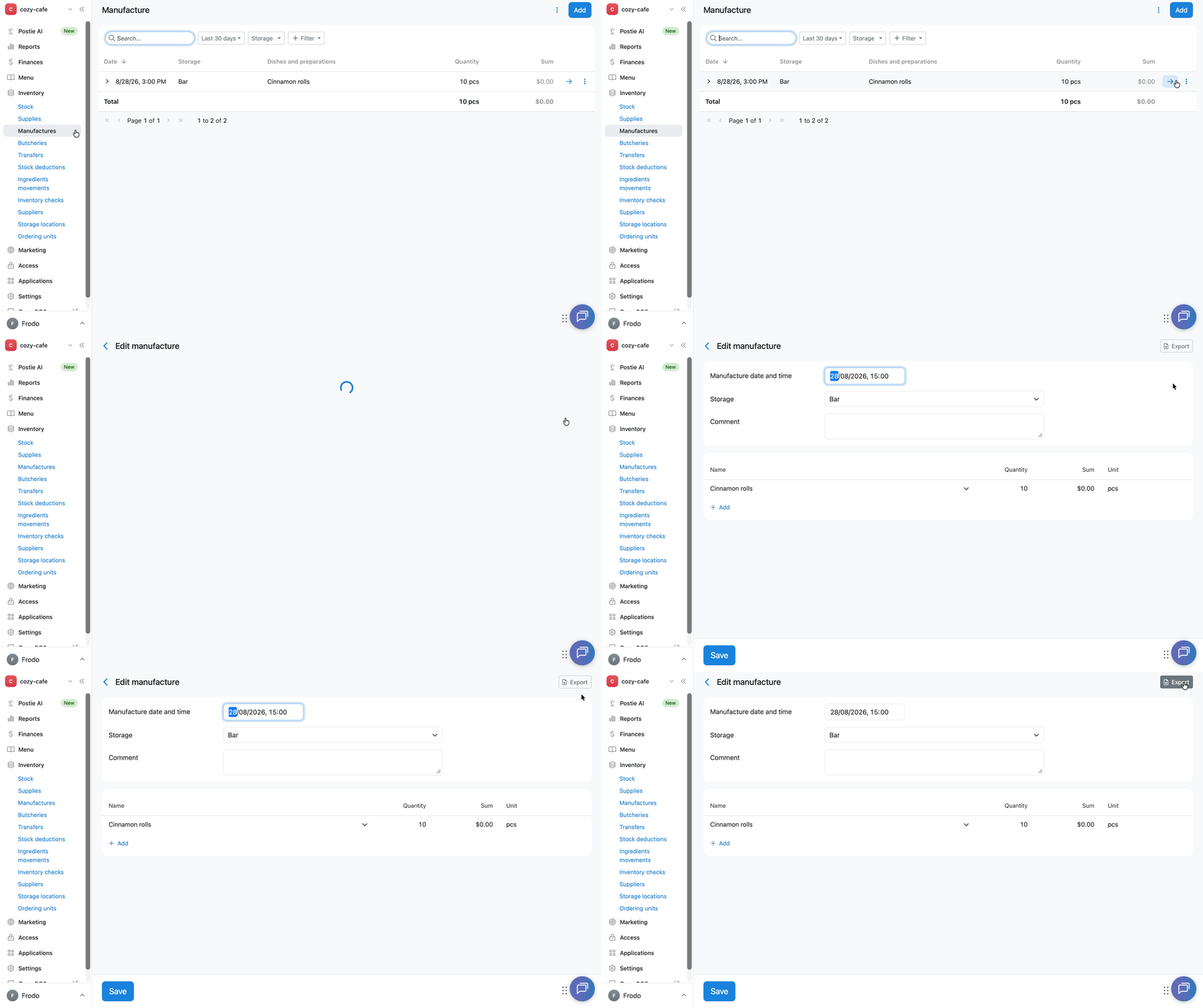
- Open the Inventory → Manufacture tab in the management console.
- Click → next to the manufacture you need.
- Change the data you need. You can change the date and time of the manufacture, the storage, add or edit a comment, or change the manufactured items or their quantity.
- Click Save.
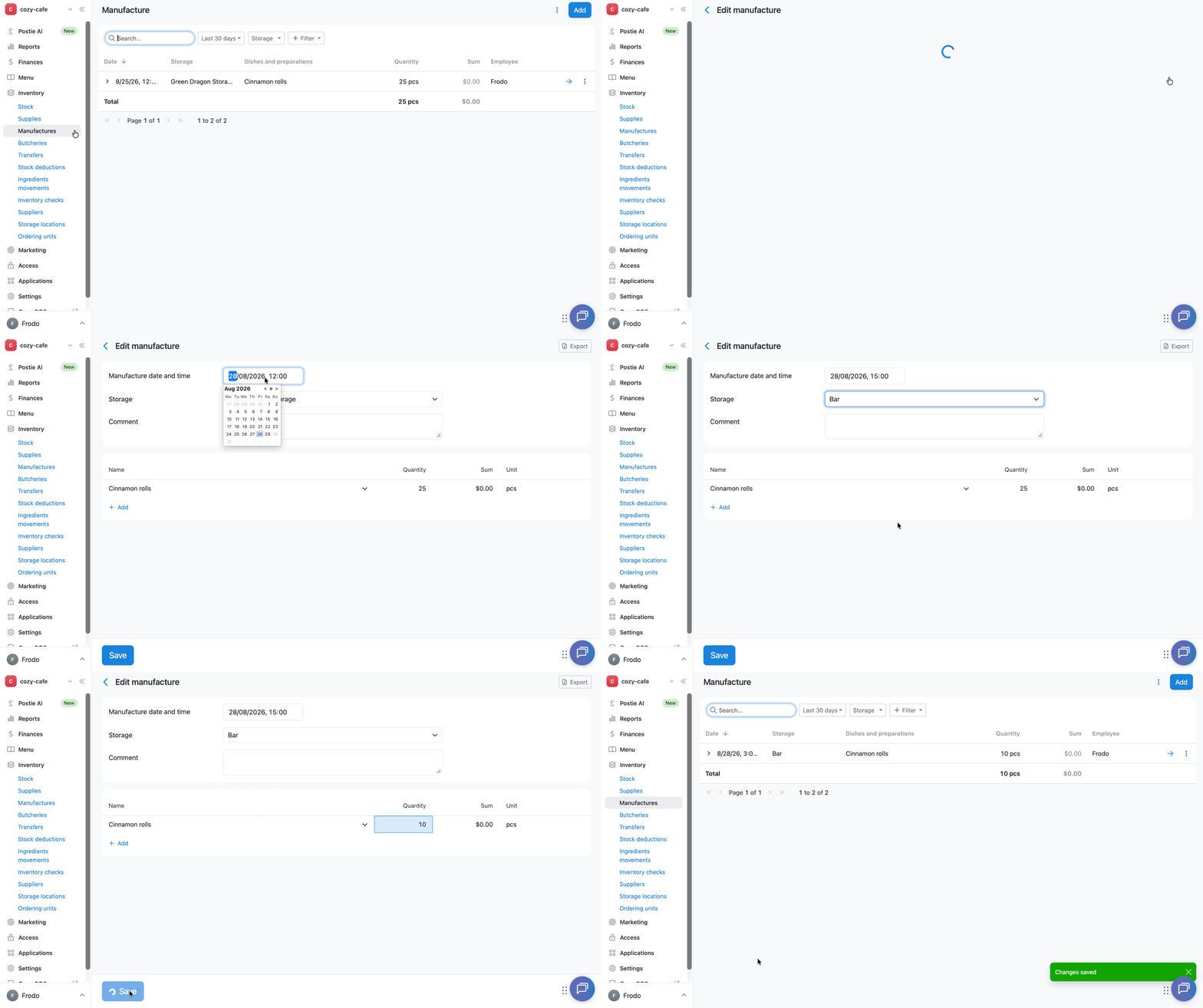
How to copy a manufacture
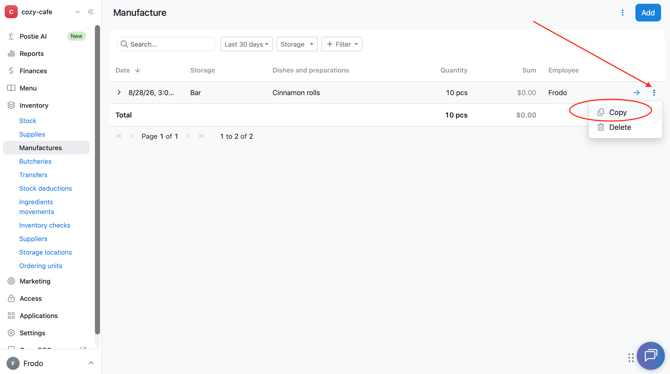
To copy a manufacture, click︙next to the manufacture you need and select Copy.
Poster will create a new manufacture with the same storage, dish or preparation, and quantity. Edit the data you need — for example, the date, time, or quantity — and save it as a separate manufacture.
How to configure the manufacture table columns
In the manufacture list, choose which columns to display in the table — this helps you see only the information you need and navigate the data faster.
- Open the Inventory → Manufactures tab in the management console.
-
Click ︙in the top-right corner of the screen and select Columns.
-
Check the columns you need: Date, Storage, Dishes and preparations, Comment, Quantity, Sum, Employee.
- Click Apply to save your selection, or Reset to default to restore the standard set of columns.
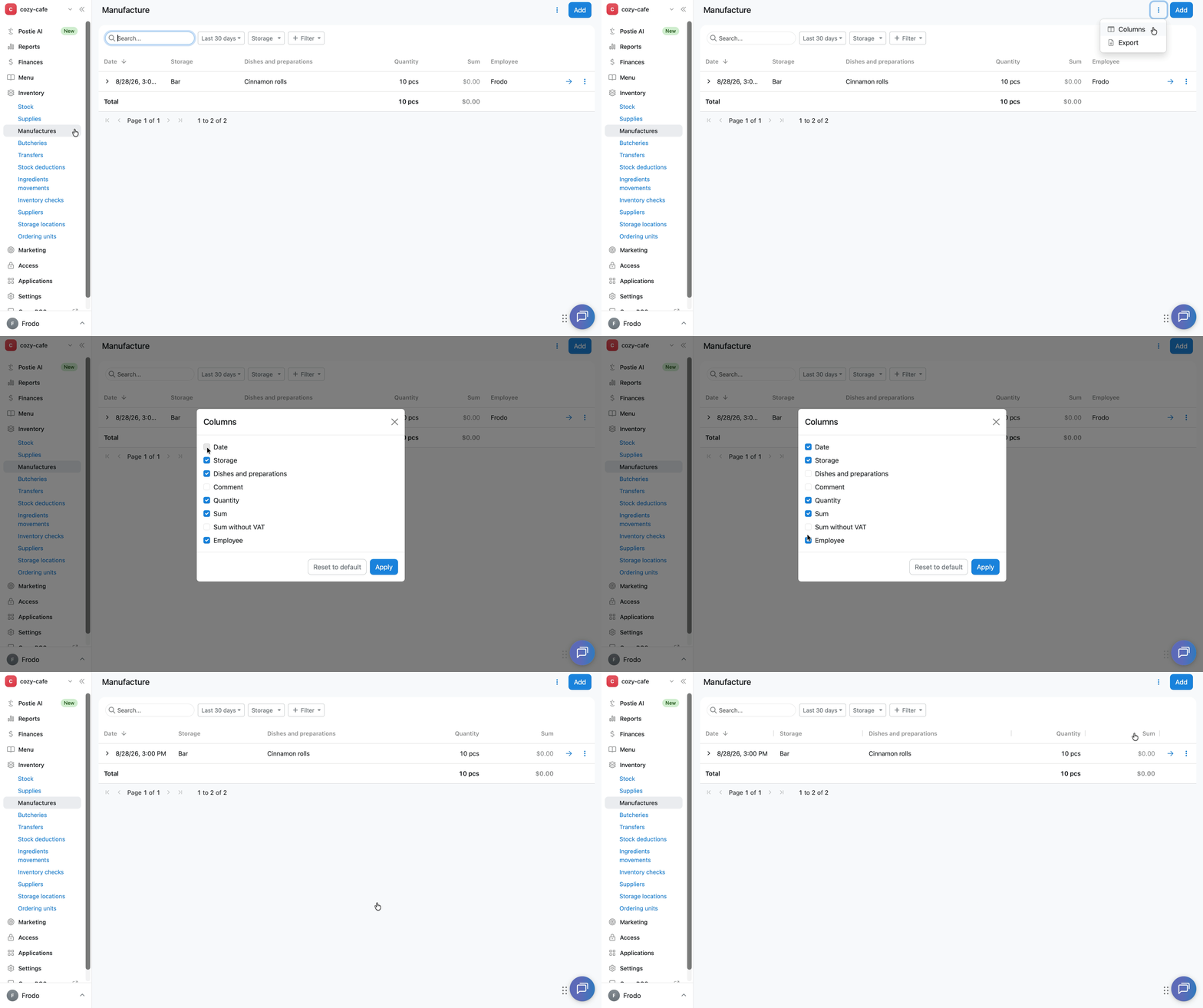
By default, the table displays the Date, Storage, Dishes and preparations, Quantity, Sum and Employee columns. The Comment column is hidden by default.
How to view manufactures for a specific day or period
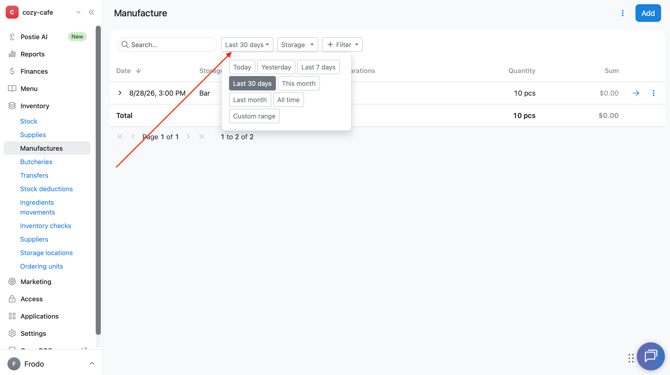
By default, when you open the Inventory → Manufactures tab, manufactures from the Last 30 days are displayed.
If you want to view manufactures for a different period, click Last 30 days above the table and select the period you need: Today, Yesterday, Last 7 days, Last 30 days, This month, Last month, All time, or Custom period.
How to filter manufactures by storage
To see only manufactures from one storage in the table, click the Storage button above the manufacture table and select the storage you need from the list.
How to add additional filters to the manufacture list
Click the + Filter button above the manufacture table and choose which criteria to filter the list by: Dishes and preparations, Comment, Sum, or Employee.
How to export manufactures
In Poster, you can export either the full list of manufactures or a single manufacture.
How to export the manufacture list
-
Open the Inventory → Manufacture tab in the management console.
-
Click ︙in the top-right corner of the screen.
-
Select Export.
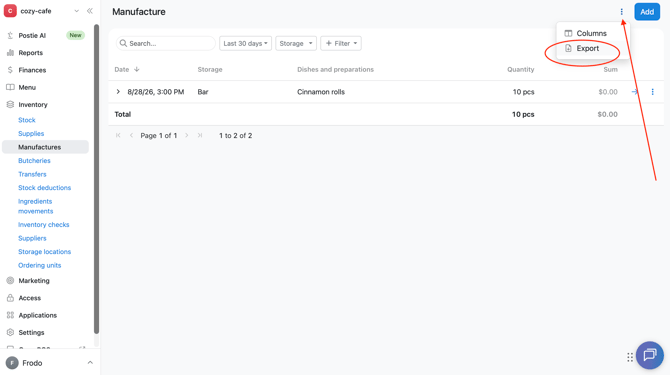
Poster will download an .xlsx file with the list of manufactures. The file will only include information from the columns displayed in the table at the time of export.
How to export a single manufacture
- Open the Inventory → Manufacture tab in the management console.
- Click → next to the manufacture you need.
- In the top-right corner of the screen, click the Export button.
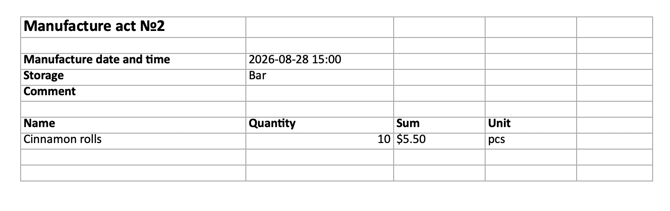
Poster will download an .xlsx file with the manufacture record. It will include: the record number, the date and time of the manufacture, the storage, the comment, as well as a table with the name, quantity, sum, and unit of measurement for each item, and a Total summary row.
Limitations
- You can't link a dish with modifiers to a manufacture.
- The manufacture feature is disabled by default. If you're just getting started with it, first enable it in Settings → General.
- Always create the first manufacture of a dish with the current date — ingredients already deducted from past sales won't be recalculated retroactively.
- If there isn't enough of a manufactured dish in storage, the balance will go negative — create a new manufacture for that dish or preparation.
To better understand how manufacture works, check out the most common use cases — from preparations to finished dishes that are sold in portions.