
Open Inventory → Stock in the management console to see how many products are currently available in your account's storages.
Data in this tab updates automatically after every stock movement: sales at the register, supplies, transfers between storages, stock deductions, inventory checks, and so on.
How to view product stock
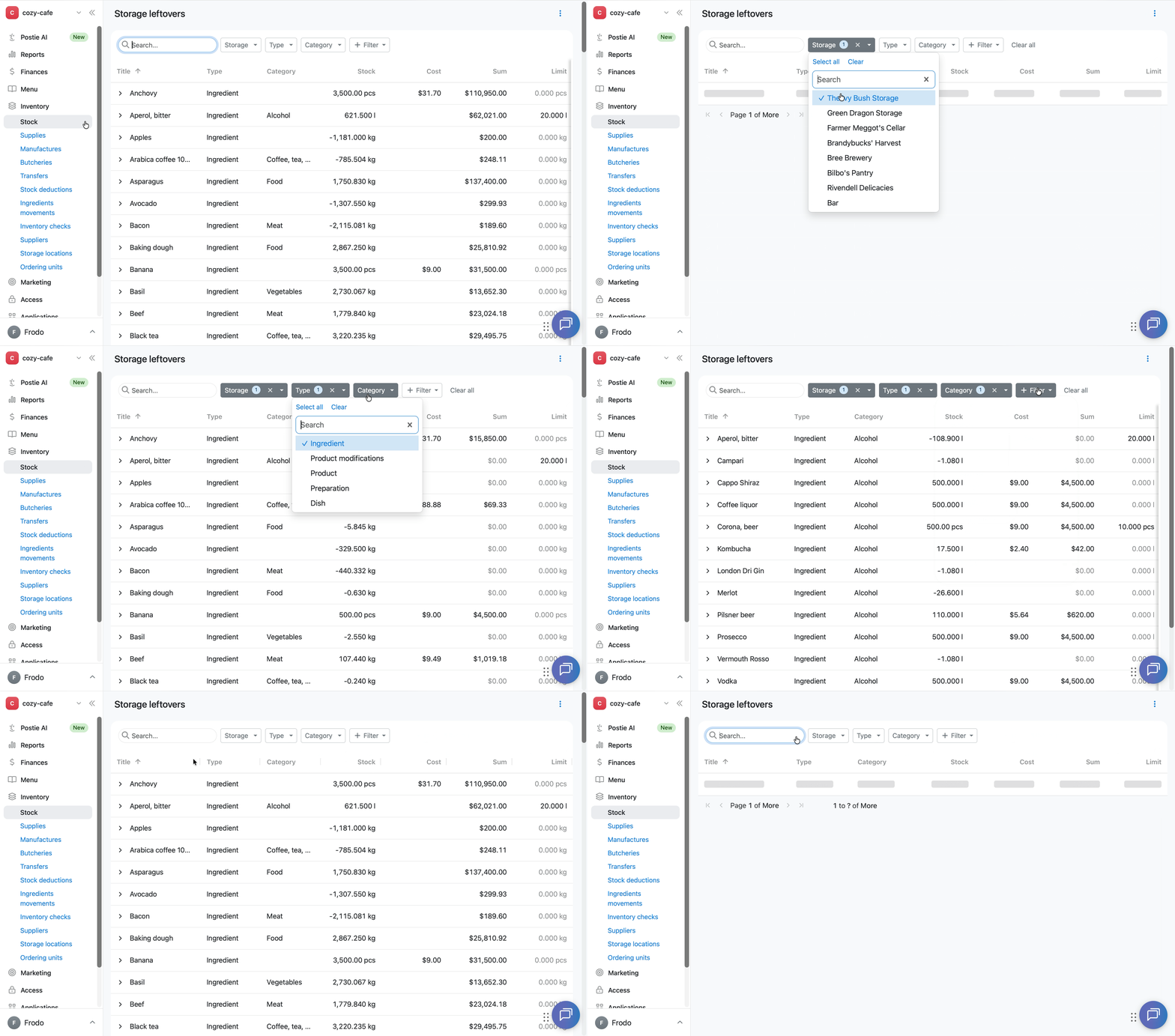
By default, Inventory → Stock shows the stock from all storages. To find a specific product or view the stock of a particular storage, use the filters:
- Open the Inventory → Stock tab in the management console.
- Enter the product name in the Search field.
- Click Storage and select one or several storages.
- Click Type to show only ingredients, products, product modifications, manufactured preparations, or manufactured dishes.
- Click Category to filter products by category.
- Click + Filter to add conditions by name, barcode, stock, cost price, amount, or limit.
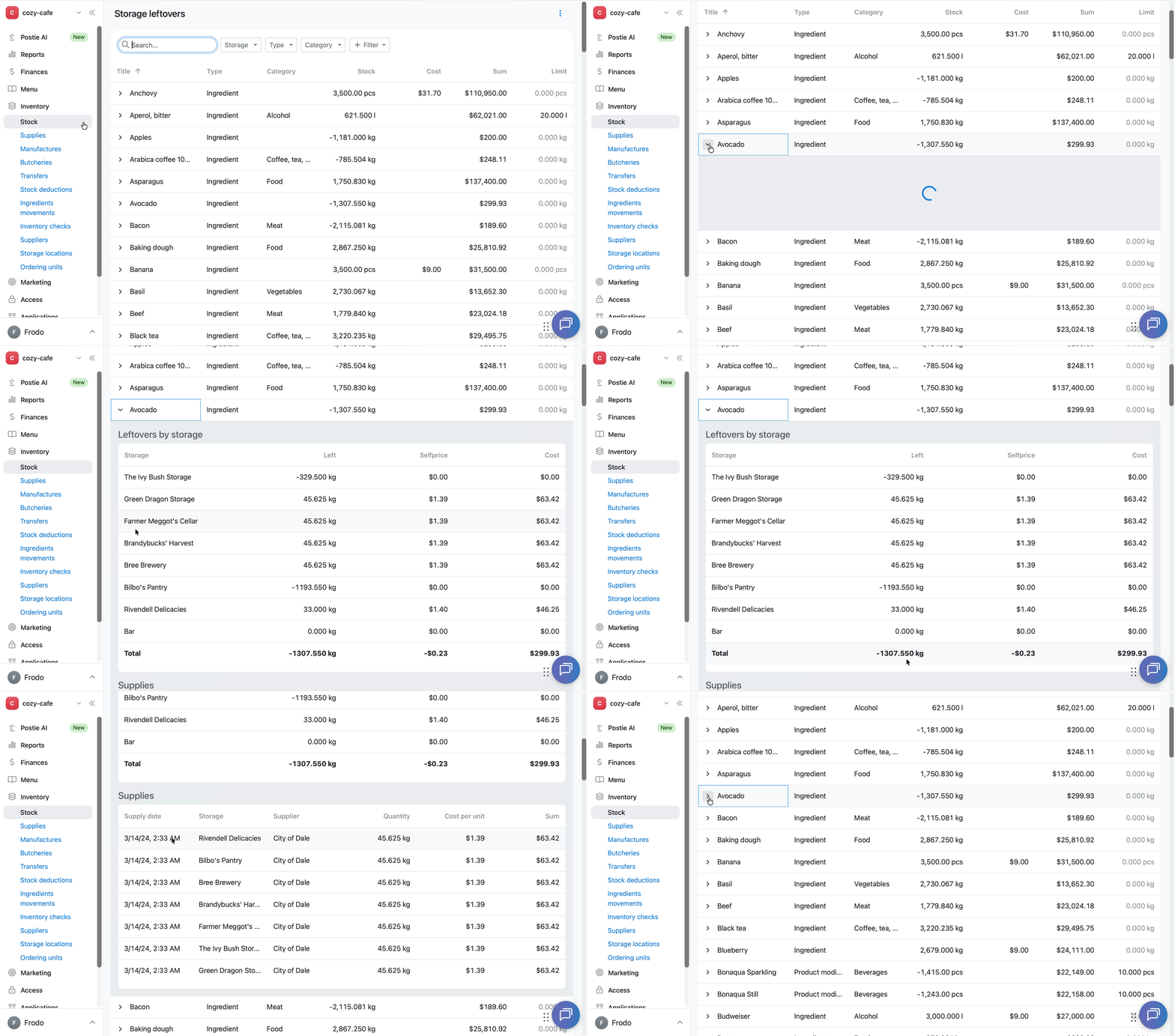
Click > next to a product's name to view:
- the stock broken down by each storage;
- the product's recent supplies — date, storage, supplier, quantity, unit cost, and amount.
💡 If there are more than 100 products in the list, they're split across several pages. Browse the next pages using the arrows at the bottom of the table.
How to configure the stock table columns
Configure the table to suit your needs so you can view stock conveniently.
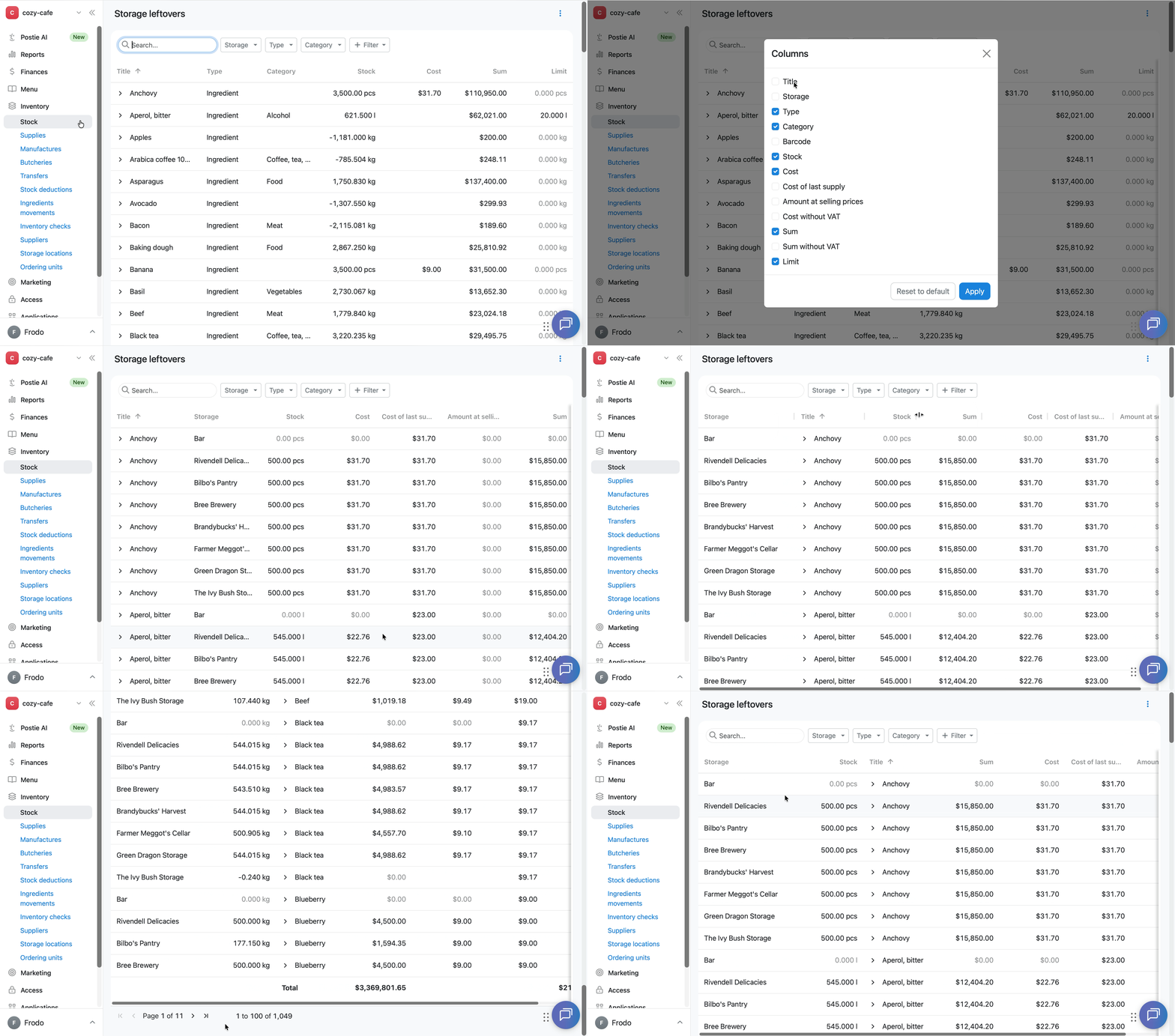
Click ︙ in the top right corner of the screen and select Columns. Check the boxes for the columns you need and click Apply.
The table has the following columns available:
- Name — the product's name.
- Storage — the storage where the product is kept.
- Type — the product's type: ingredient, product modification, product, preparation, or dish.
- Category — the product's category. If no category is set in the product's settings, this field is left blank.
- Barcode — the product's barcode. If no barcode is set for an item, this field is left blank.
- Stock — the current quantity of the product in storage. If the product isn't in any storage, a zero stock is shown. If more of the product was written off than the available stock, a negative value is shown.
- Cost — the product's weighted-average cost per unit at the current moment.
- Cost of last supply — the cost price from the product's last supply.
- Cost without VAT.
- Amount at selling prices — the value of the current inventory at selling prices.
- Sum — the value of the current inventory at cost price.
- Sum without VAT.
- Limit — the minimum quantity of the product to keep in storage. If no limit is set for the product, 0 is shown.
To restore the default set of columns, click Reset to default.
To change the order of the columns, press and hold a column name and drag it to the position you want.
💡 To resize a column, hover over its border and drag it in the direction you want. For example, if a product's full name isn't visible, "stretch" the column to see it in full.
How to export stock to a file
- Open the Inventory → Stock tab in the management console.
- Set up the filters, columns, and column order you need.
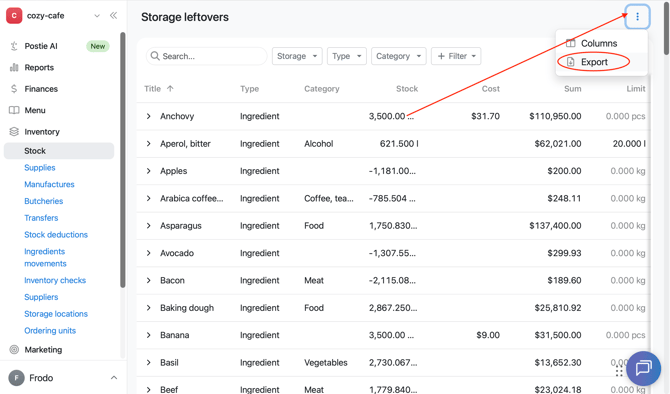
- Click ︙ in the top right corner of the page and select Export.
- A file in .xlsx format downloads, containing the data and columns shown in the table at the time of export, taking into account any filters applied.
💡 To print the stock, open the downloaded Excel file and print it.
How Inventory → Stock differs from the Ingredients movements
In the Inventory → Stock tab, Poster shows the product's actual inventory at the current moment. For example, if it's currently 10:00 AM on October 15, the tab will show the inventory as of that exact moment.
The Inventory → Ingredients movements tab shows how the inventory changed over a selected period or as of a specific date.
If you need to check a product's inventory as of a past date, use the movement report rather than Inventory → Stock
Limitations and specifics
-
Inventory → Stock shows up-to-date data for the current moment and updates automatically after every product movement in storage.
-
You can't check the inventory as of a past date in the Inventory → Stock tab. For that, use the Ingredients movements, where you can view the inventory and movement of products over a selected period.
-
A negative inventory means the product was sold or deducted in a quantity greater than what was added to storage.
-
Cost is calculated automatically using the weighted-average method and can't be edited manually. It changes after supplies are added, inventory checks are ran, and other changes are made in storage.