
We’ve recently updated the Poster Boss app. Here’s what’s changed:
- A completely new Poster Boss: We’ve rebuilt the app from scratch to make it faster, smoother, and more convenient to use on your smartphone.
- Your entire business at your fingertips: Sales, orders, finances, inventory, and reviews are available in real time, wherever you are.
- All accounts in one place: Once you log in, all your accounts are added automatically. You no longer need to log in to each account separately.
- Updated login process: To continue viewing information about your locations, you only need to reauthorize through Poster once.
How to log In to Poster Boss
Logging in to the Poster Boss app works the same way as logging in to the management console. Use the same credentials you use for your Poster account: your email and password, or your Google account.
- Install the Poster Boss app on your smartphone from the App Store or Google Play.
- Open Poster Boss and tap Log in with Poster.
- Choose one of the following login methods:
- Enter your Poster account email and password, then tap Log in.
- Or tap Continue with Google and select the Google account linked to your Poster account.
- On the My accounts page, select the Poster account you want to log in to.
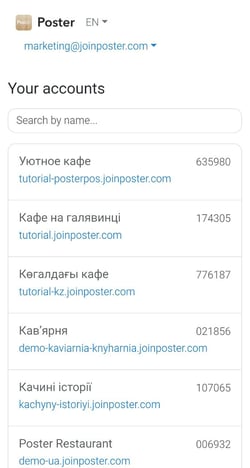
☝️ If several Poster accounts are registered to the same email address, they will all appear on the My accounts page in Poster Boss. To switch to another account, open My accounts and select the account you need from the list.
How to navigate the app and what information you can view
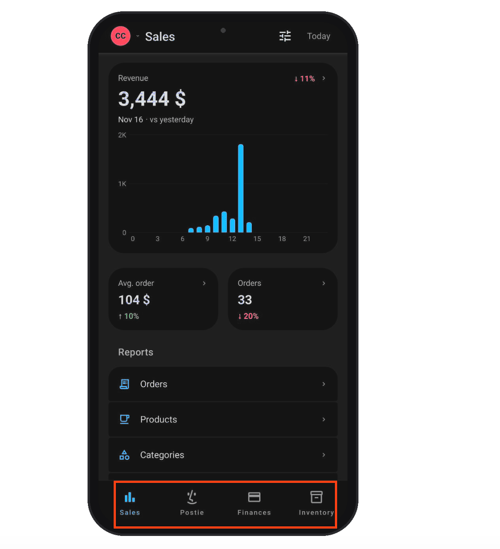
The app has four main tabs:
- Sales — key metrics for the selected period, sales reports, and customer reviews.
- Postie — a chat with Postie AI.
- Finances — cash shifts, accounts, and financial transactions.
- Inventory — stock levels and the total value of your inventory.
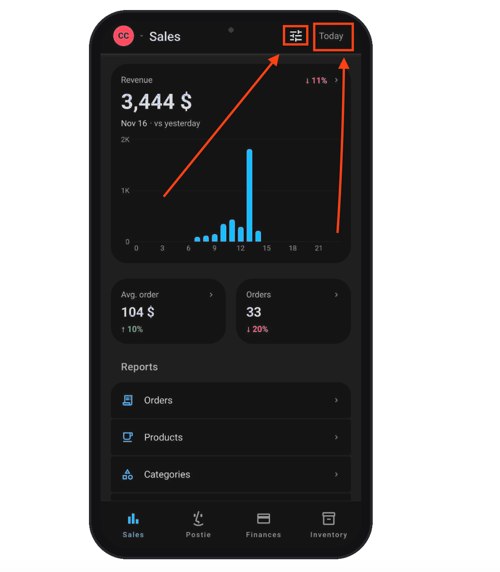
At the top of the screen, you’ll find a period selector and a filter for the metrics displayed in the app.
You can switch between Poster accounts registered to the same email address directly in the Poster Boss app.
- Tap the account icon in the top-left corner of the screen.
- Find the account you need in the Account section and tap it.
💡 The account currently open in the app is marked with a checkmark. - If the account you need isn’t in the list, tap Refresh accounts and wait for the update to finish. The list will then display your latest account information.
How to view account information
Sales tab
The Sales tab opens by default when you launch the app. It displays your main business statistics. At the top of the screen, you’ll see Daily revenue, Average ticket, and Orders.
Tap any of these sections to view detailed daily statistics in a chart.
Below, the Reports section contains information grouped into different categories:
- Orders — the number of orders, revenue, the total value of open receipts, and a list of receipts by day. Each receipt displays its number, ordered items, payment method, amount, cost, profit, employee, location, number of customers, and time. Press and hold a receipt, then select Open or Delete.
- Products — the total sales amount and number of units sold for each product.
- Categories — the total sales amount and number of units sold in each category. Tap a category to view the products it contains.
- By employees — the total sales amount and number of orders for each employee.
- By locations — the total sales amount and number of orders for each location.
- By payment method — sales amounts broken down by payment method.
- Reviews — customer reviews submitted via Poster QR.
Postie tab
Postie AI chat is an AI assistant in the app that helps you analyze your business data, find business solutions, and handle everyday tasks.
Open the Postie chat and send a request to analyze data, get recommendations, or forecast the results of potential changes.
If you’re new to Postie or aren’t sure where to start, try the suggested prompts. For example, tap the Sales section and select Top dishes by margin or Waiter ranking.
☝️ The Postie tab is available in the app only if you connect Postie AI chat in the management console.
Finances tab
The Finances tab brings together information about your location’s cash shifts, financial transactions, and accounts.
- Cash shifts — a list of shifts for the selected period. Each shift shows its date, opening and closing times, location, status, and amount. Open shifts are marked with the Open status. Tap a shift to view:
- Shift summary — the opening cash balance, cash and card revenue, income, expenses, and safe drops.
- Details — the location and shift opening time.
- Operations — financial operations performed during the shift.
- Transactions — financial operations grouped by day. Each transaction shows its type, time, account, comment, and amount. Incoming transactions are highlighted in green, while outgoing transactions are highlighted in red.
- Accounts — the number of accounts, the total balance, and a list of accounts with their types (cash or bank account) and current balances.
💡 A negative balance is highlighted in red.
The Finances tab also lets you perform the following actions:
- Change the period — tap the date button at the top of the screen to select a period for viewing cash shifts or transactions.
- Filter the list — tap the filter button next to the dates.
- Add a transaction — tap +, select the operation type (Expense, Income, or Transfer), and enter the date and time, amount, account, category, and a comment if needed. Then tap Done.
Inventory tab
The Inventory tab displays stock levels for products and ingredients. It consists of two sections: a summary and a stock list.
- Summary — displays the number of items in stock and their total value.
- Stock — displays a list of items with their names, quantities in units of measurement, and stock values.
💡 By default, the list is sorted by value, with the most expensive items displayed first.
The Inventory tab also lets you perform the following actions:
- Find an item — enter its name in the Search field.
- Change the warehouse — select the warehouse you need to view its stock levels.
- Sort the list — choose whether to sort by Name or by Value.
How to set up cash shift notifications
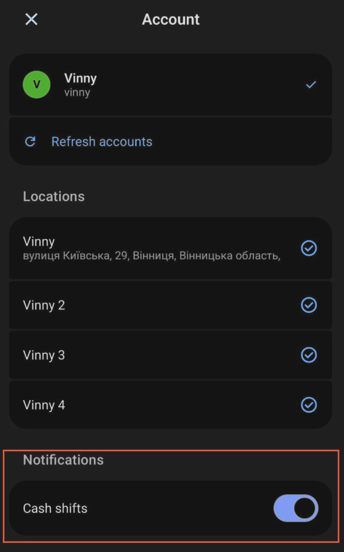
To receive notifications whenever your employees open or close cash shifts, enable notifications in Poster Boss:
- Tap the account icon in the top-left corner of the Poster Boss app.
- Scroll down to the Notifications section and find the Cash shifts toggle.
- Turn on the toggle to receive notifications about cash shift openings and closings.
- To stop receiving notifications, turn off the toggle.
What are the access limitations in Poster Boss?
Poster Boss only displays the sections and information that an employee has access to in the management console. For example:
- If an employee doesn’t have access to the Reports section, the Sales tab won’t be displayed in Poster Boss. The same applies to the Finances and Inventory tabs.
- If an employee has view-only permissions, they can view receipts but cannot delete them.
- If an employee doesn’t have access to the reporting sections, they may only have the Postie tab available in Poster Boss.
☝️ If an employee who doesn’t have permission to install apps logs in to Poster Boss, the owner won’t receive an access approval request.
How the Poster Boss App updates
- Changes after restarting the app. Visual changes and new tabs appear after you restart Poster Boss. You don’t need to update the app through the App Store or Google Play for these changes to take effect.
- Minimum supported version. Once a new version is released on the App Store or Google Play, earlier versions of the app may be blocked.
- Dark and light themes. Poster Boss automatically adapts to your smartphone’s theme. To change the app’s appearance, change the theme in your smartphone settings.