
Poster Boss shows reports for multiple Poster accounts and individual locations without requiring you to log in again. All accounts registered with the same email address appear in the app automatically, so you don’t need to add them separately.
☝️ If your accounts are registered with different email addresses, you won’t be able to use them all in Poster Boss at the same time.
How to view reports for selected locations within one account in Poster Boss
If several locations are added to one account, choose which ones you want to see reports for:
- Log in to the Poster Boss app.
- On the My accounts page, tap the account you want to open.
- Click the account icon in the upper-left corner of the screen, then scroll down to the Locations section.
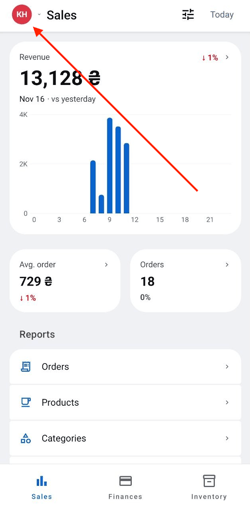
- Select the checkboxes next to the locations whose reports you want to see. Clear the checkboxes next to the locations you want to hide.
How to switch between Poster accounts in Poster Boss
You can switch between Poster accounts registered with the same email address directly in the Poster Boss app:
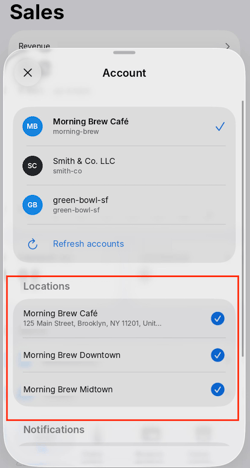
- Tap the account icon in the upper-left corner of the screen.
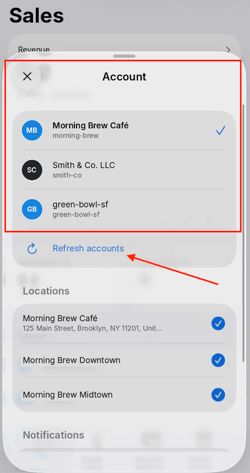
- In the Account section, find the account you need in the list and tap it.
💡 The account that is currently open in the app is marked with a checkmark - If the account you need is not in the list, tap Refresh accounts and wait for the update to finish. The account list will then be up to date.
💡 If there are many accounts and scrolling through the list is inconvenient, use the Search field at the top of the Account section and enter the account name.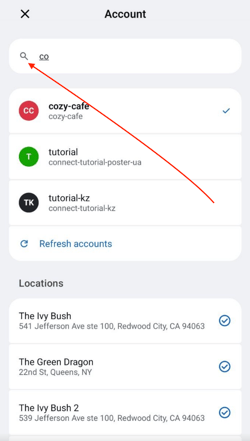
What to do if your Poster accounts are registered with different email addresses
☝️ If each Poster account is registered to a separate email address, Poster Boss cannot display them at the same time.
To work with several accounts without constantly switching, use one shared email address for all accounts.
First, choose a primary address. In accounts where it is already in use, nothing needs to change. In the other accounts, log in with your current credentials and add an employee with the primary address:
- Open the Access → Employees tab in the admin panel.
- Click Add.
- Enter the employee’s name and phone number.
- Select a position with access to the management console.
- Enter the primary email address.
- Enter the employee’s PIN code.
- Click Save.
An email will be sent to that address. Open the link in it to finish creating the employee.
☝️ Repeat these steps in every account where the primary address is not yet in use.
Now log in to Poster Boss with one email address and switch between all accounts without logging in again.