
Use Stock Deduction when a product has spoiled, expired, or it was used for recipe testing or employee meals.
How to add a stock deduction in the management console
- Open Inventory → Stock deductions in the management console.
- Click Add.
- Specify the Deduction date and time.
💡 The calendar language depends on the language set on the device you use to open the management console. For example, if the interface language on your laptop is set to English, the calendar in the stock deduction form will also be in English. - Select the storage location from which you want to deduct the products.
- In the Reason field, select the required reason from the list. If the required reason is not available, click Add and create it directly in the stock deduction form.
- If needed, add a comment to provide more details about the reason for the waste.
For example, the reason is «Recipe development» and the comment is «Summer menu preparation». - Add products, ingredients, dishes, preparations, or dish modifiers to the stock deduction and specify their quantity.
- Click Save.
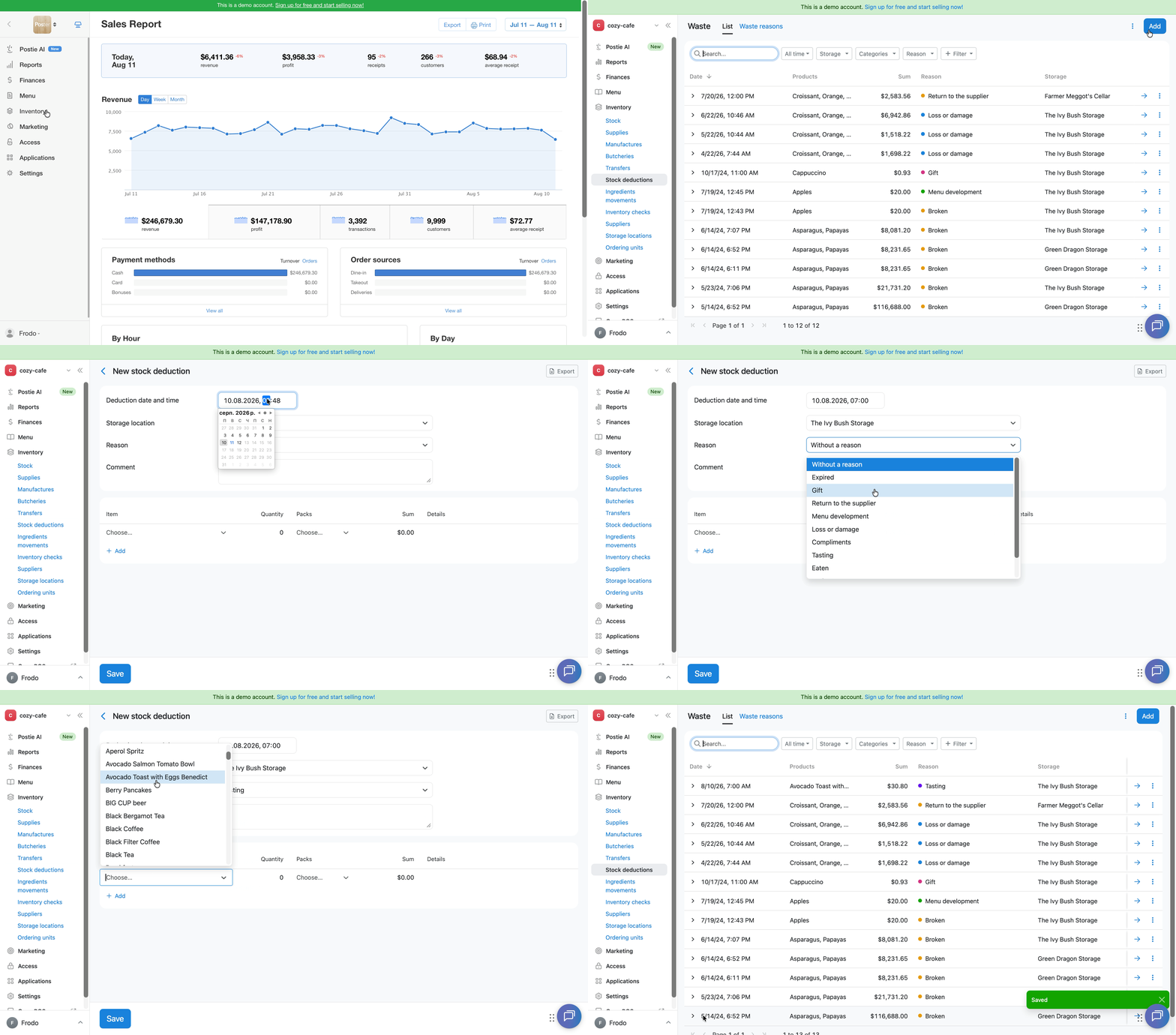
The stock deduction will appear in the list with the calculated amount and selected reason.
💡 If no ordering units are configured in your account, the Ordering unit block in the stock deduction form is automatically hidden.
If ordering units are configured, the unit of measurement for the deducted item is displayed in the Ordering unit block when creating a stock deduction. There is no separate Unit of measurement column in the stock deduction form.
How to deduct part of a dish
You can’t enter, for example, 0.5 of a dish directly in a stock deduction. To deduct half of a dish, create an Ordering unit:
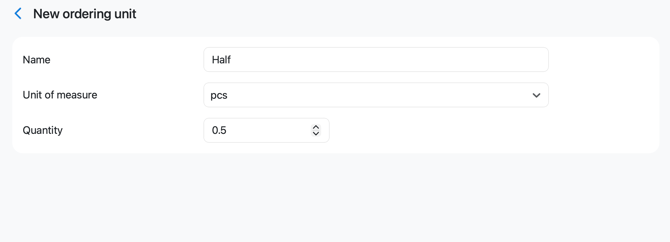
- Open Inventory → Ordering units and create an ordering unit with a quantity of 0.5 for the pcs unit of measurement. Name it, for example, «Half».
- When creating a stock deduction, select this ordering unit in the Ordering unit block.
- In the Quantity field, enter 1.
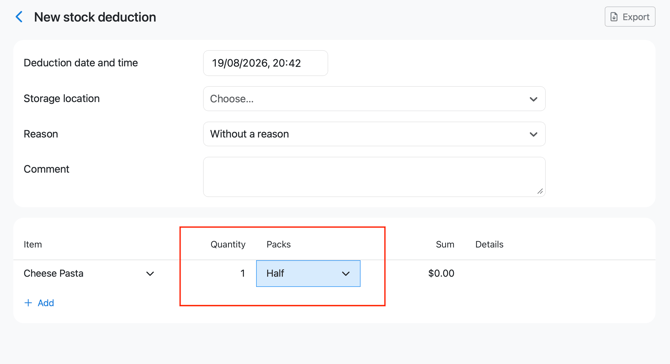
As a result, Poster will deduct the ingredients for half a portion of the dish.
Navigating the waste form using the keyboard
Use the keyboard when filling out the waste form:
- Tab — move to the next cell;
- Shift + Tab — return to the previous cell;
- Enter — activate a cell for entering or editing data.
How the waste amount is calculated
The waste amount is the product of the quantity of the deducted product and its current food cost. For example, if you waste 2 kg of a product with a food cost of 10$ per kg, the waste amount will be 20$.
Poster calculates cost using the weighted average method.
Can I create a deduction for a past date?
Yes. To create waste for a past date, specify a date and time within the open inventory period — that is, a date after the last inventory check for this storage.
You cannot select a date from a closed inventory period. If you try to save such waste, Poster will display the error message: “Check the entered values and try again.”
Only the ingredients that were included in the recipe of the dish or preparation on the selected waste date will be deducted.
Limitations
- Manual stock deductions do not replace automatic ingredient deductions when a sale is made — these are separate processes.
- You can’t select a stock deduction date from a closed inventory period.
- If no Ordering units are configured in your account, the Ordering unit block is not displayed in the stock deduction form. If ordering units are configured, the unit of measurement for the deducted item is displayed in this block. There is no separate Unit of measurement column in the stock deduction form.
To find a specific waste record, filter the list by storage, category, or reason, or customize the table columns, use search, filters, and list settings.