
Install application for waiters
To prepare a working place of waiter or cashier, download Poster POS for iOS, Android Windows, or macOS depending on your device.
|
iOS |
macOS |
Android |
Windows |
|
iPad Air 6, iPad 10’’ and other models with iOS 17+
|
8 GB RAM, M1, |
4 GB RAM,
|
8 GB RAM, |
|
|
 |
 |
 |

How to use the Poster POS register in a browser
You can open the Poster POS register in a browser without installing the app, but the web version is only a temporary solution. It’s suitable for short-term use, for example, while the app is being installed or when your main device is unavailable.
☝️ For regular and reliable POS operations, install the Poster app for iOS, Android, Windows, or Mac.
Limitations of the web version of the POS register:
- Printers work only through the system driver. ESC/POS printing is not supported.
- Printers connected via Bluetooth are not supported.
- Scales and cash box cannot be connected.
- You cannot add supplies from the POS register.
- You cannot print order tickets for the kitchen.
- Kitchen Kit is not supported.
- The Pro plan does not support table reservations.
How to log in to the web version of the Poster POS register in a browser
- Log in to the management console of your Poster account.
- In the upper-left corner, next to your location's logo, click the POS register icon. The Poster POS register will open in a new browser tab.
- Enter your POS login and POS password.
💡 If you’re the account owner and cannot check your POS register login details, sign in to the app using the email address and password you use for the management console. Enter your email address in the Login field and your management console password in the Password field.
The POS register password is generated automatically when the account is created. To view or change it, open Access → Tablets in the management console and click Edit next to the required POS register. - Enter the employee's 4-digit PIN.
💡 Check the PIN in the management console under Access → Employees, next to the required employee. - In the Balance field, enter the amount of change in the cash drawer at the beginning of the working day.
💡 If this is your first POS shift or there is no change in the cash drawer, enter 0 as the cash balance. - Click Open.
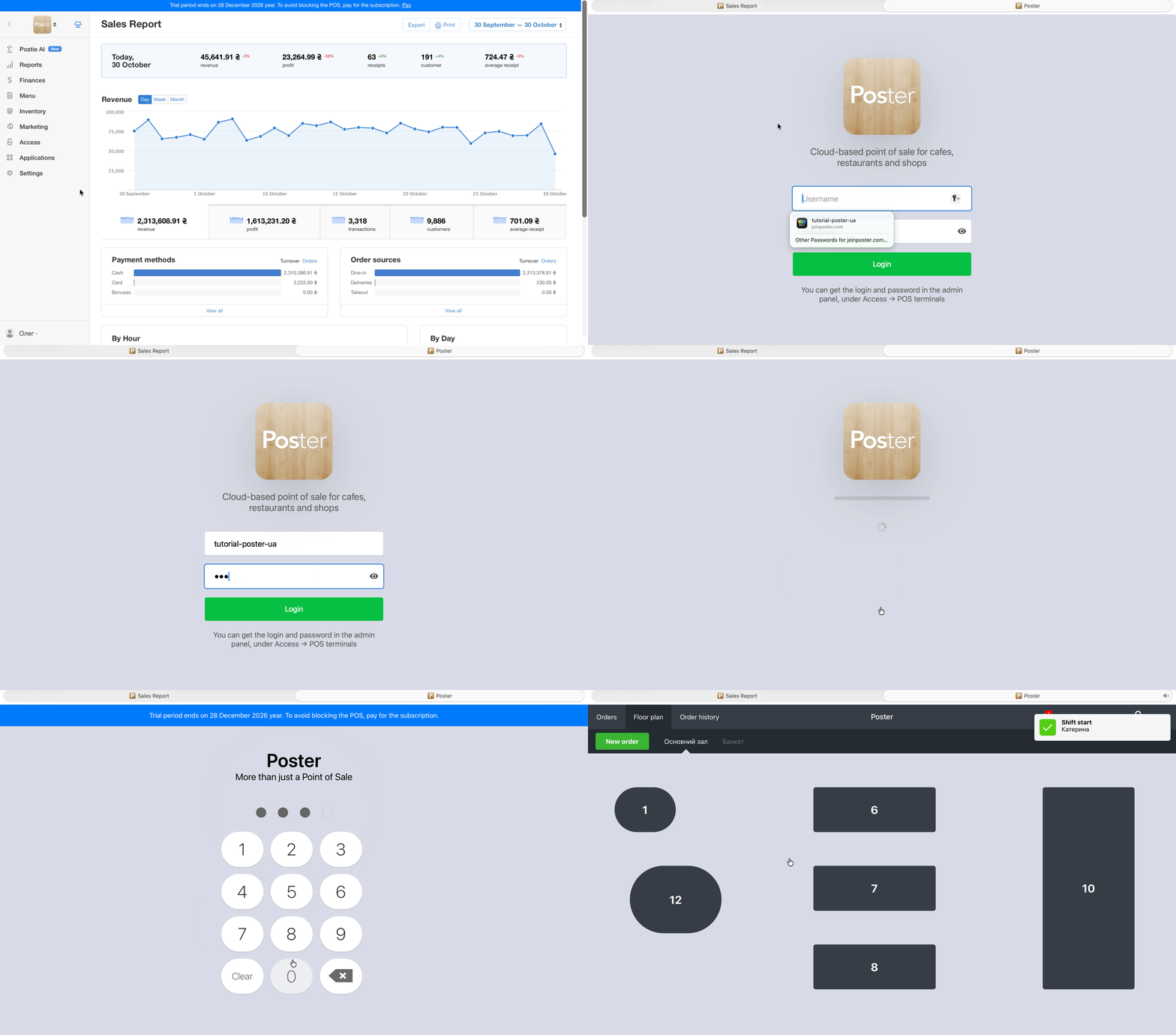
How to log in to the Poster POS app and open a POS shift
To start sales log into your POS:
- Launch Poster app on your tablet or computer.
- Enter POS login and POS password.
- 💡 If you’re the account owner and cannot check your POS register login details, sign in to the app using the email address and password you use for the management console. Enter your email address in the Login field and your management console password in the Password field.
The POS register password is generated automatically when the account is created. To view or change it, open Access → POS registers in the management console and click Edit next to the required POS register. - Enter your PIN.
💡 Check the PIN in the management console under Access → Employees, next to the required employee. - In the Balance field, enter the amount of change in the cash drawer at the beginning of the working day.
💡 If this is your first POS shift or there is no change in the cash drawer, enter 0 as the cash balance. - Click Open.

💡 To help your waiter navigate in floor plan faster, tables are colored different:
- grey displays a vacant table;
- blue displays an order created by the currently logged-in employee;
- violet displays an order created by the other employee;
💡 Turn off the guest count feature in Settings → General → Point of Sale settings to To add ordered products after selecting a table instantly.
💡 Turn off the Show floor plan feature in Settings → General, in case your cafe operates in a To Go mode only.
How to make a test sale at the POS
To make a test sale add products in receipt on the POS:
- Choose table on the floor plan and enter guest count.
- Tap product in the menu which is shown in the right part of the screen.
- In open receipt, in the left part of the screen tap near amount of product and choose:
- “+” to add one more same dish;
- “-” to delete one product from receipt.
- Press Pay.

Message us to clear sale tests before starting to work with Poster.
How to make a sales report on POS
To control sales you can make a sales report by hours:
- Tap ≡ in the right upper corner and choose Make a report.
- Choose date and time of report period.
- In Waiter field choose from drop-down list:
- All waiters to make a report of all staff sales in chosen period.
- Waiter name to make a report of exact waiter sales.
- Turn on Sales by products to display names, count and price of sold products.
- Tap Make report.
- Tap Print in right upper corner to print report on ticket printer.

💡 To control receipts history and their amount by period, check receipts report.
How to add POS transaction to record a non-sale income or expense:
- Expense is the cost of the electricity used, rent or salaries.
- Income is a deposit of cash to the cash drawer.
- Safe drop is a transfer of daily proceeds between “Cash drawer” and “Safe deposit” account.
To add a transaction on the register:
- Click ≡ at the upper right corner of the screen and select Add transaction.
- Select a type of transaction: Expense, Income or Safe drop.
- Enter the transaction amount and write a comment.
- Select a transaction Category available at POS.
- Click Done.

💡 You can view all transactions that were added on the register or in the management console in Finances → Transactions.
☝️ If you add a transaction on the register, it will be automatically assigned to the “Cash shift” category. You can change category in Finances → Cash shifts in the management console. Click on the cash shift to view expense and income transactions.
How to make your transaction categories available on the POS:
- Go to the Finances → Categories tab in the management console.
- Enable Display on the POS next to the category.
- Restart the Poster POS app to apply changes.
- Go to ≡ → Add transaction to select a transaction category, type, and sum.
Feel free to contact us if you have any questions or concerns. We're available in chat @joinposter.com and email contact@joinposter.com.