
Connect the POS manufacture integration so employees can manufacture dishes and preparations directly at the Poster POS. An employee only needs to select the item and enter its quantity — Poster automatically deducts all ingredients from inventory according to the dish's recipe or the preparation's recipe. There's no need to calculate ingredient quantities separately or create a manufacture record in the management console.
💡 The integration is free.
All manufacture records are saved to the management console, so you can always see who performed a manufacture and when.
How to connect the «POS manufacture» integration
- Open the integration page via the link.
- Click Get started to connect the app to your account.
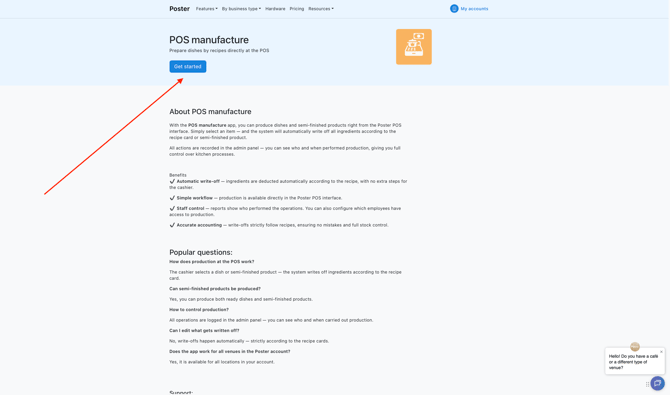
After connecting the app, it will be available on all POS registers in your Poster account.
How to set up employee access to POS manufacture
After connecting the POS manufacture integration, set up which employees will be able to perform a manufacture directly at the POS:
- Open the Appllications → POS manufacture tab.
- Go to the Settings section.
- In the Who can create manufacture block, choose one of the options:
- All employees — manufacture at the POS is available to any employee;
- Employees with «administrator hall» access — only employees with the corresponding access can perform a manufacture.
- Click Save.
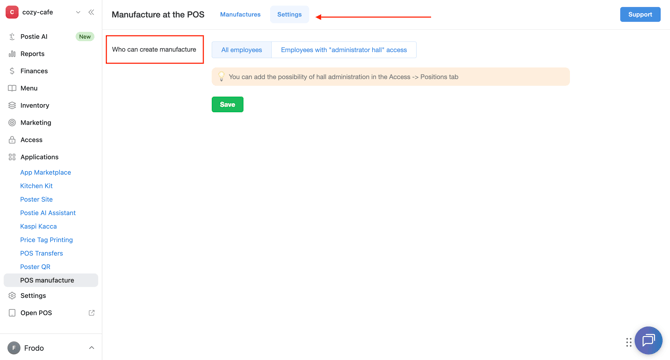
☝️ Hall administrator access can be granted to an employee in the Access → Positions tab. Without access configured in the Settings section of the POS manufacture app, an employee won't be able to perform a manufacture at the POS.
How to create a manufacture record at the POS register
- Open the Poster app.
- Tap ≡ in the top right corner and select POS manufacture in the Apps block.
- Set the manufacture date and time.
- Select the storage where the manufacture is recorded.
- Add a comment, if needed.
- In the Item block, select a dish or a preparation, and specify the Packing and quantity.
- To add another item, click + Add item.
- Click Save.
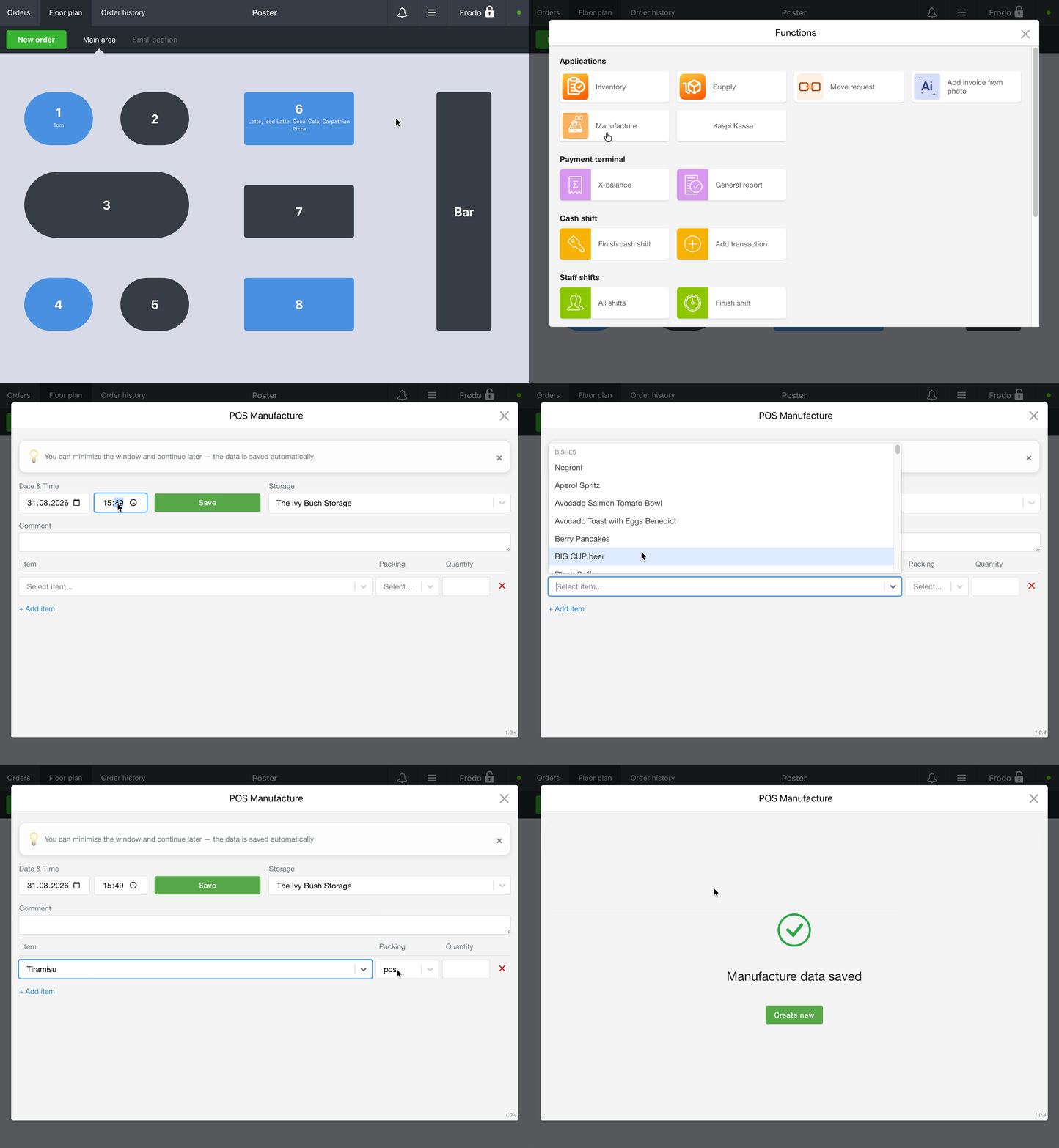
☝️ You can collapse the manufacture window and continue filling it in later — the entered data is saved automatically.
Once saved, the system automatically deducts ingredients according to the recipe of the selected dish or preparation. The list and quantity of deducted ingredients can't be edited manually — the deduction always follows the configured recipe.
How to check a manufacture record created at the POS
A manufacture record created at the POS is sent to the management console right away. You can check it in two ways:
- In the Inventory → Manufacture tab.
- In the Apps → POS manufacture tab, in the Manufacture section.
If you're viewing the record in the Manufacture section under Apps → POS manufacture:
- Click Details next to the record to see the list of manufactured items, their quantity, and their total.
- Click Edit to make changes to the created manufacture record.
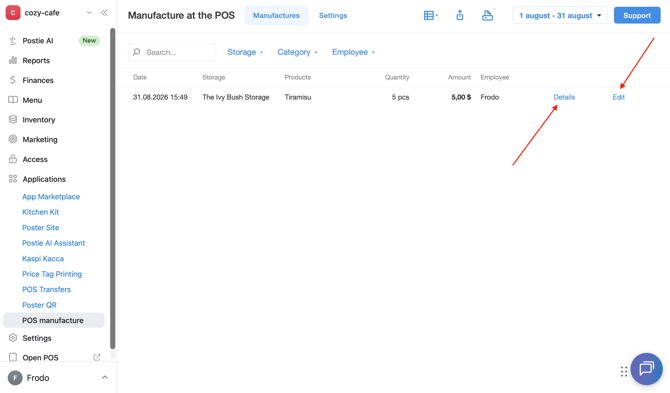
How to work with the manufacture list in the management console under Apps → POS manufacture
In the management console, under Appllications → POS manufacture → Manufacture, you can quickly find the records you need, customize how the list is displayed, and export it.
- Search and filters. Use the Search field or the Storage, Category, and Employee filters to find the record you need.
- Column settings. Click Columns to choose which data to display in the list: Date, Storage, Products, Categories, Quantity, Amount, Employee, and Comment. Click Default to restore the standard set of columns.
- Export. Click Export to download the manufacture list as a file.
- Print. Click Print to print the manufacture list or save it as a PDF.
☝️ If you have questions about the POS manufacture app, click Support in the top right corner of the page to contact this integration's support team.
Limitations
- The POS manufacture integration is free, but it must first be connected under Appllications → All apps to be used.
- Once connected, the integration is available on all POS registers in your Poster account.
- For an employee to be able to perform a manufacture at the POS, grant them the corresponding access in the Settings section of the POS manufacture app.
- During a manufacture, ingredients and their quantities are deducted automatically according to the dish's or preparation's recipe. They can't be edited manually at the POS register.