
To track employee working hours for payroll calculation, go to Settings → General in the management console and enable Staff time tracking.
After that, Poster will automatically record the start of an employee's work shift when they enter their PIN code at the POS and calculate their total working time once the shift ends. Use this data to monitor your team's working hours and calculate salaries.
Work time tracking is available only on the Business and Pro plans.
How to enable employee work time tracking in the management console
Once work time tracking is enabled, Poster will automatically start an employee's work shift when they enter their PIN code at the POS.
- In the Poster management console, go to Settings → General.
- Under Management settings, select the Staff time tracking checkbox.
- Click Save.

How employees can start and end their work shifts at the POS
An employee's work shift starts when they log in to the Poster POS app with their PIN code. At the end of the working day, the employee must end the shift manually. This allows Poster to track late arrivals, overtime, and total hours worked, including for employees with flexible schedules.
To start a work shift:
- Open the Poster POS app and enter your PIN code.
- Make sure that an on-screen notification appears and a sound plays to confirm that your work shift has started.
To end a work shift:
- At the Poster POS, tap the ≡ button in the upper-right corner.
- Under Staff shifts, select Finish shift.
- Check the recorded working time in the employee's profile.
- Tap Finish shift.

How multiple employees can start their work shifts on the same POS
If several employees use the same POS or start working at different times, each employee starts their own work shift during the location's business day.
- In the POS app, tap the current employee's name in the upper-right corner. A lock icon 🔐 appears next to the name.
- The next employee enters their PIN code. Their work shift starts, while the previous employee's shift remains open.
How to view all employees' work shifts at the POS
The owner or an admin can use the Poster POS app to check which employees are currently working, when their shifts started and ended, and how many hours each employee worked on a selected day.
- Log in to the POS with owner or admin access.
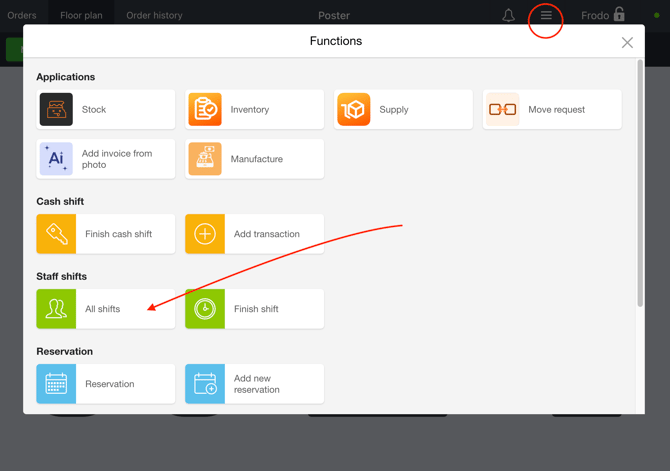
- Tap the ≡ button in the upper-right corner and select All shifts.
- In the Staff shifts window, check the start and end times of work shifts and the total hours worked on the selected day.
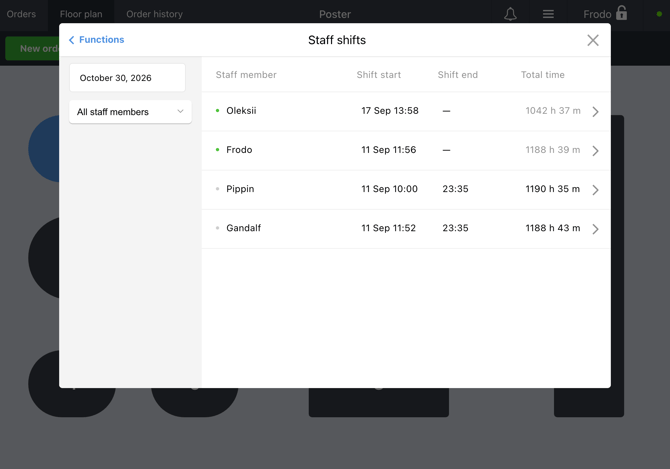
The status of each work shift is indicated by a colored marker next to the employee's name:
- 🟢 Green indicator — the employee's work shift is open.
- ⚪ Gray indicator — the employee's work shift is closed.
How an admin can end, edit, or delete an employee's work shift
The owner or an employee in the admin position can manage other employees' work shifts in the Poster POS app under Staff shifts → All shifts. There, they can end another employee's open shift, change the start time of an open shift or the end time of a closed shift, and delete a closed shift.
To end a work shift that an employee forgot to end:
- At the Poster POS, tap the ≡ button in the upper-right corner.
- Scroll down to Staff shifts and tap All shifts.
- In the Staff shifts window, open the profile of the employee whose work shift is still open.
- Check the recorded working time and tap End shift.
To change the start or end time of a work shift:
- At the Poster POS, tap the ≡ button in the upper-right corner.
- Scroll down to Staff shifts and tap All shifts.
- In the Staff shifts window, select the open work shift.
- Tap the shift and enter the correct time.
- Tap Save.

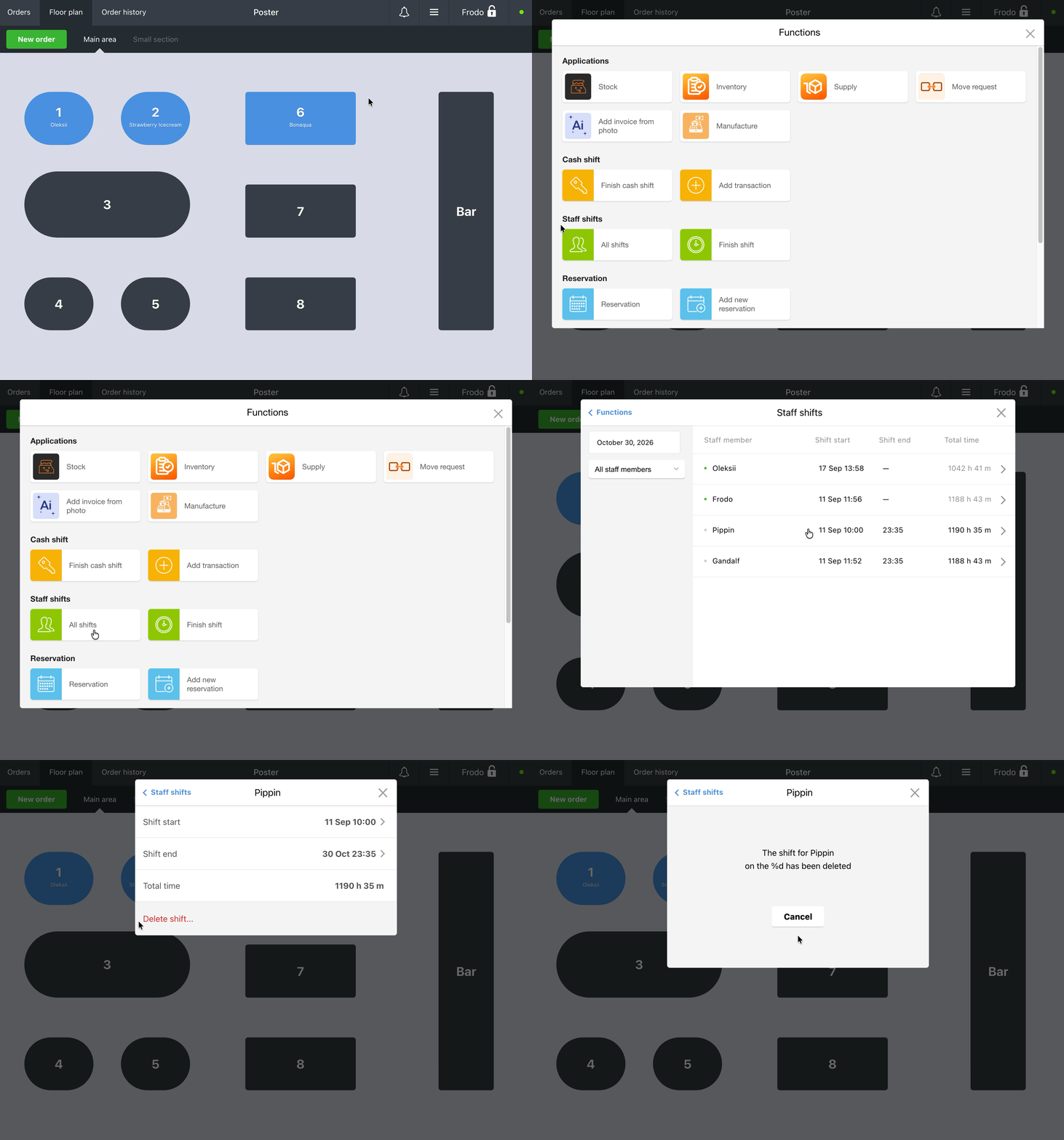
To delete a work shift:
- At the Poster POS, tap the ≡ button in the upper-right corner.
- Scroll down to Staff shifts and tap All shifts.
- In the Staff shifts window, select a closed work shift.
- Tap Delete shift.
- If you deleted a work shift by mistake, tap Cancel immediately.
What to do if work time tracking isn't working
An employee's work shift doesn't start after they enter their PIN code.
Check whether the Staff time tracking option is enabled in the Poster management console under Settings → General. If the option is already enabled, restart the POS app to sync the settings.
After restarting the app, try starting the work shift again. If it still doesn't start, check whether the shift has already been started.
An employee forgot to end their work shift.
The owner or an administrator can end the shift for the employee at the Poster POS. To do this, open ≡ → Staff shifts → All shifts, select the employee's profile, and tap End shift.
An employee started or ended their work shift at the wrong time.
The owner or an administrator can correct the shift's start or end time at the POS. To do this, open ≡ → Staff shifts → All shifts, select the employee, and tap the relevant work shift. Edit the time in the Shift start or Shift end field.
Poster recorded more working hours than the employee actually worked.
Poster counts the entire period between the start and end of a work shift, not just the time an employee spends working at the POS. In Employee shifts, check whether the shift remained open after the employee finished working. If it did, end the shift and, if necessary, adjust its start or end time.
How to view employee work time statistics
To monitor hours worked and your team's work schedules, view the work time statistics for each employee in the management console under Reports → Employees.
Work time tracking limitations
- Work time tracking is available only on the Business and Pro plans.
- Poster counts the entire period from the start to the end of a work shift, not just the time an employee spends working at the POS. This means that if an employee isn't working at the POS but their shift remains open, that time is still counted as working time.
- An employee's work shift doesn't end automatically. The employee or an admin must end it manually in the POS app.
- You can't start or end an employee's work shift in the management console. A work shift can only be started in the Poster POS app.
- You can change the start time of both open and closed work shifts.
- You can delete only closed work shifts.