
Let's look at two ways to track employee meals and control how products are deducted from Storage.
🥘 If staff eat at cost price or for free, create a stock deduction in the management console.
To add a stock deduction from Storage:
- Open the Storage → Stock deductions tab in the management console and click Add.
- Set the date and time of the stock deduction.
- Select the storage location you want to deduct the dish from.
- 4.Select the reason for the stock deduction.
💡 For convenience, add a new stock deduction reason: «Employee meals». - Write a comment to detail the reason for the stock deduction. For example, if the amount is deducted from an employee's salary, add their name to the comment: «Anna's lunch». This way you can tell stock deductions apart from each other.
- Select the product, dish, preparation, or ingredient, its quantity, and add any clarifying details.
☝️ Deducting a dish only deducts its base recipe, without modifiers. To deduct a dish's modifier, add it separately as an ingredient, preparation, dish, or product. - Click Save.
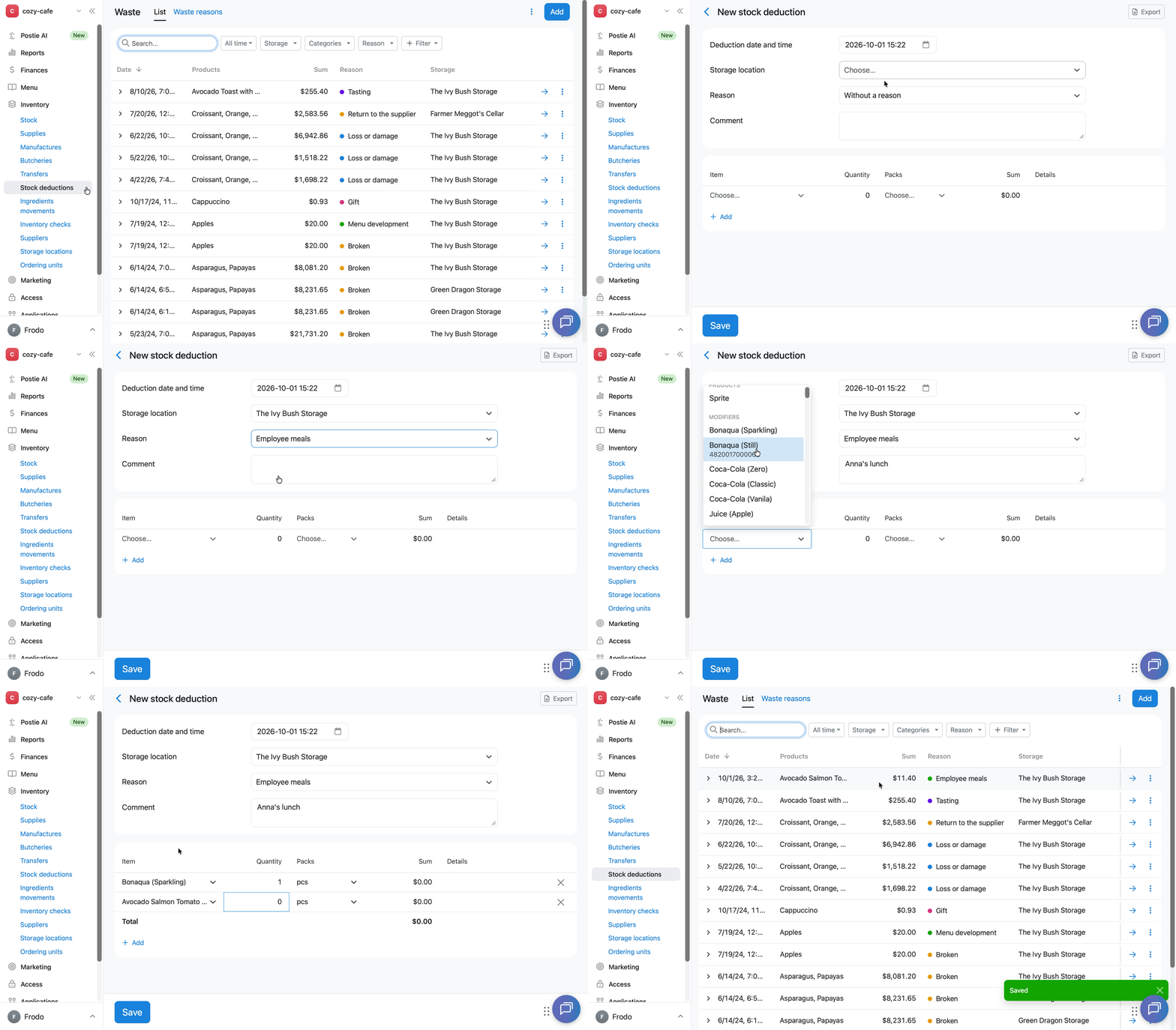
This records the cost price of the dish at the moment of the employee's meal.
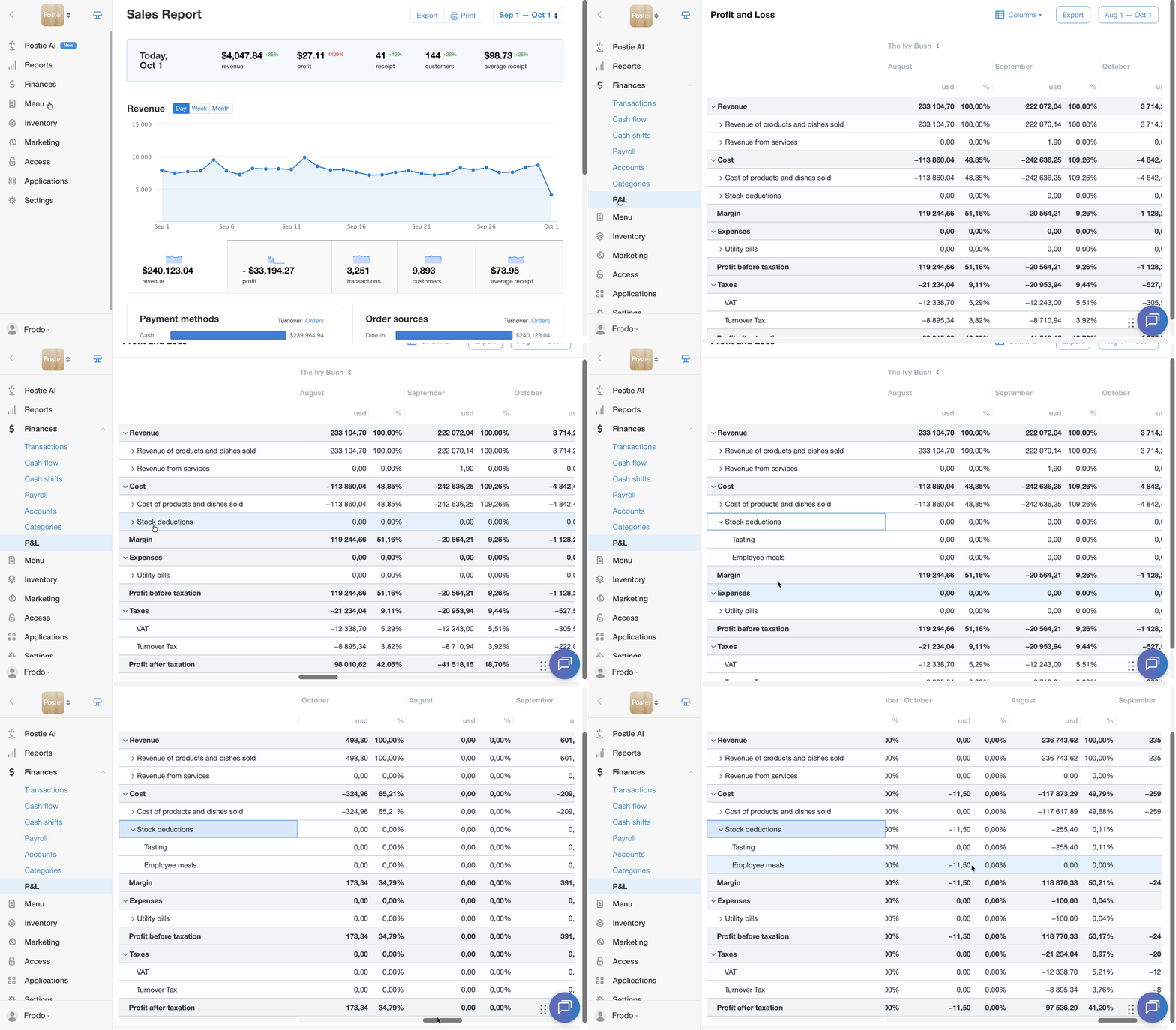
💡 By default, all manual stock deductions appear in the P&L report under Cost. When creating or editing a stock deduction reason, choose which block of the report you want “Employee meals” to appear in: Cost or Expenses.
If an employee pays for the meal on the spot, create a new income transaction instead. Do this at the Poster register if the money went into the location's cash drawer, or in the management console if it was paid another way.
🌭 If staff buy dishes at a discount, set up tracking through the loyalty discount system
☝️ This method of tracking employee meals will affect your financial report figures, profit, and average check.
To add a discount loyalty program:
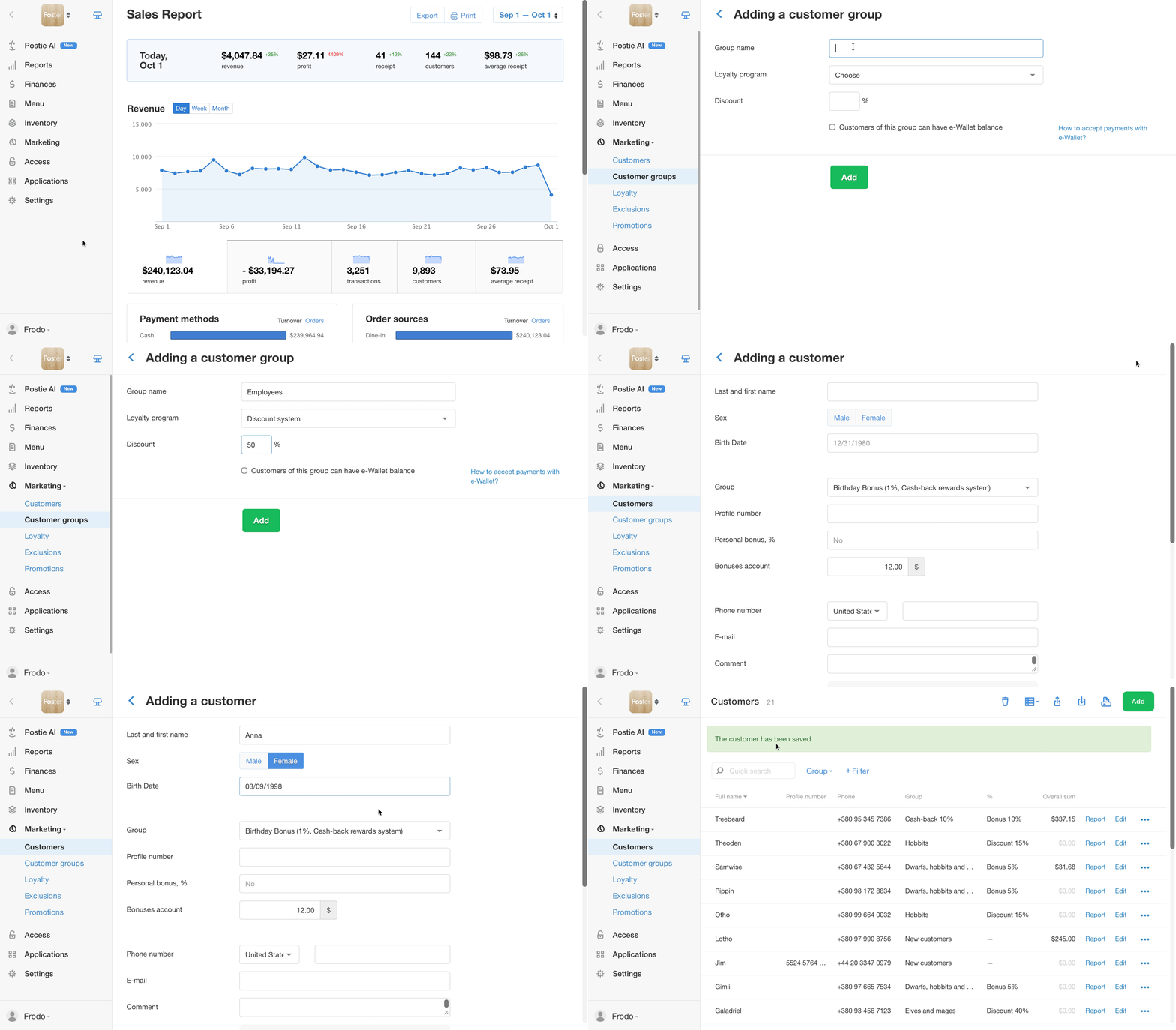
- In the Marketing → Customer groups tab, add a discount group called «Employees» and set the discount level you need.
- In the Marketing → Customers tab, add your colleagues. In the Group field, select the discount group you created.
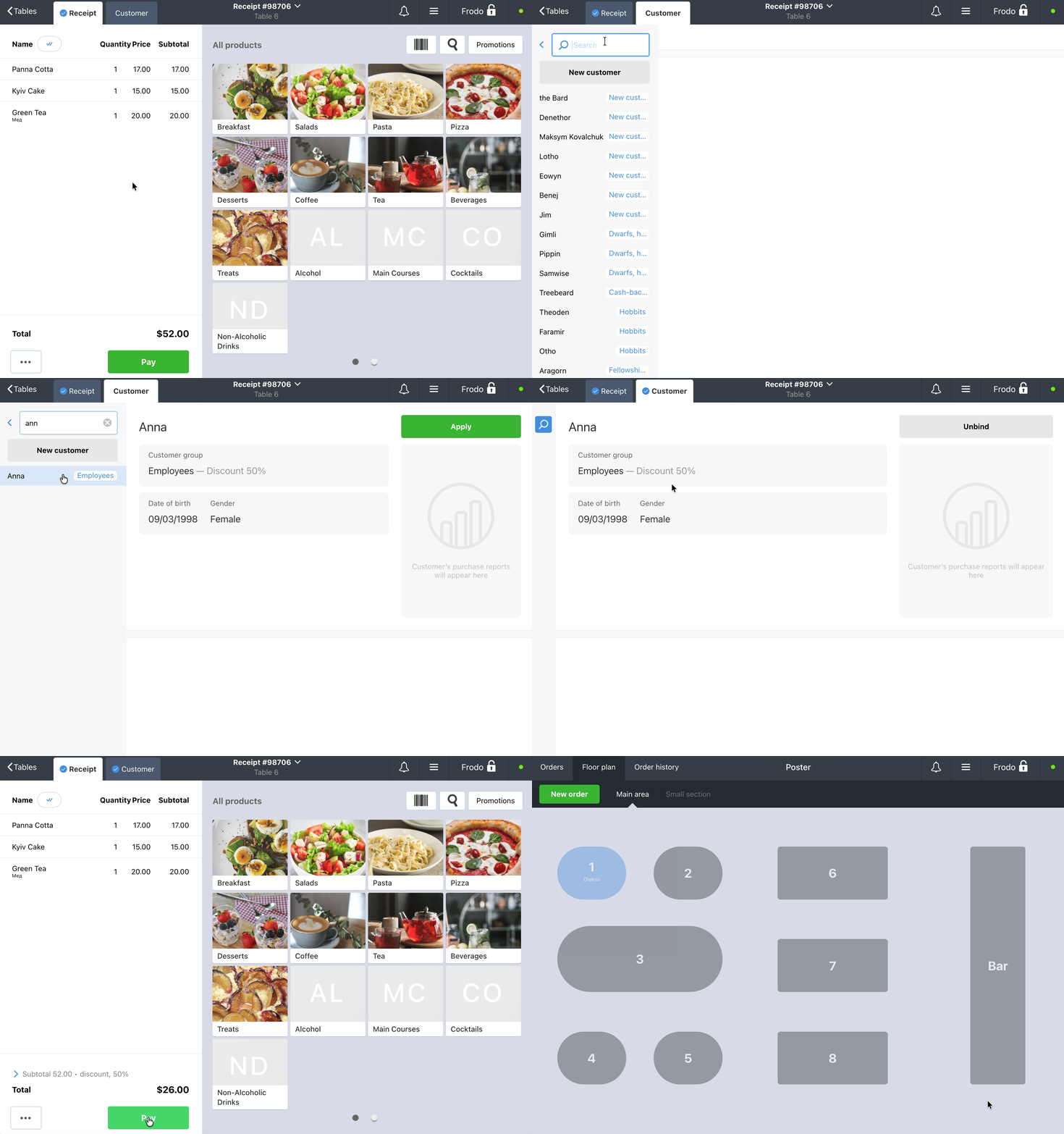
At the register, attach the employee's profile to the check so the discount applies:
-
In the open order, go to the Customer tab and select the employee, then click Apply. The discount will apply to all items in the check.
-
Fill the order with dishes and close the check with any payment method.
Then, in the management console, go to the Report → Receipts tab and set a filter by employee customers. Review each receipt individually and the total shown at the bottom of the page.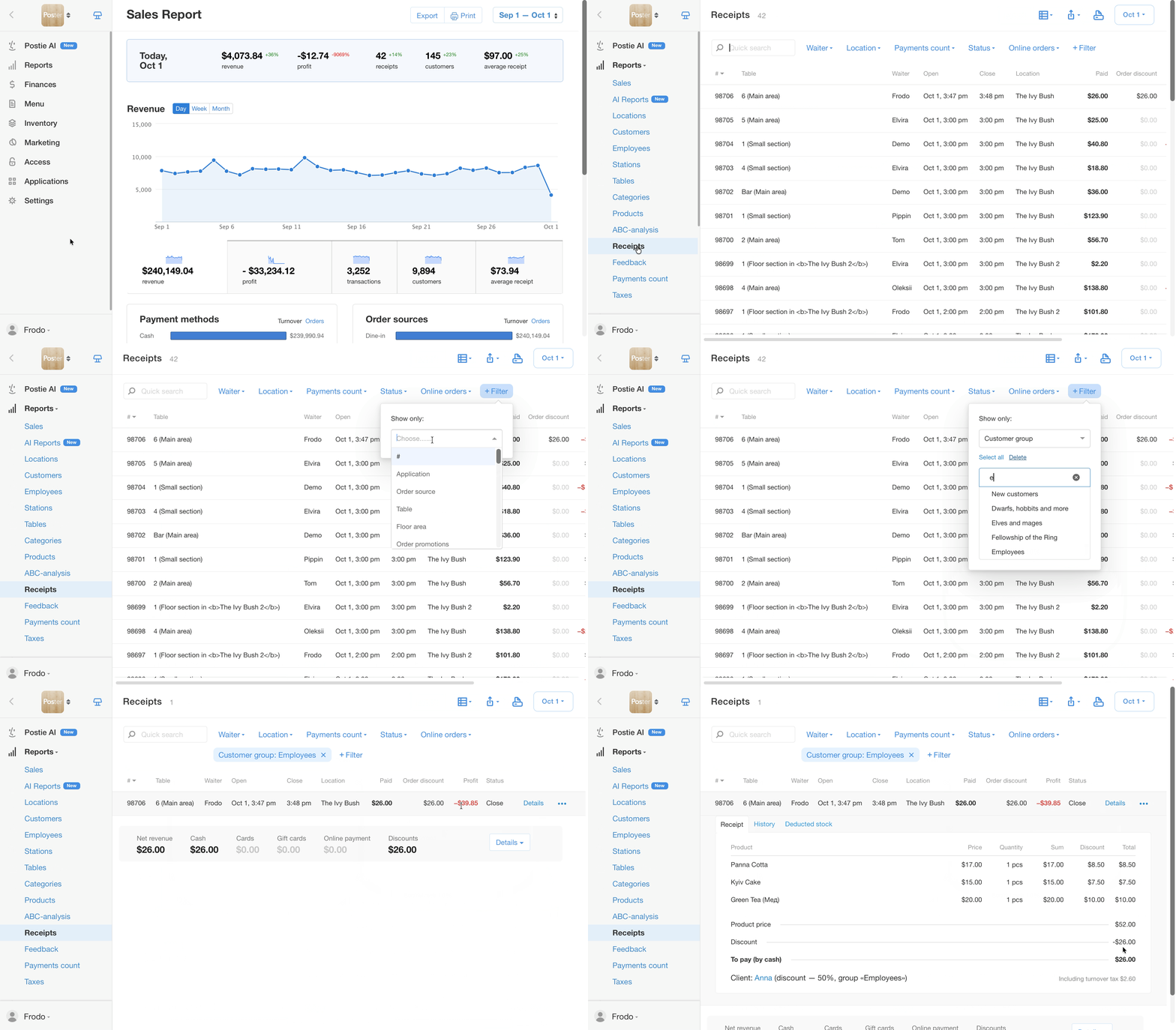
Track employee payroll in Poster to see the full picture of your location's income and expenses in one place.