
Move one, several, or all items from one open order to another. To do this, select the items you need in the order and tap Move to another receipt.
How to move items to another order at the Poster register
- Open the order you want to move items from.
- Click the ✔✔ Select button and check the boxes next to the required items::
- select the checkbox next to an item name to choose an individual item;
- select the checkbox next to Guest 1, Guest 2, and so on to choose all items assigned to that guest.
- Tap Move to another receipt. The Orders window with a list of open receipts will open.
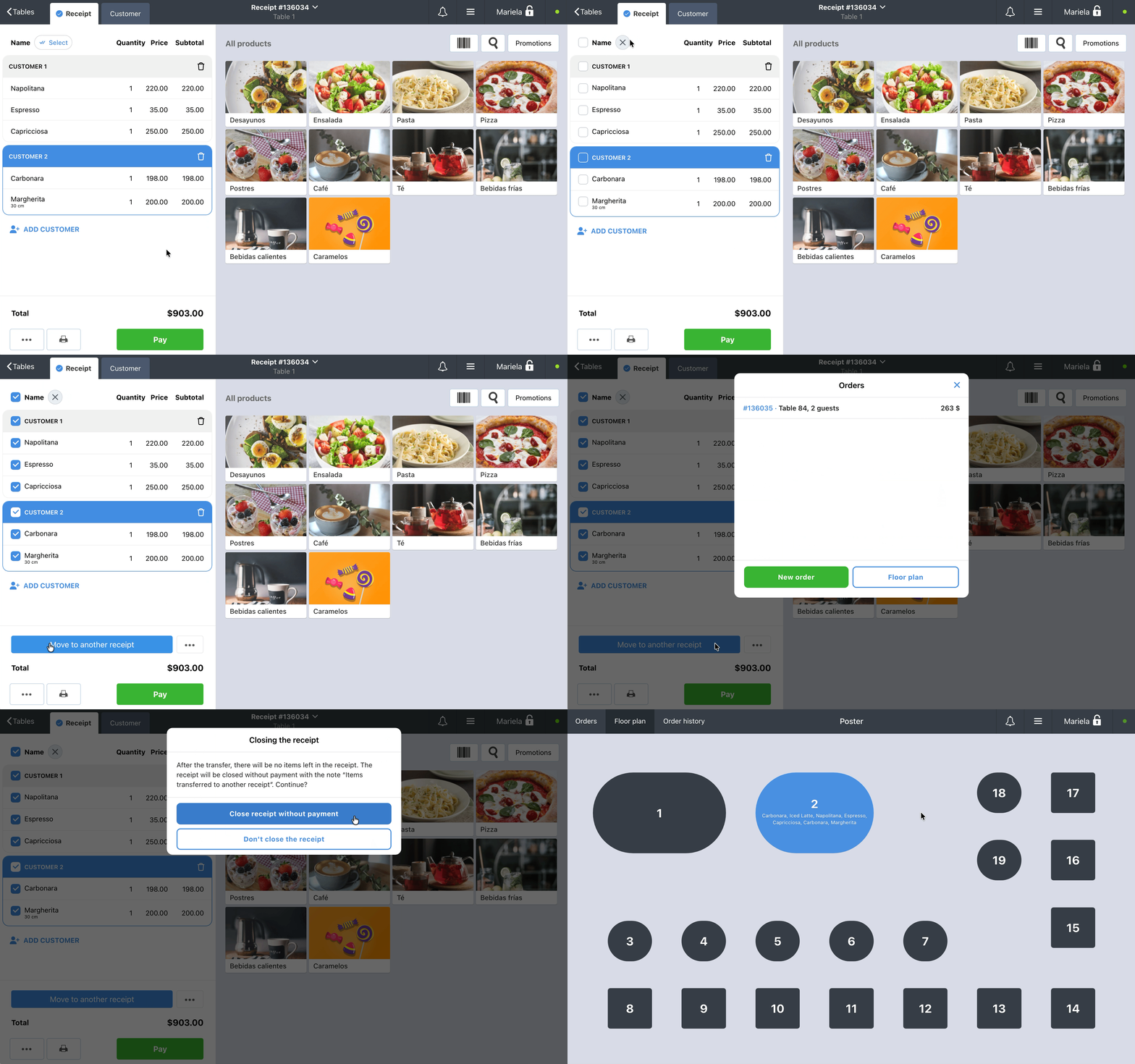
- Select the receipt you want to move the items to. In the Orders window, you can also:
- tap New order to create a new order for the items;
- tap Floor plan to select an order by table on the floor plan.
- If an admin password is required for moving items in the security settings, enter the password.
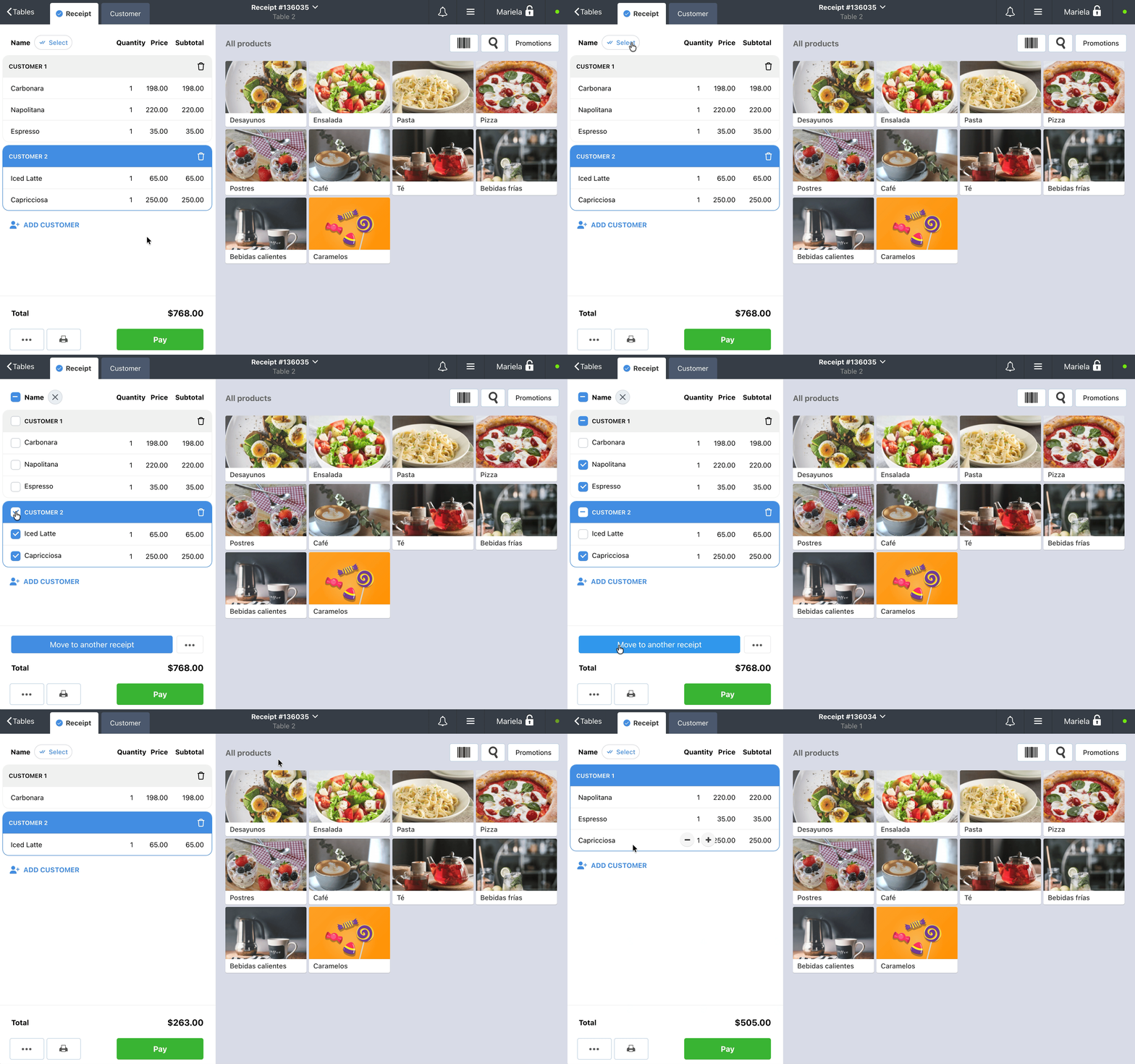
After moving the items, they will appear in the new receipt, and the totals of both orders will be recalculated automatically.
What happens to items after moving them to another order
When you move items, Poster keeps some of their data:
- Tickets are not printed again in the new order if they have already been printed in the original order.
- Guest assignment is preserved. Items remain assigned to the same guest in the new order.
- Order history keeps information about the transfer. View it in the management console under Reports → Receipts.
What is not moved to another order
- The assigned customer remains in the original order. If needed, add the customer to the new order manually.
- Promotional items are not moved. Add them to the new order separately if it meets the promotion conditions.
What happens to the order after moving all items
If you move all items from one order to another, Poster will offer two options:
- Close order without payment — the original order will be closed, the table will become available, and all items will appear in the selected order. The distribution of items among guests will be preserved.
- Do not close order — the original order will remain open without any items.
How to move several items to another guest or delete them
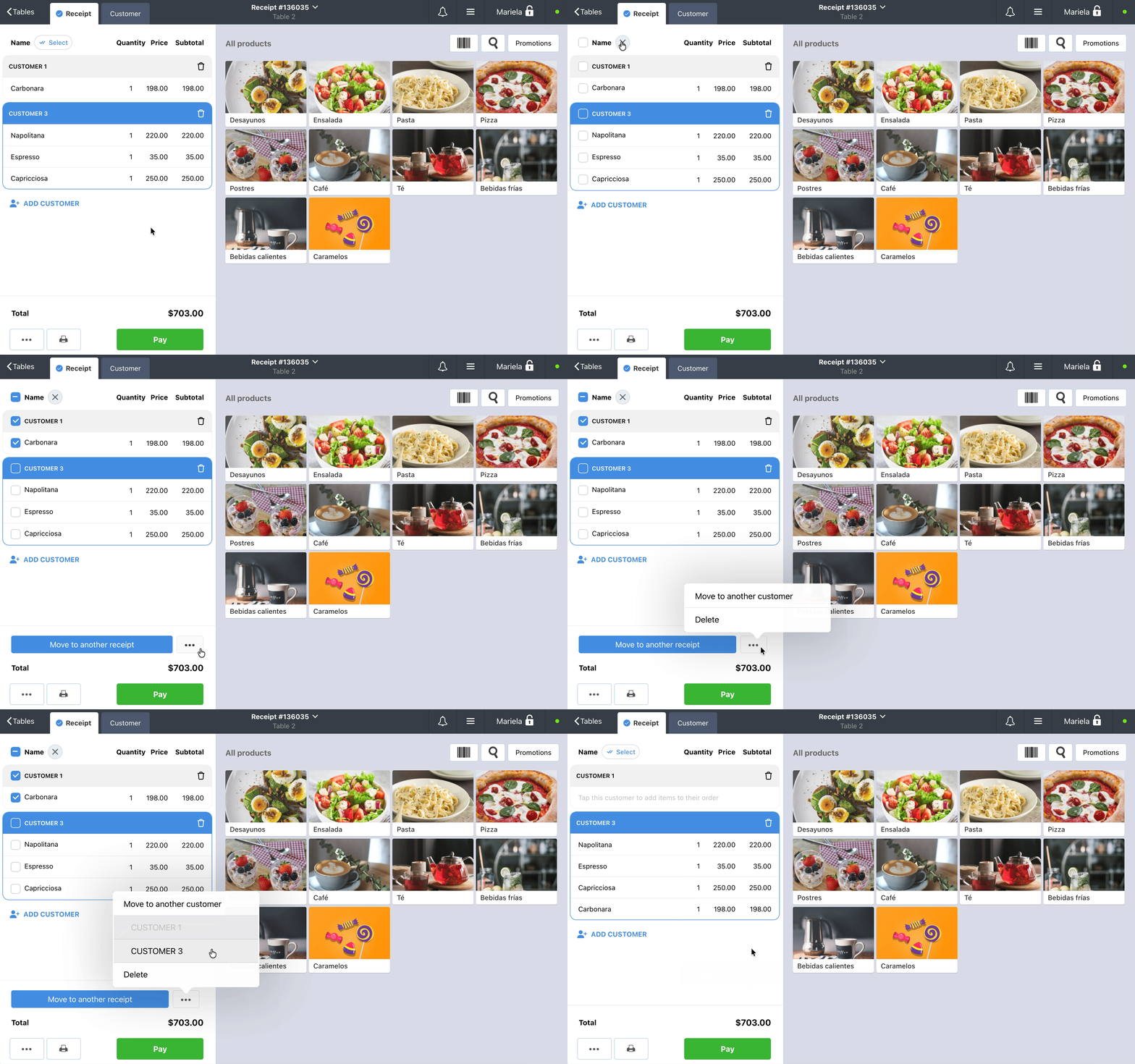
Within one order, move several items to another guest or delete them at once:
- In the open order, select the items you need.
- Tap • • • to the right of the Move to another receipt button.
- Select the action you need:
- Move to another customer, then select the guest;
- Delete to delete all selected items.
How to set up an admin password request
If employees should not move items between orders on their own, set up an admin password request for splitting the order amount between guests.
In the management console, open Settings → Security. In the Require admin password section, set:
- for When splitting an order — Always;
- for When closing a receipt — Without payment.
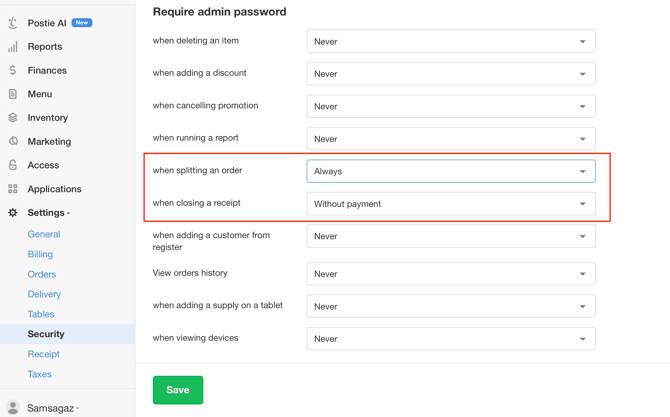
Save the changes and restart the register app.
Poster will then request the admin password when employees perform the corresponding actions.
How moving items differs from splitting an order
Moving items moves selected items from one open order to another open order.
Splitting an order divides one order into several orders so they can be paid separately.
Limitations
- Move items only between open orders.
- The assigned customer and promotional items are not moved.
- Printed tickets are not printed again in the receiving order.