
How to Import a Supply Using a Spreadsheet
💡 To get a spreadsheet template, export a supply from your inventory or download a sample. Then remove the example products and ingredients from the template, fill in the spreadsheet columns, and import the file into Poster.
To import a supply:
- Open Inventory → Supplies in the Poster admin panel.
- Click Add.
- Click the Import Supply field to select a spreadsheet from your computer and upload it to Poster.
☝️ Use files in CSV, XLS, or XLSX format for import. - Select the columns you want to import.
- Click Continue.
- Review the imported products and ingredients, their quantities, unit prices, and the total supply amount.
- Click Save.

Make sure the product and ingredient names in the spreadsheet match the names in Poster. If needed, first add new items in Menu → Products and Menu → Ingredients.
☝️ Importing supply spreadsheets isn't available in the mobile version of the admin panel. To add a supply, open the Poster web version on a computer or use Postie AI.
Importing a Supply with Postie AI
Postie AI automatically recognizes an invoice or receipt from a photo and fills in the supply by adding products, quantities, and prices. Use this method if you have a paper document or its photo instead of a ready-made spreadsheet for import.
Postie AI is available as a subscription. Every month you get 20 free recognitions. If that's not enough, subscribe to a package with 100 additional recognitions.
How to Add a Supply with Postie AI
- Open Apps → Postie AI in the Poster admin panel.
- In the Recognize Invoice section, click Get Started.
- Upload a photo of an invoice or receipt, or a document in XLS, XLSX, CSV, or PDF format.
- Wait until the recognition is complete and check that the products have been matched correctly.
- If necessary, edit the names, quantities, or prices.
- Click Save.
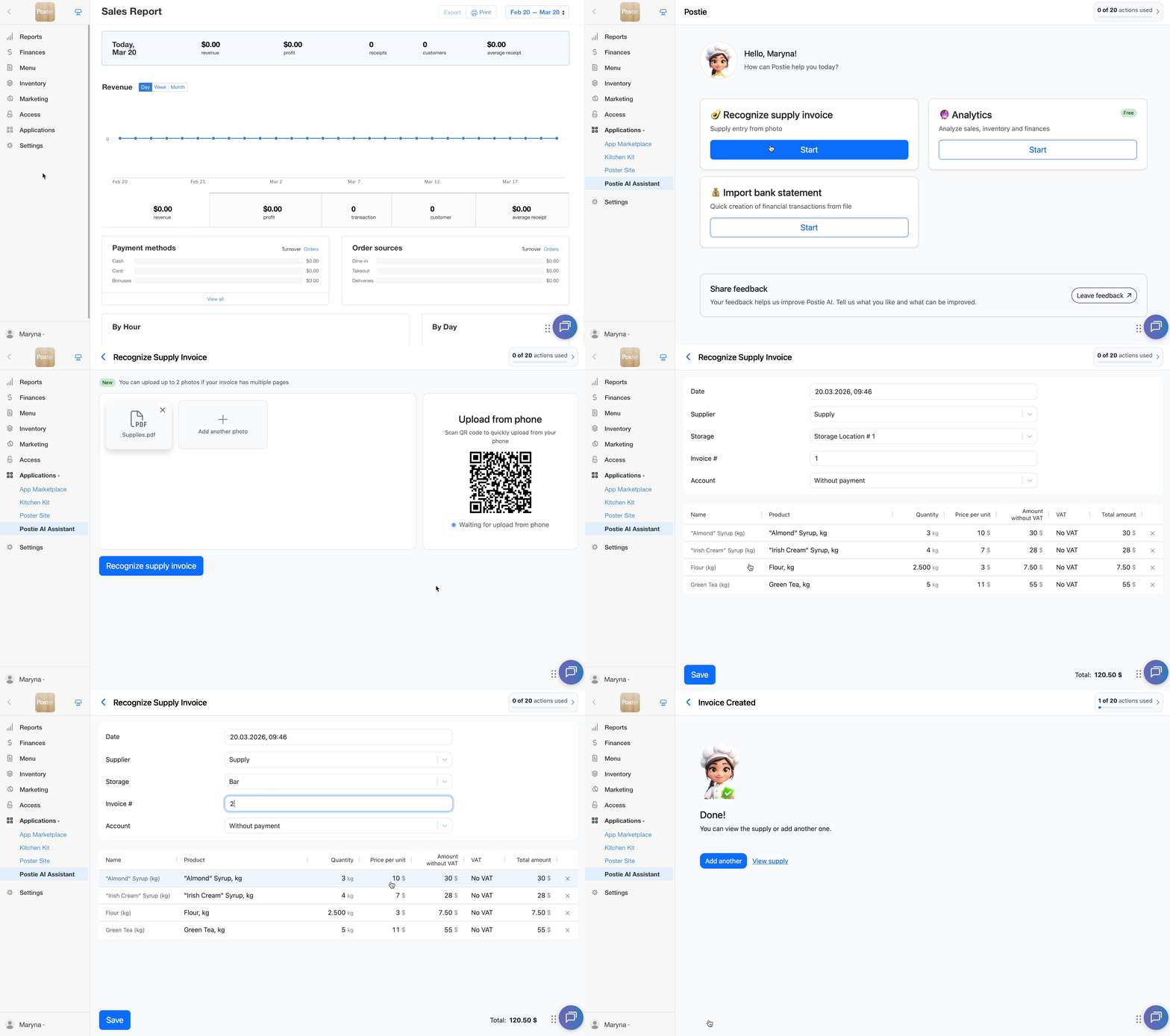
You can upload up to two photos for a single invoice. This is useful if the document has two sides or contains too much information to fit in a single photo.
If you manage supplies from the POS, add them directly in the Poster POS app using Postie AI.
Feel free to contact our customer support if you have any questions or concerns. We're available in chat @joinposter.com and email contact@joinposter.com