
How to edit a supply
To correct a mistake or update supply information, open the supply for editing. You can change the date, supplier, storage, comment, payment, products, quantities, and unit prices.
- Open Inventory → Supplies in the management console.
- Click Edit next to the supply you want to update.
- Make the necessary changes:
- supply date;
- supplier;
- storage;
- comment;
- supply payment;
- products, quantities, and unit prices.
- Click Save.
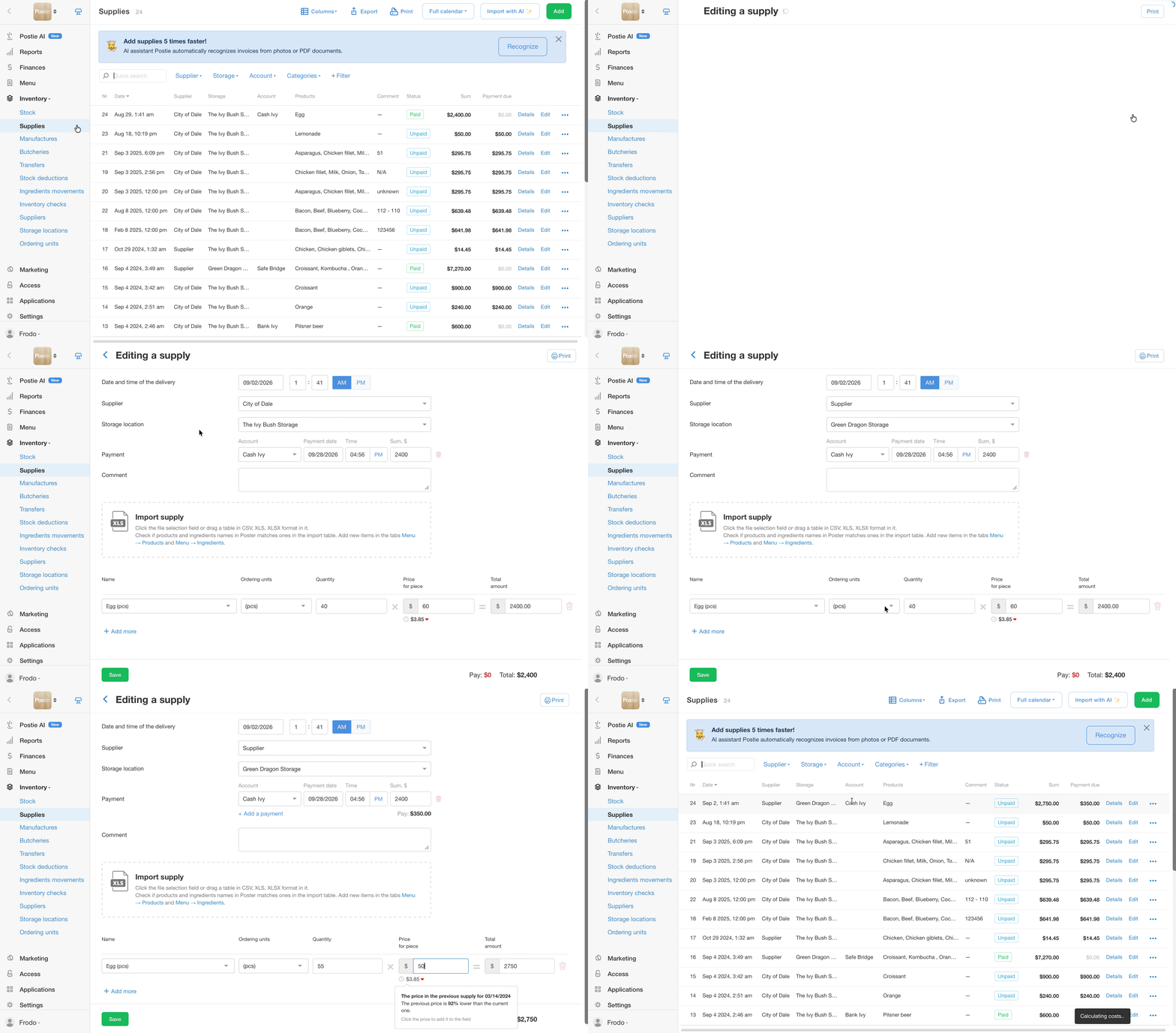
To add a product, click + Add more. To remove a product from the supply, click the trash icon in its row and confirm the deletion.
After you save the changes, Poster automatically recalculates product costs and updates reports.
☝️ You can edit a supply only if the inventory check for its period is still open. If the inventory check has already been completed, open it for editing first.
How to edit a supply in a period with a completed inventory check
If the inventory check for the supply period has already been completed, open it for editing first:
- Open Inventory → Inventory management in the management console.
- Click View next to the inventory check you need.
- Click Open period and edit.
☝️ Only one inventory check per storage can be open for editing at a time. - Go to Inventory → Supplies and make the necessary changes.
- Complete the inventory check again.
How to copy a supply
If a supplier regularly delivers the same set of products, copy a previous supply instead of entering all the items and prices again.
- Open Inventory → Supplies in the management console.
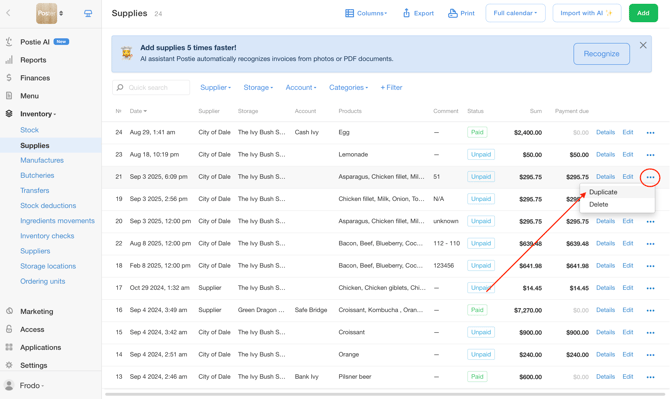
- Click • • • next to the supply you want to copy and select Duplicate.
- The Coppying a supply page opens with the details from the original supply already filled in: supplier, storage, products, quantities, and prices.
☝️ The date and payments are not copied. - Enter the date of the new supply and check the product quantities and prices. Add a payment if necessary.
- Click Save.
How to delete a supply
- Open Inventory → Supplies in the management console.
- Click • • • next to the supply you want to delete.
- Select Delete.
- Confirm the deletion.
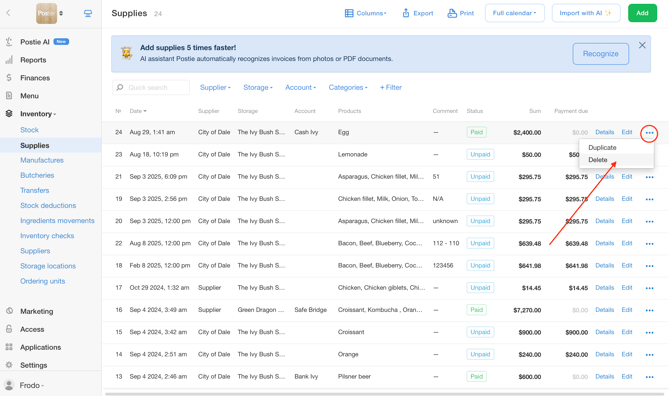
💡 A deleted supply remains in the supplies list but is highlighted in red. It no longer affects inventory levels, and product costs are recalculated automatically.
☝️ You cannot delete multiple supplies at once. Delete each supply separately.
How to restore a deleted supply
You cannot restore a deleted supply. If you deleted one by mistake, create a new supply with the same details:
- Under Inventory → Supplies, click Details next to the deleted supply.
- Review the list of products, their quantities, and amounts.
- Click Add and create a new supply with the same details.
Frequently asked questions about editing supplies
- Why can’t I edit a supply?
The supply belongs to a period whose inventory check has already been completed. Open that inventory check for editing, update the supply, and complete the inventory check again. - How do I change the purchase price?
Under Inventory → Supplies, click Edit next to the supply you need. Change the value in the Unit price field and click Save. Poster automatically recalculates the product cost. - How do I remove one product from a supply?
Under Inventory → Supplies, click Edit next to the supply you need. Click the trash icon in the row of the product you want to remove, confirm the deletion, and click Save. - Are payments copied along with a supply?
No. Payments are not copied when you duplicate a supply. Add a payment to the new supply separately. - How do I print a supply invoice?
Click Edit next to the supply you need, then click Print in the upper-right corner of the page. - How do I restore a deleted supply?
You cannot restore a deleted supply. Review its contents by clicking Details, then create a new supply with the same details. - Why does a deleted supply still appear in the list?
Poster keeps deleted supplies in the list and highlights them in red. They no longer affect inventory levels. To hide them, click + Filter, select Deleted, and choose No.
☝️ The filter is not saved. After you refresh the page, deleted supplies appear in the list again, and you need to apply the filter once more.