
☝️ Promotions are available only on the Business and Pro plans.
How a promotion with a discount on the cheapest item works
Poster does not compare item prices in a receipt automatically. Instead, the discount is applied to the first item listed in the promotion conditions. That is why you need to add items in ascending order of price, from the cheapest to the most expensive.
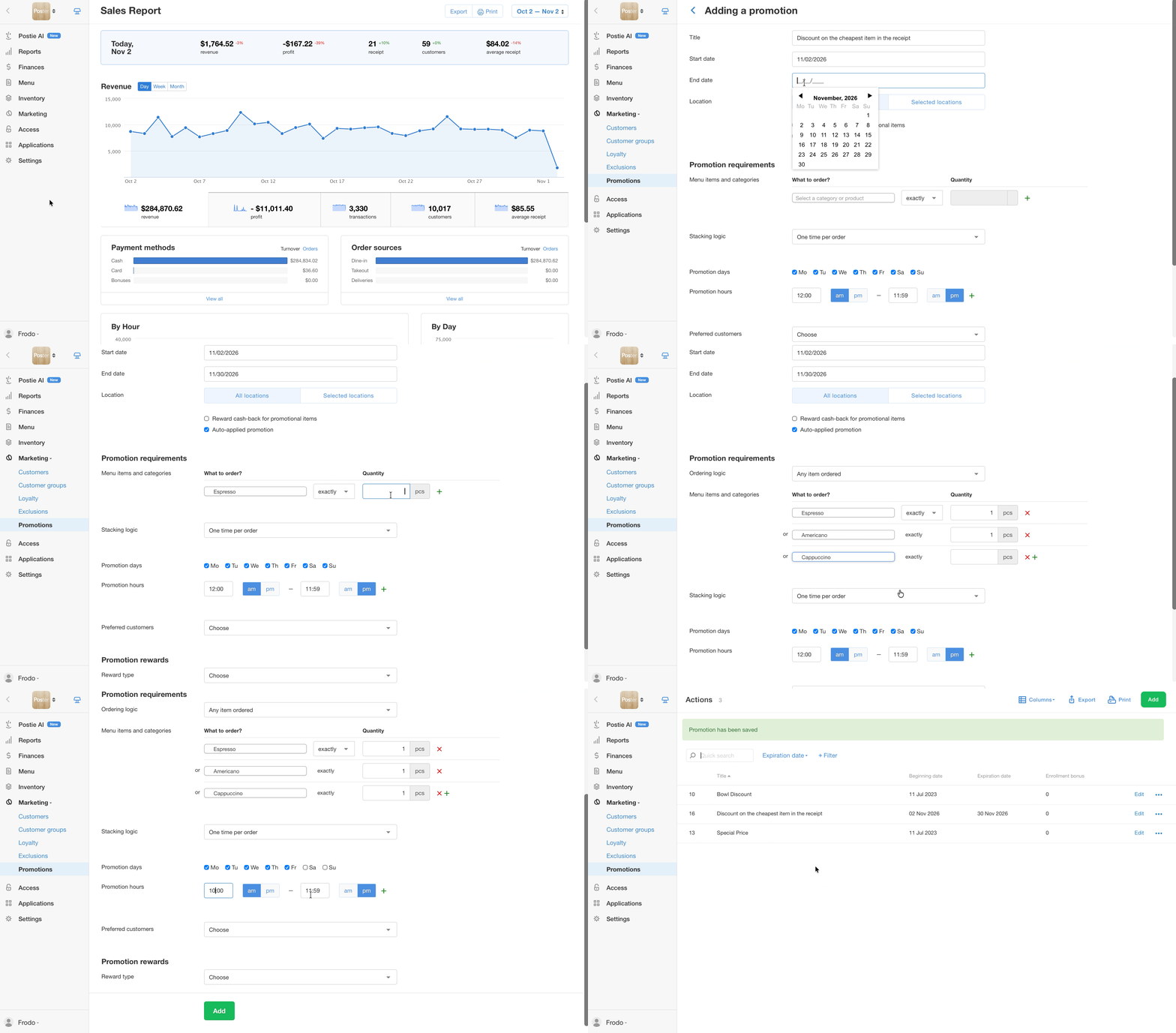
For example, suppose a promotion includes «Espresso» for $4, «Americano» for $5, and «Cappuccino» for $6. Add them to the conditions in exactly this order: «Espresso» → «Americano» → «Cappuccino». If a receipt contains «Espresso» and «Cappuccino», the discount will be applied to «Espresso».
How to set up a promotion with a discount on the cheapest item
- In the management console, open Marketing → Promotions.
- Click Add.
- Enter the Name and Validity period, and select the Locations where the promotion will apply.
- Under Promotion conditions, add the promotional items or dishes in order from the cheapest to the most expensive.
- For each item, select the Exactly condition and set the quantity to 1 pc.
- In the Promotion conditions logic field, select Any of the order item conditions are met.
- In the Accumulation conditions field, select No accumulation, once per receipt. This ensures that the discount is applied only once per receipt.
- Specify the days and times when the promotion will be active.
- Under Promotion participants, select the customer category eligible for the offer.
- Under Promotion results, in the What does the customer get as a result? field, select Percentage discount on promotional items.
- In the Discount percentage field, enter the discount amount. For example, enter 100% to make the cheapest item free.
- Click Add to save the promotion.
- After saving the promotion in the management console, restart the POS app by closing and reopening it. This updates the promotion settings on the POS.
How to check whether the promotion works
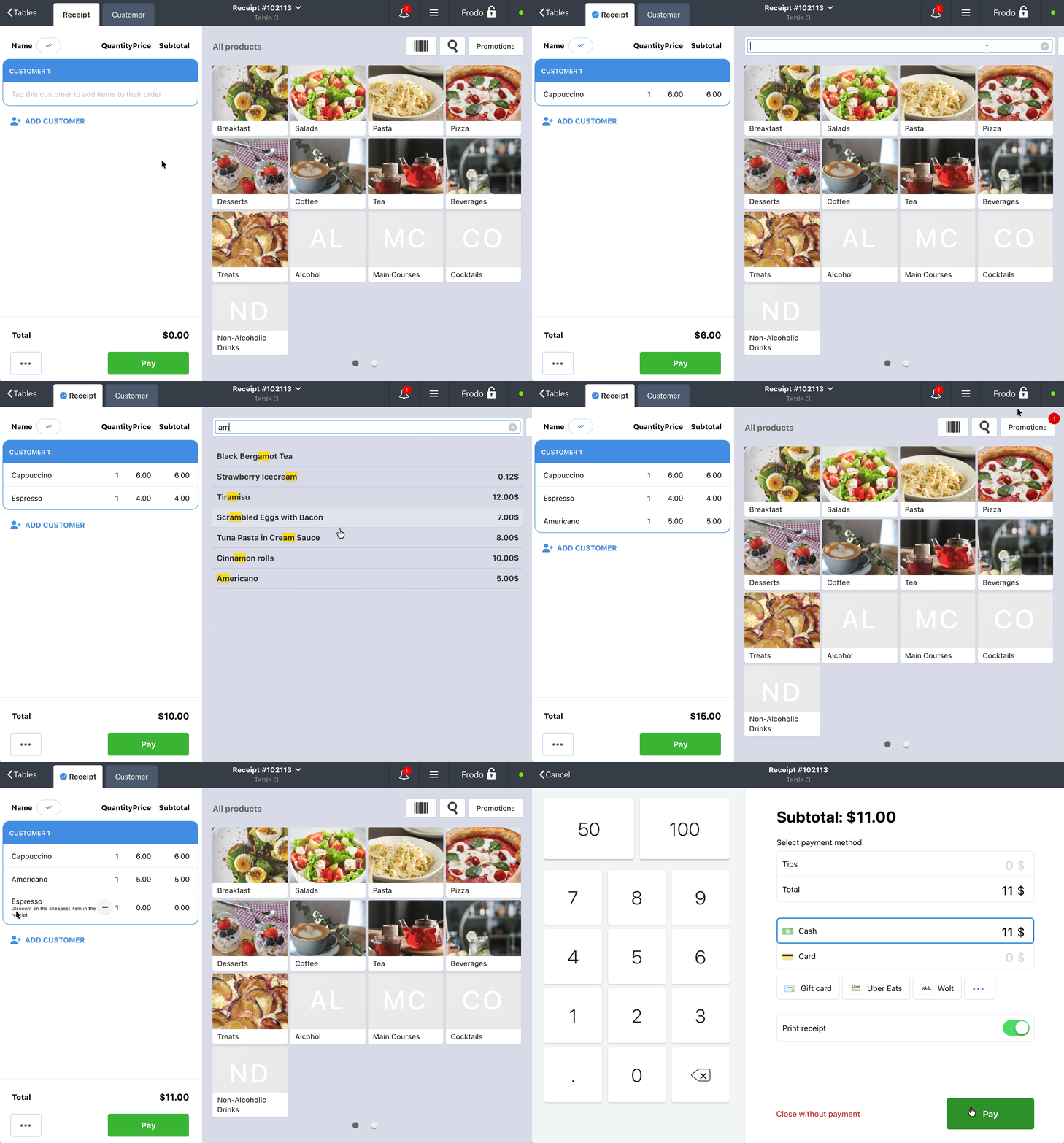
Create a test receipt on the POS with several promotional items. The discount should be applied only to the cheapest item, the one listed first in the promotion conditions. The other promotional items in the receipt will remain at full price.
What else to consider when setting up a promotion for the cheapest item
- Automatic promotion application. To apply the promotion without clicking the Promotions button in the upper-right corner of the POS, select the Apply promotion automatically checkbox in the promotion settings.
- Discount on multiple items. With the No accumulation, once per receipt condition, the discount is applied to only one item. To discount several of the cheapest items in a receipt, select No accumulation, multiple times per receipt.
Limitations
- Poster does not identify the cheapest item automatically. The discount depends on the order of items in the promotion conditions.
- If item prices change, check the order of items in the promotion conditions and rearrange them if necessary, from the cheapest to the most expensive.
- Only items added to the promotion conditions are eligible for the discount. It does not apply to other items in the receipt.