
☝️ The account must have at least one owner. If there is only one employee with the Owner position, you won't be able to remove them or change their position. First, add a new owner.
Who has owner access to the account
An account owner is an employee with the Owner position who has access to the email address the account is registered to. The owner has full access to the account, including payments, employees, data, and integrations.
Access to the owner's email is required to recover the password, confirm data deletion, and copy the menu from the account. These actions can only be completed using a confirmation from an email sent to the account owner's email address.
How to add a new owner
First, add a new employee with the Owner position. The new owner will then be able to sign in to the account and receive owner access.
☝️ The new owner will have full access to the account, including payments, employees, data, and integrations. Only give owner access to trusted employees.
To add a new owner to the managamet console:
- Sign in to the Poster management console using the current owner's account.
- Open the Access → Employees tab in the management console.
- Click Add in the upper-right corner of the screen.
- Enter the employee's name and phone number.
- In the Position field, select Owner.
- Enter the new owner's email address.
- In the Access to the Point of Sale section, enter a 4-digit PIN code for signing in to the register.
- Click Save.
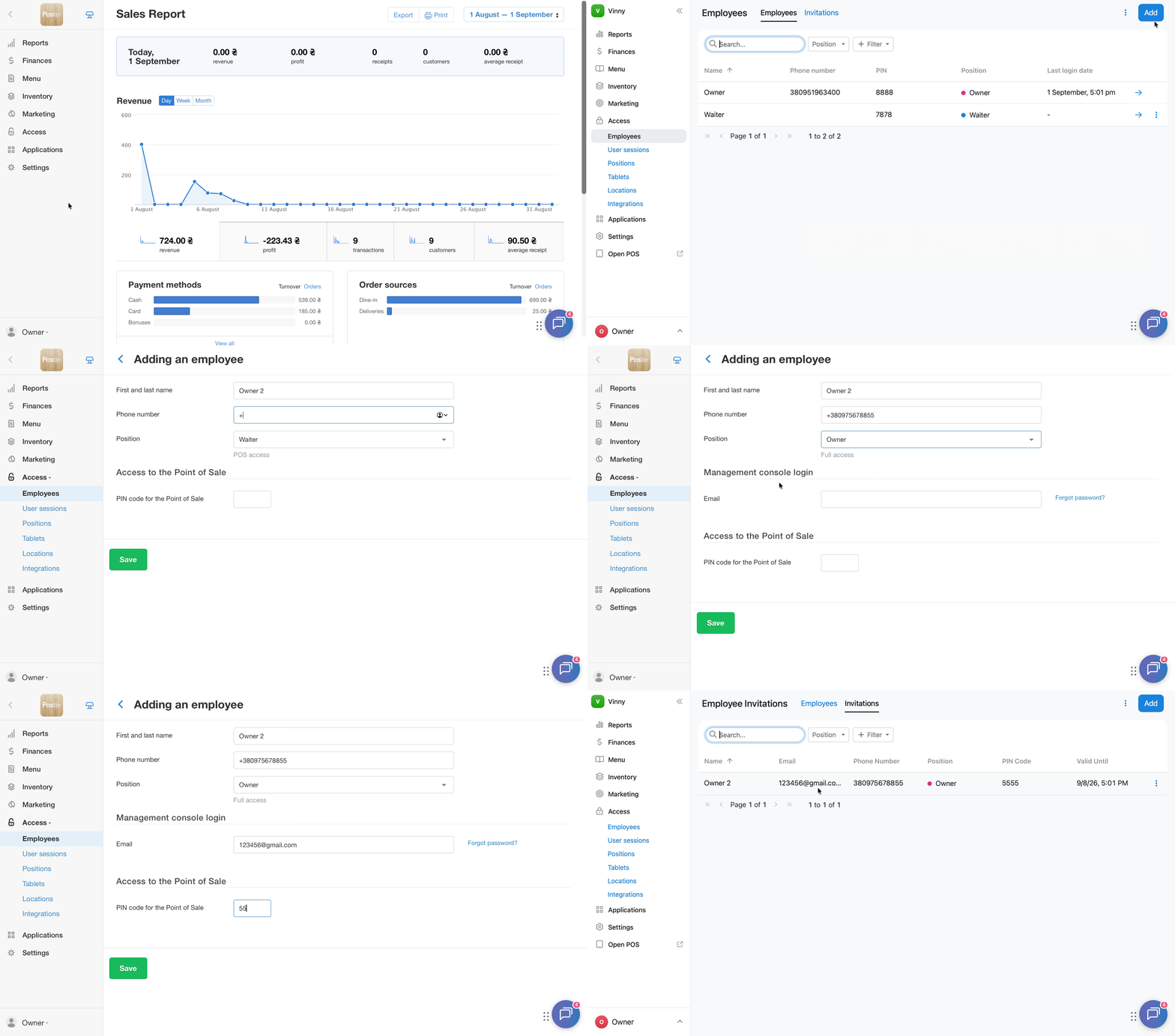
The invitation for the new owner will appear in Access → Employees → Invitations.
The new owner needs to open the invitation email, follow the link in the email, and sign in to the account. After signing in, they will appear in the Employees list with the Owner position.
💡 An account can have several owners at the same time. This is useful if the business is managed by several co-owners or by an owner and a director.
How to transfer owner access and delete the previous owner
After the new owner has signed in to the account, remove the previous owner if necessary:
- Open Access → Employees in the management console.
- Click ︙ next to the previous owner.
- Select Delete.
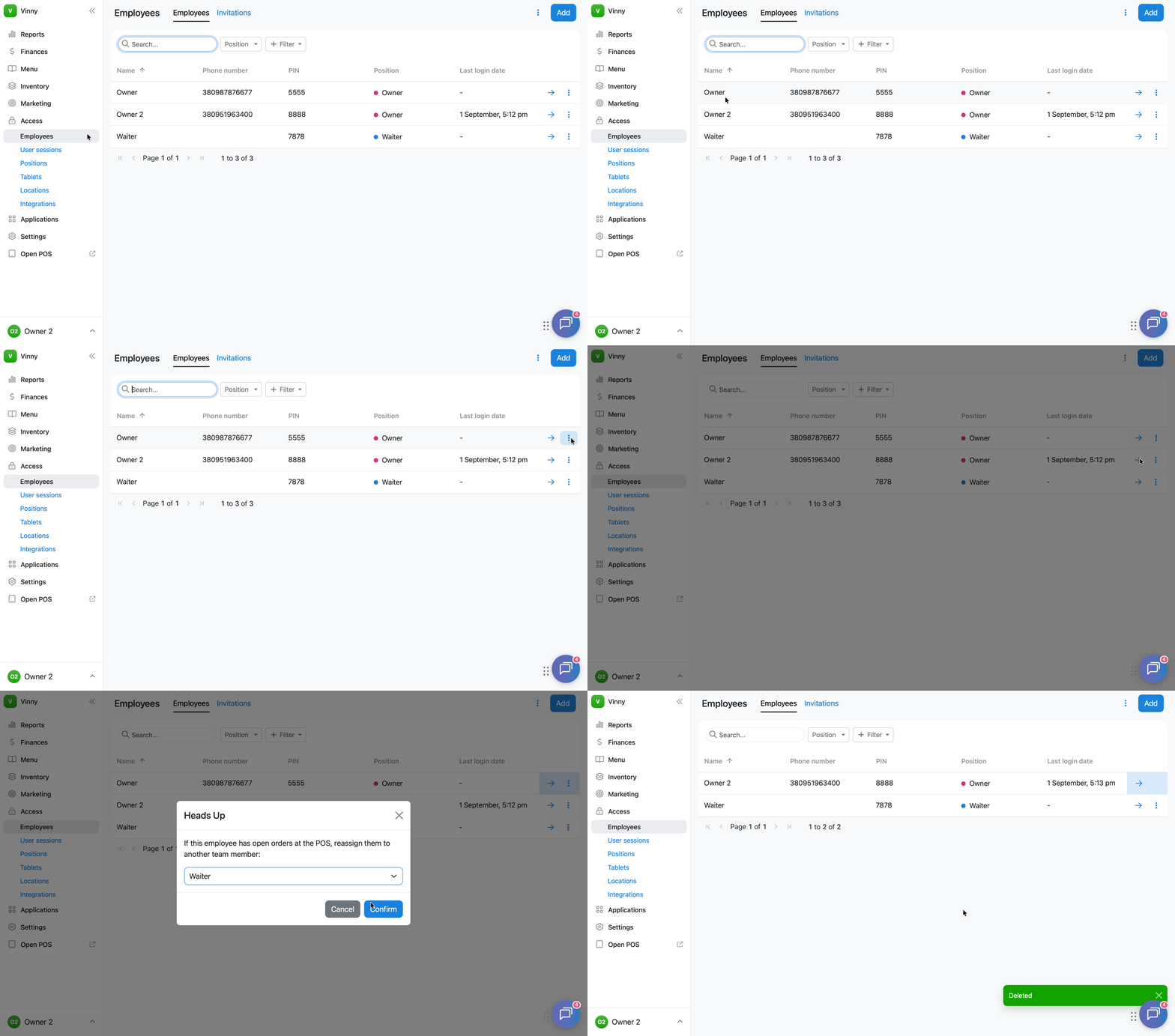
After being deleted, the employee will lose access to the account.
How to keep the previous owner in the account but limit their access
If the previous owner needs to keep access to the account, change their position instead of deleting them.
- Open Access → Employees in the management console.
- Click ︙ next to the employee.
- In the Position field, select another position, such as Manager.
- Click Save.
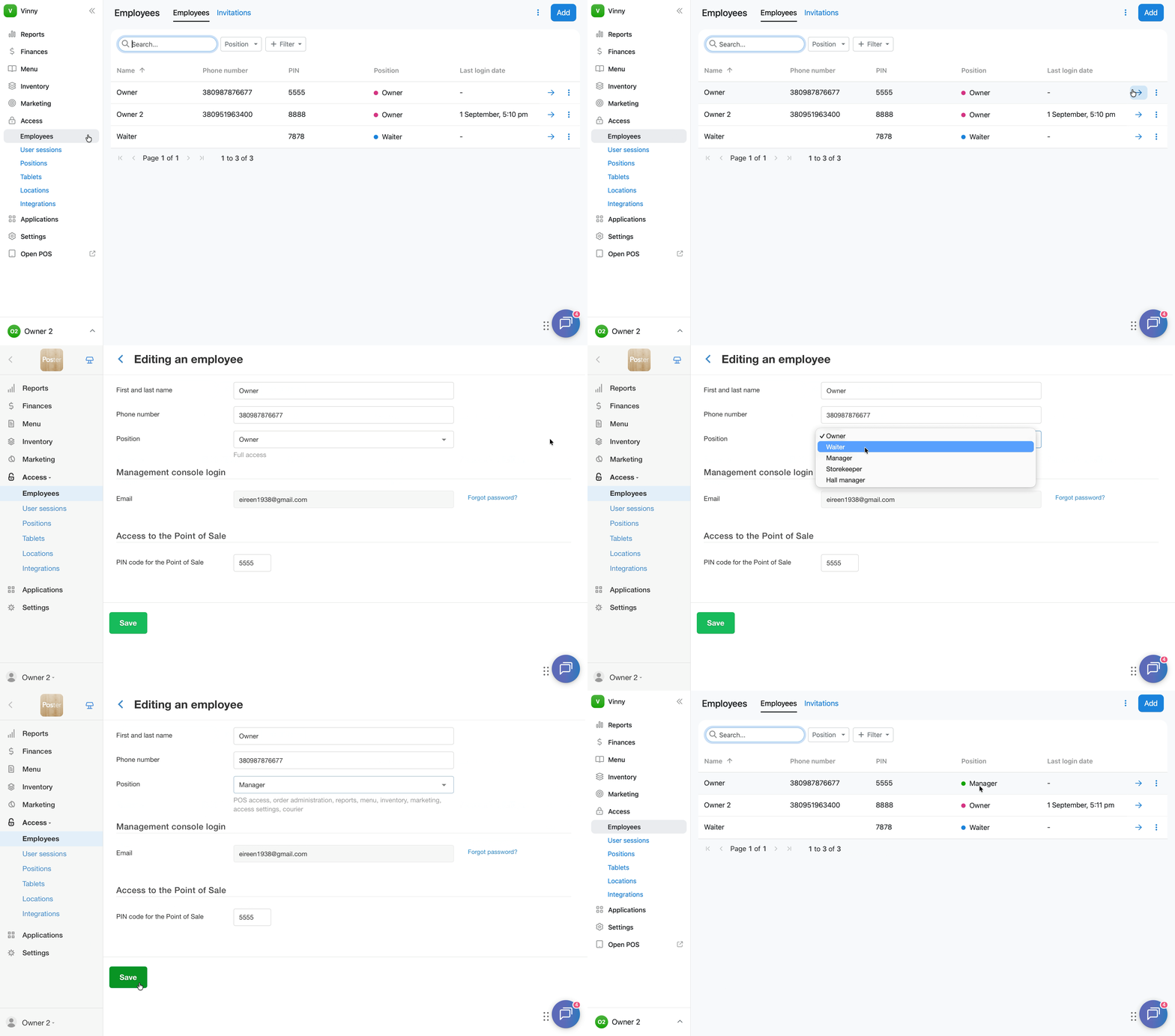
After the position is changed, the employee will lose owner access and receive access according to their new position.
Limitations
- You won't be able to delete an owner if there is only one employee with the Owner position in the account. First, add a new employee with the Owner position, and then delete the previous owner.
- You won't be able to change an owner's position if there is only one employee with the Owner position in the account. First, add a new owner, and then change the previous owner's position.
- After creating an account, one employee with the Owner role is automatically created in Access → Employees. You cannot change this role to another one until there is another owner in the account.
To avoid giving employees full access to the account, separate access to the management console and cash register. To do this, create new positions and configure different access rights for them.