
If multiple locations operate in one Poster account, you can’t limit an employee’s access to just one location. Access rights are configured for an employee’s position and apply to the entire account.
For example, if an employee has access to the Reports section, they will see data for all locations in that account. You can’t limit their access to the data of a specific location separately.
If employees at each location should work only with their own data, create a separate Poster account for each location.
How positions and access rights work
For each employee, assign a position with the required access rights. A position determines which sections of the management console and POS the employee can access.
If multiple locations operate in one account, the position’s access rights apply to the entire account. Therefore, the employee will see data for all locations in the sections they can access based on their position.
Create separate positions for employees with different access rights in the management console under Access → Positions.
How to separate access for employees of different locations
The only way to fully separate access for employees of different locations in Poster is to manage each location in a separate account:
- Register a separate Poster account for the location.
- Add the location’s employees to it.
- Set up positions with the required access rights for them.
☝️ Employees added to one account can’t see data from other accounts.
How to add an employee to Poster
If multiple locations operate in one account, add employees from each location and assign them positions with the required access rights. This determines which sections of the management console and POS each employee can access.
- In the management console, open Access → Employees.
- Click Add.
- Enter the employee’s name.
- In the Position field, select a position with the required access rights.
- If the position has access to the management console, enter the employee’s email address in the Management console access section. They will receive an invitation to create a password and sign in to the account.
- To give the employee access to the POS, enter a 4-digit PIN in the POS access section.
- Click Save.
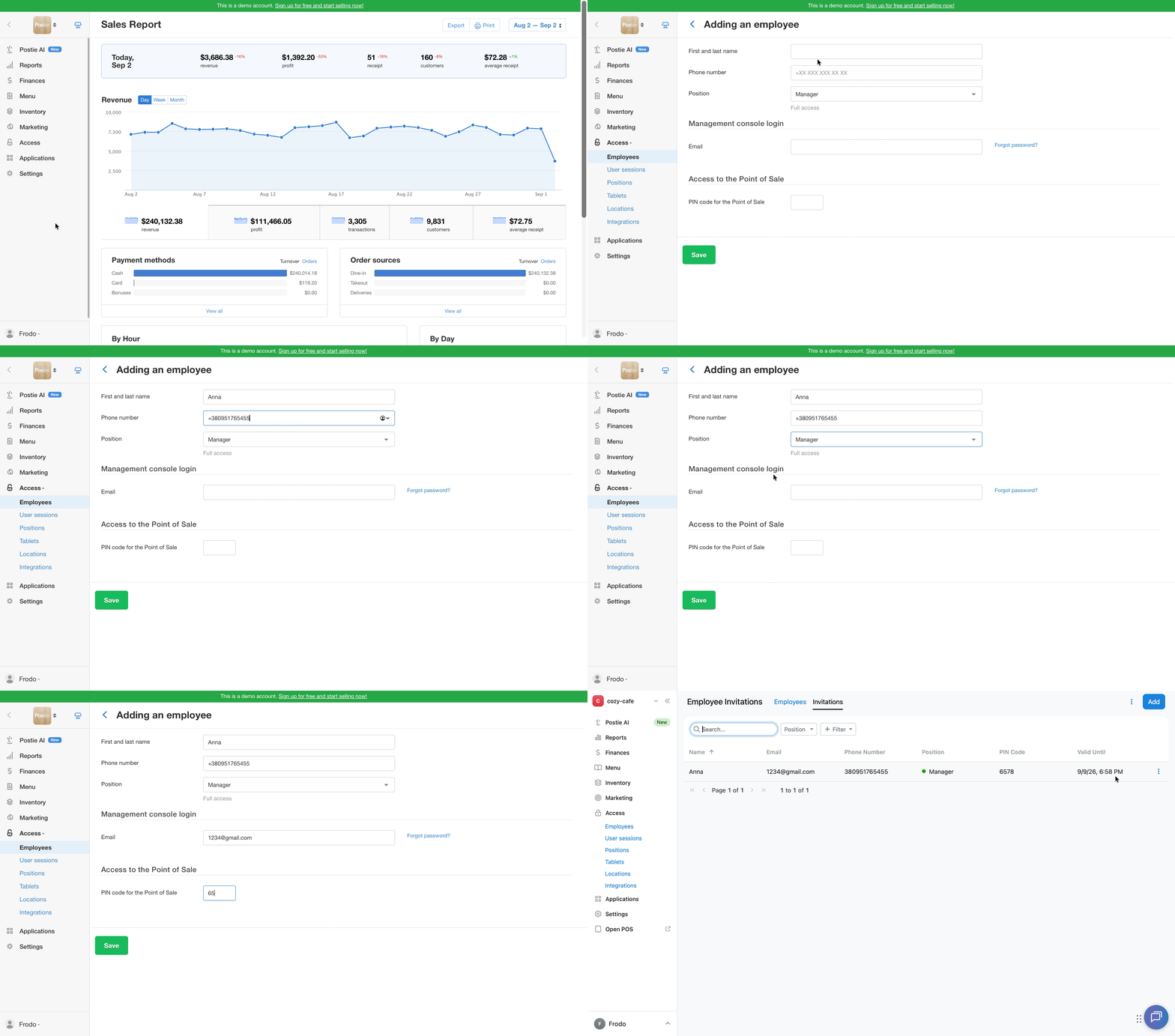
After saving, the employee will appear in the Access → Employees list.
If the employee’s position doesn’t have access to the management console, enter only the PIN for signing in to the POS. You don’t need to enter an email address for this employee.
💡 There is no limit on the number of employees in Poster.
Limitations
- You can’t limit an employee’s access to a specific location within one Poster account. Position access settings apply to the management console and POS sections across the entire account.
- Access rights are configured through an employee’s position, not separately for each person.
- An employee whose position doesn’t have access to the management console can work only in the Poster POS.