
💡 The Butchery feature is available only on the Pro pricing plan.
What is butchery
Butchery deducts the primary item from your inventory and simultaneously adds the final items to inventory. This is useful when you purchase a product whole or in large quantities but use or sell it in parts.
For example: whole fish → fillets + bones + trimmings, almonds → almond flour, butter → clarified butter.
How to create a butchery
Let’s look at how to create a butchery using the example of cutting a whole salmon into fillets and bones.
- Open Inventory → Butcheries in the management console.
- Click Add.
- Specify the date and time of the butchery.
- In the Primary items field, select the product you want to process, for example, «Whole salmon». Specify its quantity and select the storage.
- In the Final items field, add the products you want to obtain, for example, «Salmon fillet» and «Salmon bones». For each product, select the Storage and specify the Cost percentage. The higher the сost of the final item, the higher the percentage you should assign to it. For example, assign a higher percentage to the fillet than to the bones.
- Click Save.
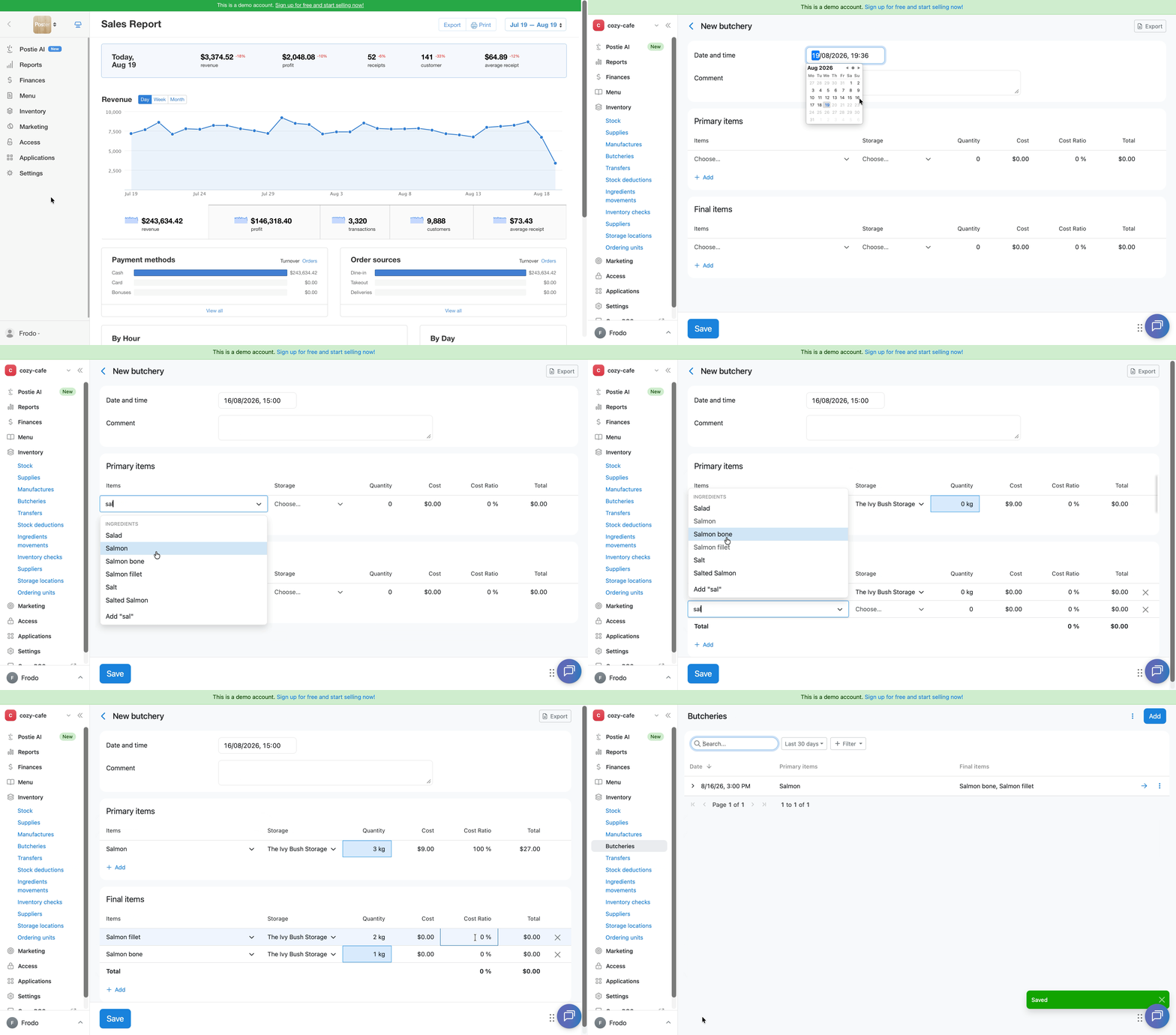
After saving, the primary item, «Whole salmon», will be deducted from inventory, while the final items, «Salmon fillet» and «Salmon bones», will be added to the selected storage locations in the specified quantities.
How to add a new ingredient while creating a butchery
By default, the Primary items and Final items fields contain only menu items that have already been created in Poster.
If the required ingredient has not yet been created, you can create it directly while creating the butchery:
- start entering the ingredient name and press Enter — the ingredient creation window will open;
- or click the product name field, scroll to the bottom of the list, and click Add ingredient.
💡 This creates an ingredient only. Dishes, products with modifications, and preparations must be created in advance — you cannot add them directly while creating a butchery.
The cost ratio for final items must equal 100%
In the Final items section, the total cost percentage for all products must equal 100%. If the total percentage is less or more than 100%, you won’t be able to save the Butchery.
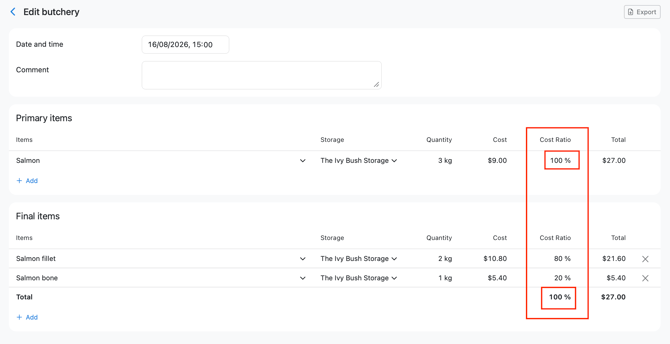
☝️ The total cost of the final items cannot be higher or lower than the cost of the Primary items.
If you enter an incorrect ratio, Poster will highlight the cost ratio field and the total percentage and display the following message:
Fill in all required fields in the final items table and make sure that the sum of cost ratios equals 100%.
If part of the product is lost during butchery
If part of the product does not become one of the final ingredients during butchery, for example, due to trimmings or weight loss, account for this quantity separately.
After the butchery, deduct the corresponding quantity from inventory. Otherwise, the product inventory balance will be overstated.
What can be processed
You can use any products tracked in inventory for butchery: ingredients, dishes, products, as well as manufactured dishes and preparations.
The cost of manufactured dishes and preparations is recalculated using the weighted average cost method when new batches are processed.
You can view the quantity and cost of the final items in Inventory → Ingredients movements.
How to edit a butchery
- Open Inventory → Butcheries.
- Click → next to a butchery.
- Edit the required information.
- Click Save.
How to delete a butchery
- Open Inventory → Butcheries.
- Click ︙ next to the required butchery.
- Select Delete.
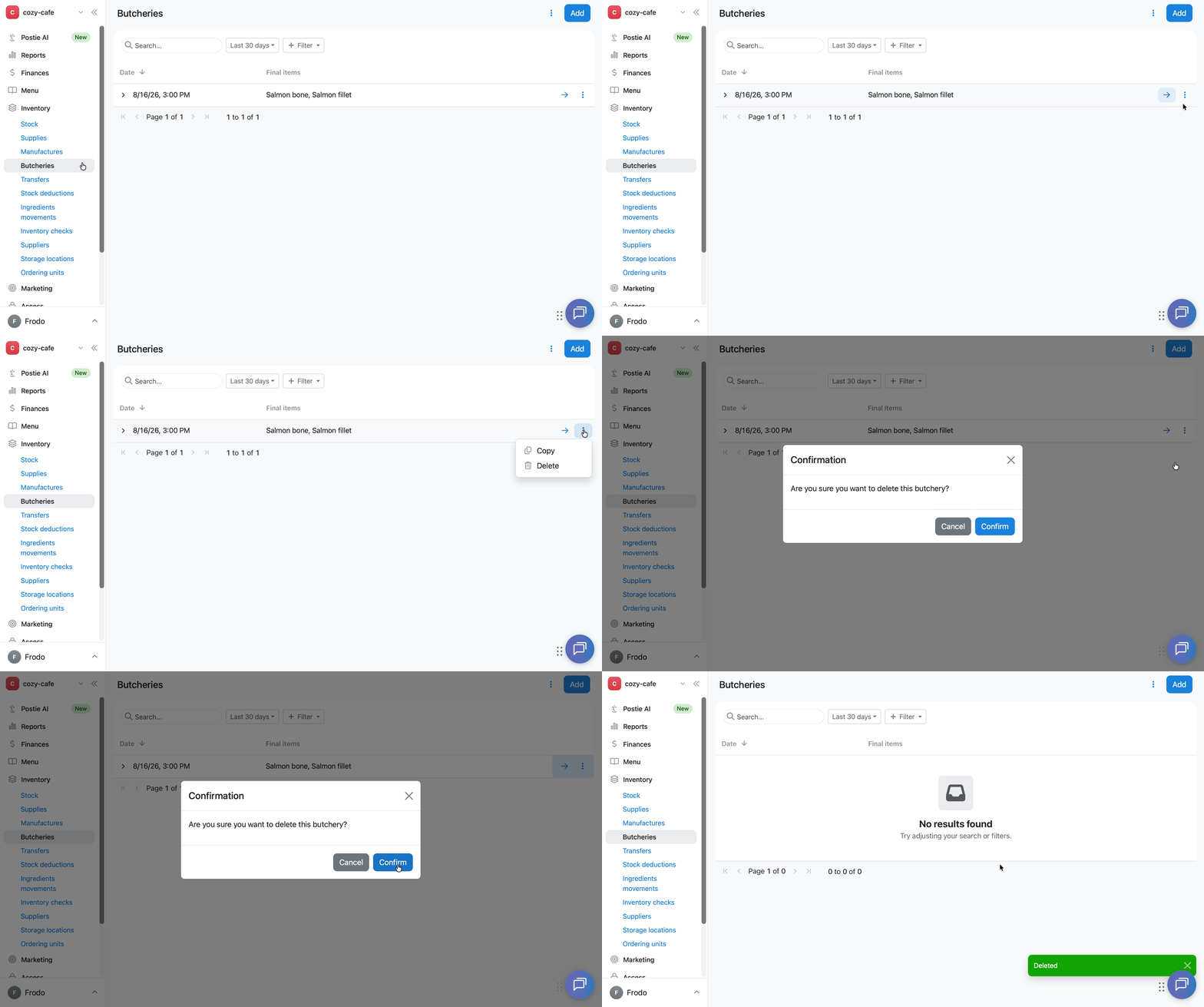
You cannot restore a deleted butchery. The inventory balance of the final items created by this butchery will also be deleted.
How to customize the butchery table columns
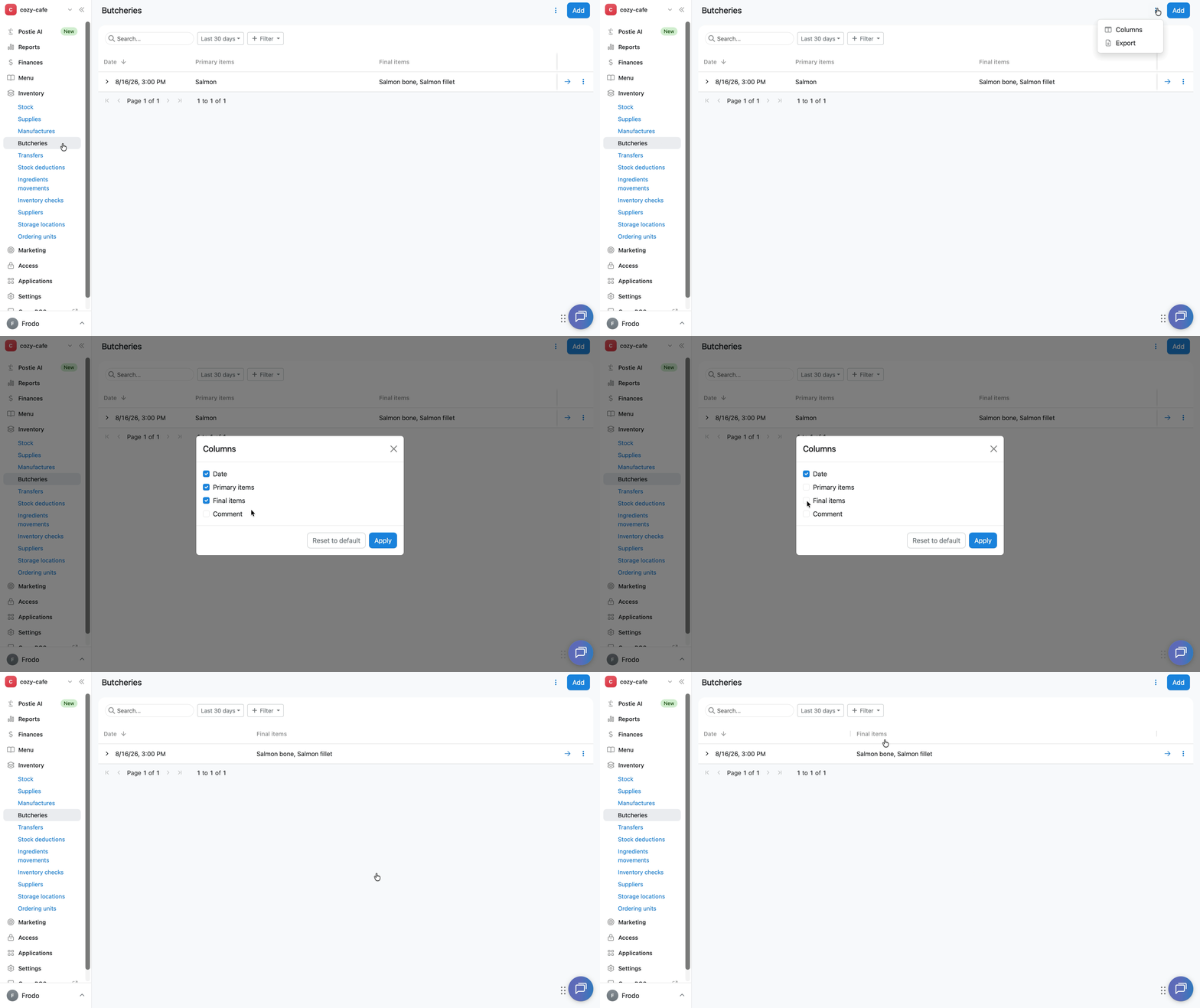
In the butchery list, select which columns to display:
- Open Inventory → Butcheries.
- Click ︙ in the upper-right corner of the screen and select Columns.
- Select the required columns: Date, Primary items, Final items, Comment.
- Click Apply to save your selection or Reset to default to restore the standard set of columns.
How to view butcheries for a specific day or period
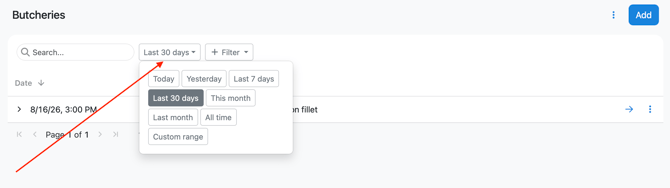
To filter the butchery list by date, click Last 30 days above the butchery table and select the required day or period.
How to export butcheries
In Poster, you can export both a list of all butcheries and an individual butchery as an act.
How to export the list of butcheries
- Open Inventory → Butcheries.
- Click ︙ in the upper-right corner of the screen.
- Select Export.
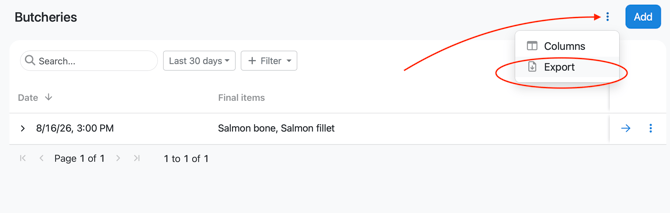
Poster will download an .xlsx file with the list of butcheries. The file will contain only the information from the columns displayed in the table at the time of export.
How to export an individual butchery
- Open Inventory → Butcheries.
- Click → next to the required butchery.
- Click Export in the upper-right corner of the screen.
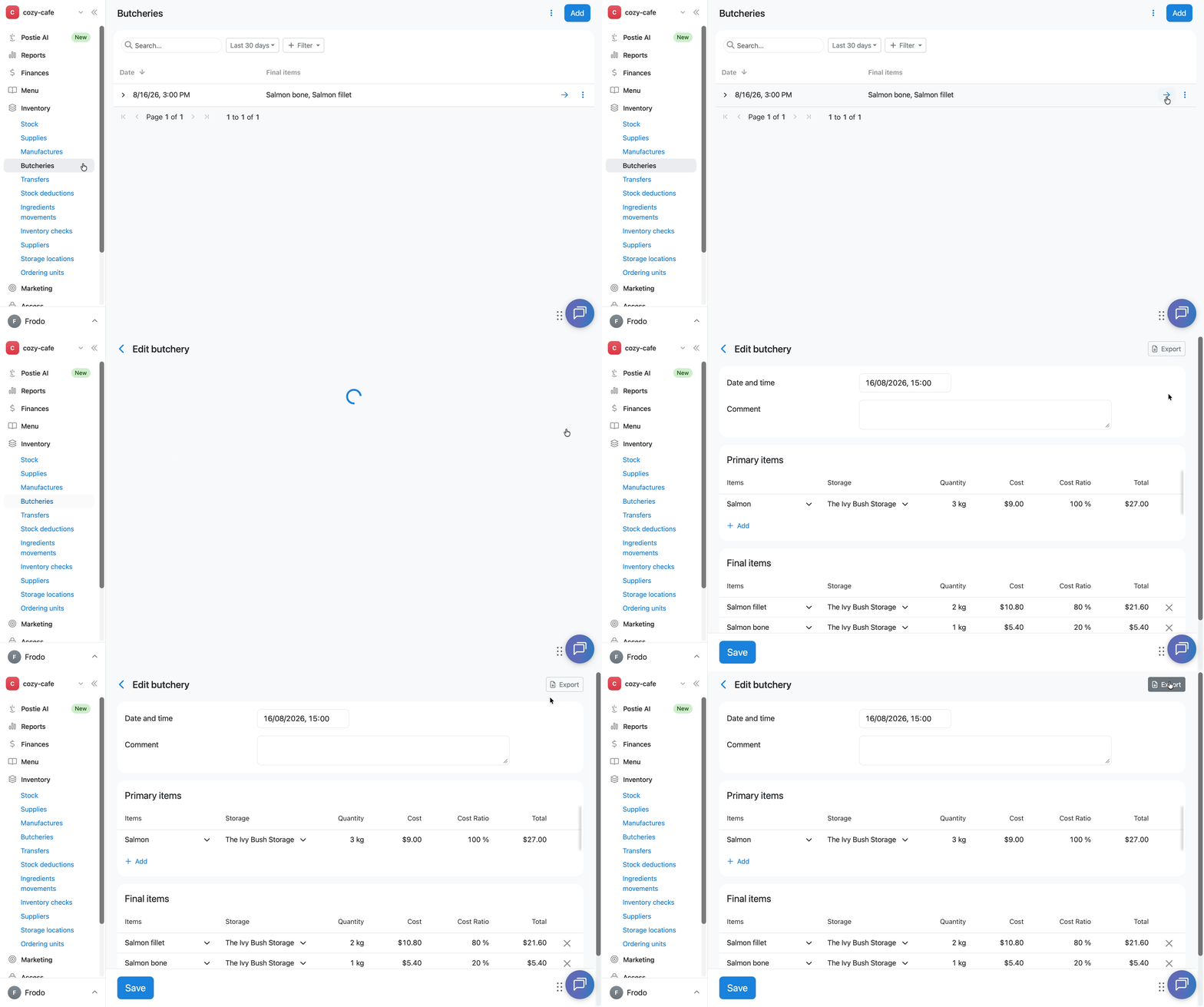
Poster will download a «Butchery Act» file with detailed information about the butchery:
- the butchery number, for example, «Butchery act No. 4»;
- the date and time of the butchery;
- the comment, if added;
- the Primary items table with the following columns: Products, Storage, Qty, Cost, Cost ratio, Total;
- the Final items table with the same columns: Products, Storage, Qty, Cost, Cost ratio, Total.
Limitations
- The Butchery feature is available only on the Pro pricing plan.
- In the Primary items and Final items fields, you can create only an ingredient while creating a butchery. Dishes, products with modifications, and preparations must be created in advance.
- The total cost ratio in the Final items section must equal 100% — otherwise, you won’t be able to save the butchery.
- You cannot restore a deleted butchery. The inventory balance of the final items it created will also be deleted.