
Management console is your personal Poster dashboard, where you create products and recipes, keep inventory and financial records, and view revenue and profit metrics.
How to log in with email and password
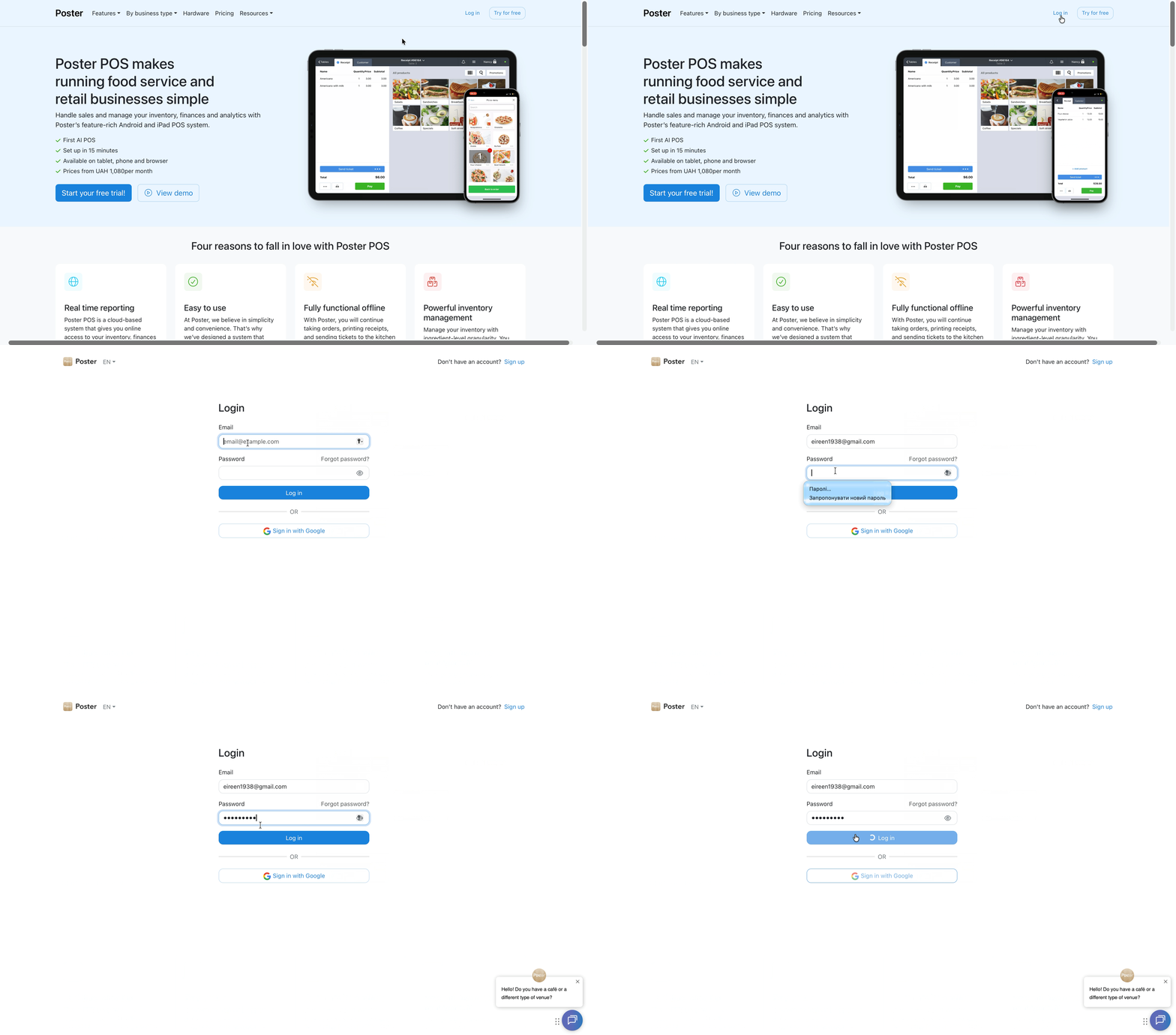
- Open joinposter.com/login in Chrome or Safari on your computer or phone.
- Enter the email and password for your Poster account.
- Click Log in.
- On the «Your accounts» page, select the account you need from the list and click it to log in.
How to log in with a Google account
- On the login page, click Sign in with Google.
- In the window that opens, select your Google account.
- If your Google email matches the email listed on your Poster account, the system will automatically grant access and open the «Your accounts» page.
- Click the account you need to log in to the admin panel.
Logging in from a phone
There is no separate mobile app for the Poster management console. Open Chrome or Safari on your phone, go to joinposter.com/login, and log in the same way as on a computer.
Confirming login with an OTP code
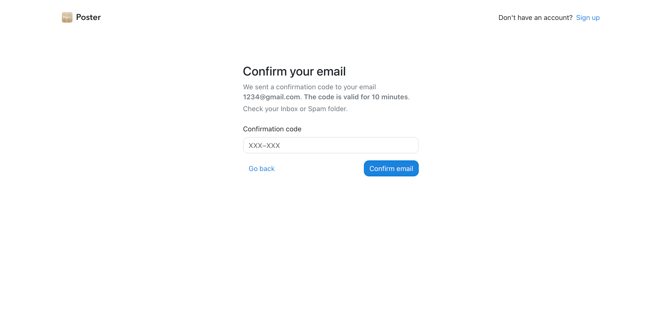
Poster sends a one-time confirmation code (OTP) to your email in two cases:
- on the first login of a user who has access to multiple Poster accounts;
- when resetting a password.
The code is valid for 10 minutes. Enter it in the confirmation field on the login page — login will continue automatically.
One password for Poster, Poster Boss, and Poster Courier
The password for the Poster management console is the same as for the Poster Boss and Poster Courier apps — there are no separate credentials for these apps.
The same email and password work for logging in to all three products. You cannot use a separate email just for Poster Boss or Poster Courier.
- The Poster management console works correctly only in Chrome and Safari.
- There is no separate mobile app for the admin panel — logging in from a phone happens through the browser.
- One password grants access to all Poster accounts registered under that email. Do not share your password with anyone.
Frequently asked questions
- The OTP code isn't arriving by email
Check your Spam folder. If there's no code, request it again. The code is valid for 10 minutes.
If the code still doesn't arrive, message us in chat. - I forgot my Poster management console password.
Reset your password on the login page by following the step-by-step instructions. - Can someone access my account if they know my password?
Yes. The password grants access to all Poster accounts registered under that email, so don't share it with anyone. - After logging in, I don't see my Poster account in the list on the «Your accounts» page.
This means your email hasn't been linked to this account yet. Ask the account owner or an employee with settings access to add you as a staff member through the Poster management console. - Can I log in to the same account simultaneously in multiple browsers?
Yes. Sessions on different devices and browsers are stored independently. Switching between accounts in multiple tabs also works without automatic logout.
Manage all your establishment's processes in the admin panel: work with the menu, monitor sales, and analyze business metrics using Poster's analytics tools.