
Poster creates two types of management console login sessions: a global session, created after logging in on the login page, and a local session, created after selecting a specific account on the My Accounts page.
You can view active sessions in Access → User Sessions. The account owner can see the sessions of all employees, but only the user whose session it is can end it.
What is a Poster global session
A Poster global session:
- is created after successfully logging in on the management console login page;
- grants access to the My Accounts page;
- is active for all of the employee's accounts at the same time;
- exists in a single instance per browser — a browser always has only one Poster global session.
What is a Poster local session
A Poster local session:
- is created after selecting a specific account on the My Accounts page;
- grants access to the selected account's domain, for example, example.joinposter.com.
The creation date of a Poster local session is the date the specific account was first opened within an already created global session. For example, if you have 3 accounts and open them on different days, each account will have its own local session with a separate creation date.
Parallel logins to a Poster account
One Poster account can be opened in the management console simultaneously on different devices and in different browsers. Previous Poster user sessions remain active, and no automatic logout occurs.
Switching between Poster accounts across multiple browser tabs also works without automatic logout, if the accounts are registered to the same email address.
How to view user sessions in Poster
- Open Access → User Sessions in the Poster management console.
- Review the list of active user sessions. For each session, the following is displayed: user, device, browser, IP address, and login time.
☝️ The owner of a Poster account can see the active sessions of all account users. Employees with other roles only see their own sessions in this tab.
How to end a user session in Poster
Only the user the session belongs to can end it. The user's position or role does not affect this.
Open Access → User Sessions in the Poster management console.Find your session, click ︙ and select Delete.
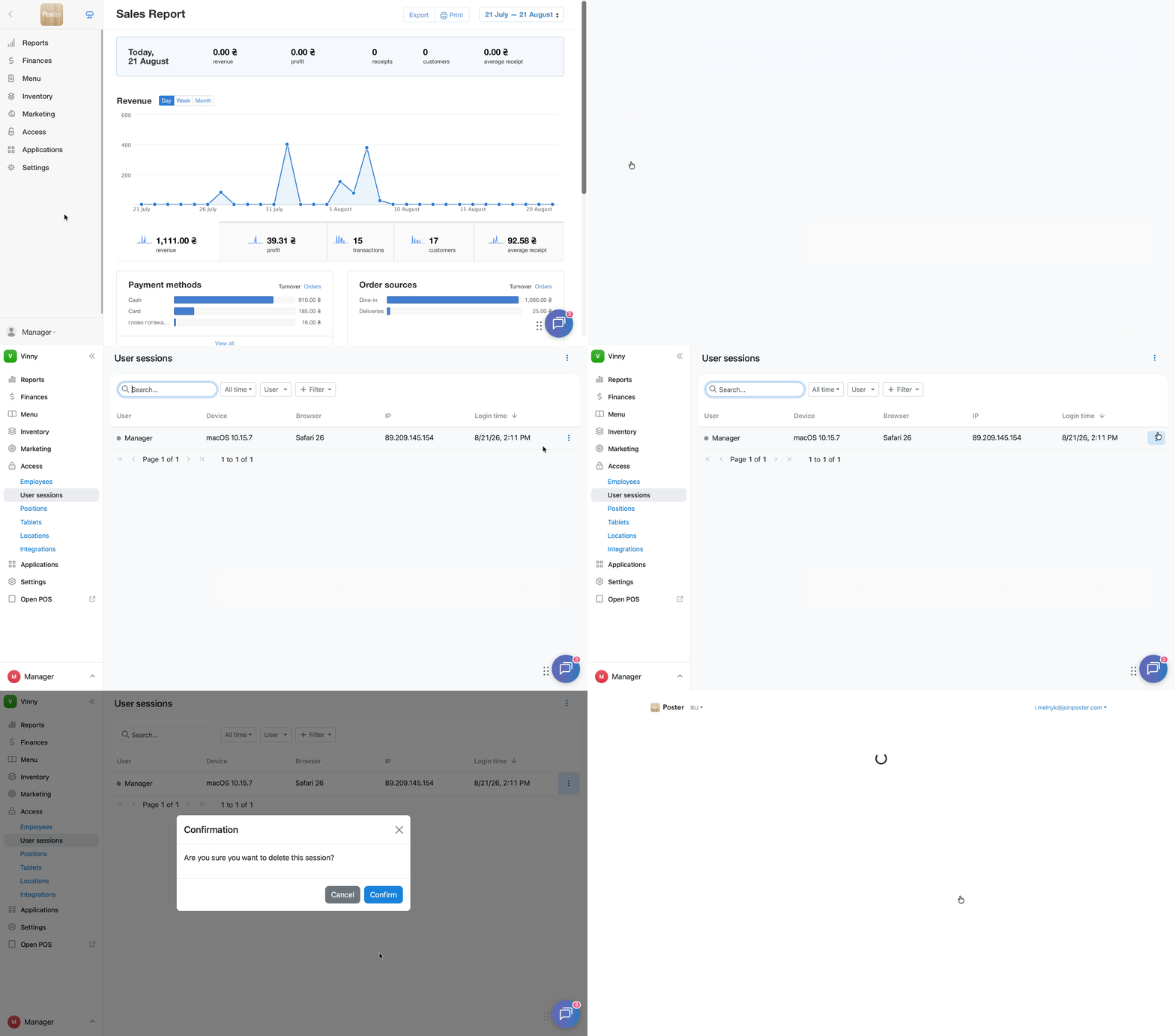
💡 The account owner cannot end other users' sessions. Each user ends their own active sessions independently.
If you need to urgently block an employee's access
If you need to completely revoke an employee’s access to Poster, any employee with full access to the management console can delete the «unneeded» employee in Access → Employees.
After deletion, all active sessions for the employee will be terminated, and they will no longer have access to the account.
Frequently asked questions
-
Can you log in to one Poster account from multiple browsers at the same time?
Yes. You can use one account on different devices and in different browsers at the same time. Each session is stored separately.
-
Why does Poster ask for a confirmation code the first time you log in to an account?
This is a one-time password (OTP). Poster sends it to an employee the first time they log in, if they have been granted access to multiple accounts.
-
Can the account owner end another employee's session?
No. The account owner sees the active sessions of all employees in Access → User Sessions, but only the user themselves can end a session. If you need to urgently stop an employee's access, the account owner can remove them in Access → Employees. After that, all of the employee's active sessions will end.
Regularly review active user sessions and configure employee access permissions to keep your Poster account under control.