
To add an employee:
- Open the Access → Employees tab in the management console.
- Click Add.
- Enter the employee's name.
- In the Position field, select from the list the employee's position with the appropriate access rights to sections of the management console and the register.
- If the selected position has access rights to the management console, the Management console login block will appear on the employee's card — enter the employee's email there. They will receive a one-time invitation to that email to create a password and log in to the account.
- To give the employee access to the register, in the Access to the Point of Sale block enter a PIN code for logging in to the register — 4 digits.
- Click Save.
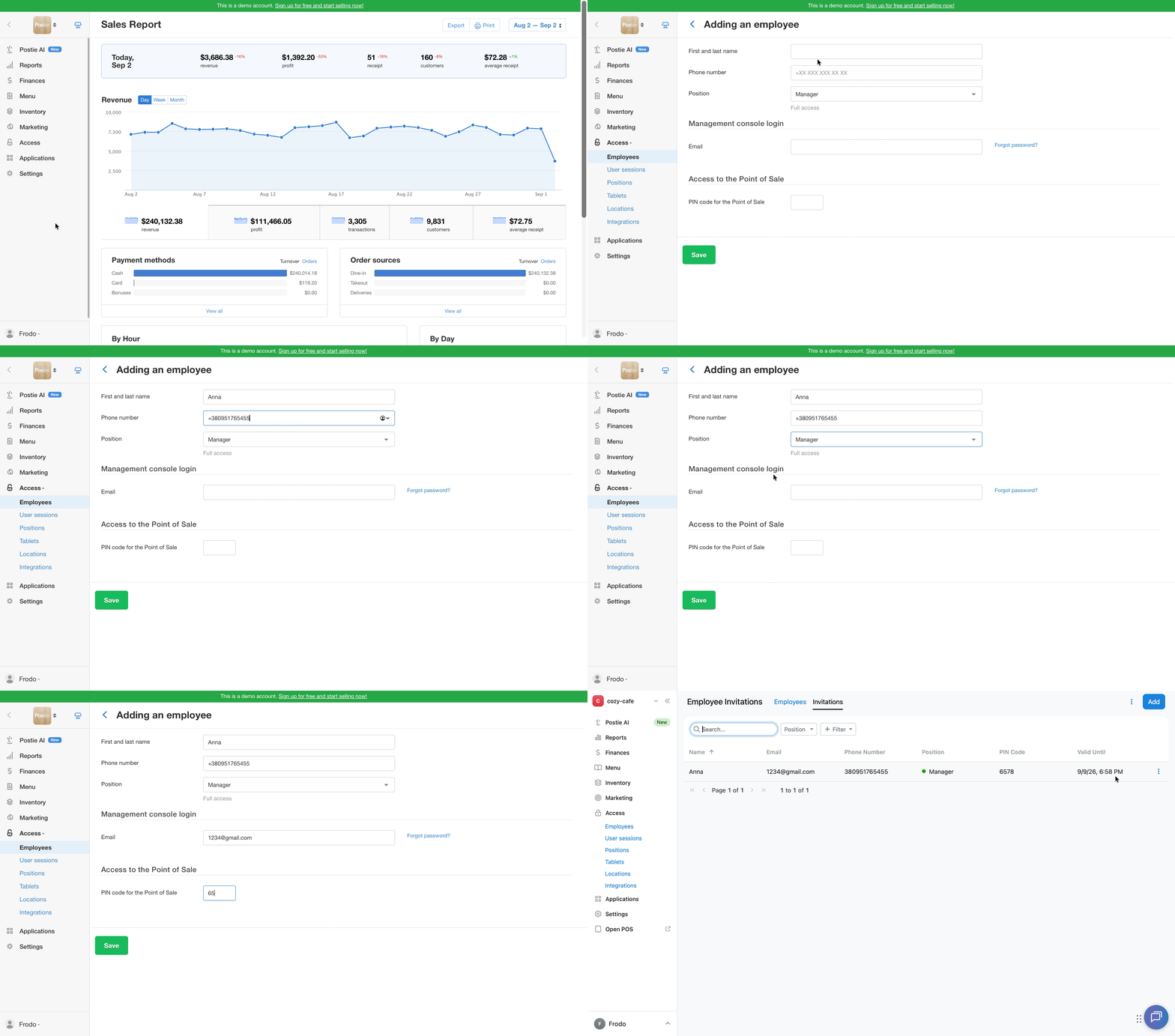
💡 For employees without access to the management console, the Phone number field is optional. So just enter the PIN code for logging in to the Poster app.
How to edit an employee
- Open the Access → Employees tab in the management console.
- Click → next to the employee you need.
- Change the needed data: position, name, phone number, or PIN code for logging in to the register.
- Save the changes.
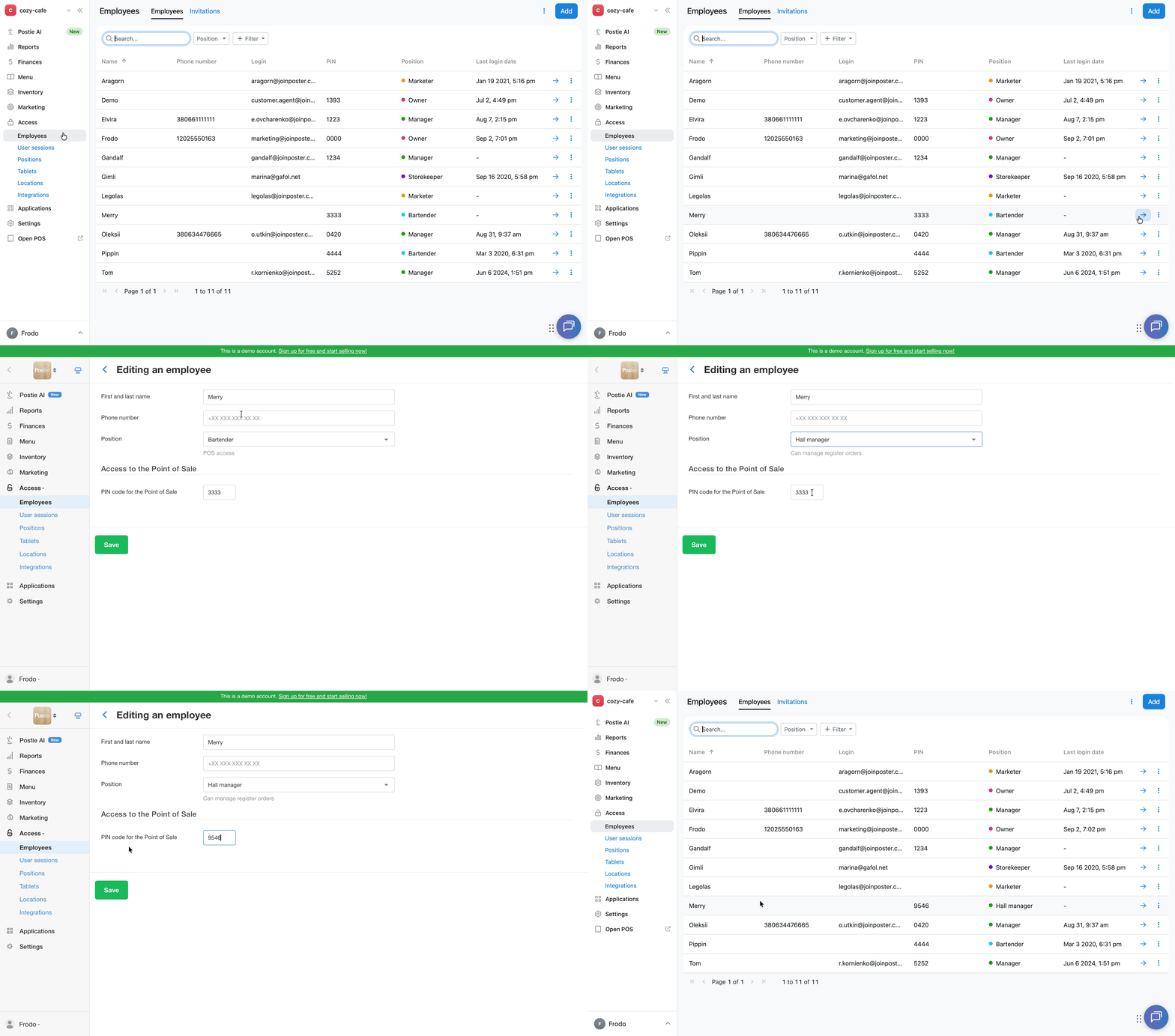
☝️ If you change the data of an existing employee, they won't receive an invitation to the management console. If an employee already has access only to the register, create a new employee for them with the appropriate access rights to the management console. Then delete the old employee.
How to delete an employee
- Open the Access → Employees tab in the management console.
- Click ︙ next to the employee.
- Select Delete.
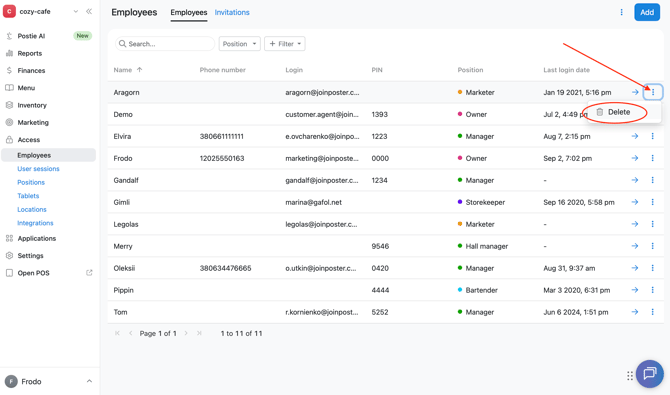
☝️ When you delete an employee, all integrations connected under their access will be removed. To restore the apps, reconnect them from the catalog .
Manage employee invitations
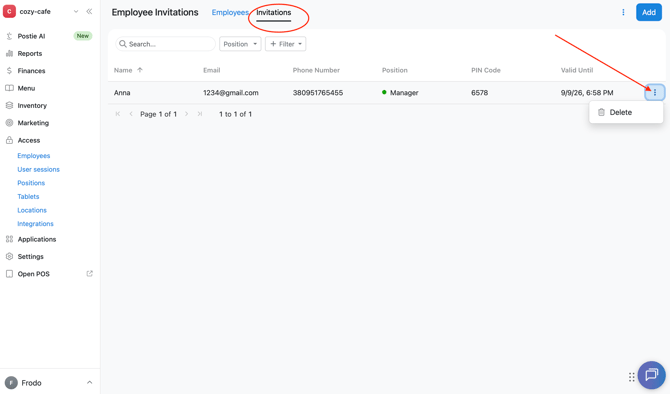
On the Access → Employees tab, in the Invitations section, view invitations to the management console that you've sent to employees but that they haven't yet confirmed by email.
An invitation is valid for a week. If the link has already been used or has expired, resend the invitation: create a new employee card and enter the email in the Management console login block.
To delete an invitation sent by mistake or no longer relevant, click ︙ next to it in the list of invitations and select Delete.
Customize columns in the employee table
Customize the employee table to display only the data you need.
- On the Access → Employees tab, click the ︙ button in the top right corner of the screen, next to the Add button.
- In the menu, select Columns.
- In the window that opens, check the columns you need: Name, Phone number, Login, PIN, Position, Last login date.
- Click Apply.
To restore the default set of columns, click Reset to default.
Work with the employee list
Export the employee list to a file or filter it by position or other data.
To export, click ︙ in the top right corner of the Access → Employees tab and select Export.
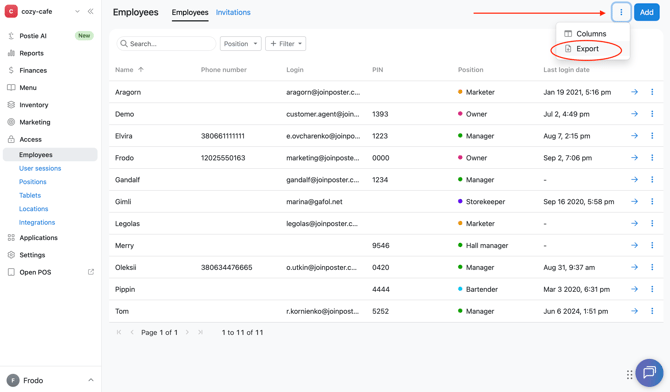
To filter the list, select the needed Position or click + Filter and set values for the Name, Phone number, Login, PIN, or Last login date fields.
Limitations
-
You can create an unlimited number of employees in Poster for free — there's no separate fee based on the number of employees.
-
An employee's invitation to the management console is valid for a week. If it has expired, resend the invitation.
-
If an employee has already been added and only has access to the register, create a new employee with the appropriate position to grant them access to the management console. Then delete the old employee.
-
After deleting an employee, Poster removes all integrations and apps connected under their access. Their credentials and activity history in reports are preserved.