
How to create a transfer
To transfer products between storage locations:
- Open the Inventory → Transfers tab in the management console.
- Click Add.
- Choose the date and time of the transfer.
💡 The calendar's language depends on the language set on the device you use to open the management console. - Specify which storage location the products are transferred from and which one they're transferred to.
- Select the products and specify their quantities.
- Click Save.
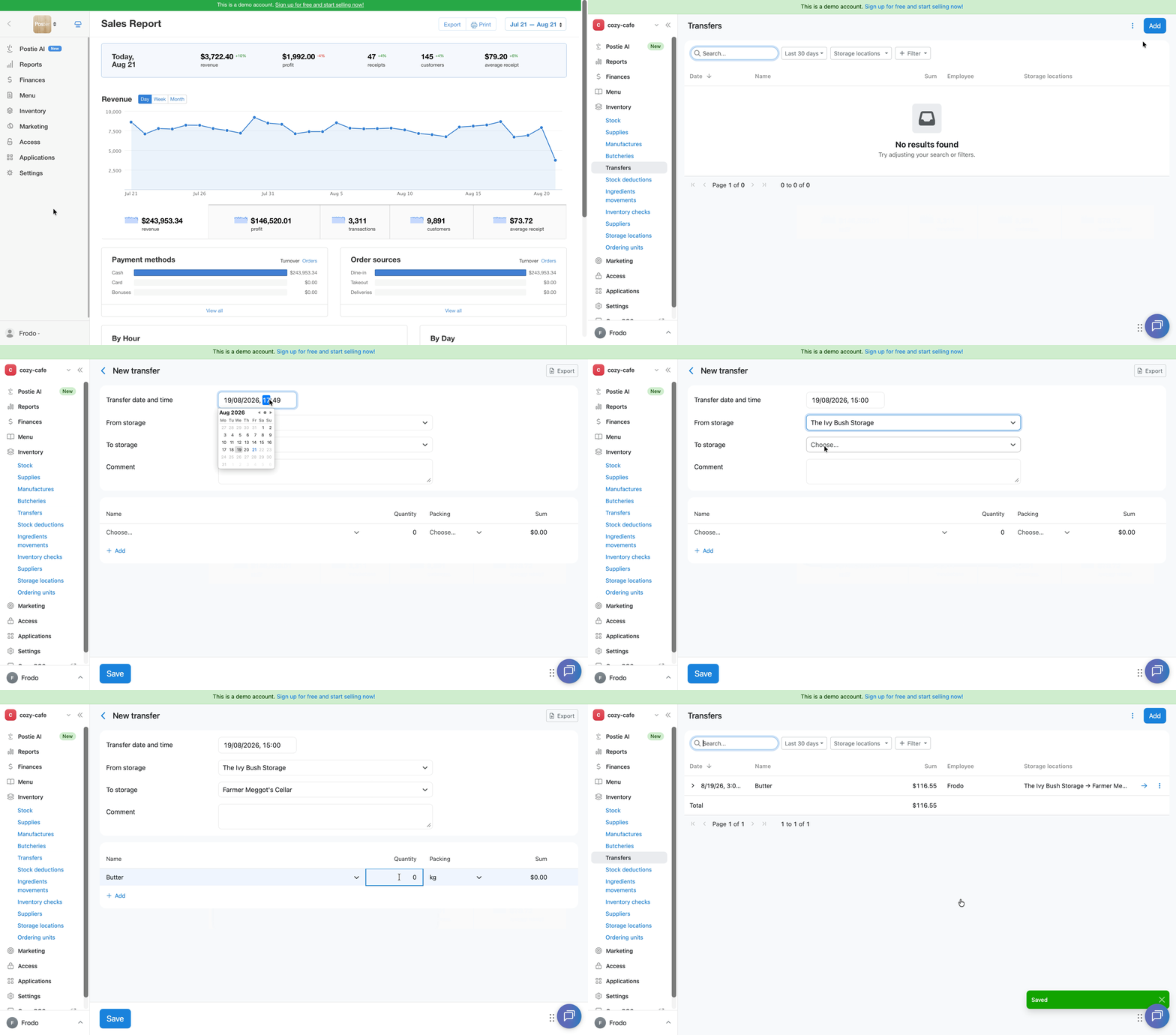
Once saved, the products are automatically deducted from the source storage location and added to the destination storage location.
Transferring with insufficient stock. You can create a transfer between storage locations even if the source location doesn't have enough stock. If the stock level goes negative after the transfer, Poster will show a notification but will still complete the transfer. Correct the actual stock level later during an inventory check.
💡 To create a transfer with a past date, choose a date and time after the last inventory check. It must fall within the current inventory check period.
How to edit a transfer
To edit a transfer you've already created:
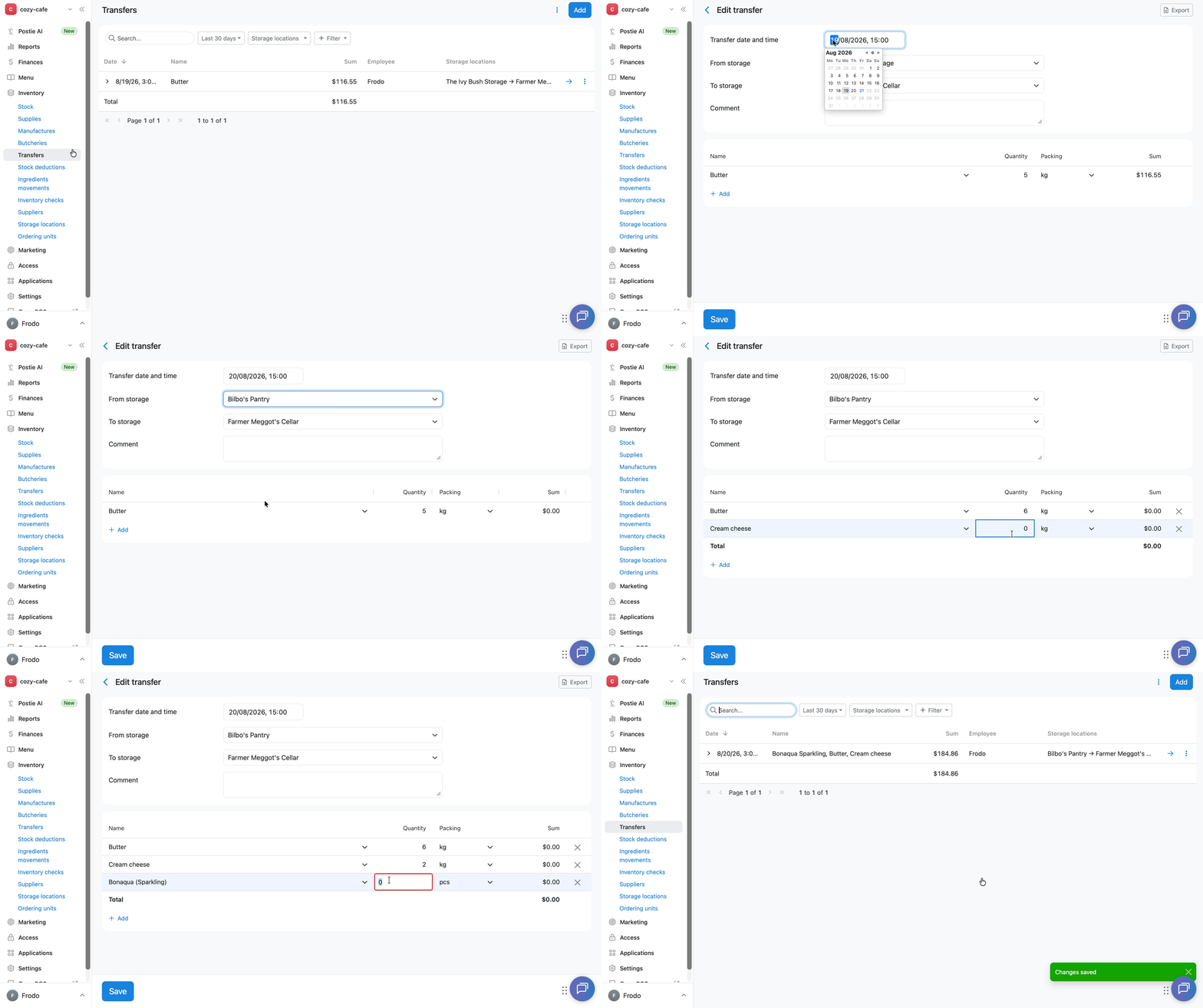
- Open the Inventory → Transfers tab in the management console.
- Click → next to the transfer you want to edit.
- Adjust the data you need: the date, time, storage locations, products, or quantities.
- Click Save.
How to delete a transfer
To delete a transfer:
- Open the Inventory → Transfers tab in the management console.
- Click ⋮ next to the transfer you want to delete.
- Select Delete.
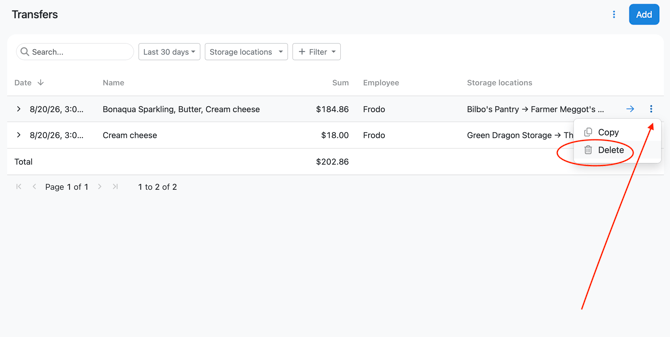
A deleted transfer cannot be restored. If you deleted one by mistake, create it again.
How to copy a transfer
To quickly create a similar transfer, copy an existing one:
- On the Inventory → Transfers page, click ︙ next to the transfer you want to copy.
- Select Copy.
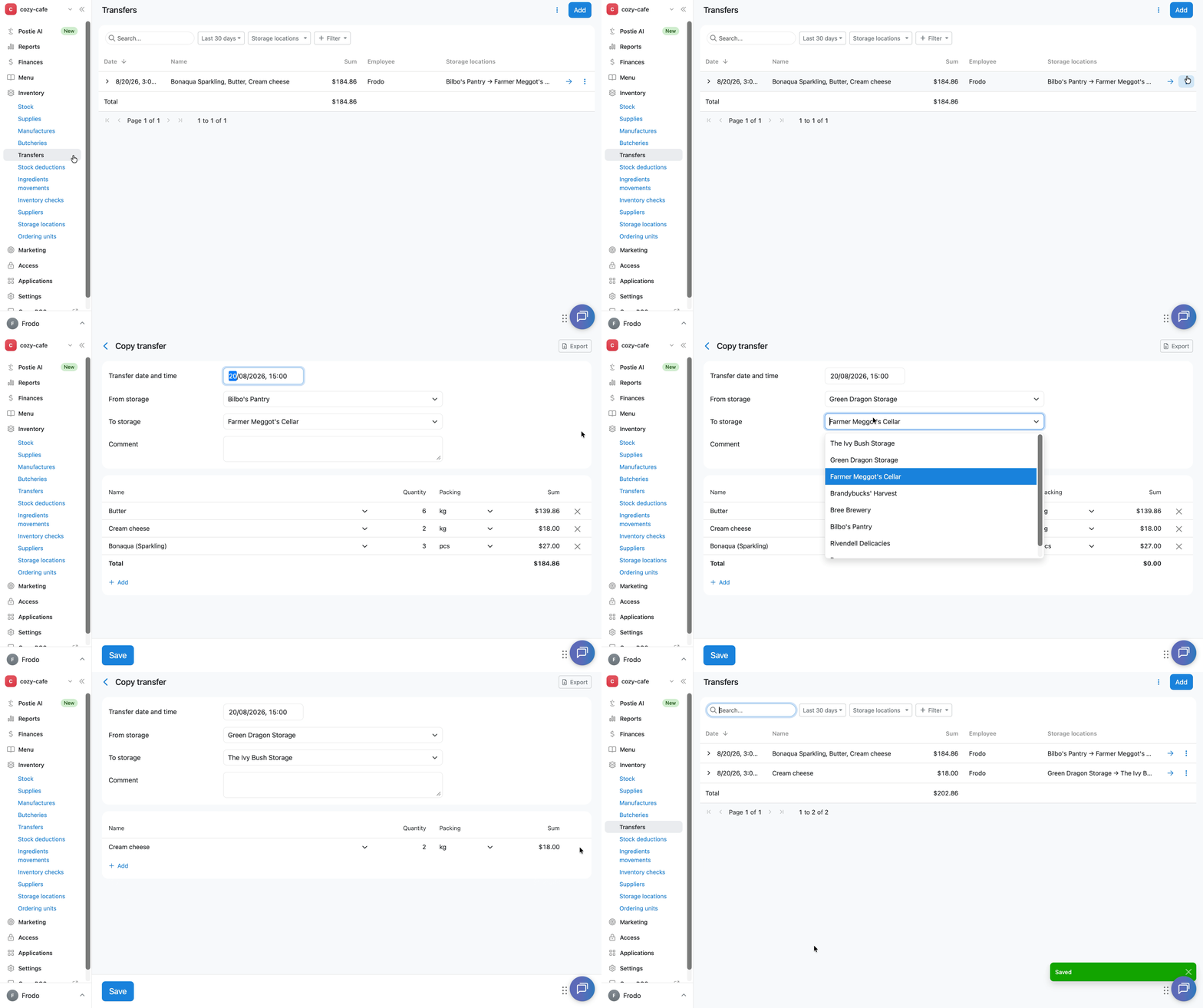
Poster will create a new transfer with the same storage locations, products, and quantities. Change whatever you need — for example, the date, time, or quantities — and click Save. The new transfer is saved separately, and the original stays unchanged.
Limitations
- Dishes and preparations can only be transferred between storage locations if they're connected to manufacture. If a dish or preparation isn't manufactured, you can't transfer it as a standalone item.
- A transfer with a past date can only be created within the current inventory check period.
- If you want to create transfers at the register, connect the POS Transfers integration. You can create transfers directly from the register and then view them in Inventory → Transfers.
To quickly find a specific transfer or export data to a file, use the filters, column settings, and export option on the Inventory → Transfers page.