
How to log in to Poster Boss as an owner
To log in to the Poster Boss app as an owner, use the same credentials you use to log in to your Poster account: your email and password or your Google account.
- Install the Poster Boss app on your phone from the App Store or Google Play.
- Open Poster Boss and tap Log in with Poster.
- Log in using one of the following methods:
- enter the email and password for your Poster account, then tap Log in;
- or tap Continue with Google and select the Google account linked to your Poster account.
- On the My accounts page, select the Poster account you want to log in to.
☝️ If several Poster accounts are registered with the same email address, they will all appear on the My accounts page in Poster Boss. To switch to another account, open the My accounts page and select the account you need from the list.
How to log in to Poster Boss as an employee
Employees log in to the Poster Boss app with their Poster credentials, but the first time they log in, the owner or a manager must approve their access.
- Install the Poster Boss app on your phone from the App Store or Google Play.
- Open Poster Boss and tap Log in with Poster.
- Log in using one of the following methods:
- enter your Poster email and password, then tap Log in;
- or tap Continue with Google and select the Google account linked to your Poster account.
- On the My accounts page, select the Poster account you want to log in to.
- Wait for the owner or a manager to approve your login request.
💡 When an employee logs in to Poster Boss for the first time, the Request sent message appears. This means the owner and managers have received an email asking them to approve access. You can close the app while you wait for approval.
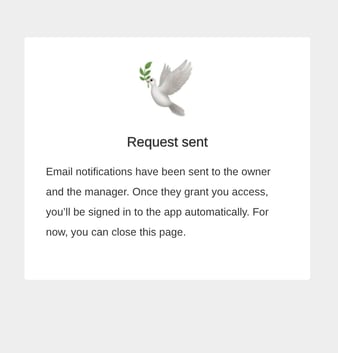
☝️ Once the owner or a manager approves the request, the employee will automatically log in to Poster Boss.
How an owner or manager can approve an employee’s access to Poster Boss
When an employee logs in to Poster Boss for the first time, the owner and managers receive an email asking them to approve access.
- Open the email with the subject line “Approve access to the Poster Boss app”.
- Click Allow.
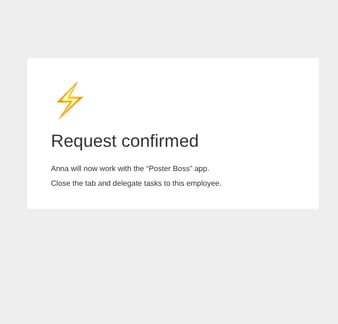
A page will open in your browser showing the Request confirmed message and the name of the employee who has been granted access. You can close the tab. The employee will automatically log in to Poster Boss.
What to do if the Poster Boss access request email doesn’t arrive
If the owner or a manager can’t find the email with the subject line “Approve access to the Poster Boss app”, ask them to check the Spam or Promotions folder in their inbox. If the email isn’t there either, contact us via chat.