
Postie AI is an AI-powered app that helps you add transactions quickly.
💡 After connecting, you get 20 free actions each month. The limit is renewed automatically from the date the app was added. One import uses one action.
If the free actions are not enough, activate the paid integration plan: 10 $/month for 100 actions. The bill will be added automatically in Settings → Billing.
For users with an active paid integration, an additional +20 free actions are credited every month on top of the limit.
To avoid entering payments manually and to see the real picture of your income and expenses right away, download a statement from your online banking in CSV, XLS, XLSX, or PDF format.
☝️ Make sure the columns include the date, payment purpose, recipient/payer, and amount.
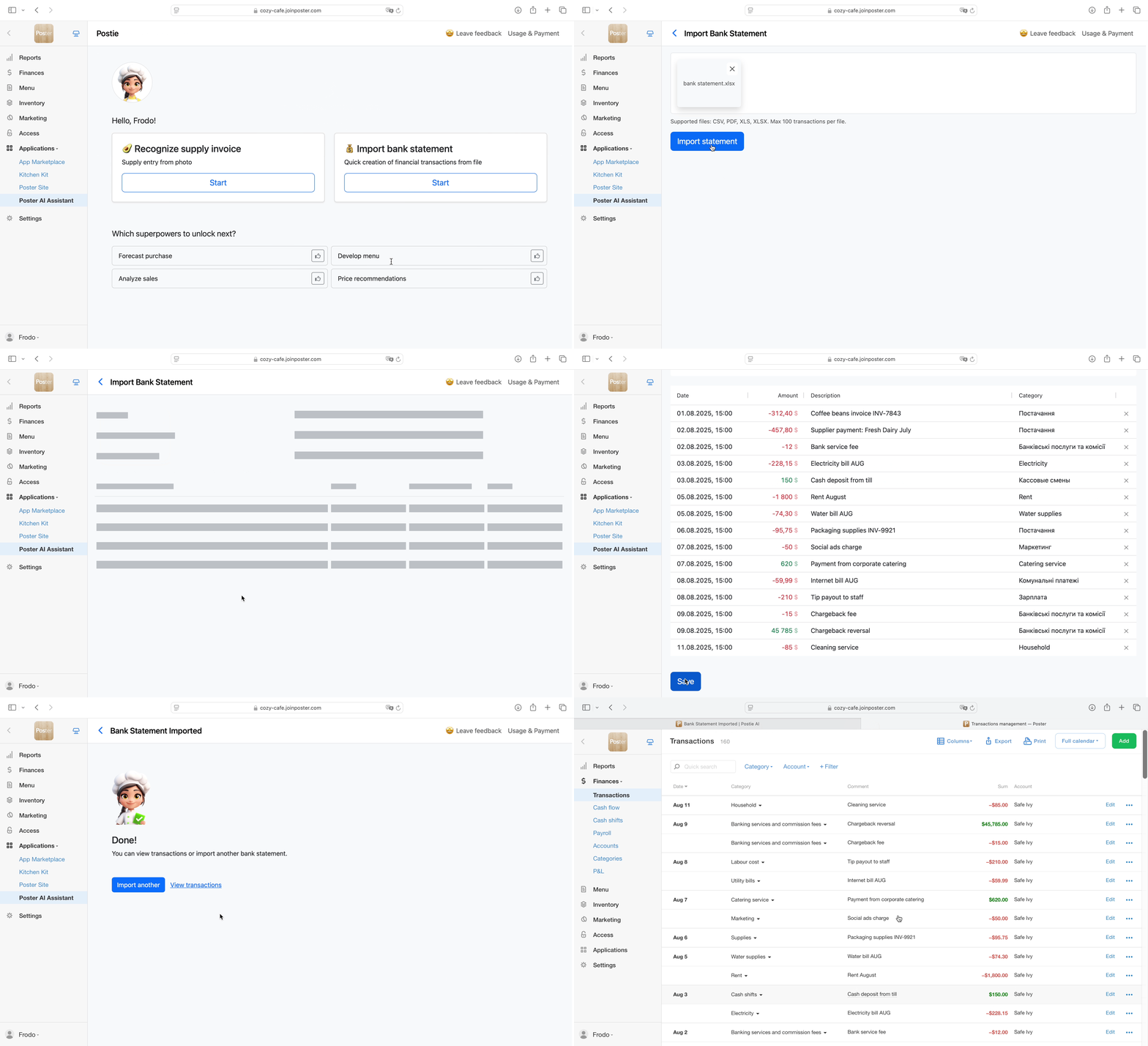
To import transactions into Poster:
-
Open Applications → Postie AI in the admin panel.
-
In the Import bank statement section, click Start.
☝️ If all actions have been used, you will not be able to start statement recognition. The Start button will be inactive.
-
Add the statement file.
💡 We support files in CSV, PDF, XLS, and XLSX formats. No more than 100 transactions in one file.
-
After uploading, delete transactions that already exist in Poster to avoid duplicates.
💡 Poster automatically adds revenue deposits after the cash shift is closed. The bank statement will contain the same income entry — payment to a non-cash account or from payment terminals. Keep one record and delete the other.
-
Check whether the categories were identified correctly. If not, select the correct one from the list. Postie will remember your choice for the future.
-
Click Save.
How automatic recognition works
-
Postie reads the «Recipient/Payer» and «Payment purpose» fields.
-
It compares them with your previous transactions.
-
If there is no match, it suggests choosing a category manually and remembers your selection.
You can also add supplies just as quickly — upload a photo of an invoice or receipt, and Postie AI will recognize the items and create the supply for you.