
How to find an ingredient using quick search
Find an ingredient by its name or part of its name:
- Open Menu → Ingredients in the Poster management console.
- Enter the ingredient name or part of it in the Quick search field above the list.
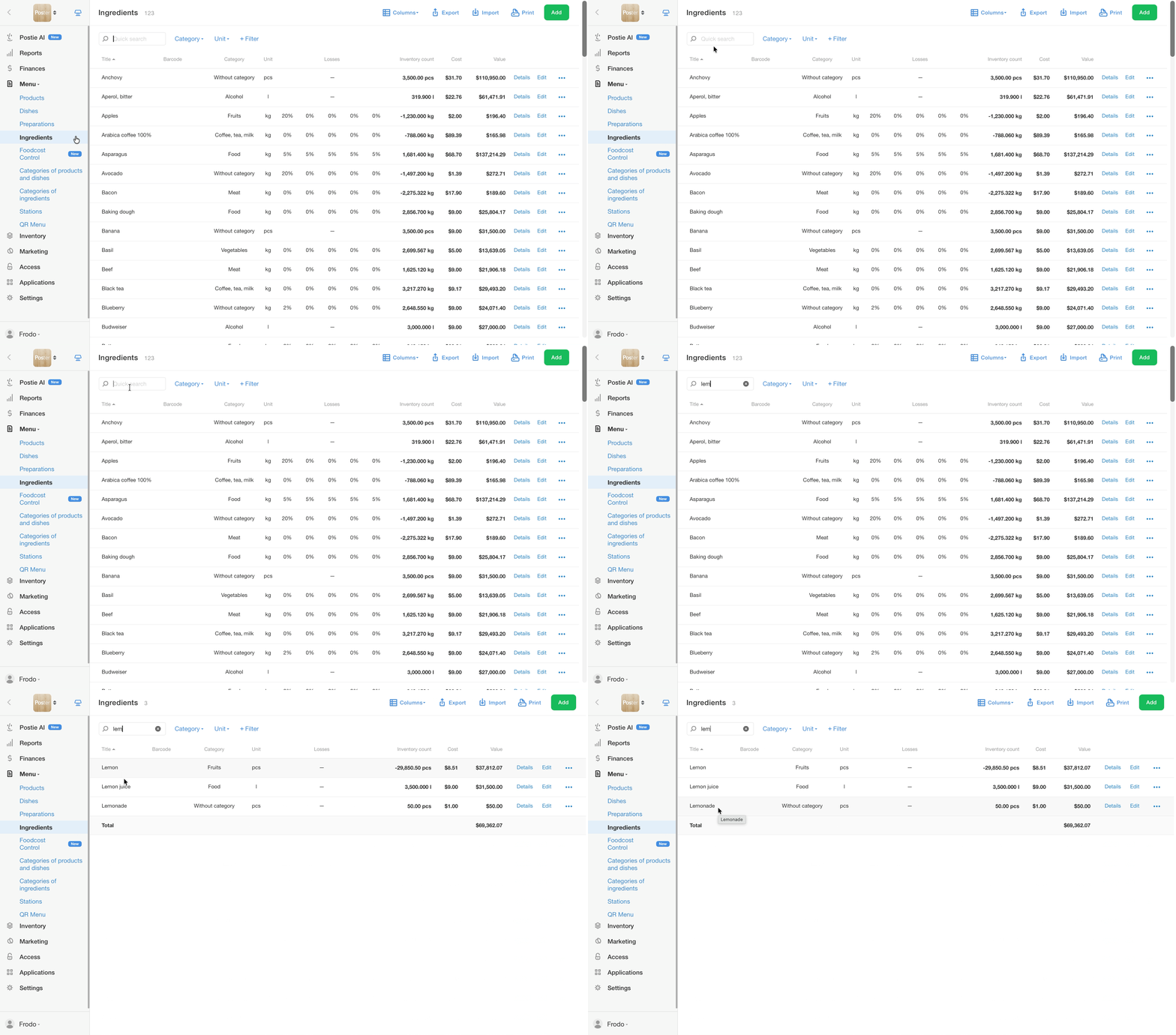
Poster will display ingredients whose names match your search query.
How to filter ingredients by category or unit of measurement
Use the Category and Unit filters to display only the ingredients you need.
- Open Menu → Ingredients in the management console.
- Click Category and select one or more categories. To find a specific category, enter its name in the Search field.
- Click Select all to select every category, or Clear to reset your selection.
- Click Unit and select the required unit: pcs, kg, or L.
Poster will display the selected filters above the list. For example, Unit: kg.
💡 To remove a filter, click × next to its name.
How to set up additional ingredient filters
Add filters by barcode, loss percentage, stock levels, or other parameters to narrow down the list.
- Open Menu → Ingredients in the management console.
- Click + Filter.
- Under Show only those where, select a parameter:
- Name;
- Barcode;
- Weight of a single-piece ingredient;
- Loss % during peeling, boiling, frying, stewing, or baking;
- Stock levels.
- Specify the condition and value for the filter.
For example, to find ingredients with zero or negative stock levels, select Stock levels and set the appropriate condition.
What columns are available in the ingredient list
The Poster ingredient list displays the following information:
- Name — the ingredient name.
- Barcode — the barcode specified in the ingredient settings.
- Category — the ingredient category. If no category is selected, Poster displays «Uncategorized».
- Unit — the ingredient's unit of measurement: kilograms, liters, or pieces.
- Weight of a single-piece ingredient — the weight of one piece of the ingredient.
- Losses — loss percentages during peeling, boiling, frying, stewing, and baking.
💡 For ingredients measured in pieces or liters, a dash appears instead of a percentage because losses can only be configured for ingredients measured in kilograms. - Stock levels — the current quantity of the ingredient in your storage locations. A negative stock level means that more of the ingredient has been deducted from stock than received through supplies.
- Cost — the cost of one unit of measurement of the ingredient.
- Stock value — the value of the current ingredient stock, calculated based on its cost. For zero or negative stock levels, the value is 0.
☝️ Below the list, in the Total across all pages row, Poster displays the total stock value of all ingredients.
How to hide or show columns in the ingredient list
Customize the list to display only the information you need:
- Open Menu → Ingredients in the management console.
- Click Columns.
- Under Show columns, select the information you want to see in the list. Clear the checkboxes next to the columns you want to hide.
💡 To restore the default set of columns, click Default.
How to sort the ingredient list
Sort ingredients by a specific parameter to find the items you need faster.
- Open Menu → Ingredients in the management console.
- Click the name of the column you want to sort the list by. For example, Name, Category, or Unit.
- Click the column name again to reverse the sort order.
💡 If the list contains many ingredients, Poster divides them into pages. Switch between pages using the arrows at the bottom of the list.
How to export the ingredient list
Download the ingredient list to your computer:
- Open Menu → Ingredients in the management console.
- Click Export.
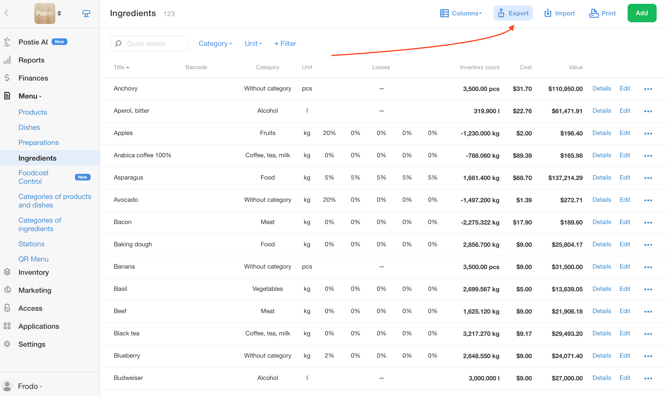
Poster will generate an .xlsx file containing the ingredient list and download it to your computer.
How to import ingredients from a file
Import multiple ingredients at once from a CSV, XLS, or XLSX file:
- Prepare a file containing the ingredient data.
- Open Menu → Ingredients.
- Click Import and upload the file.
Follow the instructions for preparing a file and importing ingredients to format the data correctly and upload it to Poster.
How to print the ingredient list
Print the list or save it as a PDF:
- Open Menu → Ingredients.
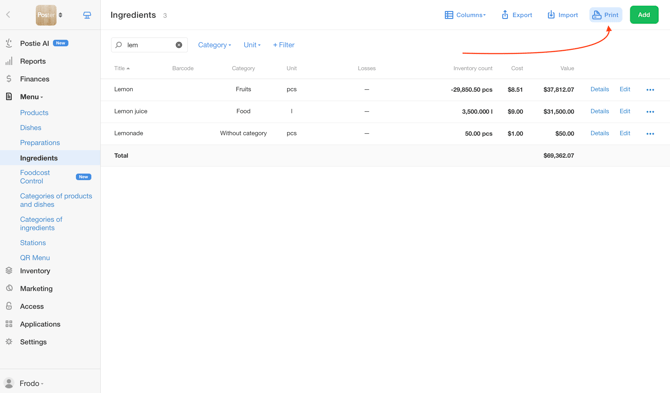
- Click Print. Your browser will open the print settings window.
- Select a printer or choose to save the file as a PDF.
- Click Print.
How to work with the ingredient list in the Postie AI chat
Use the Postie AI chat in the Poster management console to search and filter ingredients, analyze their properties and stock levels, and update ingredient data in dishes.
Describe what you want to find or change in the chat. For example, ask Postie AI to:
- Find ingredients by name, category, or other parameters;
- Check ingredient stock levels and costs;
- Find dishes that use a specific ingredient;
- Check which dishes use ingredients that are no longer in stock;
- Replace one ingredient with another in one or more dishes;
- Analyze product usage and expenses based on dish data.
Postie AI will not only find the required information but also help you make changes directly to dishes.
Ask Postie AI to generate a custom report based on ingredient data. It will analyze the data and create an XLSX file directly in the chat. Download the completed report to your computer.