
How to find a transfer
If you remember the name of the transferred product, ingredient, or dish, use the search:
- Open the Inventory → Transfers tab in the management console.
- In the Search field, enter the name of the item you need.
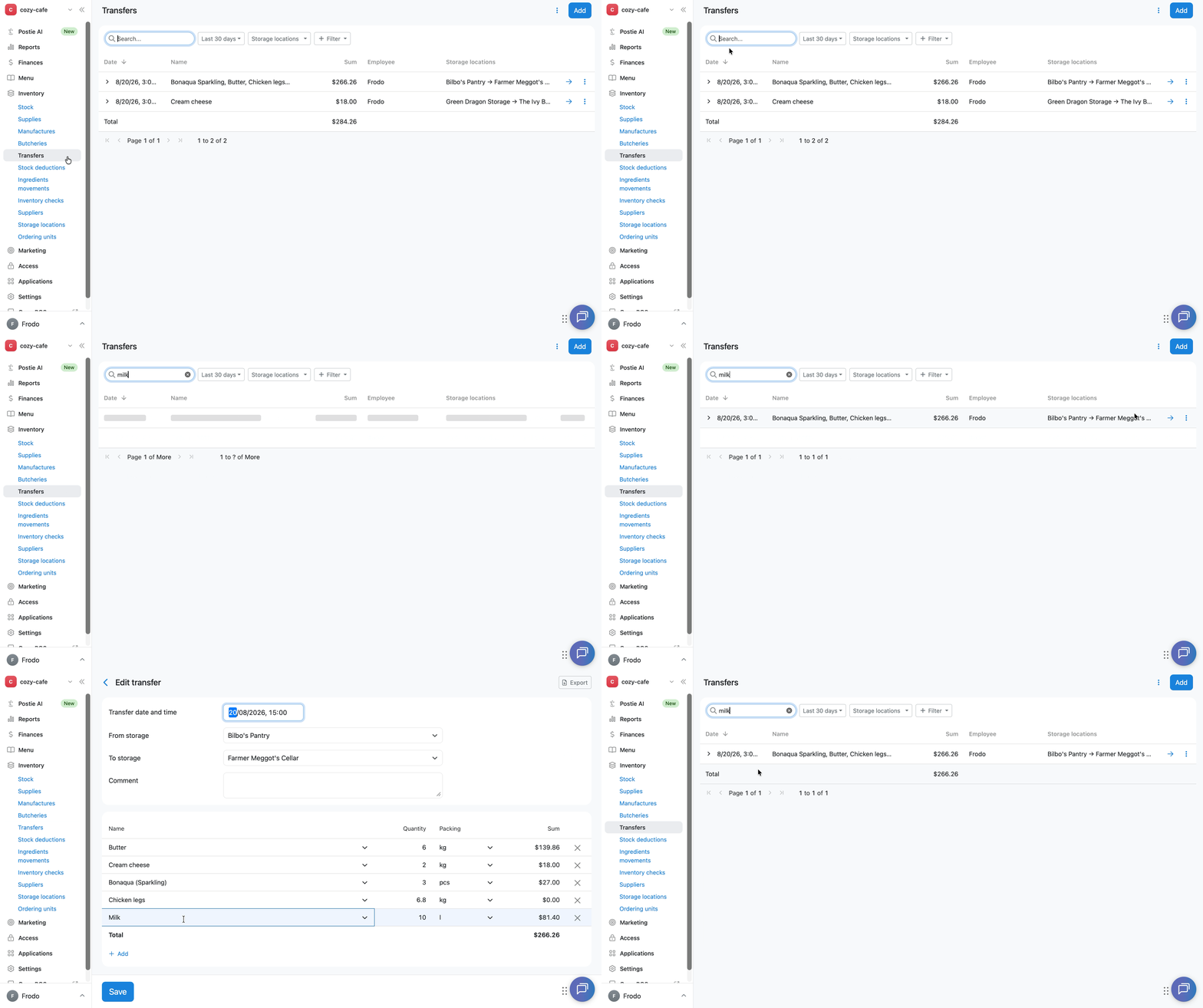
Poster will show all transfers that include this item.
How to find a transfer by date
To view transfers for a specific day or period:
- Above the transfer list, click Last 30 days.
- Select the day or period you need.
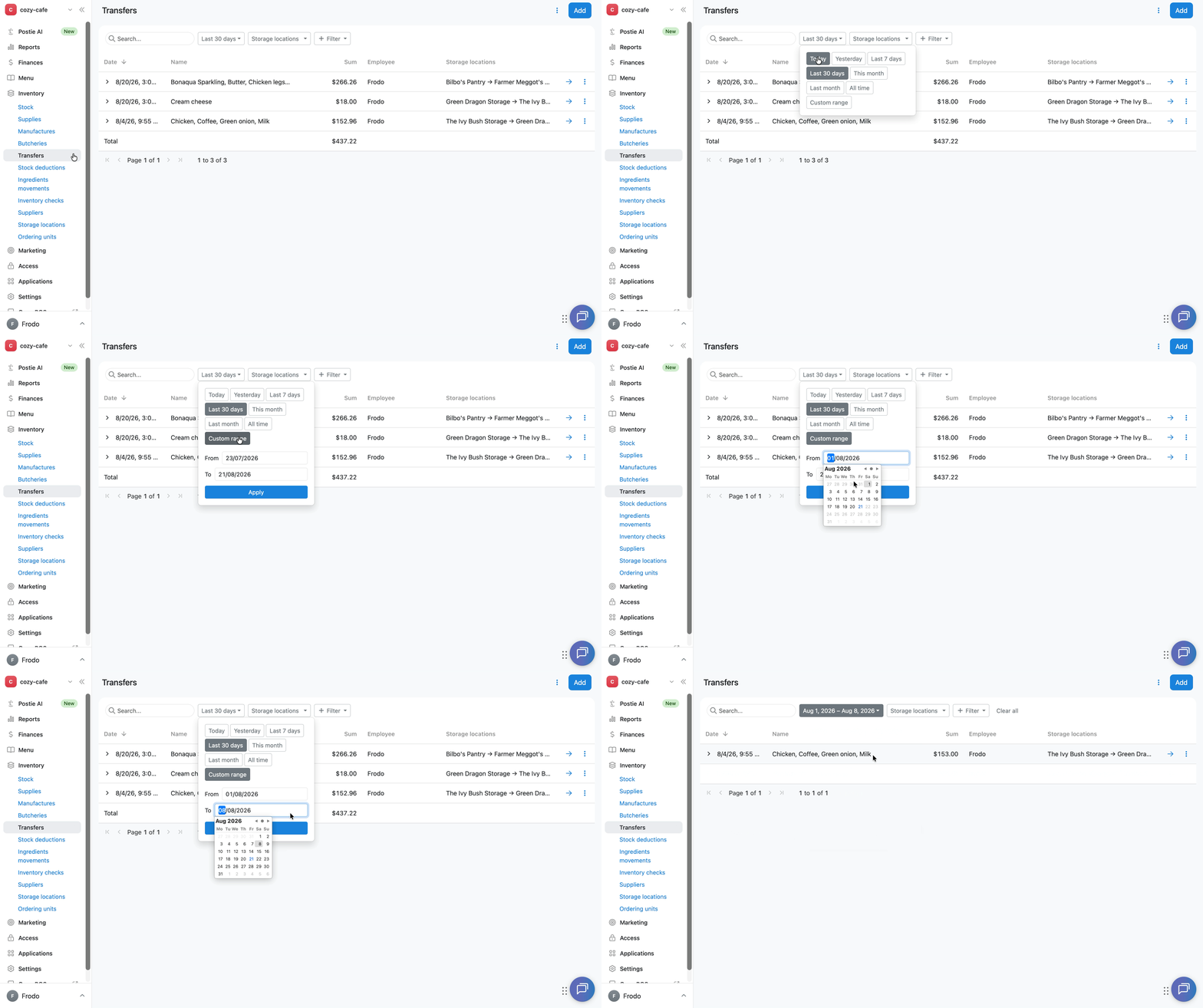
Poster will show all transfers for the selected period.
How to filter transfers by storage
To view transfers related to a specific storage:
- Click Storage locations above the transfer list in Inventory → Transfers.
- Select one or more storages.
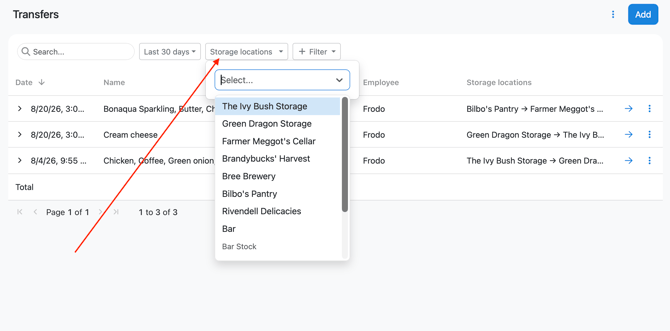
The list will keep only the transfers where the selected storage is the sending or receiving storage.
How to use additional filters
For a more precise search, use additional filters:
- Click + Filter in the top right corner of the screen.
- Choose the parameter you need: Name, Comment, Sum, or Employee.
- Set the filter condition.
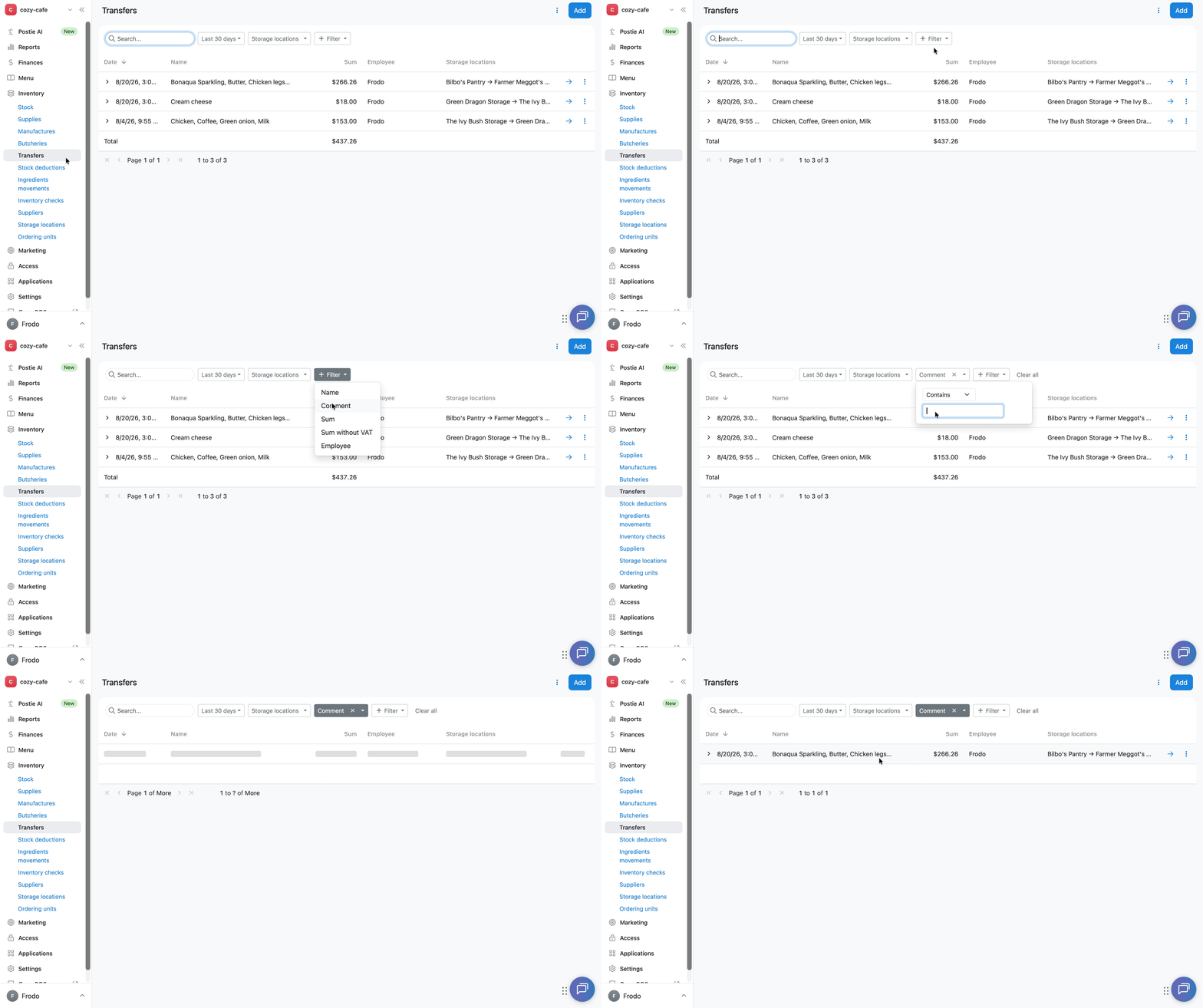
Poster will show transfers that match the selected filters.
💡 You can combine several filters. In that case, Poster will show transfers that match all the specified conditions.
How to customize columns in transfers
Choose the information you want to see in the transfer list:
- Open the Inventory → Transfers tab in the management console.
- Click ⋮ in the top right corner.
- Select Columns.
- Check the columns you need: Date, Name, Comment, Sum, Employee, Storage locations.
- Click Apply.
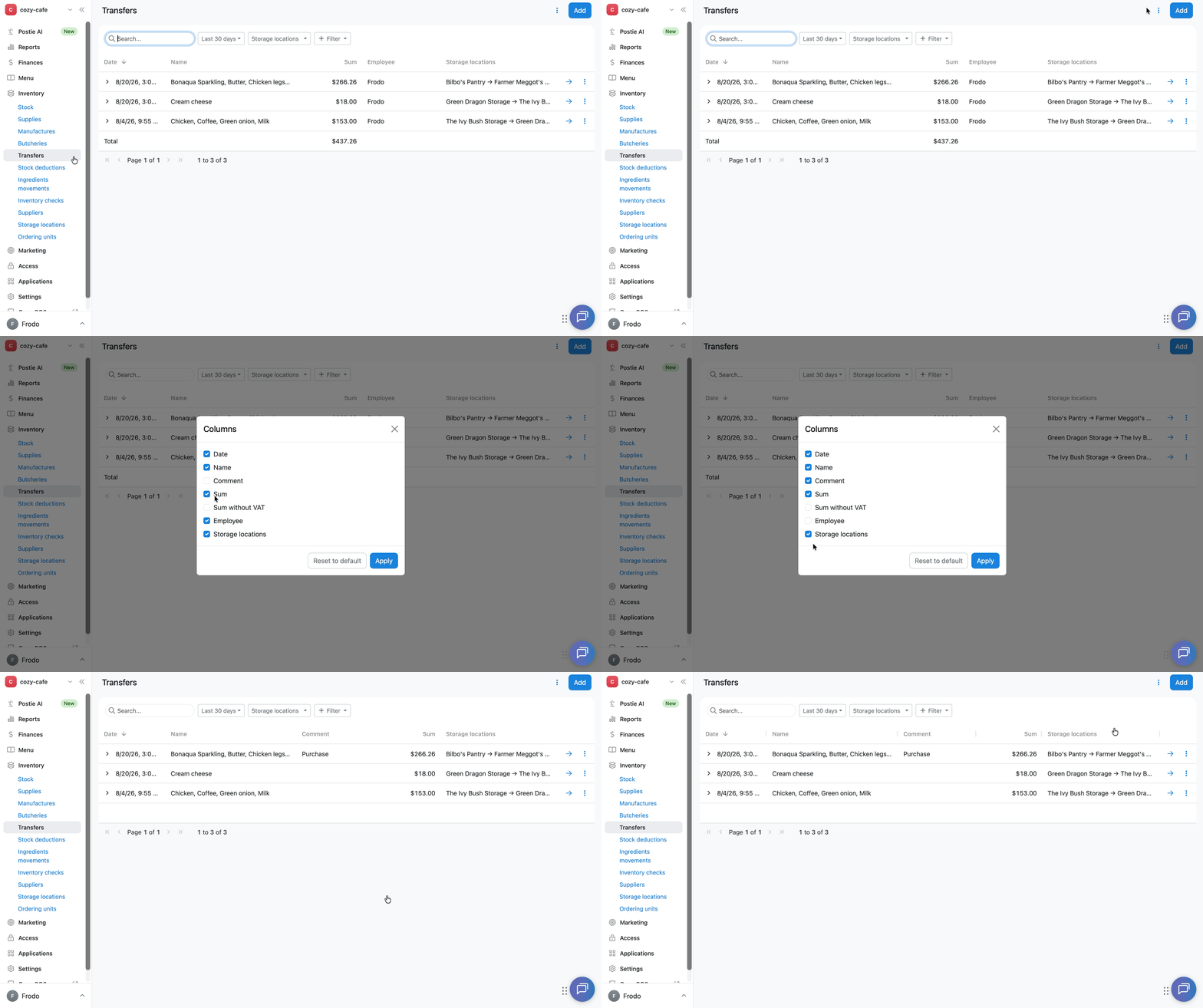
To restore the default set of columns, click Reset to default.
How to export transfers
You can export the list of transfers or a single transfer as a transfer act.
How to export the list of transfers
- Open the Inventory → Transfers tab.
- Set up the columns and filters you need, if necessary.
- Click ⋮ in the top right corner of the screen.
- Select Export.
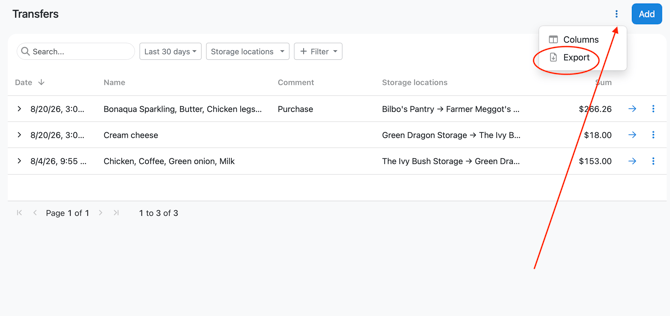
Poster will download an .xlsx file with the list of transfers. It will only include transfers that match the set parameters: search query, period, storages, and additional filters.
How to export a single transfer
- Open the Inventory → Transfers tab.
- Find the transfer you need and click → next to it.
- In the top right corner of the opened transfer, click Export.
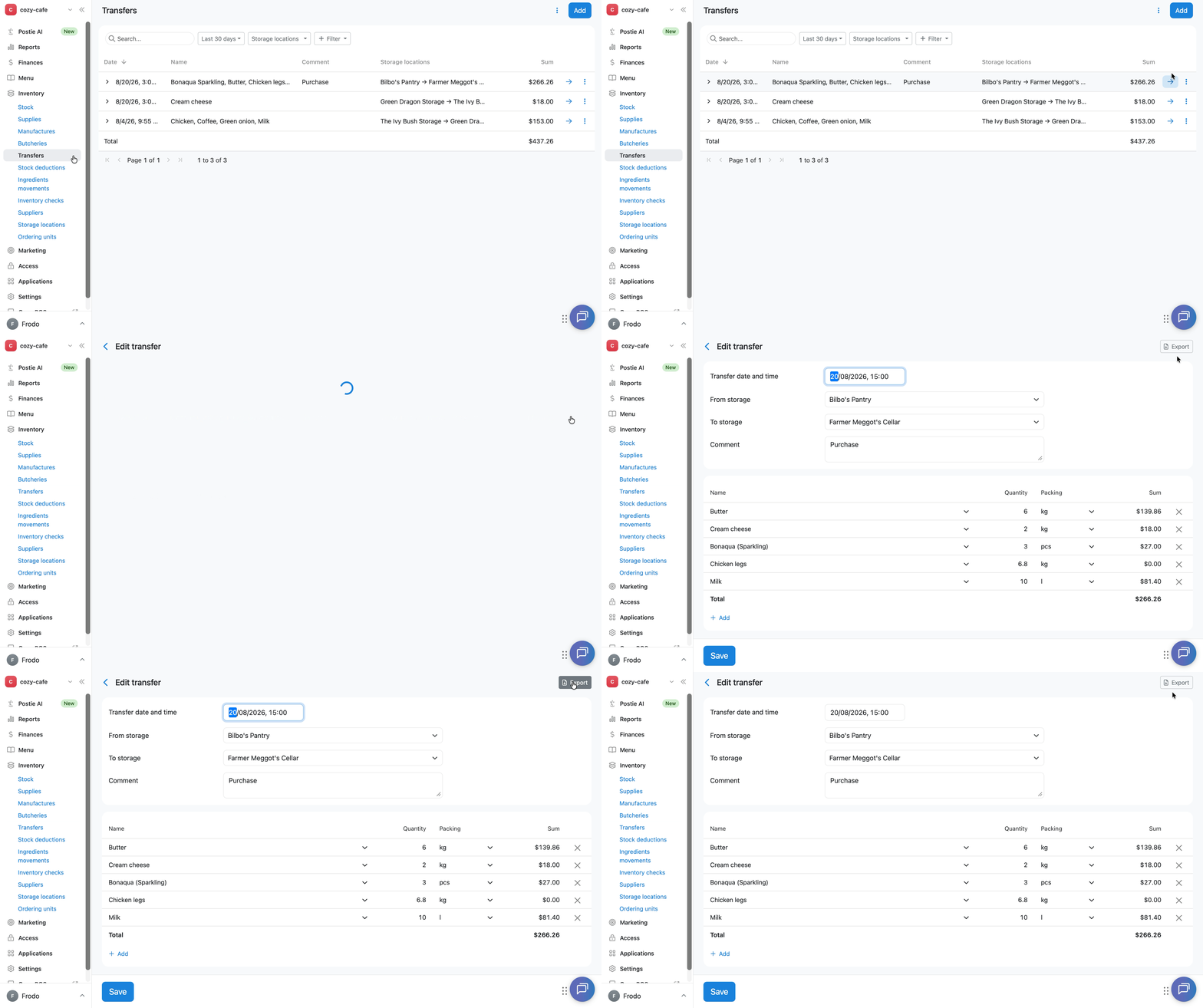
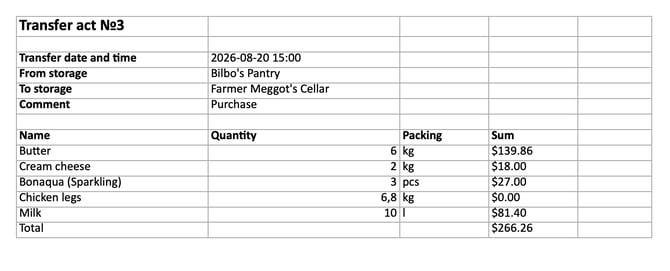
Poster will download a file called "Transfer act No. [number]" with detailed information:
- date and time of the transfer;
- sending storage: From storage;
- receiving storage: To storage;
- comment, if one was added;
- a table of transferred items with the name, quantity, packing, and sum of each item.
Track the movement of products and ingredients with the ingredients movements report to keep control of your storage stock.