
When you open Inventory → Stock deductions, the list displays all stock deductions.
You can filter the list, find a specific stock deduction using search, and customize the table columns to suit your needs.Search and filters
Search for a stock deduction
Use the Search field above the list to quickly find a specific stock deduction. Enter the name of the product, ingredient, or dish that was deducted — the page will display all stock deductions containing the specified item.
Filter by period
Use the period filter to view stock deductions for specific dates. Select Today, Yesterday, Last 7 days, Last 30 days, This month, Last month, All time, or Custom period to specify the dates manually.
Filter by storage
Click Storage and select one or more storages. The list will show only stock deductions from the selected storages.
Filter by category
Click Categories and select one or more product and dish categories. After applying the filter, the list will show only stock deductions for the selected categories.
Filter by reason
Click Reason and select the checkbox next to the required reason — the list will show only stock deductions with the selected reason.
Additional filters
Click + Filter to additionally filter the list by Products, Categories, Amount, Employee, or Comment.
💡 If you set stock deduction filters and then change the date or period, the selected filters will remain active — you don't need to apply them again.
How to customize the stock deductions list columns
- In the upper-right corner of the stock deductions list, click ︙.
- Select Columns.
- Select the checkboxes next to the columns you want to display on the stock deductions page: Date, Storage, Products, Categories, Amount, Employee, Reason, Comment.
- Click Apply.
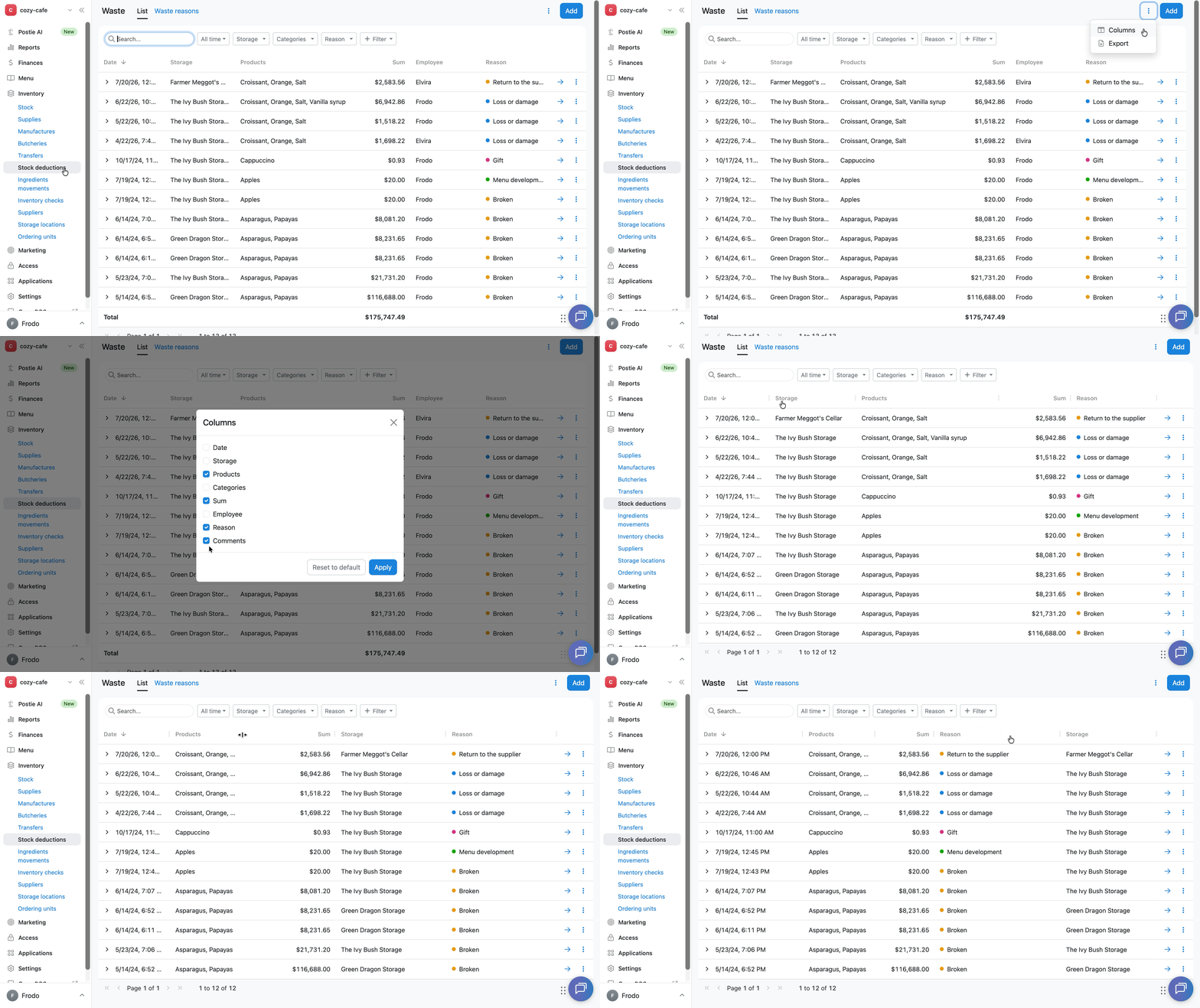
Customize the list columns to suit your needs: clear the checkbox next to a column to hide it, drag a column name to change its position, or drag the border between columns to change their width.