
Food costs change all the time, and that directly affects a venue’s profit. To protect your margin, you need to spot problem items early and understand what action to take now: adjust the price, review the recipe card, change the portion size, or update the menu.
Connect the Postie AI app to analyze food cost in the Food Cost Control report. In this report, you’ll see the key business metrics for previous weeks: revenue, cost, margin, and food cost percentage. This helps you quickly assess the situation at your venue, see where food cost is getting out of control, and respond in time to avoid losing profit.
Generate the report
- Open Applications → Postie AI Assistant in the admin panel.
- Click Start in the Food Cost Control section.
- Wait for the report to load.
💡 By default, the report shows data for the previous week.
To view a report for a different period, such as the previous 2 weeks, the last 7 days, the last 14 days, or the previous month, click the calendar in the top-right corner of the screen and wait for the report to generate.
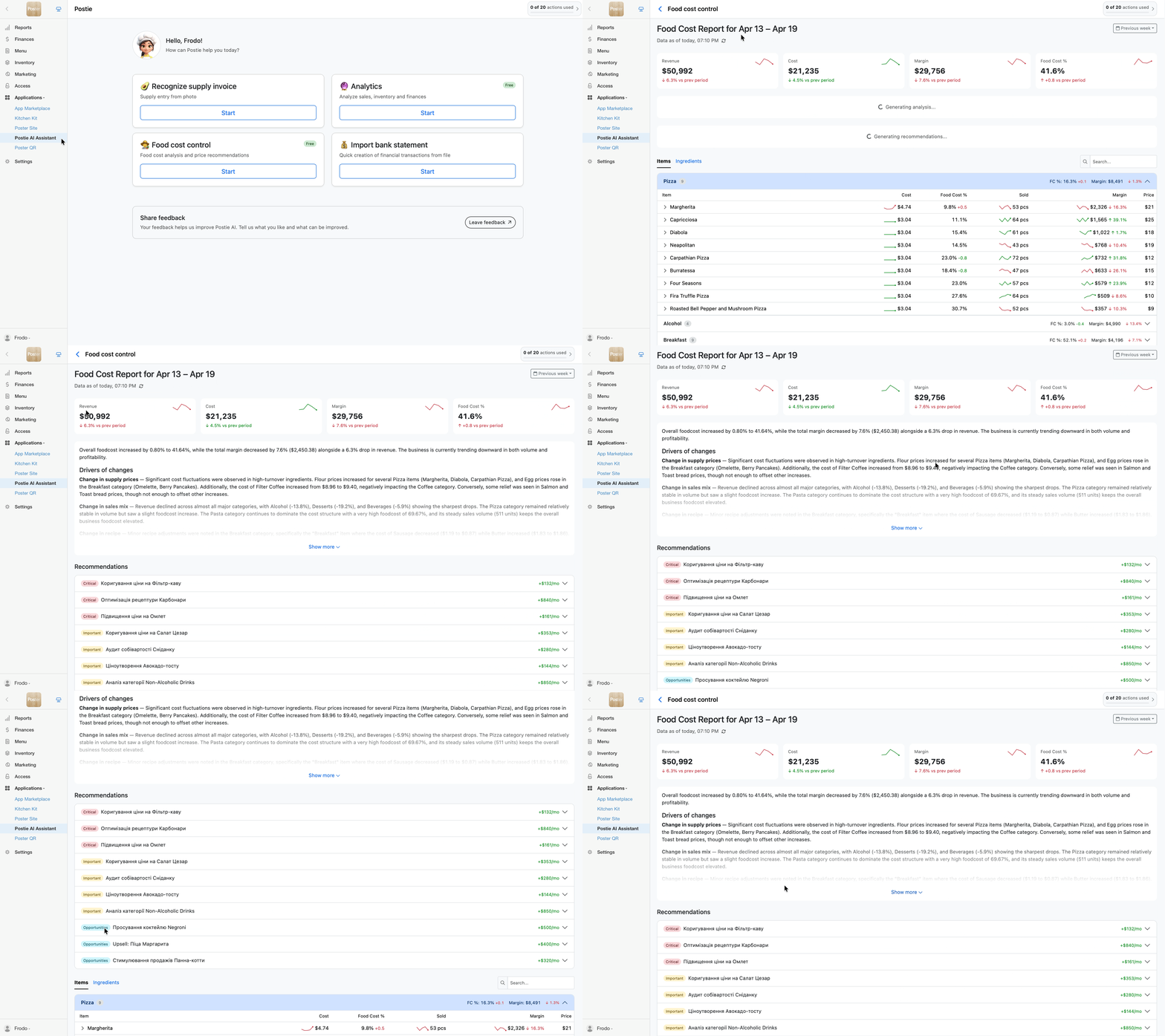
At the top of the report, you’ll see the main metrics: Revenue, Cost, Margin, and Food Cost. Each metric includes a small chart that shows the trend over the last five weeks.
Below that, Postie AI provides an analysis of the data. It explains how changes in purchase prices affected the result, how the new sales mix affected food cost, which categories started selling better or worse, which items changed in recipe composition, and where the problem areas appeared. The system also highlights items with high food cost or negative sales trends.
Next, Postie groups recommendations into three types: Critical, Important, and Opportunities.
Critical and Important recommendations focus on reviewing prices, changing recipes, and adjusting item settings.
Opportunities help you find items worth promoting. These are dishes that sell well and have a healthy food cost. AI recommends promoting these items more actively so you can shift the sales mix toward more profitable dishes.
Next to each recommendation, you’ll see its potential impact on monthly profit. This helps you quickly understand which decisions can bring the biggest result for the business.
Work with recommendations
You can open each recommendation, review it, and add it to your workflow.
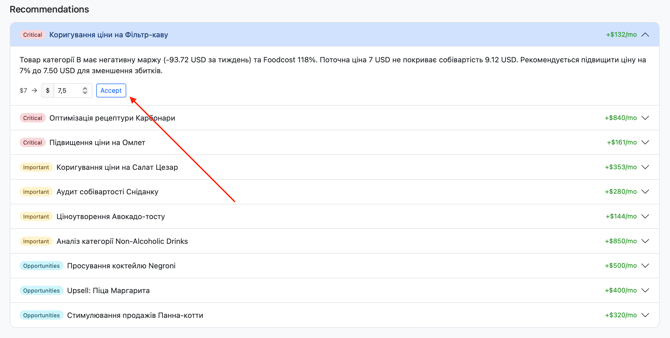
- Click a recommendation to open its description.
- Review the recommendation.
- Click Accept to add it for processing.
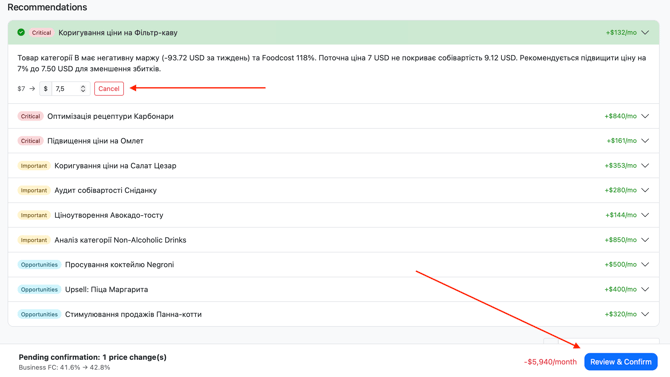
After that, a Review and confirm button will appear in the bottom-right corner. Click it to review all accepted recommendations.
There, you’ll see the current item price, the suggested new price, the food cost percentage, and the amount of potential additional monthly margin you can get after revising the prices.
4. Click Confirm price changes to update prices for the selected items.If you decide not to apply a recommendation, you can cancel it. To do that, go back to the Recommendations section, open the recommendation, and click Cancel.
Work with items and ingredients
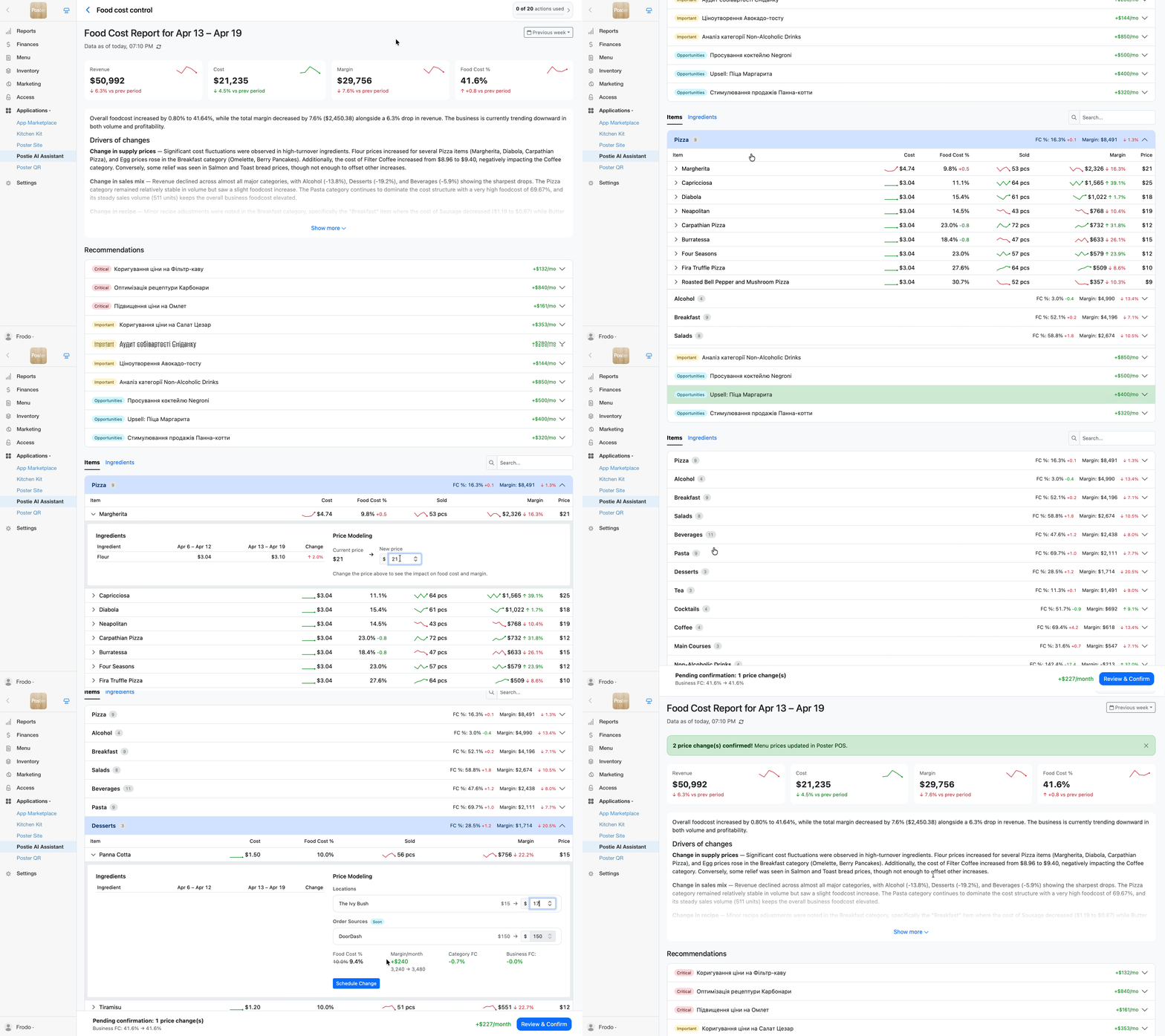
Below the report, you’ll find detailed tables for Items and Ingredients.
For each item, the report shows cost and how it changed over time, food cost, unit sales, margin for the selected period, and the current price. These metrics help you quickly find dishes that worsen overall food cost or have become less profitable.
If you open a specific item, you’ll see all ingredients from its recipe card. This helps you understand how ingredient price changes affect the final food cost of the dish.
In the Ingredients tab, you can see how purchase prices changed during the selected period, which ingredients had the biggest impact on sales, and what the average weekly purchase price was.
Ingredients in the table are sorted by turnover, which means by how actively they were used in sold dishes.
💡 To save data from the report, export the Items and Ingredients tables in CSV or Excel format. To do this, click the corresponding button above the table on the right.
Price simulation
You can use price simulation for items.
- Open the Items tab.
- Click the item you want.
- The Price simulation panel will open on the right.
- Enter a new potential price next to the current one.
- Check how the new price affects your business metrics. Postie will show:
- how the item’s food cost will change;
- how much additional monthly margin the new price can bring;
- how the category’s food cost will change;
- how the overall business food cost will change.
This helps you assess the impact before you make changes to the menu.
6. Click Schedule change to add the new price to the change cart.The new price will appear in the change cart. This is the Review and confirm button in the bottom-right corner of the screen.
The cart collects all scheduled changes. For each item, you’ll see the name, new price, new food cost, and additional margin. The AI assistant will also show the overall result: total additional monthly margin and total food cost after the changes are applied.
You don’t have to confirm changes right away. You can work with the report, add several changes to the cart, come back to them later, and confirm the price update when it’s convenient. For example, after the shift closes, so the new prices start working the next day.
☝️The change cart is saved in the report, so you don’t need to build it again.
Apply changes
When you’re ready to apply the new prices:
- Open Postie AI and select Food Cost Control.
- Click Review and confirm.
- Check all scheduled updates.
- Click Confirm price changes.
Postie will update all scheduled prices in one click. After that, you’ll see a success message on the screen, and a green flag will appear next to dishes with updated prices in the Items section.
To keep food cost metrics accurate, create supplies on time and keep ingredient purchase prices up to date.