
The Beds24 integration with Poster POS helps hotels and hostels manage their restaurants and bars.
Connect the integration to link orders to hotel rooms and let waiters send bills to Beds24. Guests can choose whether to pay for their orders at the restaurant or charge them to their room and settle the bill when checking out.
To connect Beds24 to Poster:
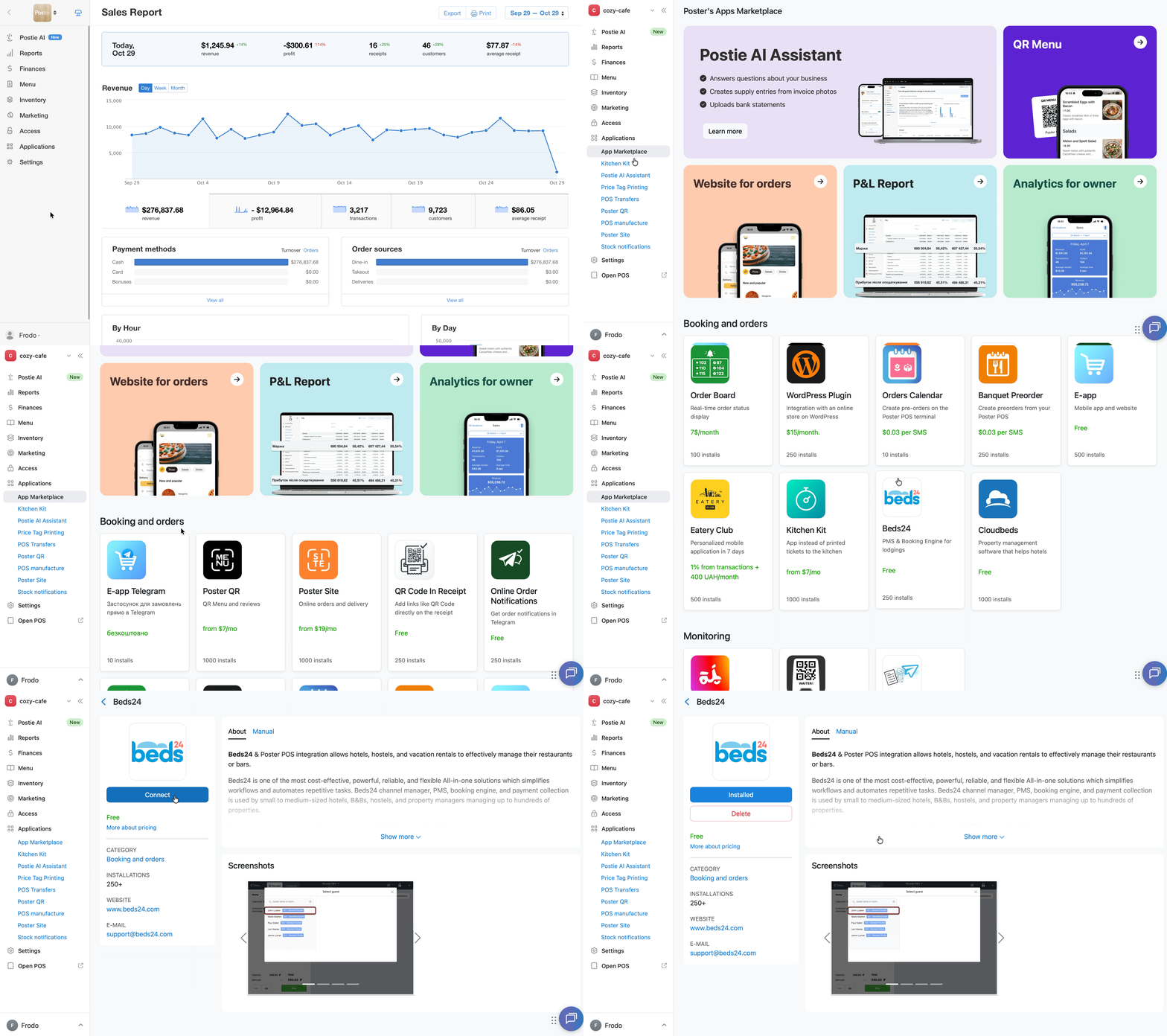
- In the management console, go to Applications → App Marketplace → Beds24.
- Click Connect and grant access.
- Log in to your Beds24 account.
- Go to Apps & Integrations → Poster POS and enter your customer number in the Poster Customer Number field.
💡 To find your customer number, open the Poster management console. Click the 👤 icon in the bottom-left corner and find your six-digit customer number.
If you're working on the POS, tap the employee's name and select Exit. The number will appear in the bottom-left corner. - Save your changes.
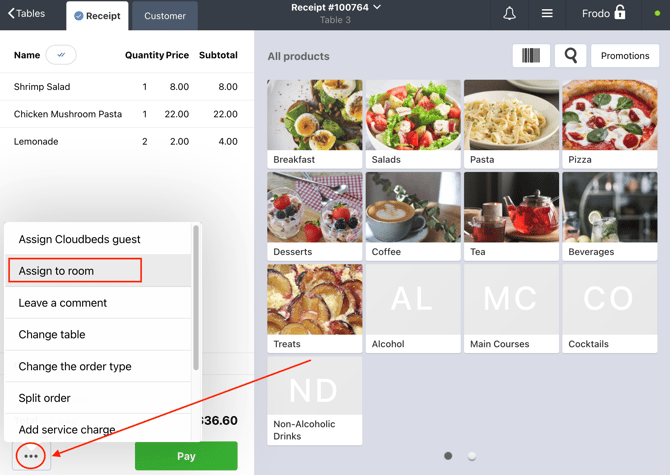
To assign a room at the Poster POS app:
- In the open order, click • • • in the bottom-left corner.
- Select Assign room.
- Find the guest in your customer database and add their customer profile to the order.
- Click Pay and select Charge to room. The restaurant bill amount will be added to the guest's hotel room account in Beds24.
Learn more about the app on the Beds24 website.
If something isn’t working with the integration, reach out to Beds24 support at support@beds24.com.