
How to connect the Price Tag Printing app
For Retail accounts, the Price Tag Printing app is available by default in the Catalog section.
If you're opening it for the first time, click Allow access. The integration page will open automatically.
If you have a Cafe account, connect the app manually:
- Open Apps → All Apps in the admin panel.
- Find Price Tag Printing in the integrations catalog.
- Click Connect.
- Grant the app access to your account.
☝️ If you need to change your account type from Cafe to Retail, or vice versa, contact us via chat.
How to configure print elements
Open the Settings section in the Price Tag Printing app and choose:
- what to print: products, dishes or both types of items
- which print elements to display:
- name;
- barcode;
- category;
- price;
- weight;
- tax;
- logo.
After configuring the required settings, click Save.
How to create a list of price tags for printing
- Open the Print tab in the Price Tag Printing app.
- Filter items by category, type, workshop, supply, or weighted items.
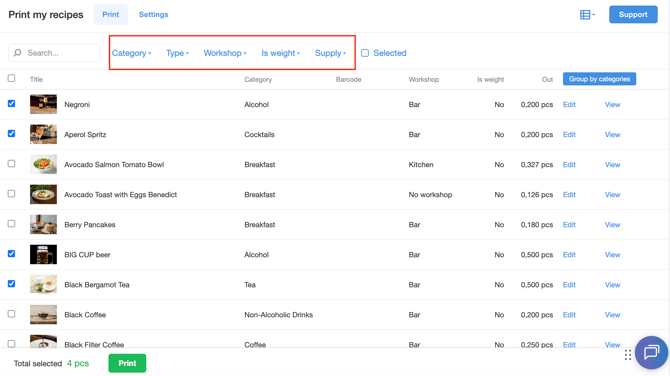
- Select the checkboxes next to the items you want to print price tags for.
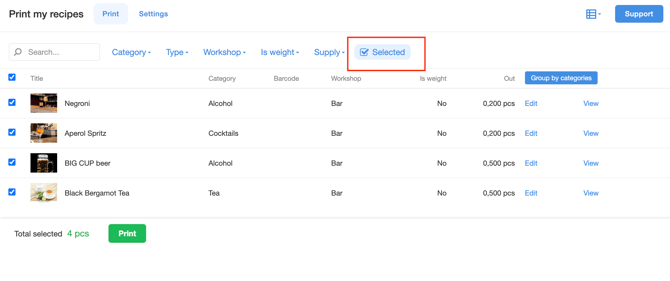
- Use the Selected filter to display only the selected items.
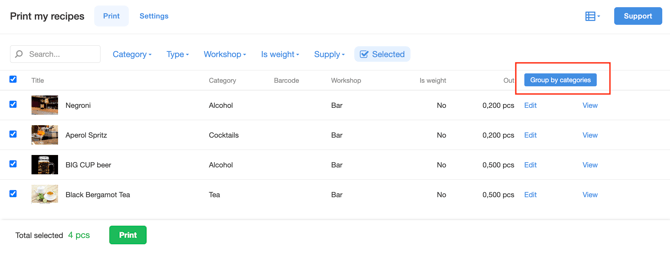
- Click Group by Categories to organize the items by category.
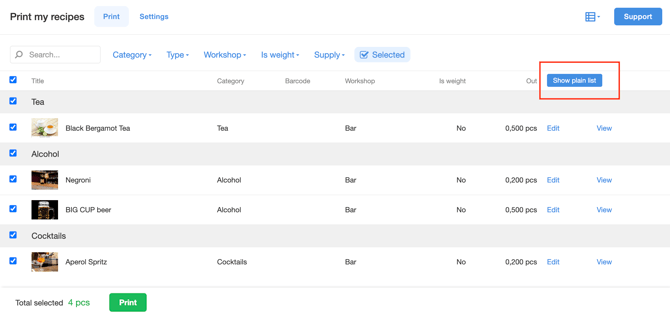
- Click Show as List to return to alphabetical sorting.
How to Print Price Tags
- Click Print.
- In the Print Settings window, select the location and choose the price tag size in the Template field.
- In the Number of Price Tags section, specify how many copies to print for each item.
- Add a comment for an item if needed.
- Click Print.
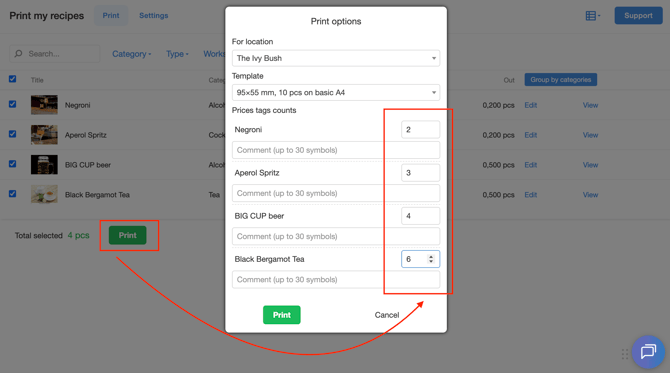
Poster will generate a PDF file and save it to your device. Then print the file using a regular office printer.
If Changes Don't Appear on Price Tags
If updates to a product or recipe aren't reflected on the price tags—for example, you updated a product photo, but it doesn't appear on the price tag—clear the Price Tag Printing app cache:
- Open the Settings section in the Price Tag Printing app.
- Expand Caching ↓.
- Click Reset in the corresponding row.
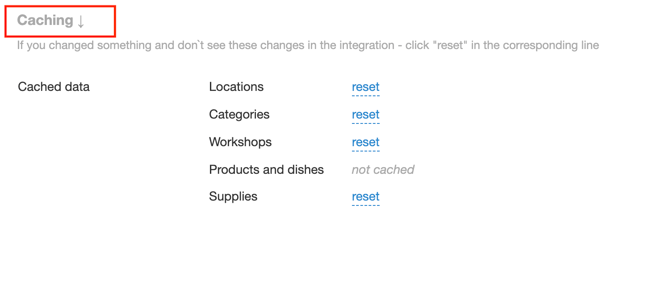
The app will reload the latest data, and the changes will appear on the price tags.
Limitations
- Price tags can be printed only from a saved PDF file using a regular office printer. The Poster POS receipt printer cannot be used to print price tags.
- There is no limit on the number of items or price tags you can print.
- The Barcode print element has a fixed size and position and cannot be changed.
- Custom positioning of print elements is not supported. Each element has a predefined area and cannot be moved freely.
For some print elements, the app automatically adjusts the font size depending on the text length. For example, short names are displayed in a larger font, while long names use a smaller font.
Set up barcodes for your products to display them on price tags and find products faster during sales.