
How to clear an open receipt
- In the open receipt on the POS, tap • • • in the bottom left.
- Select Clear Order.
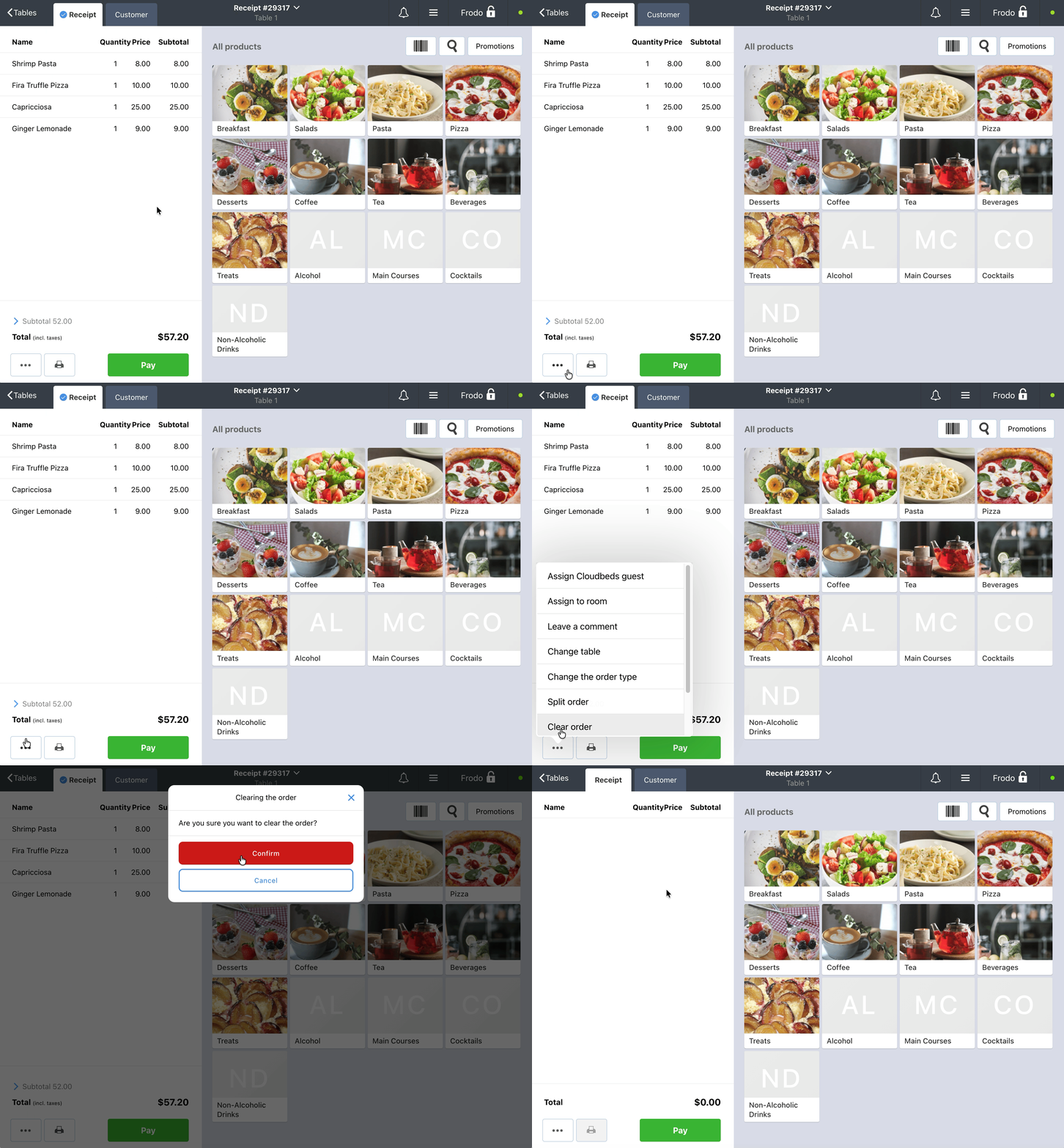
All products and dishes will be immediately removed from the order.
How to restrict clearing a receipt with an admin password
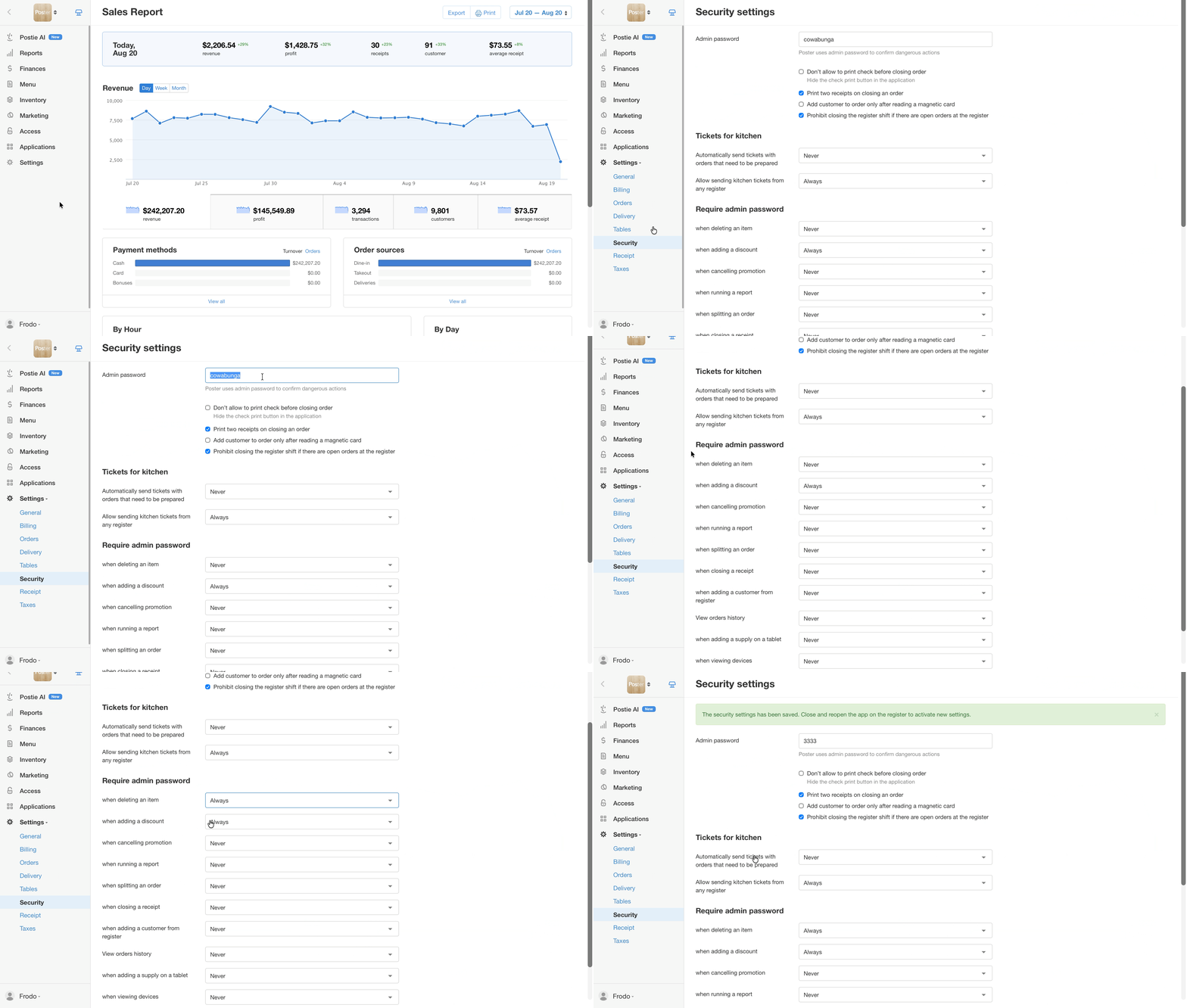
To allow only a manager or administrator to clear an open receipt, enable the password request in the security settings:
-
Open Settings → Security in the admin panel.
-
In the Require admin password section, find when deleting an item.
-
Select Always.
-
Click Save.
-
Clear the cache in the POS app to update the settings data.
After that, the POS will request the admin password when deleting individual products from a receipt or clearing the entire order.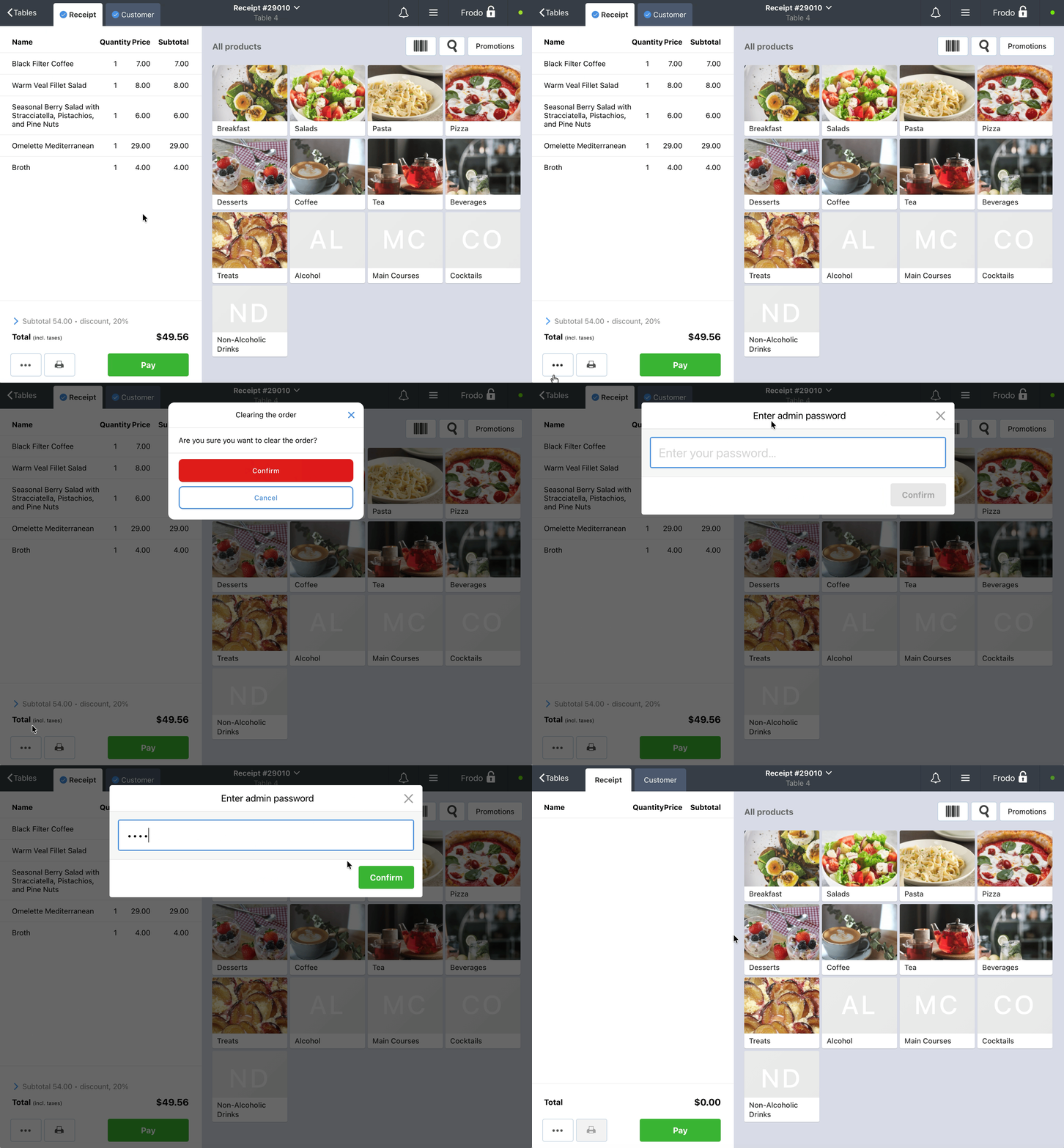
Limitations
- The Clear Order button works only for open receipts. If the receipt is already closed and the payment has been processed, you won't be able to remove the products using this button.
- If the guest paid for the order by card or certificate, but the cashier or waiter accidentally selected Cash, the receipt is already considered closed. You won't be able to clear it using the Clear Order button. In this case, change the payment method in the closed receipt.
- If you accidentally cleared an order, add the required items to it again.