
How to add a transaction category
- Open the Finances → Categories tab in the management console.
- Click Add.
- Enter the category name. For example, «Rent».
- In the Parent category field, select Main level to create a standalone category that isn't linked to another category.
- Check the boxes for the transaction types allowed for this category: Income and/or Expenses.
- To make the category appear at the register, turn on Yes next to Display on the POS.
- To have the category counted in the P&L report, turn on Yes next to Include in P&L report. Then select the P&L Block the category belongs to.
- Click Save.

After saving, the transaction category will appear in the list on the Finances → Categories page.
How to edit a transaction category
- Open the Finances → Categories tab in the management console.
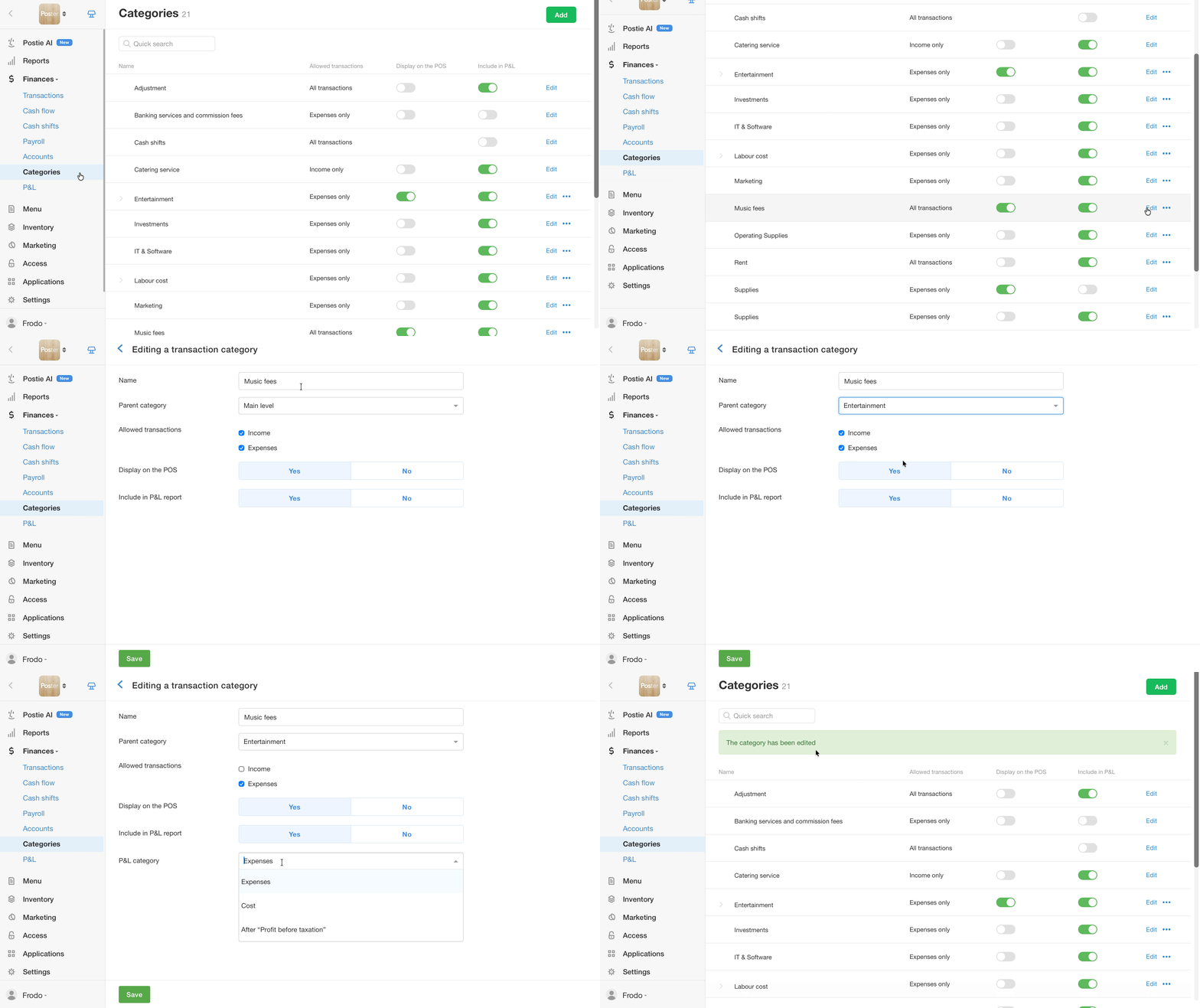
- Next to the category you need, click Edit.
- Change the details you need: name, parent category, allowed transactions, and its display on the POS and in P&L.
- Click Save.
How to create a transaction subcategory
Create a subcategory to split income or expenses within one general category. For example, for the «Utilities» category, create subcategories «Electricity», «Water supply», «Heating» and «Waste removal».
To create a subcategory:
- Open the Finances → Categories tab in the management console.
- Click Add to create a new category, or Edit to convert an existing category into a subcategory.
- Enter the category name.
- In the Parent category field, select the category the subcategory should appear under. If you're editing a standalone top-level category, replace Main level with the desired parent category.
- Click Save.
After saving, the category will appear as a subcategory of the selected parent category.
How to delete a transaction category
- Open the Finances → Categories tab in the admin panel.
- Next to the category, click • • • and select Delete.
- Choose what to do with this category's transactions: move them to another category or delete them permanently.
- Confirm the deletion.
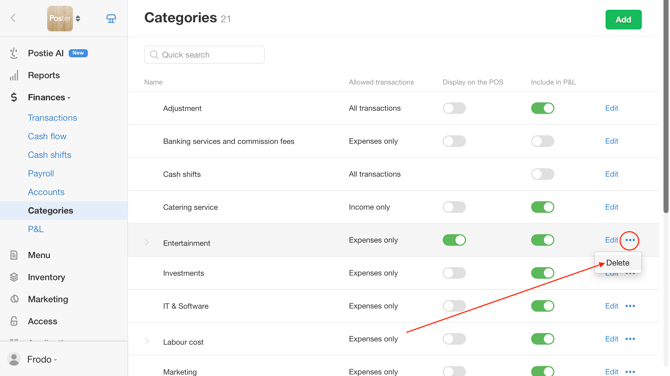
☝️ A deleted transaction category cannot be restored. If you choose to delete permanently, the transactions in this category will also be deleted with no way to recover them.
💡 The default financial categories «Adjustment», «Banking services and commission fees», «e-Wallet top up», «Supplies», and «Cash shifts» are created in Poster by default. They can be edited but cannot be deleted.
Limitations
- A deleted transaction category cannot be restored.
- If a category is deleted with its transactions moved, historical transactions take on the new category — the old category no longer appears in reports.