
D
In an open order on the Poster POS register, you can add a comment to the entire receipt or an individual item in the order.
By default, comments appear only in the open order on the POS register. To print them on guest receipts or kitchen order tickets, enable comment printing in your Poster management console settings.
- In open receipt click • • • in the lower left corner.
- Choose Leave a comment.
- In pop-up window enter comment to receipt.
- Press Save.
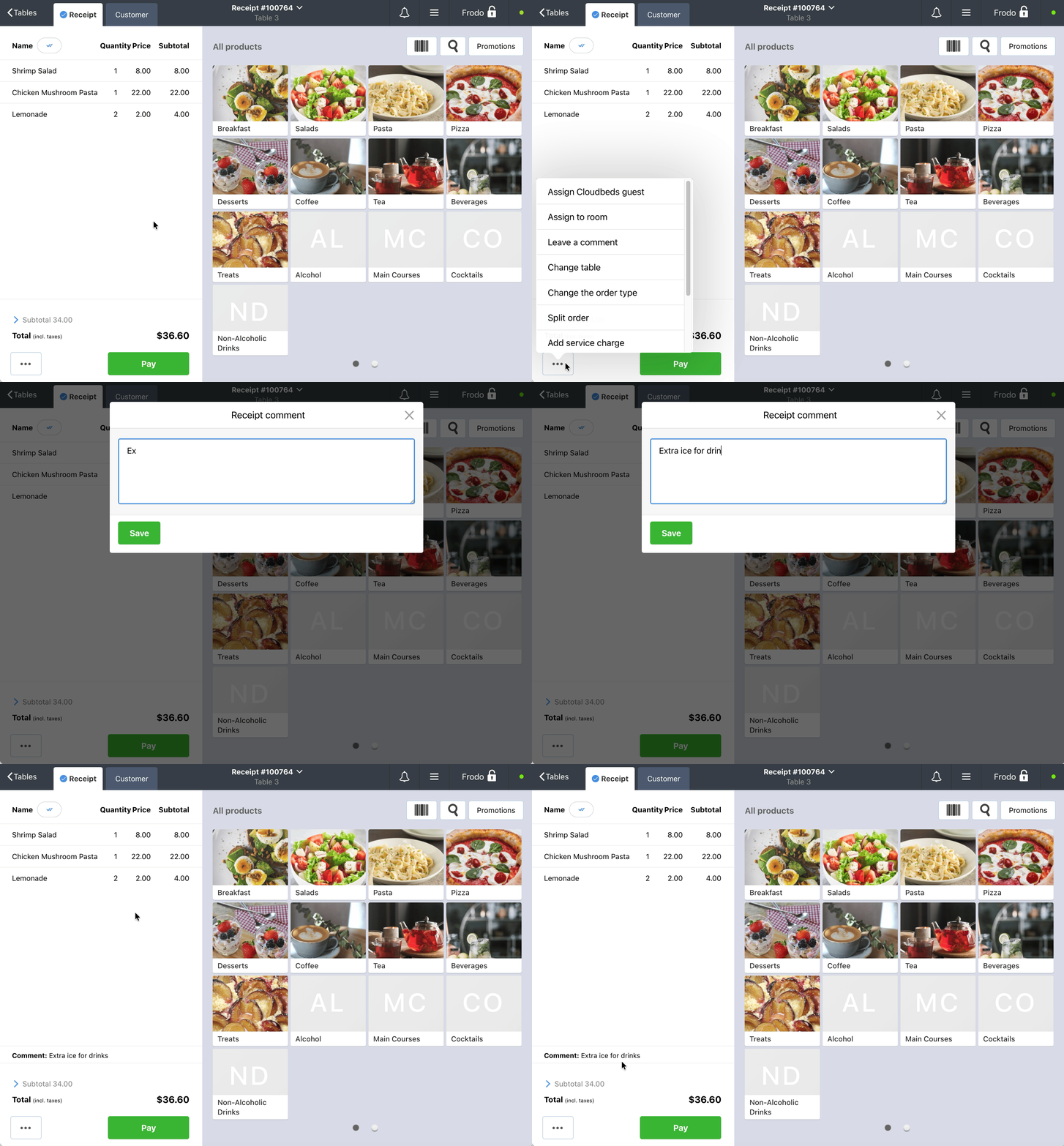

After you save the comment, it will appear as a separate line below the list of dishes in the open order on the POS register.
- In an open order on the POS register, tap the item name.
- In the editing panel, add a separate comment for each dish. For example, add the comment «No cilantro» to the dish «Pad Thai».
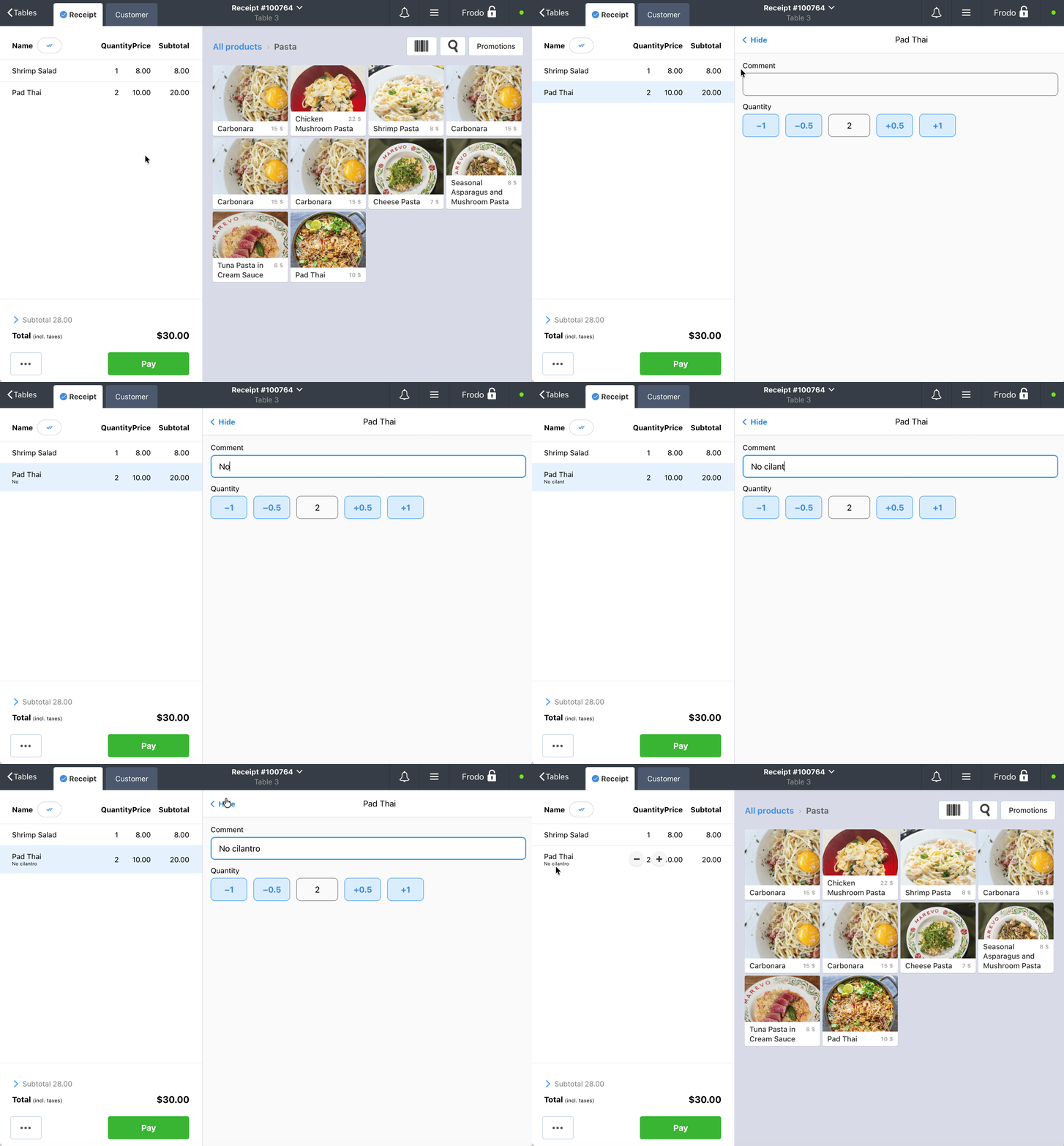
After you save the comment, it will appear below the dish name in the order.
How to enable comment printing on receipts and kitchen order tickets in Poster
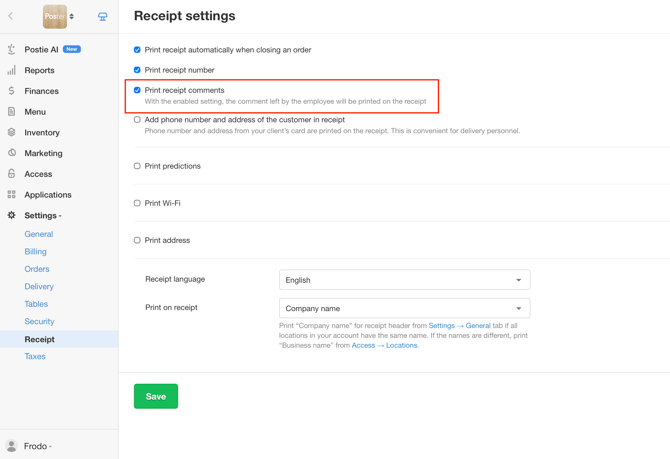
To print comments on guest receipts or kitchen order tickets, enable the corresponding printing setting in the management console:
- Open Settings → Receipt in the management console.
- Select the Print receipt comment checkbox.
- Click Save.
- Clear the cache in the Poster POS app to apply the changes.
To check that comments print correctly, create a test order with a comment and print the receipt.
☝️ Comments added to the entire receipt will be printed on kitchen order tickets and guest receipts. Comments added to individual dishes will be printed only on kitchen order tickets.
You can view comments added to the entire order on the Poster POS register in the management console under Reports → Receipts.