
What works on the Poster POS register without internet
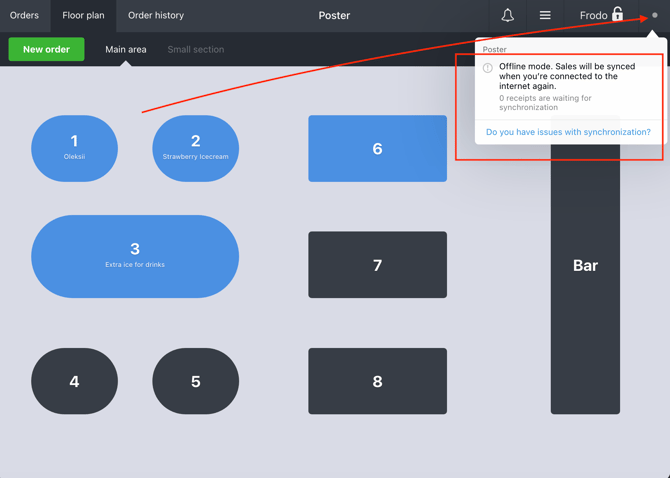
In offline mode, you can:
- accept and close orders;
- print receipts;
- send tickets to kitchen or bar.
Orders are saved on the device where they were created. Once the internet connection is restored, the POS register will automatically sync them with the management console and Poster Boss.
How to avoid losing offline sales
While the internet connection is unavailable, orders are stored only on the device running the POS register and are not synced with the management console.
❗ To avoid losing data, DO NOT:
- DO NOT restart the Poster app. Even a regular restart while offline may result in the loss of unsynced orders.
- DO NOT clear the app cache.
- DO NOT delete or reinstall the Poster app.
- DO NOT switch to another device to operate the POS register.

How to restore the internet connection at your location
While working offline, check your Wi-Fi network:
- Make sure the device running the Poster POS register is connected to the correct Wi-Fi network.
- Disconnect and reconnect the internet provider's cable to the WAN port, restart the router, and check whether the internet connection is working.💡 To troubleshoot the router, connect the provider's cable to the LAN port on a computer or laptop and check whether the internet connection is working.
- Contact your internet provider's support team and report the connection issues.💡 Before calling your provider, find your contract number or prepare other details that will help them quickly identify you in their customer database.
- If your provider confirms that there are no issues on their end, contact a technical specialist to check your local network and router settings.
How to accept online orders without your main internet connection
☝️ While the POS app cannot access the internet, online orders will not arrive on the device.
To keep receiving online orders, connect the tablet to another Wi-Fi network with internet access or use your smartphone as a Wi-Fi hotspot.
The Poster POS device and thermal printer must be connected to the same local network to print receipts and kitchen tickets. If the tablet is connected to your smartphone's Wi-Fi hotspot while the printer is connected to your location's router, receipts and kitchen tickets will not print.
💡 To avoid switching Wi-Fi networks when switching to mobile internet, use a router that supports a 4G/5G modem. This way, the tablet and printer will remain on the same local network.
How to check whether offline sales have synced
Once the internet connection is restored, open the management console or the Poster Boss app and check reports for the period when the POS register was offline.
If all sales are displayed, synchronization was successful. If some orders are missing, DO NOT restart or reinstall the POS app. Instead, contact us via chat.
Can I open the Poster app without the internet
No, you can’t open the Poster app without the internet. The app needs an internet connection to start.
- If you start your shift and there’s no internet at the location, you won’t be able to launch the app. First, connect your device to another Wi-Fi network with internet access, or share mobile data from your smartphone via a hotspot. Once the app has started, it can work in offline mode.
- If the app is already running and the internet goes down, it will automatically switch to offline mode. You can keep working and accepting sales without the internet.
While the app is working offline, don’t close or restart it, because you won’t be able to open it again without the internet. Also make sure your device doesn’t turn off or run out of battery: once it’s turned back on, the app will need the internet to start.
Limitations of using the POS register offline
- You can’t launch the app without the internet. To open the Poster app, you need an internet connection. If you start your shift and there’s no internet, connect your device to another Wi-Fi network or share mobile data from your smartphone via a hotspot. Once the app has started, it can work offline.
- Once you close the app or turn off the device, you won’t be able to launch it again without the internet. If you’ve closed or restarted the app, turned off the device, or its battery has run out, you’ll need the internet to start the app again.
- Offline orders are stored only on the device where they were created. While there’s no internet, these orders don’t appear in the management console or Poster Boss. They’ll show up there automatically once the internet is back and the data has synced.
- Offline orders that haven’t synced yet can be lost. They’ll disappear if you restart the app, clear its cache, delete or reinstall the app, or switch to another device.
- Online orders don’t reach the app without the internet. To receive online orders, restore your internet connection: connect your device to another Wi-Fi network or share mobile data from your smartphone via a hotspot.
- To print receipts and tickets, the device and the printer must be connected to the same local network. For example, if your tablet is connected to Wi-Fi from a smartphone and the printer is connected to the location’s router, printing won’t work.