
Mobile Waiter is a Poster mobile register for working directly at the tables. A waiter takes an order on their phone and immediately sends it to the kitchen or bar without returning to a stationary register.
Add a mobile waiter in Access → Tablets in the Poster management console.
Who can add a Mobile Waiter
A mobile waiter can be added by the account owner, manager, or any employee with full access rights, configured in the position settings under Access → Positions.
What you can do with a Mobile Waiter
With a Mobile Waiter, you can:
- take orders directly at the tables;
- immediately send order tickets to the kitchen or bar;
- work from the waiter's personal phone;
- serve guests faster without being tied to a stationary register.
Mobile Waiter cost
The cost of a Mobile Waiter depends on the region. Check the current price on our website in the Pricing section.
The Mobile Waiter fee is automatically added to the main Poster account bill. You can view the number of additional mobile registers and the amount due in the management console under Settings → Billing, in the Subscriptions section.
How to add a mobile register
- Open Access → Tablets in the Poster management console.
- Click Add.
- Select the location where the register will be used.
- Select the register type — Mobile Waiter.
- Enter the register name and a password for login.
- Click Save.
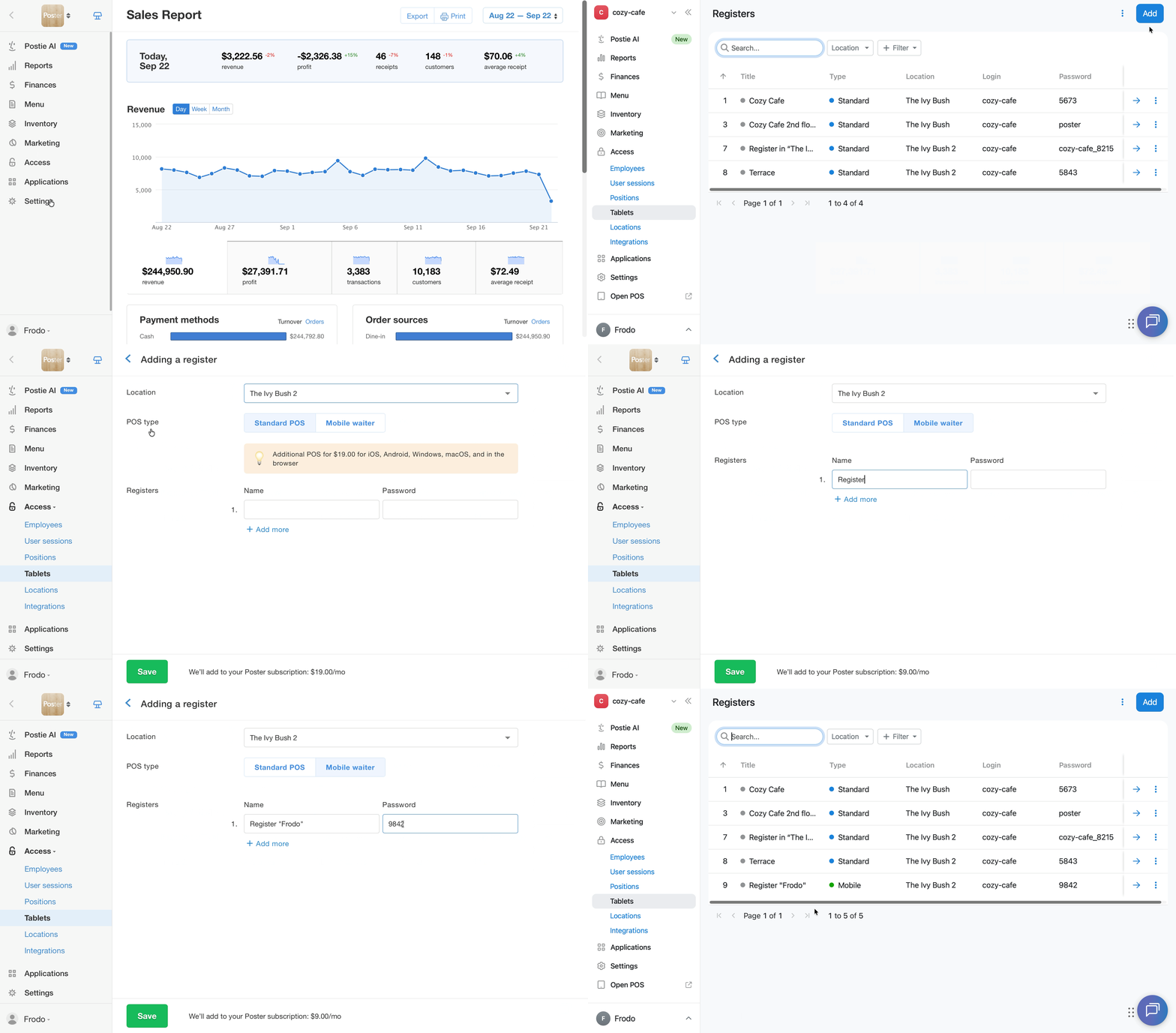
The mobile waiter will then appear in the list under Access → Tablets.
To start working with the mobile waiter, install the waiter app on your phone.
How to change the name or password of a mobile waiter
Change the mobile waiter details in the Poster management console:
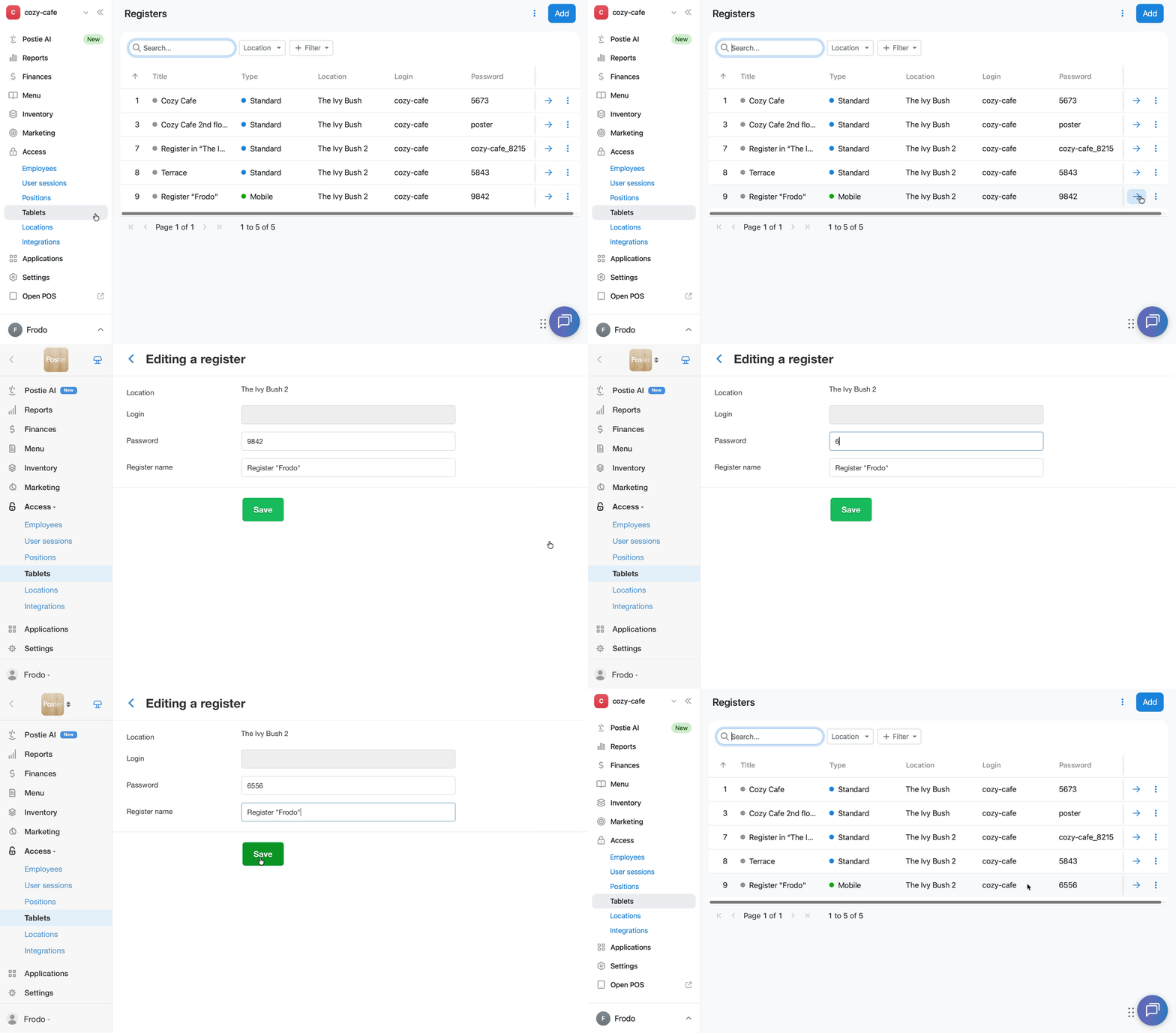
- Open Access → Tablets in the management console.
- Click → next to the required register.
- Change the register name and/or password.
- Click Save.
How to delete a Mobile Waiter
If you no longer use the mobile waiter, contact us in chat to remove it from the account.
☝️ You can't delete a register yourself in the management console.
How to restore a deleted mobile waiter
If you plan to use the deleted mobile waiter again, restore it yourself in the management console:
- Open Access → Tablets in the management console.
- Find the register highlighted in red.
- Click ︙ next to the deleted register.
- Select Add again.
- Click Confirm.
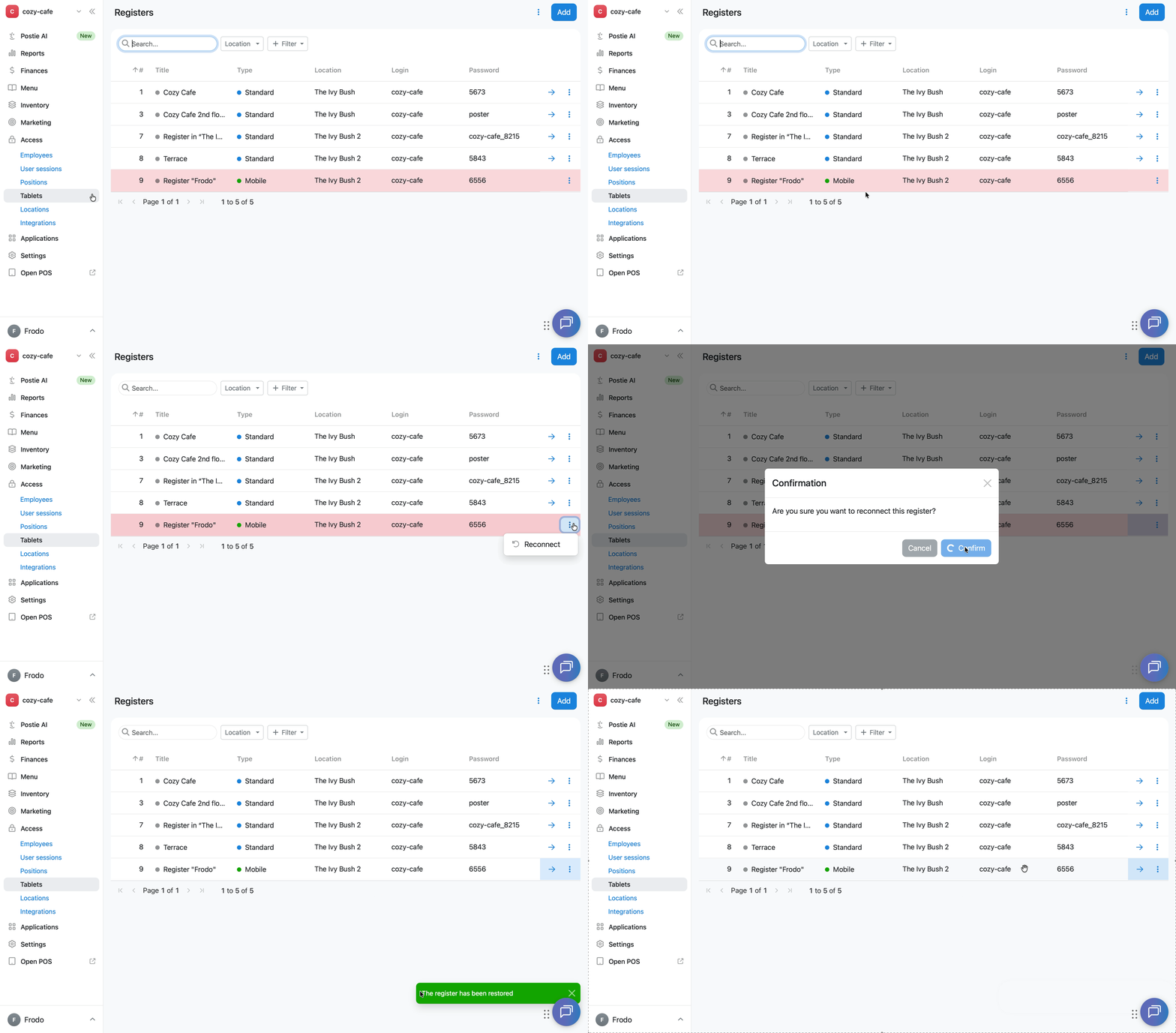
After confirmation, the register will become active again, and you can use it as before.
Mobile Waiter limitations
- Promotions, table reservations, and product sorting are not available;
- you can't accept online orders;
- you can't close or edit a work shift;
- on iOS devices, a receipt may not print if you lock the screen before printing is complete;
- if the account is connected to Poster Connect, you can't add a register yourself in the management console — the Add button won't be available in the upper-right corner of Access → Tablets. To add a register to such an account, contact us via chat.