
Receipt statuses: open and closed
An open receipt is a receipt that has products or recipes added to it, but payment hasn't been accepted yet. This type of receipt is linked to a table or guest and stays active until the waiter or cashier accepts the payment and closes it.
A closed receipt is a receipt that has been paid by cash, card, certificate, bonus points, or another method and the order is complete. A closed receipt appears in the order history on the POS register and in the corresponding report in the management console.
How to check a receipt's status in the management console
Besides these two basic statuses, receipt report also include deleted receipts. A deleted receipt is removed from the report, and any deducted items are returned to stock. However, the open or closed status determines whether the receipt's transaction is complete.
To check the status of a specific receipt or a list of receipts in the management console:
- Open the Report → Receipts tab in the management console.
- Click the calendar icon in the top right and select the reporting period.
- Check the receipt Status column in the table next to the receipt you need.
If you don't see this column, click ⿲ Columns in the top right and enable Status.
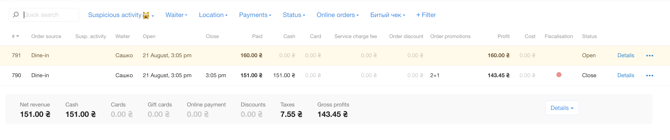
Open receipts in the management console are highlighted in yellow and show the status Open. Closed receipts are highlighted in white and show the status Closed.
How to filter receipts by status
To view only receipts with a specific status:
- In the Report → Receipts tab in the management console, click the Status filter.
- Select one or more statuses: Open, Closed, Deleted.
- Apply the filter — the table will show only receipts with the selected statuses for the chosen period.
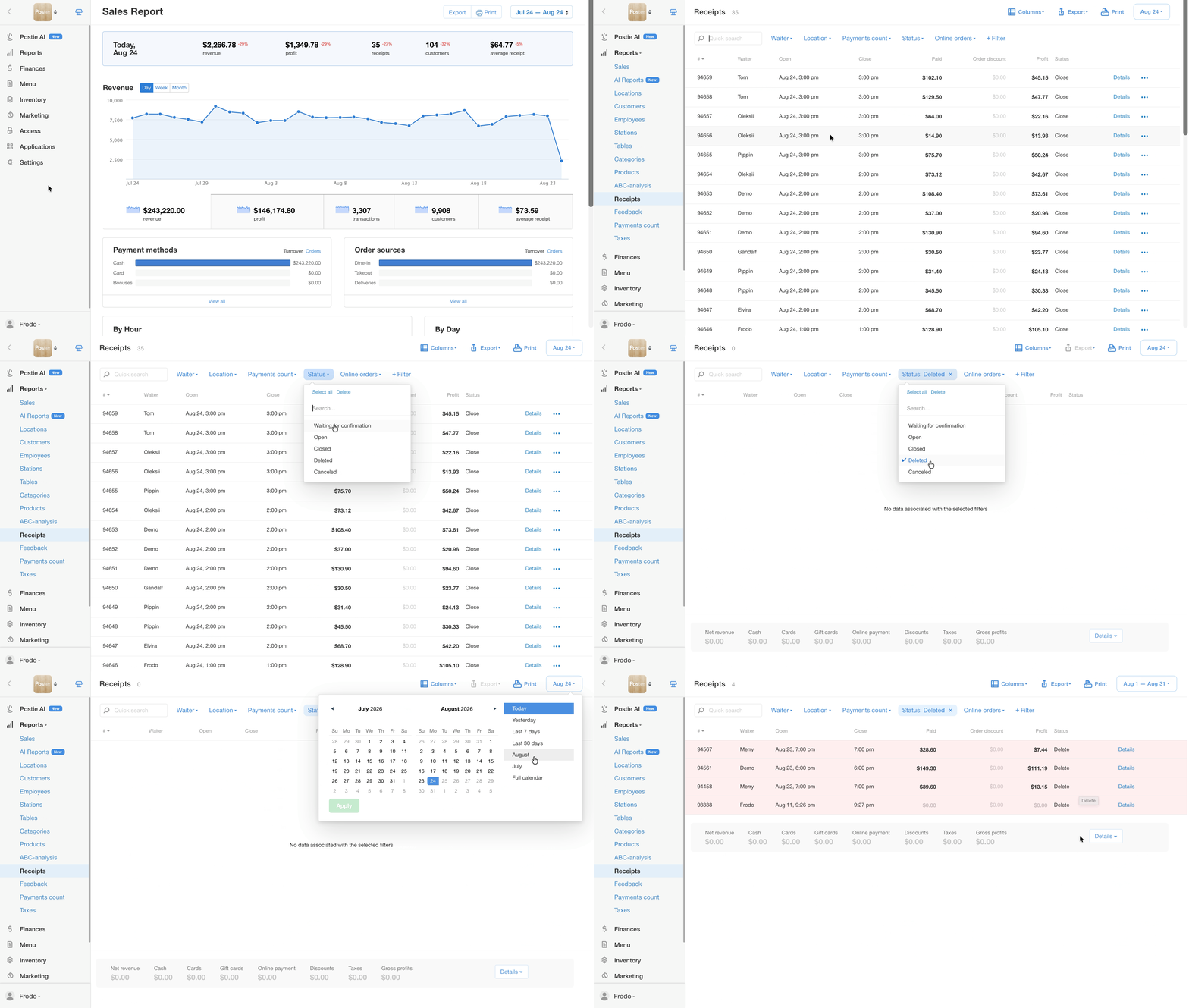
The status filter can be combined with other filters — by waiter, location, or payment method — to narrow down the results.
How to work with an open receipt in the management console
In the management console, you can only view the details of an open receipt or delete it. To view the receipt details, click Details next to the receipt.
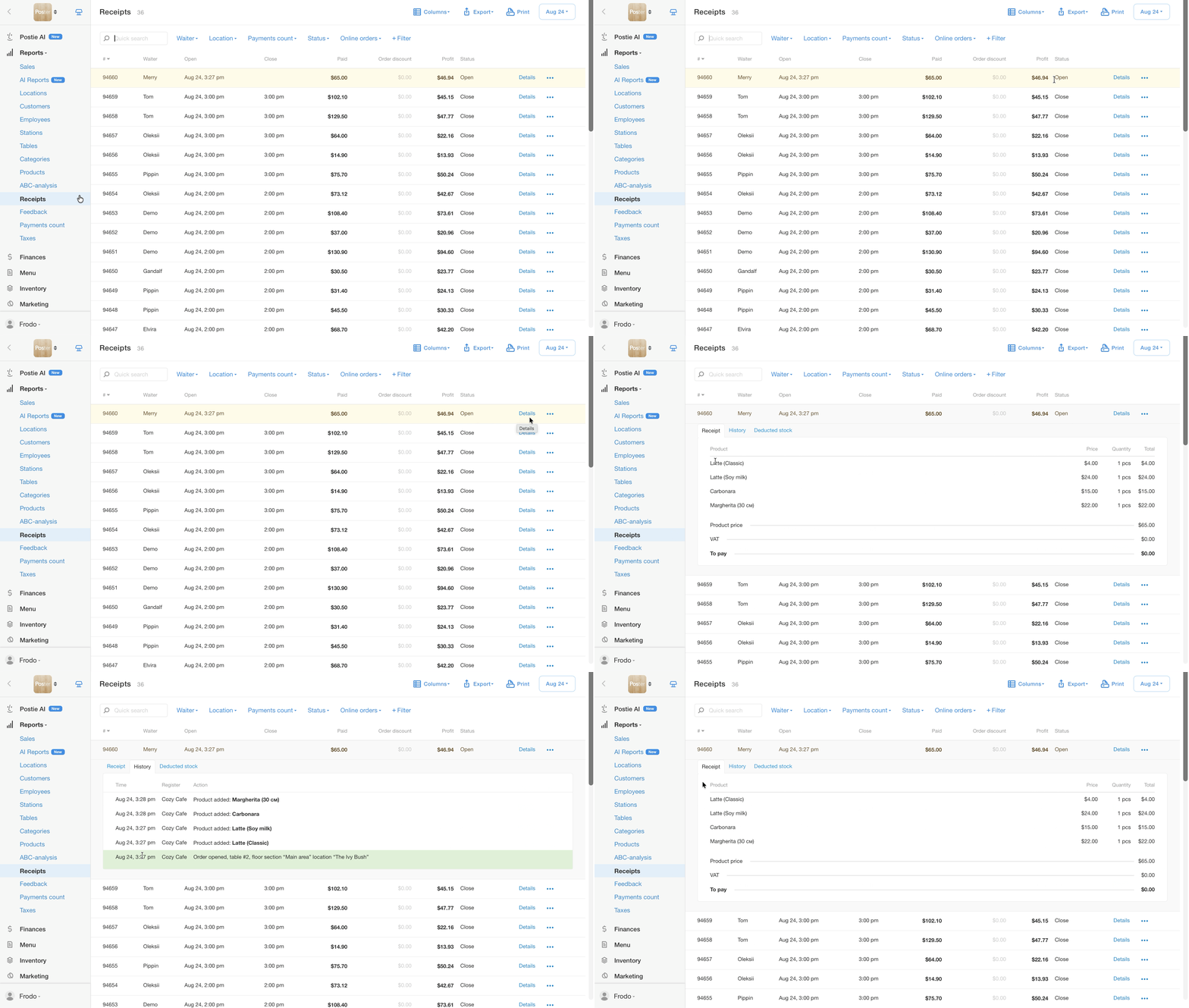
To delete it, click • • • and select Delete. Closing a receipt by accepting payment is only possible on the POS register.
How to check open receipts on the POS register
To see the list of open receipts directly on the POS register:
- Open the Orders block on the main POS screen.
- This block shows all active, i.e. open, receipts — by table, takeout, or delivery, depending on how the location is set up.
- Click the order you need to view the receipt, check its contents and total, or continue processing the payment.
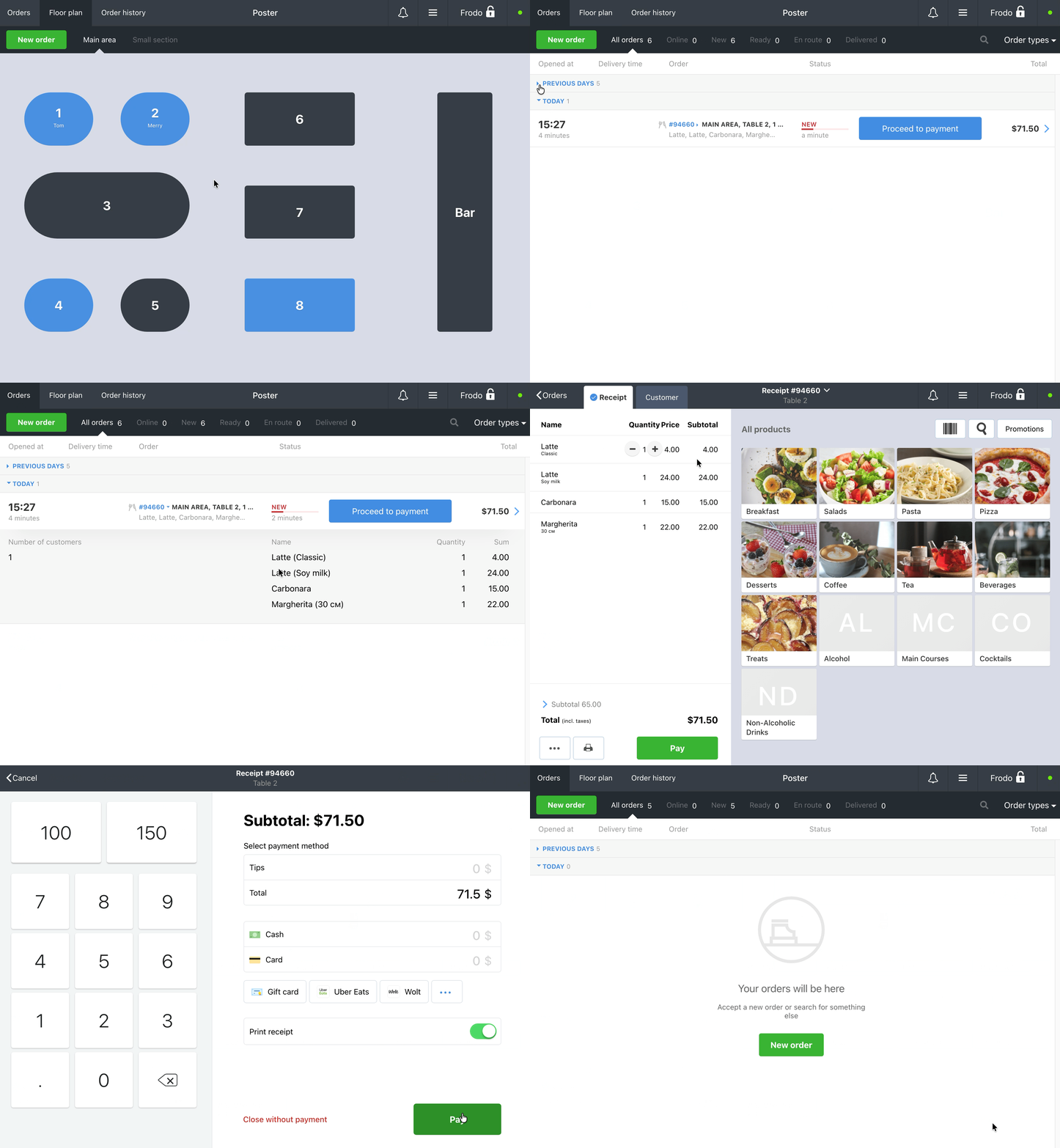
An open receipt stays in this block until it's paid and closed.
How open receipts affect closing a shift
☝️ If the locationhas open receipts, the cash shift cannot be closed. Poster won't allow you to close the shift until all receipts are closed.
To close a shift when there are open receipts, there are two options:
- close all open receipts, then close the shift;
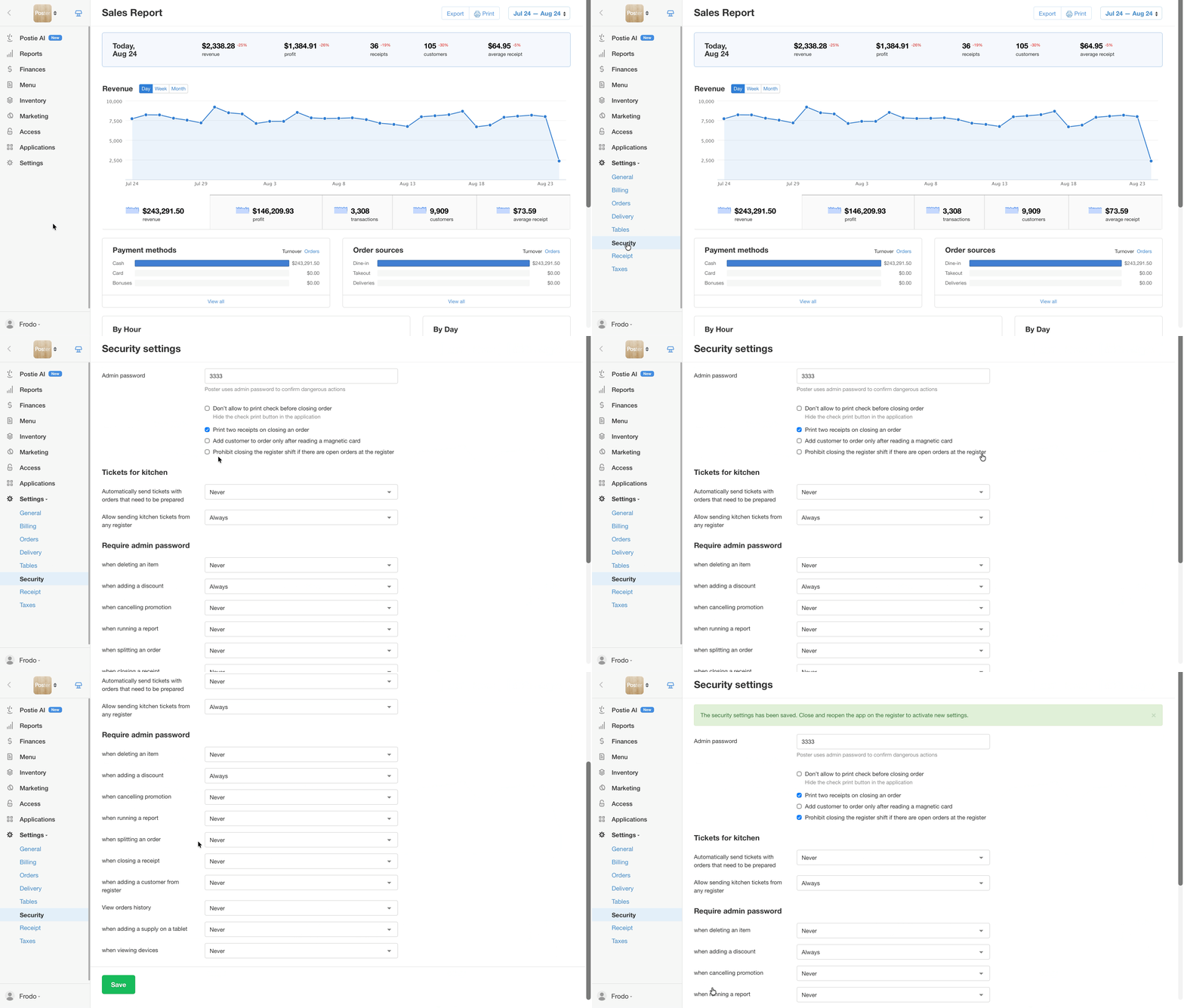
- or, in the Settings → Security tab, uncheck Prohibit closing the register shift if there are open orders at the register — this lets you close the shift even with open receipts.
How to check closed receipts on the POS register
To view closed receipts directly on the POS register:
- Open the Order history tab in the top left corner of the POS register.
- Click Today ▼ in the top right corner. If you're looking for a receipt from another day, select the required date in the calendar.
- Find the receipt by its number. The list shows all closed orders for the selected date.
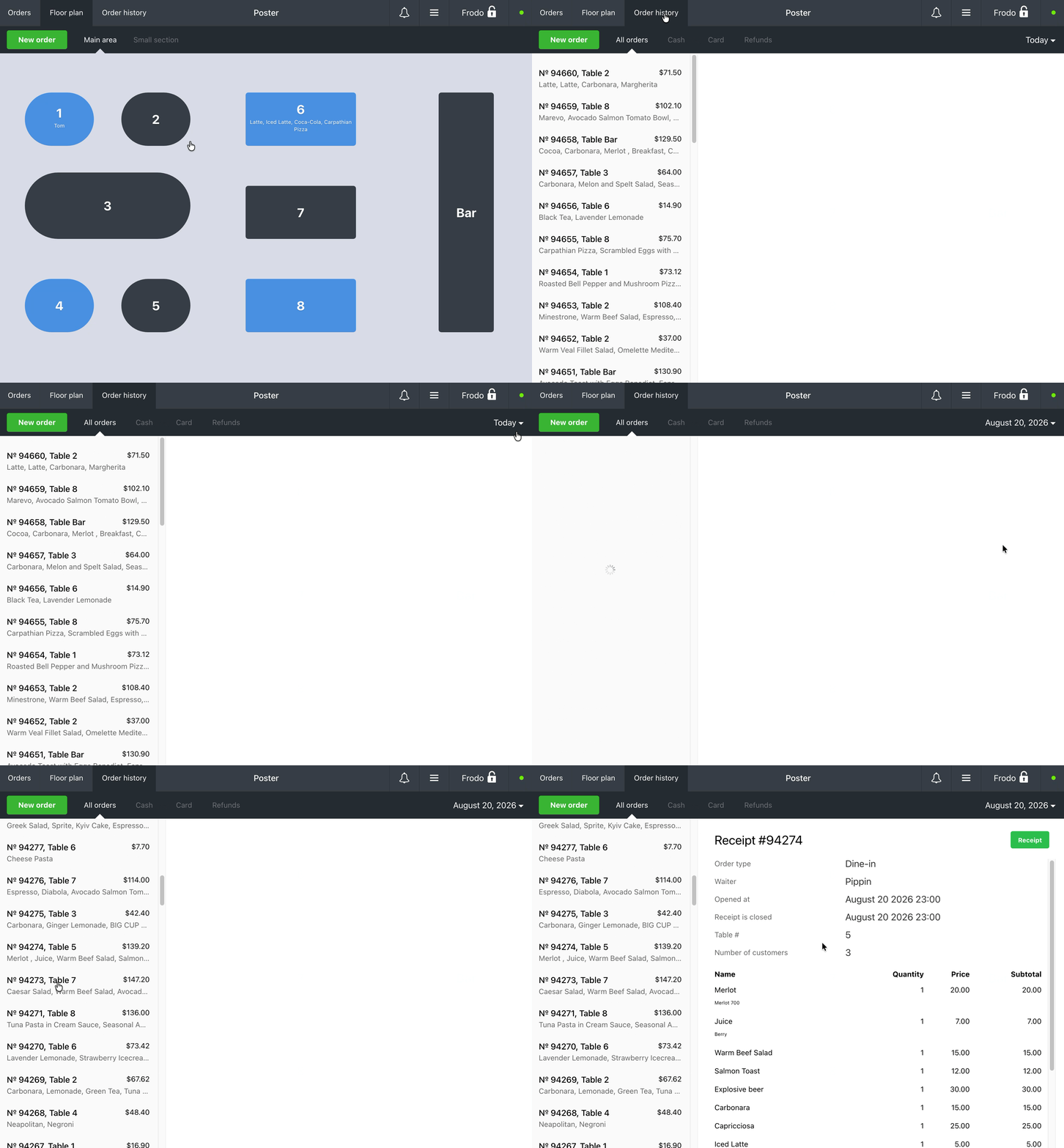
The list will display all closed orders for the selected date.