
How to add a waste reason
- Open Inventory → Stock deductions in the management console.
- Go to the Waste reasons section.
- Click Add.
- Enter the reason name.
- In the Include in P&L report field, select where to account for stock deductions with this reason:
- Cost;
- Expenses.
- Click Save.
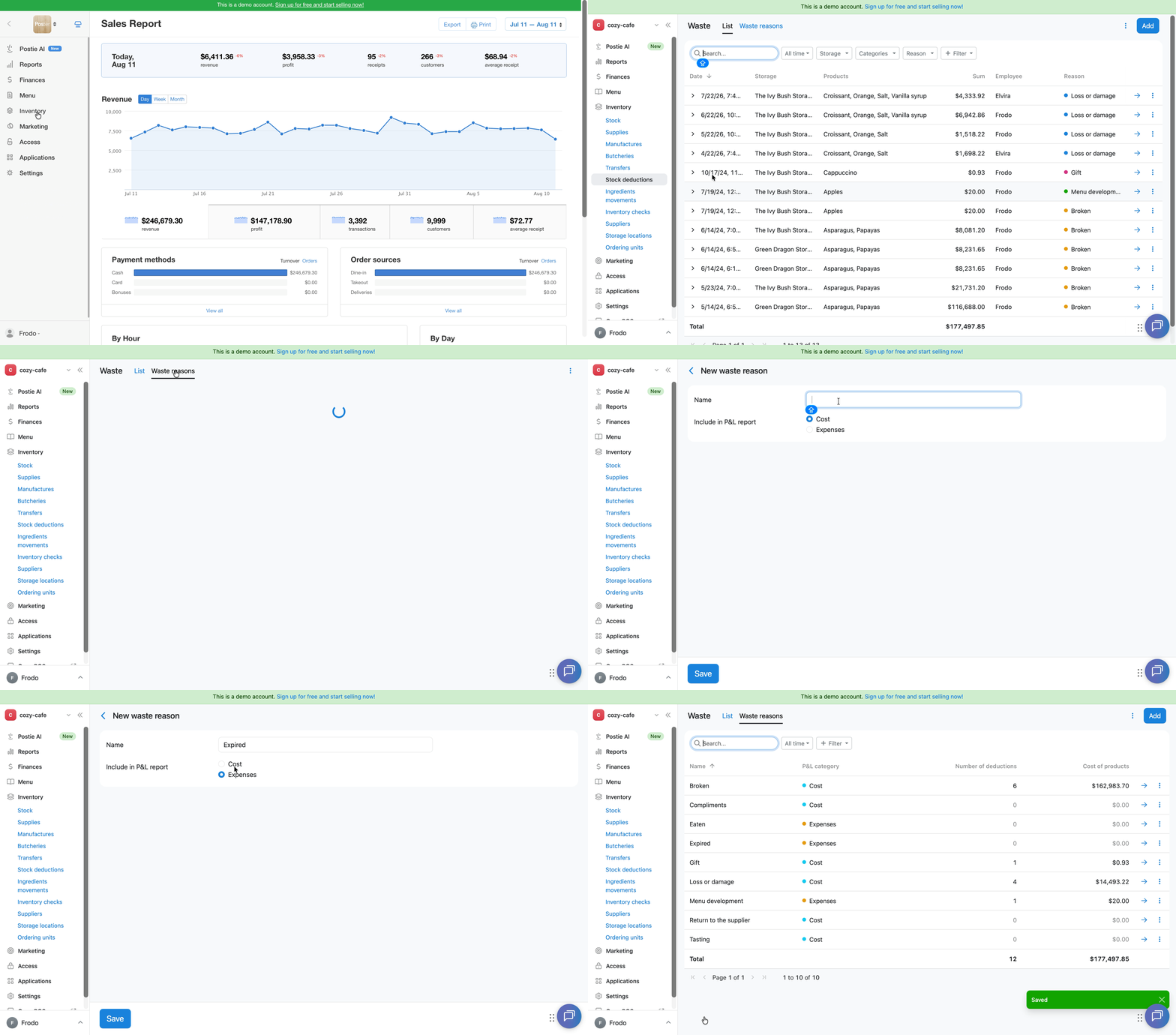
💡 By default, all manual stock deductions are accounted for in the Cost section of the P&L report.
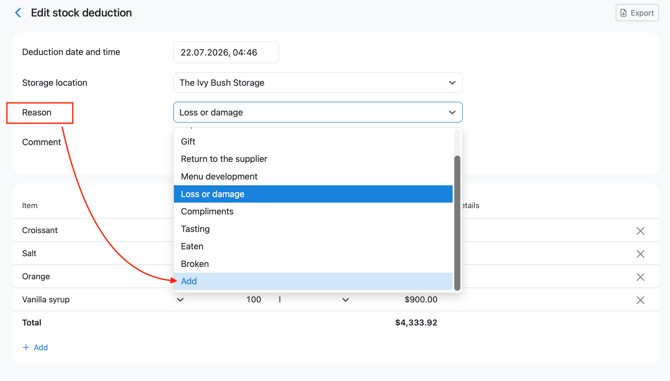
You can also create a reason directly while filling out a stock deduction: click Add in the Reason field.
How to edit a waste reason
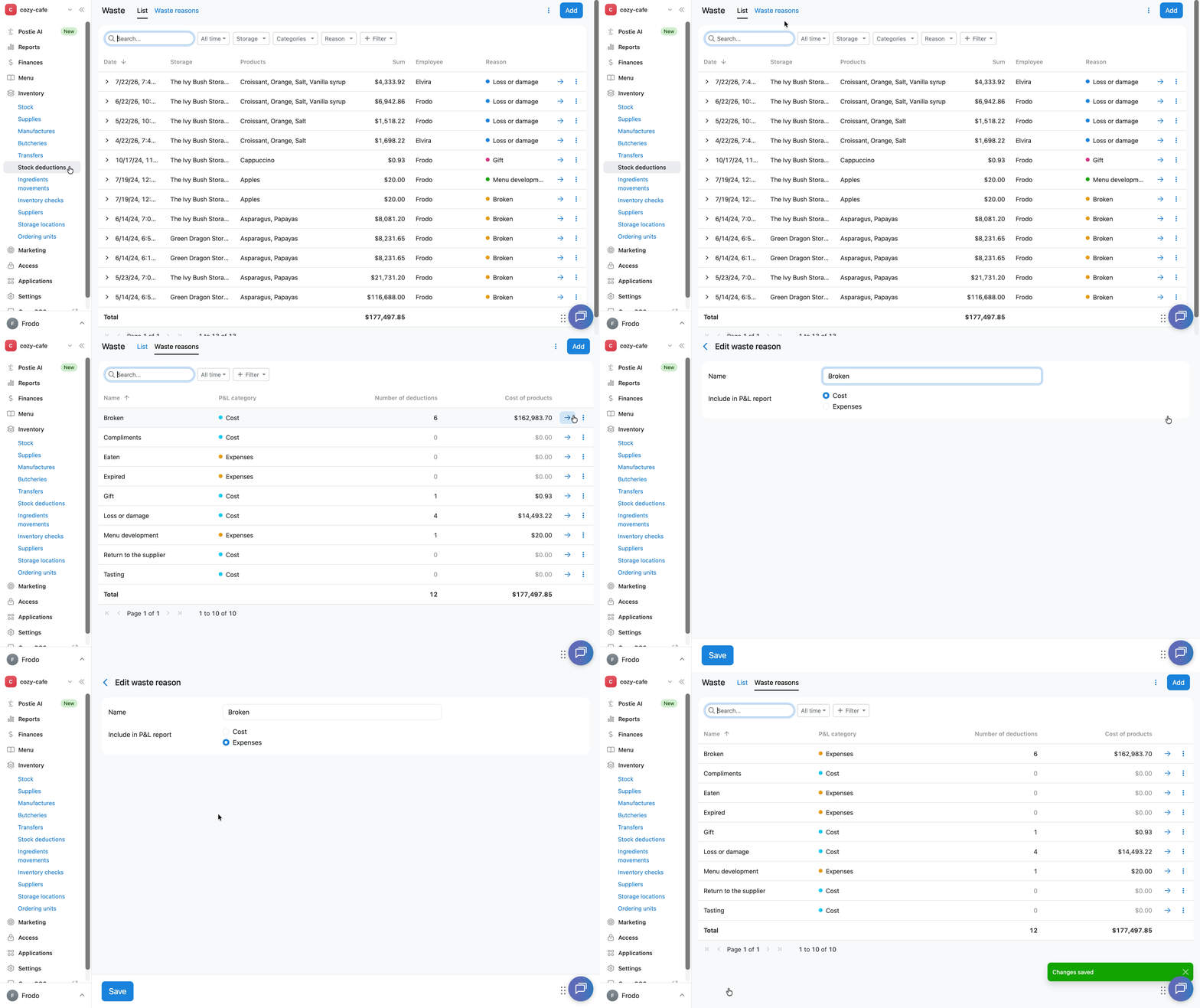
- Open Inventory → Stock deductions in the management console.
- Go to the Waste reasons section.
- Click → next to the required reason.
- Change the reason name or select Cost or Expenses in the Include in P&L report field.
- Click Save.
How to delete a waste reason
- Open Inventory → Stock deductions in the management console.
- Go to the Waste reasons section.
- Click ︙ next to the required reason.
- Select Delete.
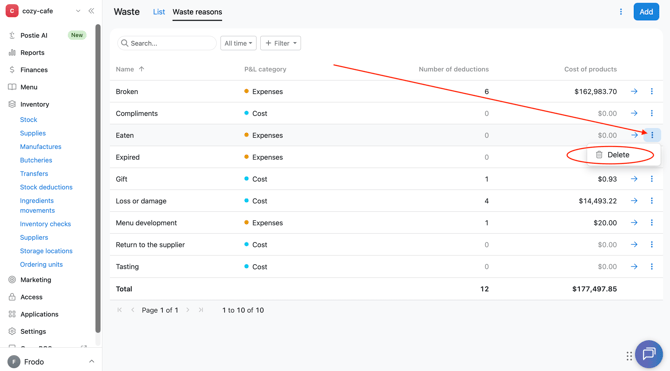
💡 You won’t be able to restore a deleted stock deduction reason.
Color indicators for reasons
Each stock deduction reason is automatically assigned one of 6 colors. The system selects the color randomly, so you cannot change it manually.
Color indicators help you quickly find stock deductions with a specific reason in the list.