
How to edit a stock deduction
- Open Inventory → Stock deductions in the management console.
- Click the → button next to the required stock deduction.
- Make the required changes. When editing, you can:
— delete or change a deducted item;
— change the quantity;
— change the stock deduction reason;
— change the storage;
— change the stock deduction date and time;
— edit the comment. - Click Save.
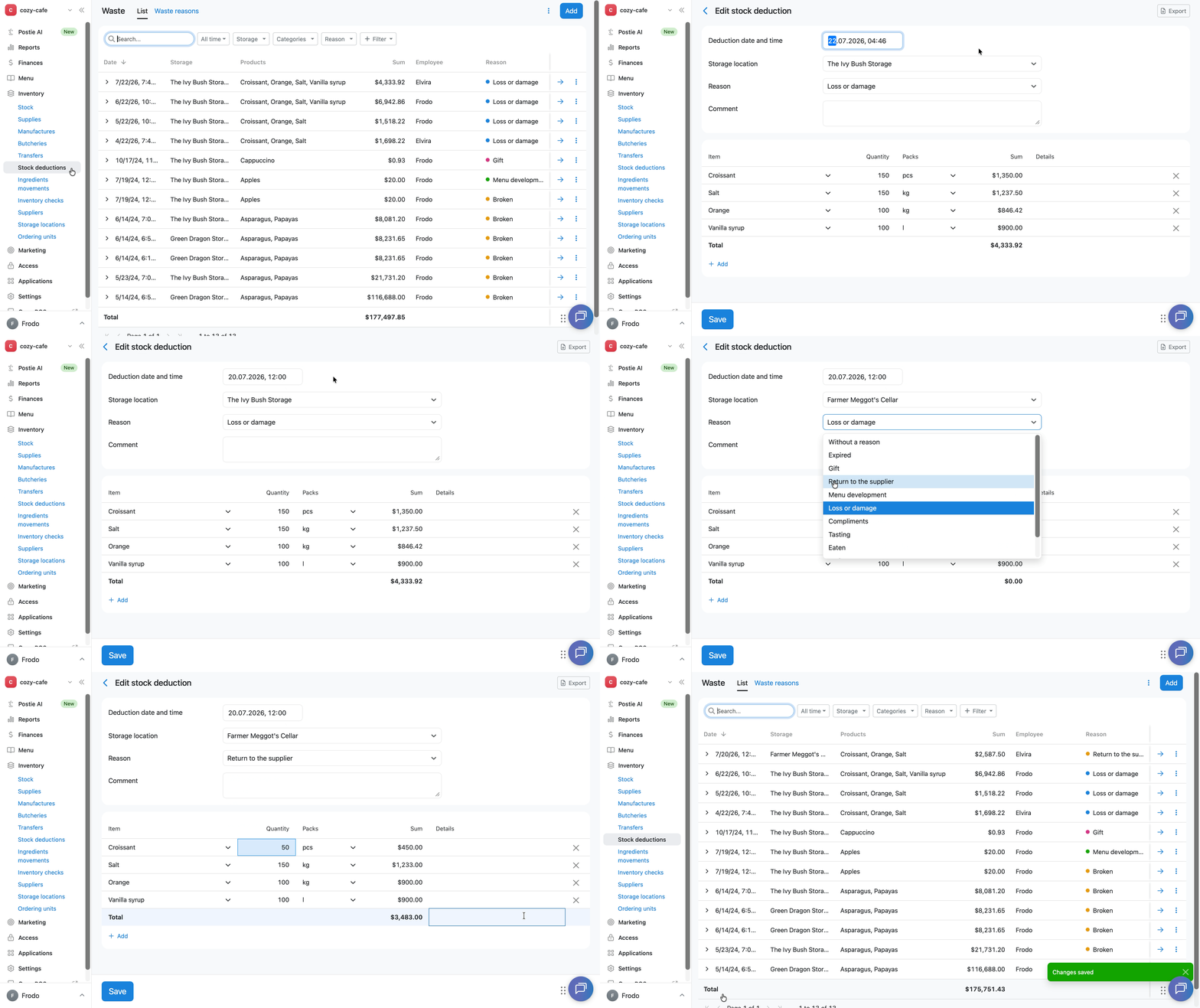
☝️ You can change the stock deduction date only to a date within the open inventory period. If you select a date before the last inventory check for this storage, the error message «Check the entered values and try again» will appear.
How to view stock deduction details
To see which products and ingredients were deducted and in what quantities:
- Open Inventory → Stock deductions in the management console.
- Click the > button to the left of the date of the required stock deduction.
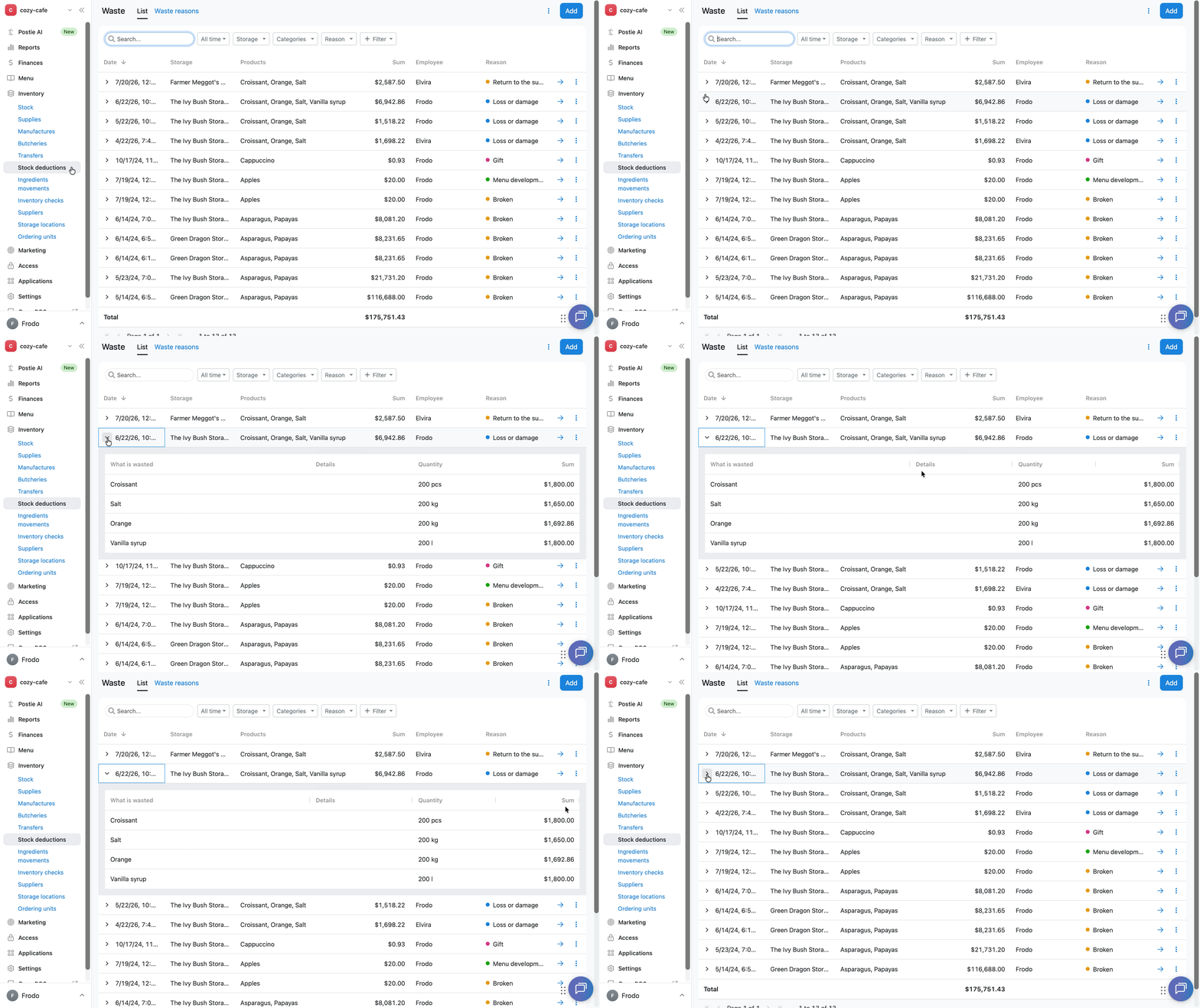
The list of deducted items and their quantities will expand below the stock deduction row.
How to copy a stock deduction
To create a new stock deduction based on an existing one:
- Open Inventory → Stock deductions in the management console.
- Click ︙ next to the required stock deduction.
- Select Copy.
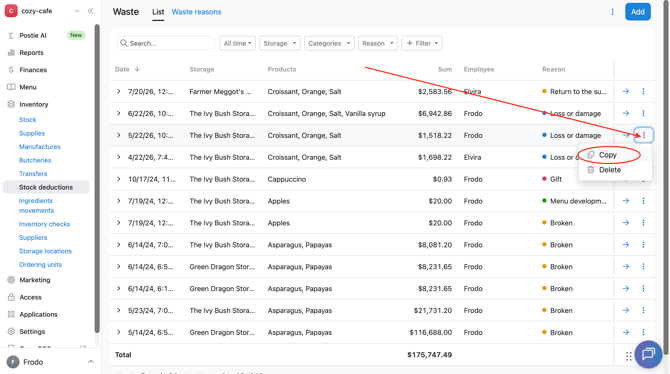
Poster will create a new stock deduction with the same products and quantities. Edit the date, storage, or reason if needed.
How to delete a stock deduction
- Open Inventory → Stock deductions in the management console.
- Click ︙ next to the required stock deduction.
- Select Delete.
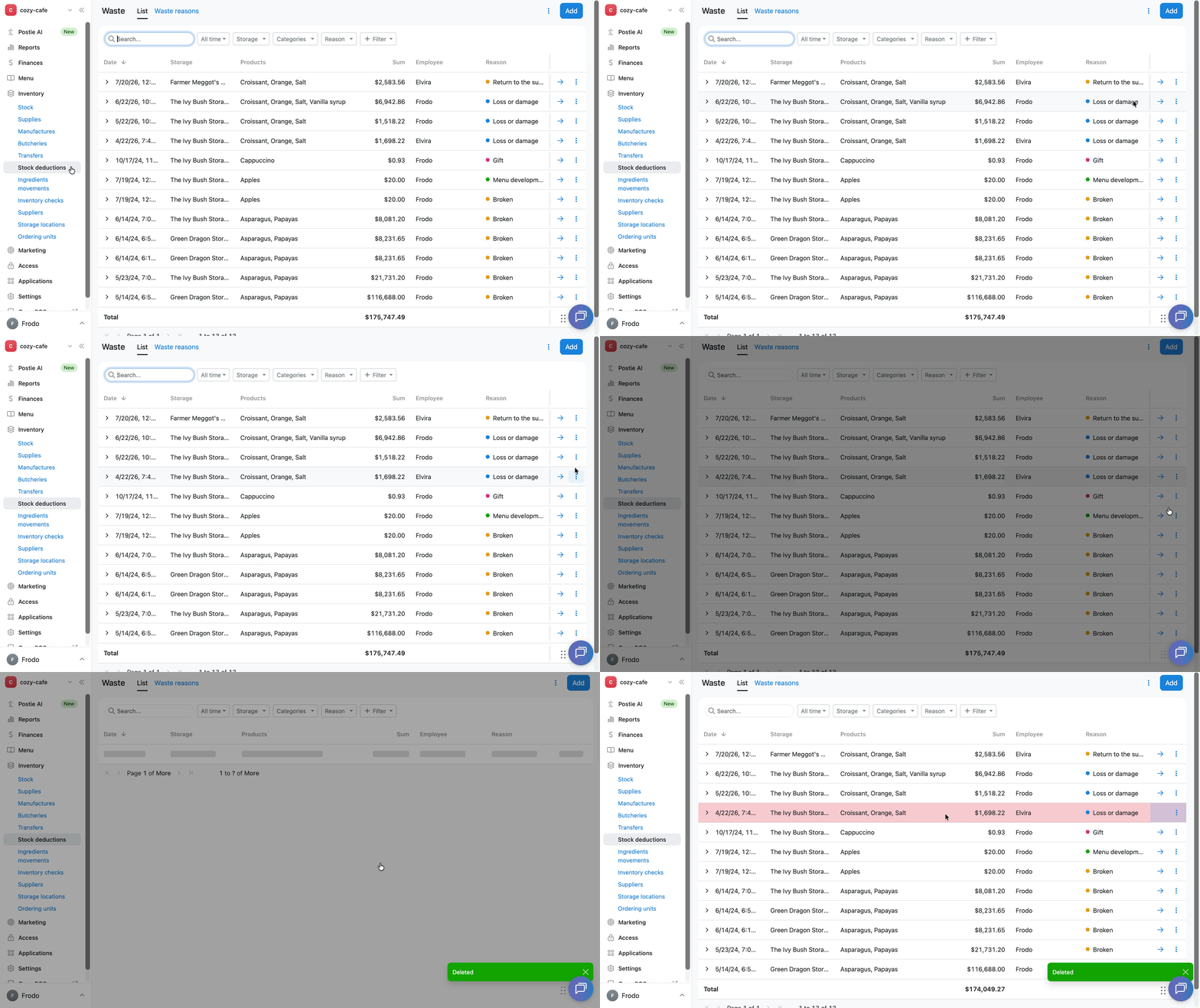
The deleted stock deduction will remain in the list and be highlighted in red, but it will no longer affect stock levels.
☝️ You cannot permanently remove a stock deduction from the general list of stock deductions.
How to restore a deleted stock deduction
If you deleted a stock deduction by mistake:
- Open Inventory → Stock deductions in the management console.
- Click ︙ next to the deleted stock deduction.
- Select Restore.
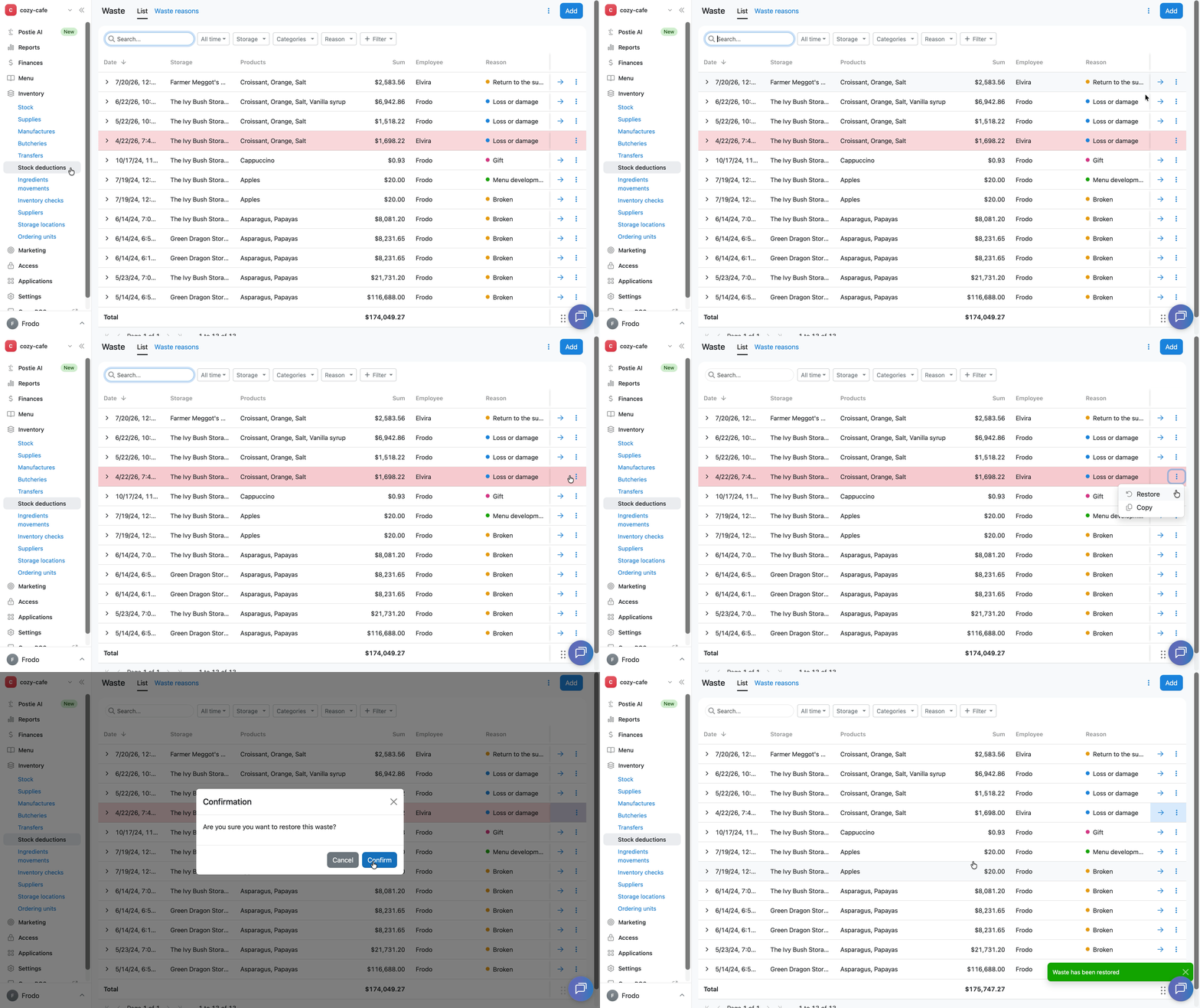
After restoring the stock deduction, its items will affect stock levels again, just as they did before deletion. The deducted quantities will be included in the stock calculation again.