
Connect the Out of stock list to your register to quickly create a list of dishes you can’t prepare today.
💡 Out of stock list by Poster is free to use.
How to connect Out of stock list to Poster
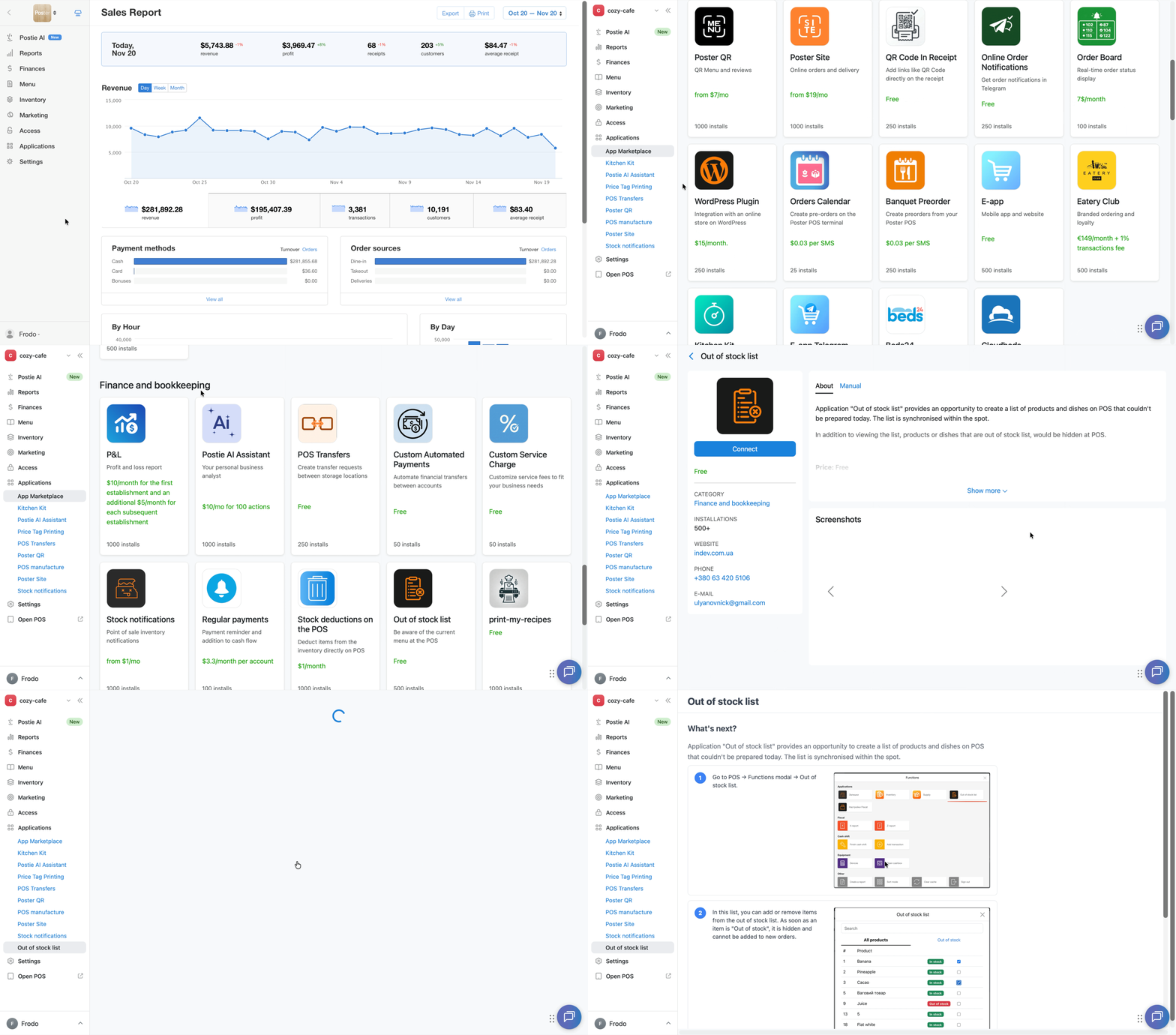
- In the Poster management console, go to Applications → App Marketplace.
- Select Out of stock list and click Connect.
- Click Grant access to your management console data.
How to add dishes to Out of stock list on the register
If you run out of ingredients, add the dishes that contain them to the stop list:
- Open the Poster app.
- Tap ≡ in the top-right corner and select Out of stock list in the Apps section.
- Select the dishes you can’t prepare today from the list.
💡 Use quick search to find dishes faster. - Click Add to list.
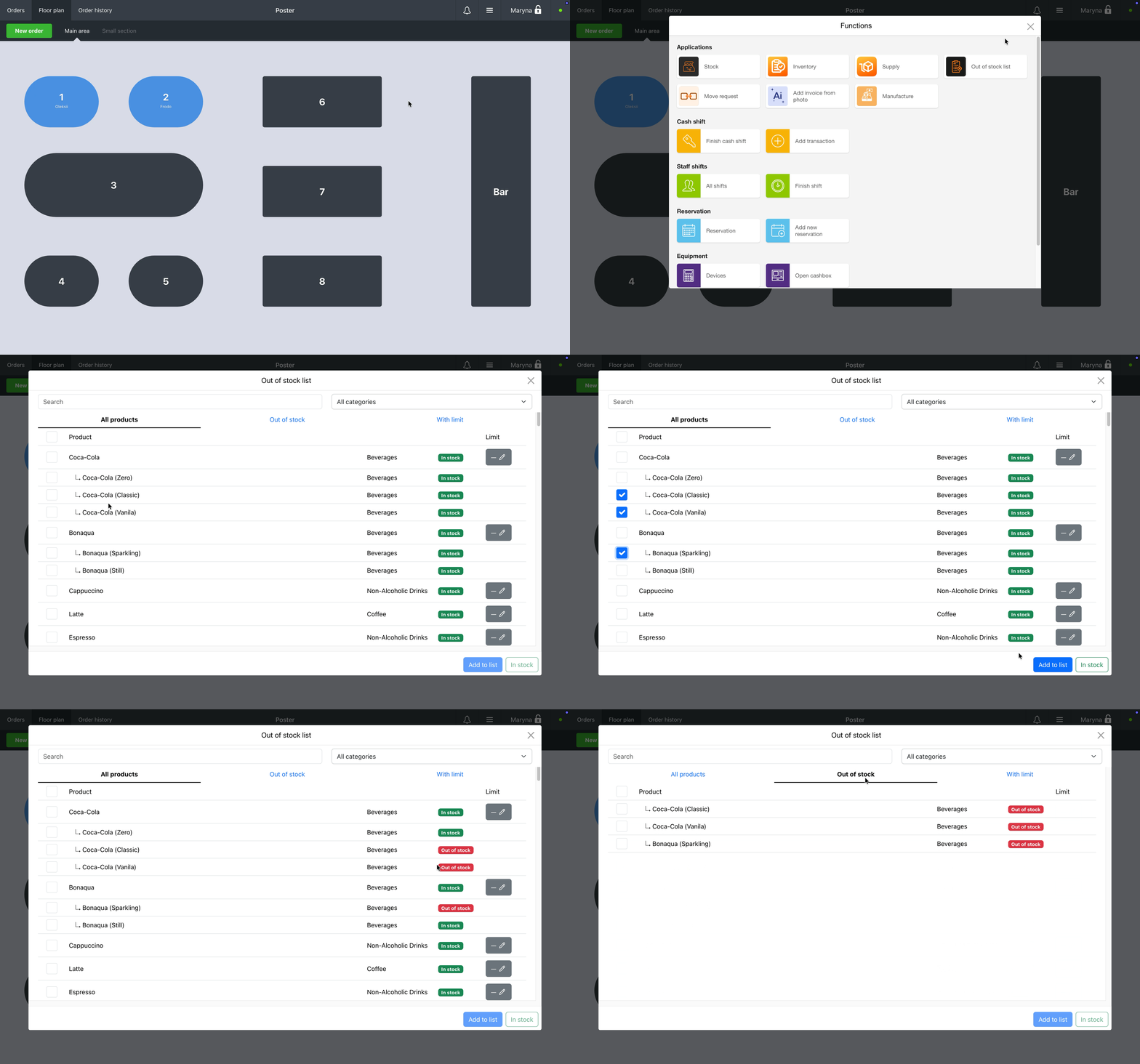
After that, cashiers and waiters won’t be able to add these dishes to orders at any register in the location.
How to remove an item from the stop list
To make an item available for orders again, change its status from Out of stock to In stock in the Out of stock list in the register app. Cashiers and waiters will then be able to add it to orders again.
- Open the Poster POS app.
- Tap ≡ in the top-right corner and select Out of stock list in the Apps section.
- Go to the Out of stock tab. You'll see a list of items that are currently unavailable for sale.
- Check the boxes next to the items that are available for sale again.
💡 Use quick search to find items faster. - Tap In stock. The items will disappear from the Out of stock tab and become available for orders again.
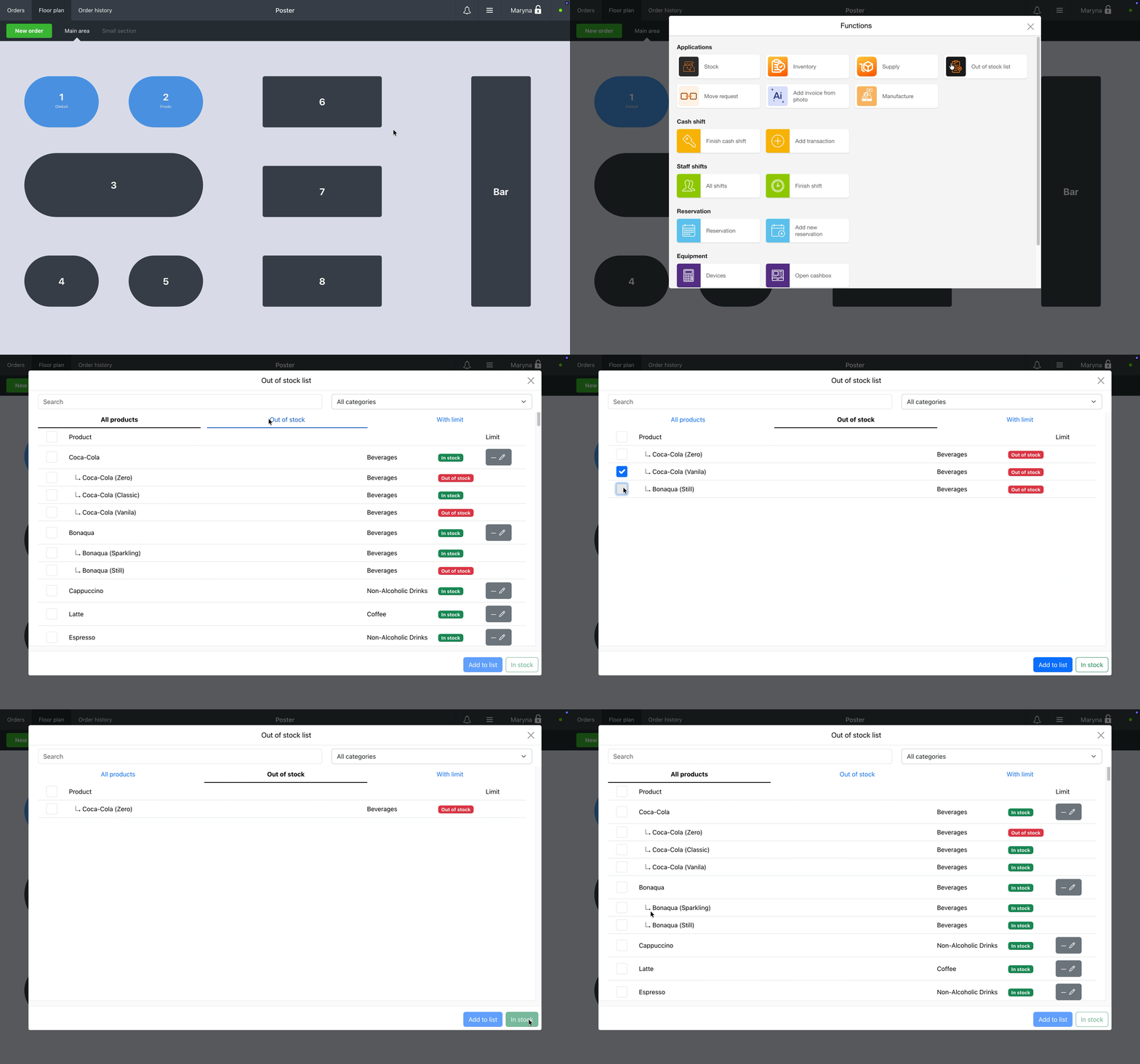
Check the Out of stock tab regularly to keep track of items waiting for ingredients and update their status as soon as they're available again.
Sales limits for dishes
Set sales limits for individual dishes in the register app:
- Open the Out of stock list app.
- Tap ✏️ next to the dishes you want to set limits for.
- Enter the quantity and save your changes.
Once sales reach the set limit, the dish will automatically be added to the stop list. If a cashier tries to sell more than the allowed quantity, they’ll receive a notification.
Track your product expenses to plan your menu and purchases and avoid unnecessary losses. The Postie AI chat in the management console can help with this. Just type what you want to know, for example: «Analyze write-offs for the last month and show me the 5 products written off most often, with reasons».
Postie will prepare a report, identify products you should buy in smaller quantities, and find dishes with high food cost. This way, you can adjust your purchase volumes in time, review dish prices or recipes, run out of needed ingredients less often, and avoid putting dishes on the stop list.