
Before starting your operation, create financial accounts in Finances → Accounts. Bind them to your location in Access → Locations to receive automatic income transactions in Finances → Transactions and Finances → Cashflow after the cash shift closure.
Poster has 3 default accounts to manage finances:
- cash account receives all the revenue from receipts closed by cash. Transactions added at the POS are also displayed there.
- bank account receives all the revenue from receipts closed by card.
- safe drop account is a secure place where cash can be stored overnight or when it is not being actively used.
All of these accounts are linked to your location. Cash, bank revenue, and safe drops will be automatically enrolled to these accounts after cash shifts are closed.
Create an account in Finances → Accounts:
- Go to Finances → Accounts in the management console.
- Click Add.
- Enter account name.
- Choose currency and the account type: bank account, bank card, or cash.
- Enter the beginning balance of at the moment.
- Click Save.

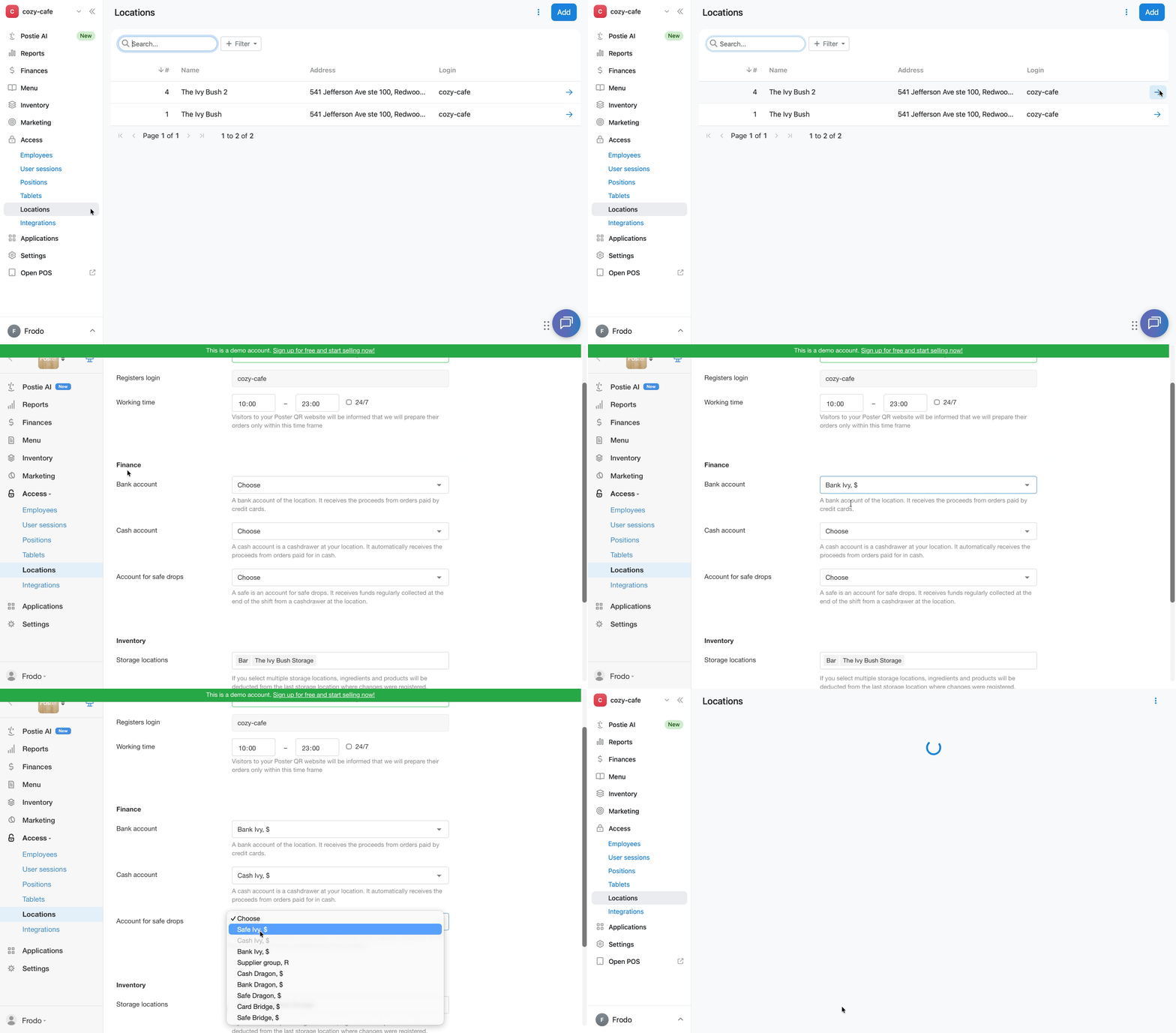
Bind accounts to your locations in Access → Locations
Link your accounts to the location in order to receive automatic income transactions after the cash shift closure:
- Go to Access → Locations
- Click → next to a needed location
- Match your bank account, cash account, and your account for safe drops in the Finance section.
How to edit a financial account
- Open Finances → Accounts in the management console.
- Next to the account where you want to change the initial balance, currency, name, or type, click Edit.
- Click Save.
How to delete a financial account
- Open Finances → Accounts in the management console.
- Next to the account you want to delete, click • • •.
- Click Delete.
☝️ If you delete an account, all transactions associated with it will be moved to the trash.
How to restore a deleted account
Restore an invoice from the trash if you deleted it by mistake:
- Open Finance → Accounts in the management console.
- Click Trash in the upper-right corner.
- Find the required invoice and select Reсover.
💡 You can restore an account together with its transactions within 30 days of deletion.
Feel free to contact our customer support if you have any questions or concerns. We're available in chat @joinposter.com and email contact@joinposter.com